# Employee Enrollment
The **Employee Enrollment** page tracks adoption of the platform across the organization. Open it from **Observe > Employee Enrollment** in the dashboard.
## Access requirements
Viewing this page requires the `org:admin` scope. Access is included in the default [Admin role](/docs/ai-control-plane/org-admin/roles-and-permissions) but not the Member role; the nav entry stays visible to Members, but opening the page shows an access-restricted notice.
## What the page shows
Metric cards at the top summarize the organization for the selected date range (30 days by default): **Employees** (organization members), **Enrolled** (platform activity present), **Not Enrolled** (no platform activity found), and **Token Count** with the enrollment percentage.
Below the cards, the member table lists each employee with their role, enrollment status, device agent status, linked AI accounts, token count, and last activity. Search by name or email, and filter by date range, **Enrollment status**, **Account type**, **Role**, and **User**. The table sorts not-enrolled members first so gaps in coverage surface at the top.
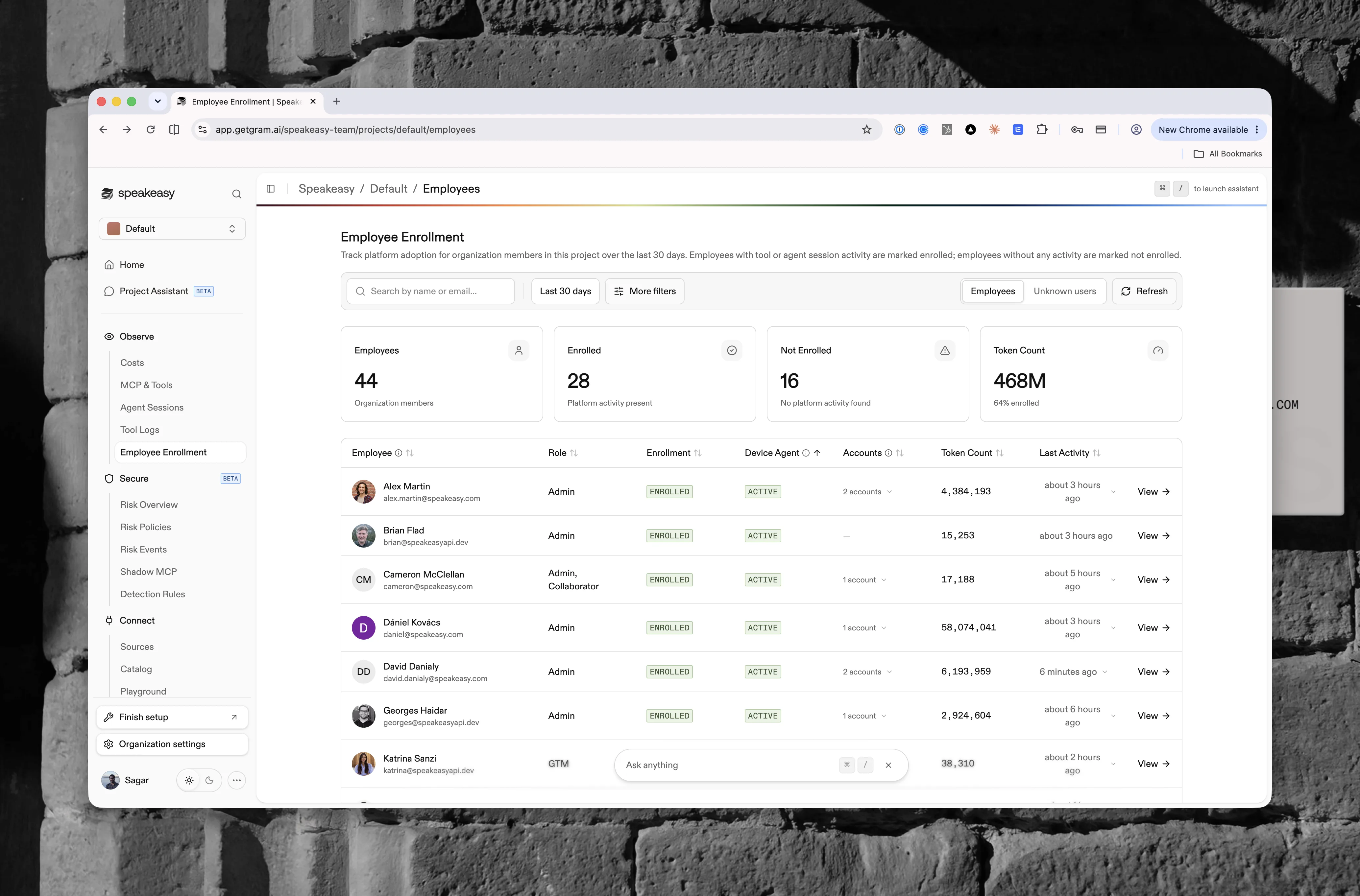
A toggle switches between the **Employees** view (activity attributed to known organization members) and the **Unknown users** view (activity that couldn't be matched to a member). Unknown users always show as not enrolled, and the role filter doesn't apply to them.
The **How enrollment works** explainer at the bottom of the page describes how members are counted, with a **Set up hooks** button to install the observability plugin.
## Enrollment states
Enrollment answers one question per employee: has any platform activity been recorded for them in the selected date range?
| Status | Meaning |
| --- | --- |
| Enrolled | Tool or agent session activity in the selected range. Telemetry is matched to the member's platform account by member ID, falling back to email. |
| Not Enrolled | No activity found for the employee in the selected range. |
Enrollment is range-dependent. An employee who was active last quarter but idle this month shows as not enrolled when the range is set to the last 30 days.
Enrollment is inferred by matching the email reported by each AI coding tool to the member's platform account, so members without a platform account won't appear as enrolled until they sign up or directory sync is configured.
When the device agent is enabled for the organization, a separate **Device Agent** column reports whether the Speakeasy device agent on each member's machine has checked in recently. This is a distinct signal from enrollment:
| Status | Meaning |
| --- | --- |
| Active | The agent synced within the last 5 minutes. |
| Stale | The agent has synced before, but not in the last 5 minutes. |
| Not Enrolled | No agent activity has ever been seen for that email. |
Hover over the cell to see the last sync time. Device-agent status reflects whether the agent has polled recently for the member's email, not whether their AI tools report telemetry.
## Personal and team accounts
Each employee can be linked to multiple AI provider accounts (Claude, Codex, or Cursor), and each account is classified as team or personal. A team account is usage from a shared AI plan provisioned by the organization's enterprise agreement. A personal account is usage from an individual AI account, such as Claude Max, signed in on a company device.
The platform classifies accounts automatically from telemetry:
- Sessions that use company credentials (an API key, a gateway or proxy, Bedrock, or Vertex) carry no provider account id and are classified as team.
- A provider organization already used by two or more distinct employees is treated as the company's enterprise org, so every account under it is team.
- Otherwise, an account whose email resolves to an organization member is team, and an unresolved or missing email means personal.
- A work email under a solo provider org is reclassified as personal when the same employee also appears under a shared enterprise org, which catches personal accounts signed in with a work email.
Personal accounts are still attributed to the right employee. When a personal account is used on a device already associated with an employee through their work-email sessions, the activity inherits that employee without the account becoming a team account. The account's own email (for example, a personal Gmail on Claude Max) is tracked separately from the employee's work email, so both appear in telemetry.
In the member table, only personal accounts show a badge — an amber Personal pill. Team is the implied default and shows no badge there, though the employee detail's **AI Accounts** card labels both: Team and Personal per account. The **Account type** filter matches employees holding at least one account of the selected type, so an employee with both account types appears under either filter. Server-side, the team filter also includes unclassified activity.
Linked accounts appear in a few places:
- The **Accounts** column on the list shows an account count that opens a **Linked accounts** popover listing each account's email, provider, and type. Accounts are linked automatically from tool activity, so the column stays blank until an employee is seen using a recognized account. Sorting puts employees with personal accounts first.
- The **Last Activity** column identifies the account that produced the latest activity when it's known, via a **Most recent account** popover.
- The employee detail page has an **AI Accounts** card listing every linked account with a total and personal count.
## Employee detail
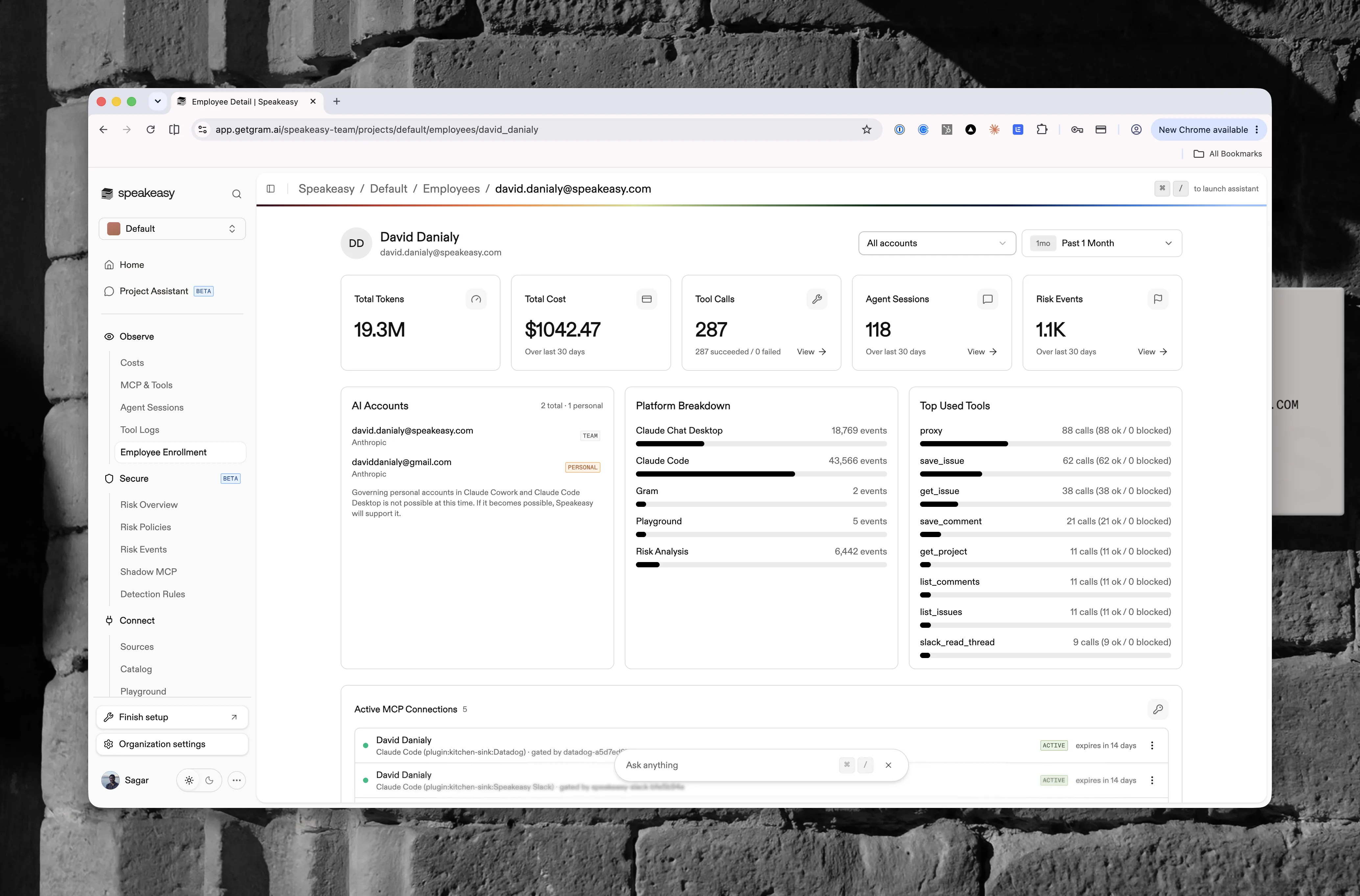
Selecting an employee opens their individual usage profile for the selected time range:
- Metric cards for total tokens, total cost, tool calls (linking to [Tool Logs](/docs/ai-control-plane/observe/tool-logs) filtered to that user), agent sessions (linking to the [Agent Sessions](/docs/ai-control-plane/observe/agent-sessions) page filtered to that user), and risk events
- The **AI Accounts** card, plus **Platform Breakdown** and **Top Used Tools** breakdowns (each tool showing successful and blocked call counts)
- An **Active MCP Connections** section listing live sessions with their expiry, each of which can be revoked
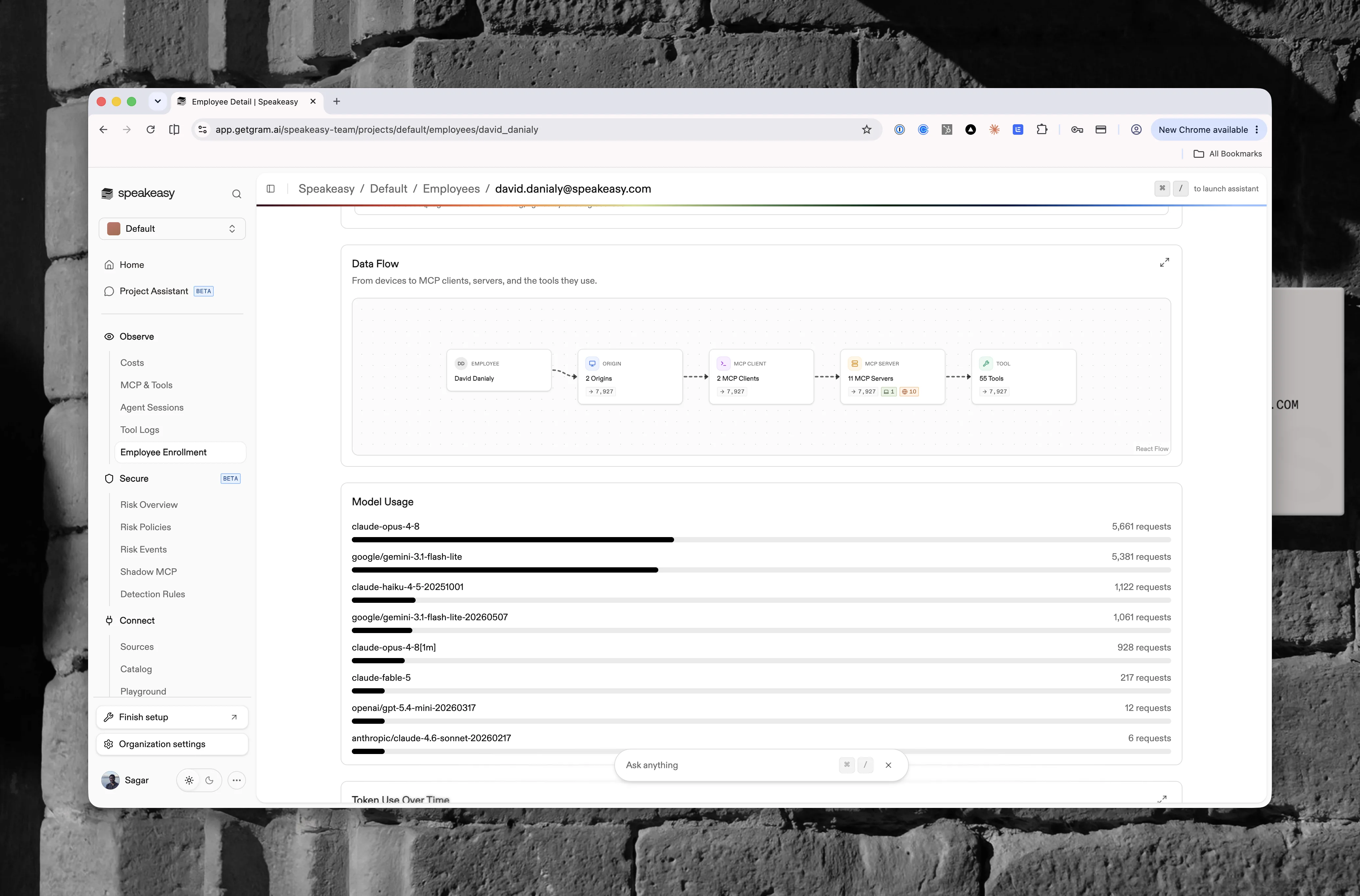
Further down, the page traces how the employee's activity flows and what models it uses:
- A **Data Flow** graph tracing activity from the employee's devices through MCP clients and servers to the tools they call
- A **Model Usage** breakdown of requests per model
- A **Token Use Over Time** chart; drag-select a region to zoom the page's time range
An account scope selector in the header defaults to **All accounts**. Picking a single account re-scopes every metric and chart on the page to that account, which makes it possible to compare what an employee does on the team plan against what flows through a personal account.