# Custom domain
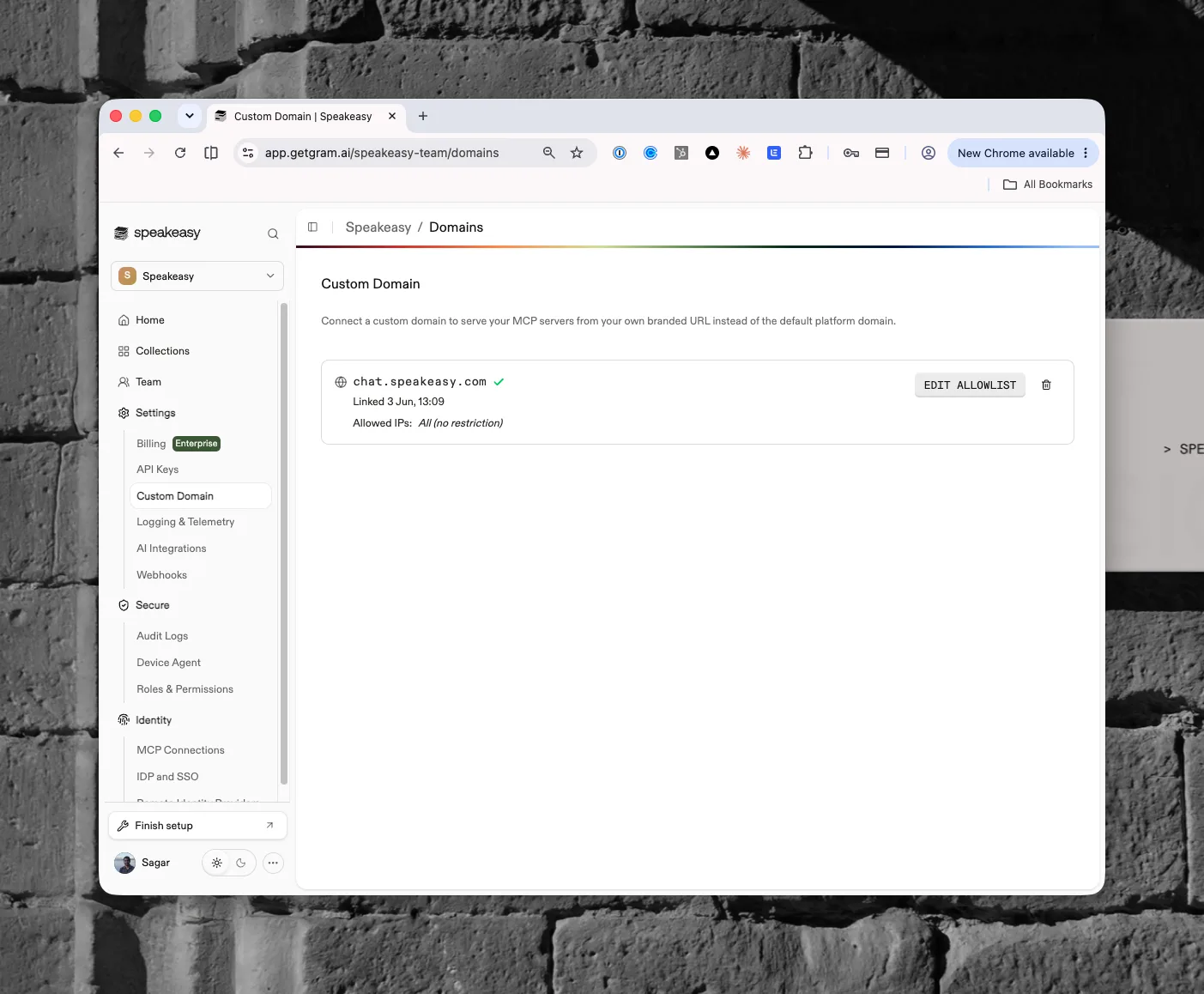
The **Custom Domain** page connects one domain to the organization so MCP servers are served from a branded URL instead of the platform default. Open it from **Organization settings > Custom Domain** in the dashboard.
Adding a custom domain requires an enterprise plan. Organizations on the base tier see a prompt to request the feature.
## Access requirements
Viewing the page requires the `org:read` scope, so both default [Admin and Member roles](/docs/ai-control-plane/org-admin/roles-and-permissions) can see it. Connecting, editing, reverifying, or deleting a domain requires the `org:admin` scope, held only by the Admin role by default.
## Domain card
Each organization can link one custom domain. The card shows the domain name, a status icon indicating whether the domain is being verified, verified and active, or failed verification, and a "Linked" line with the date the domain was added. An Allowed IPs row shows either "All (no restriction)" or one badge per allowed IP address or CIDR range.
## Connecting a domain
Click **Connect a Custom Domain** to open a three-step dialog. Enter the domain, then create two DNS records at the domain provider. The first is a CNAME record pointing the domain at the platform. The second is a TXT record at `_gram.` containing a verification value. Both steps include a copy button for the required record value. An optional advanced step configures an IP allowlist before registration. Click **Register** (or **Reverify** when retrying) to submit.
Verification depends on DNS propagation, so a newly registered domain may show as being verified until the records resolve. If verification fails, click **Reverify** to run the check again.
## How network access works for MCP
The IP allowlist restricts which networks can reach the branded domain. Enforcement happens at the platform's network edge, before requests reach any MCP server: a request from an address outside the allowlist receives a 403 response and never touches the server behind it.
The restriction covers everything the custom domain serves, uniformly:
- The MCP endpoints themselves
- The OAuth authorization and token endpoints
- The OAuth discovery documents under `.well-known`
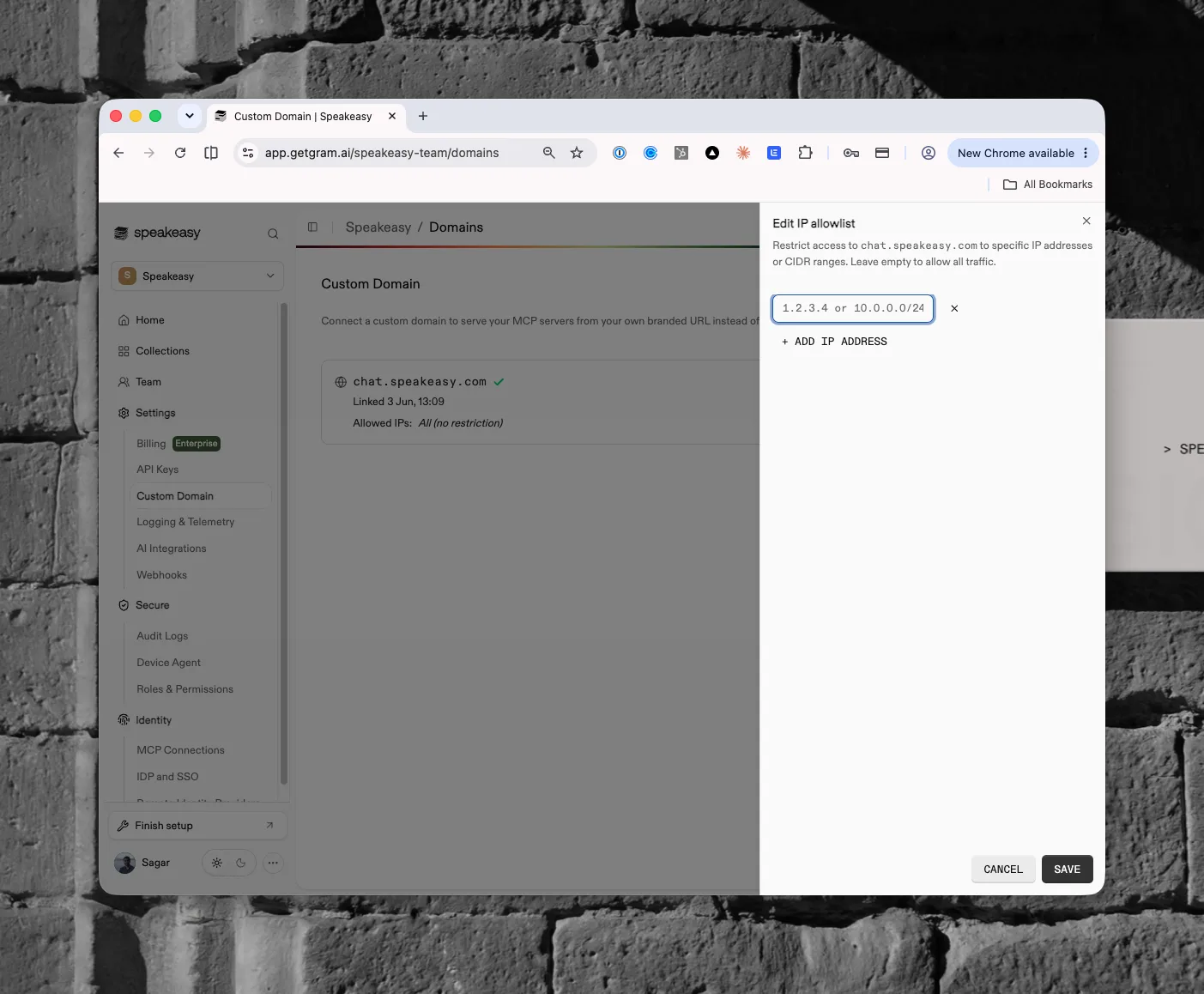
Entries are IPv4 addresses (`1.2.3.4`) or CIDR ranges (`10.0.0.0/24`); IPv6 isn't supported. There's no limit on the number of entries, and an empty allowlist allows all traffic. Saving the allowlist completes only after the network configuration updates, so changes enforce near-immediately.
The allowlist protects the branded hostname only. The same MCP servers stay reachable at their default platform URLs, which the allowlist doesn't cover — so treat it as a network perimeter for the branded domain and rely on [server authentication and visibility](/docs/ai-control-plane/distribute/mcp-servers) as the primary access control.
## Managing the allowlist
Click **Edit allowlist** to open the **Edit IP allowlist** side sheet. Each entry accepts an IPv4 address or CIDR range and is validated individually. Click **+ Add IP address** to add entries; leave the list empty to allow all traffic.
## Deleting a domain
Deleting the custom domain opens a confirmation that lists the MCP endpoints that will be deactivated. Traffic to those branded URLs stops once the domain is removed.