# Create an OpenAPI-based MCP server
The quickest way to expose an API's capabilities to LLM client applications is
by uploading an OpenAPI document to Gram. Once uploaded, Gram automatically
generates tool definitions based on the specification.
OpenAPI-sourced MCP servers are ideal for the following use cases:
- **Internal workflows**: Empower internal teams to query data and automate
processes within LLM clients. For example, querying usage data, or toggling
feature flags for customers.
- **In-App agents**: Enable chat agents within your application to interact with
your API to perform workflows on behalf of a user. For example, performing tasks
for users based on natural language requests in lieu of requiring them to
navigate through the UI.
- **Automated workflows**: Build flexible workflows within platforms such as n8n.
For example, automatically triaging GitHub issues, and creating Linear tickets
from them.
This guide walks through the steps of building an MCP server with an
OpenAPI specification. This includes:
- Adding an OpenAPI document as a source,
- Curating a toolset into an MCP server, and
- Managing MCP servers in Gram.
## Before you start
This guide assumes that you have already done the following:
- Created a [Gram account](https://app.getgram.ai),
- Created a Gram project (accomplished during onboarding), and
- Obtained an OpenAPI document for the API you want to build an MCP server for.
If you don't have an OpenAPI document to follow along with, you can follow
this guide using the [National Weather Service's OpenAPI
document](https://api.weather.gov/openapi.json). Simply copy the JSON contents
of that URL, and save it to a file on your computer.
## Step 1: Upload the OpenAPI document
First, upload your source - the OpenAPI document. If you have added no sources
to your project yet, you can do this by clicking the **Get Started** button on
the **Toolsets** page. This will kick off an onboarding workflow that guides you
through adding your first source and creating a toolset.

If your project already contains sources, you can add a new OpenAPI document by
clicking **Add API** (also from the **Toolsets** page), and following the
prompts to upload your OpenAPI document.

After uploading your OpenAPI document, Gram will parse its API operations into
tools that can be included in a toolset, and thus an MCP server.
The quality of your OpenAPI document directly impacts the quality of your MCP
server. Learn about writing better OpenAPI documents in the [OpenAPI
hub](https://www.speakeasy.com/openapi).
## Step 2: Create a toolset
OpenAPI specifications often describe dozens, or even hundreds of API
operations. However, not all of these operations may be relevant to your use
case. Furthermore, carelessly including too many tools in your MCP server can
degrade the downstream LLM client's performance. To address this, Gram allows
you to curate OpenAPI operations into focused
[toolsets](/docs/mcp/reference/concepts/toolsets), which are curated collections of tools
for a specific use cases or teams.
To create a toolset, click **Add Toolset** from the **Toolsets** page:

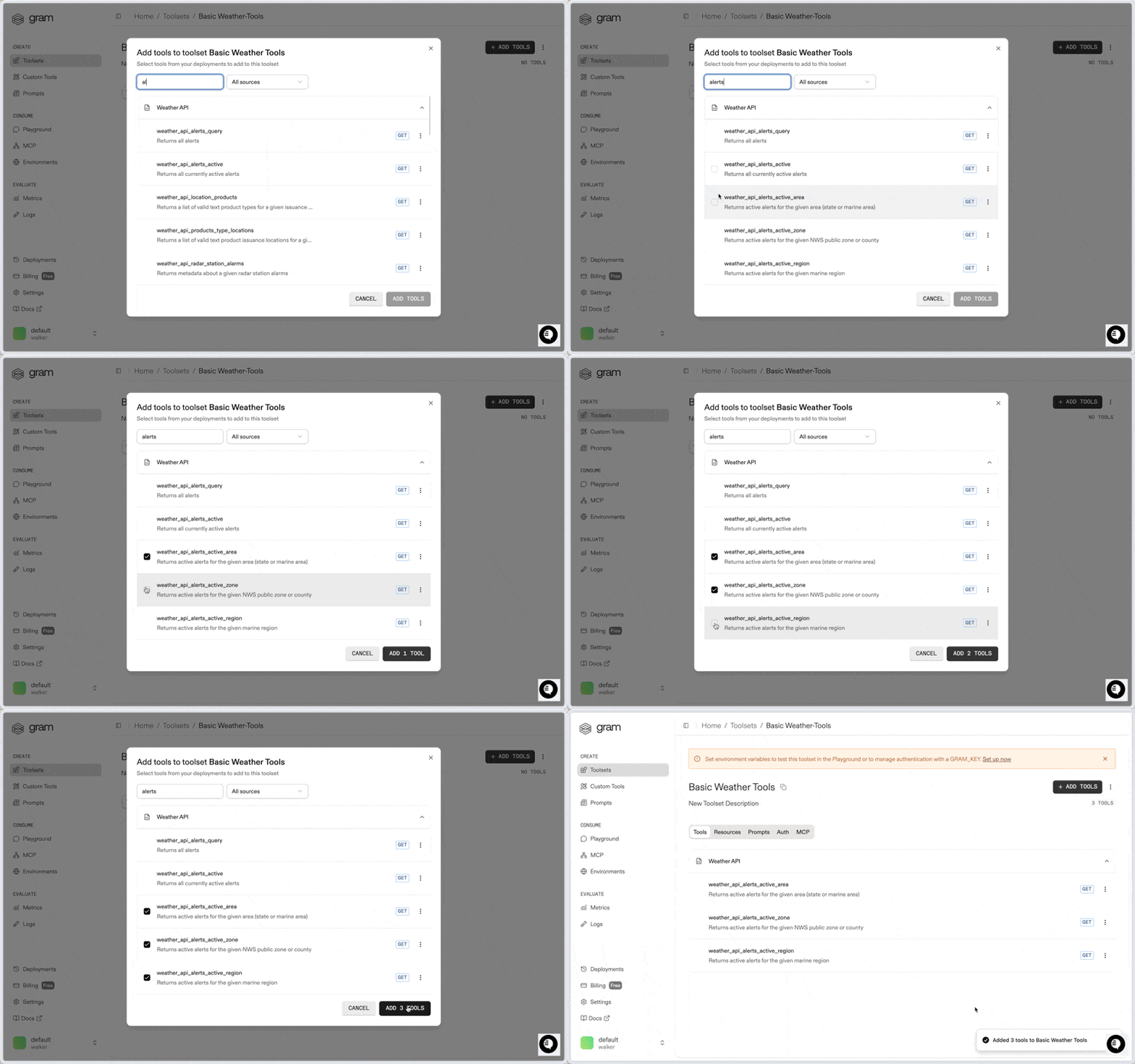
Follow the prompts to name your toolset, then click **Add Tools** to select the
OpenAPI operations you want to include. In the following example, a toolset for
very basic weather queries is being created:
## Step 3: Set environment variables
If the API you are building an MCP server for requires authentication, you will
need to set the appropriate environment variables for the toolset to be able to
authenticate requests.
Click **Environments** in the sidebar, and then **+ New Environment** or open
the **Default** environment. If you choose to create a new environment, you'll
be prompted to give it a name.

Next, click **Fill For Toolset**, then select the toolset you created in Step 2.
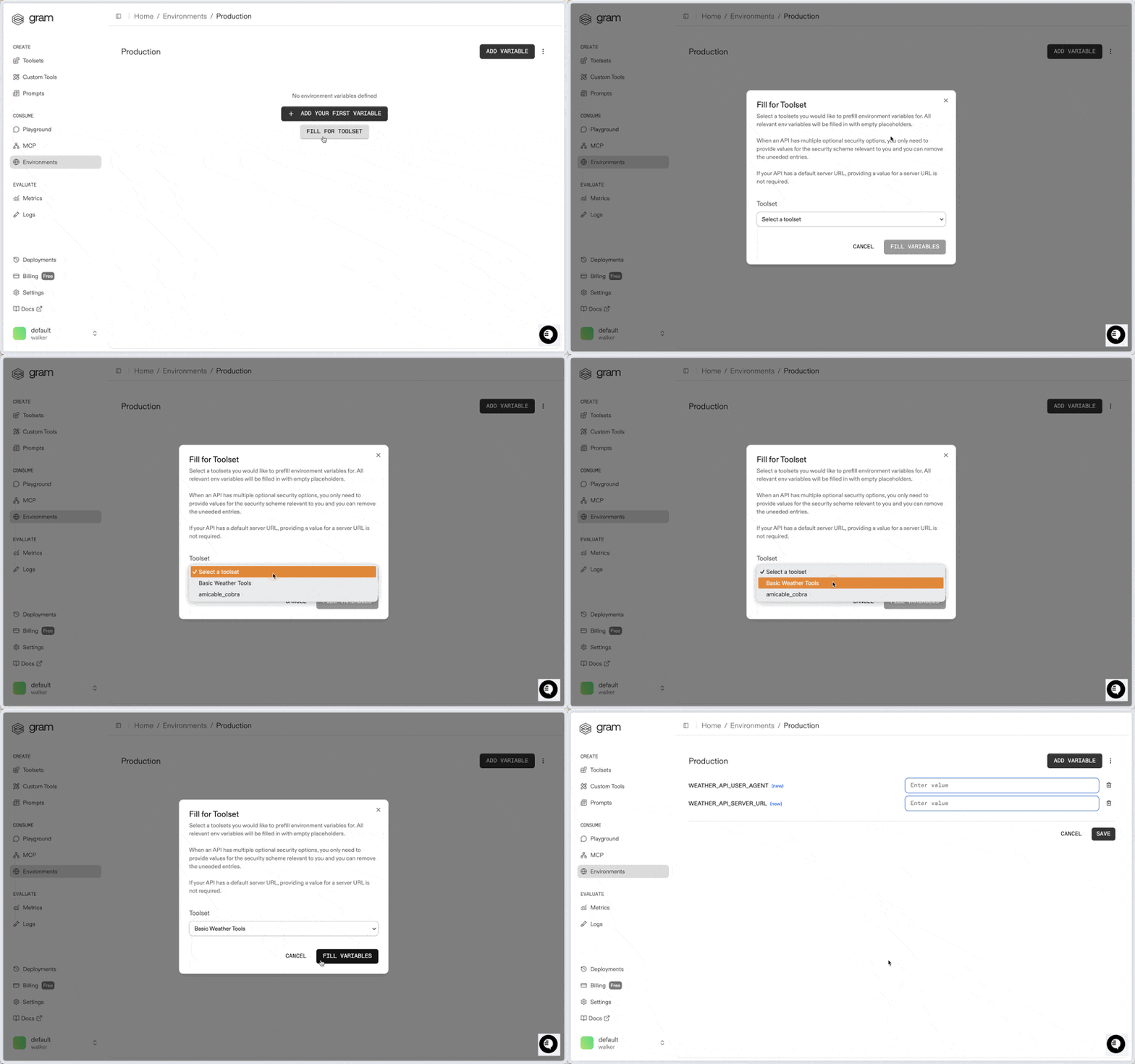
Fill in the required environment variables, then click **Save**.
Environment variables will be named according to the name you gave the API
Source in Step 1.
While the **Fill For Toolset** feature helps you get started quickly, keep in
mind that not all of the generated variables are necessarily required. For
example, the above example's Weather API _does not_ require
`WEATHER_API_SERVER_URL` since it is defined in the OpenAPI document.
Now you can interact with your MCP server in real time in the **Gram Playground**!

## Step 4: Ship 🚢
Now that a toolset has been curated, and an environment has been configured,
your MCP server is ready to ship!
Open the MCP page, and open your MCP server by clicking it.

Click **Enable** to allow the MCP server to handle requests.

Now that the MCP server is set up, you can interact with it using an MCP client
like Claude!
The MCP server you just created can be accessed using any MCP client, such as
Claude or Cursor. Find installation instructions for various clients in the
MCP Server's installation page, which is linked under the **MCP Installation**
section of the MCP Server's Details page.
### Configuring Visibility
To configure your MCP server as public or private, go to **MCP** in the
sidebar and select **MCP Config** for your hosted server.
- A **public server** can be instantly used by any of your customers, simply by
copying the configuration provided into an MCP client.

- An **authenticated server** requires a Gram API key in the project
configuration, making it suitable for internal use cases where access needs to
be restricted to authorized users.

### Connect your MCP server to AI agents
In addition to MCP Clients like Claude, your customers can automate interactions
with your MCP server using AI agents. The Gram Python and TypeScript SDKs
support OpenAI Agents, LangChain, and other function-based tooling, and Gram
provides sample code to help you create agents within your existing framework.
Here is an example Python snippet that shows how to integrate your MCP server
with LangChain:
```python
import asyncio
import os
from langchain import hub
from langchain_openai import ChatOpenAI
from langchain.agents import AgentExecutor, create_openai_functions_agent
from gram_ai.langchain import GramLangchain
key = ""
gram = GramLangchain(api_key=key)
llm = ChatOpenAI(
model="gpt-4",
temperature=0,
openai_api_key=os.getenv("OPENAI_API_KEY")
)
tools = gram.tools(
project="default",
toolset="marketing",
environment="demo-environment",
)
prompt = hub.pull("hwchase17/openai-functions-agent")
agent = create_openai_functions_agent(llm=llm, tools=tools, prompt=prompt)
agent_executor = AgentExecutor(agent=agent, tools=tools, verbose=False)
async def main():
response = await agent_executor.ainvoke({
"input": "Can you tell me about my tools?"
})
print(response)
if __name__ == "__main__":
asyncio.run(main())
```
In the **Agents** tab in the Playground dashboard, you can build agentic
workflows by selecting a language and integration type.

## Tag tools for filtering
Native OpenAPI operation `tags` are ingested automatically and become filter tags on the generated tools:
```yaml filename="openapi.yaml" {4}
paths:
/invoices:
post:
tags: [billing, finance]
summary: Create an invoice
operationId: createInvoice
```
With [tag-based tool filtering](/docs/mcp/build/hosting/tool-filtering) enabled, MCP clients can connect to a focused subset of the server's tools by selecting one or more tags. Tags can also be overridden later with [tool variations](/docs/mcp/reference/concepts/tool-variations#tags).
## What's next?
The following resources will help you get the most out of your Gram MCP server:
- [Learn about best practices for curating toolsets.](/docs/mcp/build/toolsets/advanced-tool-curation)
- [Improve tool names and descriptions](/docs/mcp/reference/concepts/tool-variations)
- [Filter tools by tag with tag-based tool filtering.](/docs/mcp/build/hosting/tool-filtering)
- [Add tools using the Gram TypeScript Framework.](/docs/mcp/getting-started/typescript)