# What are MCP apps?

<Callout title="Governing MCP across your organization?" type="info">
  Speakeasy's [AI control plane](/product/ai-control-plane) connects, secures, and observes every agent and MCP server from one entry point — with SSO, RBAC, runtime guardrails, and a full audit trail.
</Callout>

## What are MCP apps?

MCP apps let servers deliver and render interactive HTML interfaces directly within a supported host, such as an AI chat window. Rather than sharing links to external apps, MCP apps display directly within a conversation. An MCP app calls the same server tools the agent uses and returns results without requiring the user to switch tabs, giving the benefit of convenience and context: There's no separate web app to deploy, no OAuth to reconfigure, and no copy-pasting between windows.

Consider the example of a financial developer who asks Claude Desktop to check a stock price. Rather than checking the current stock price online or sharing a stock-viewer URL, the agent renders a live lookup form in the Claude Desktop chat. The full workflow stays within the conversation.
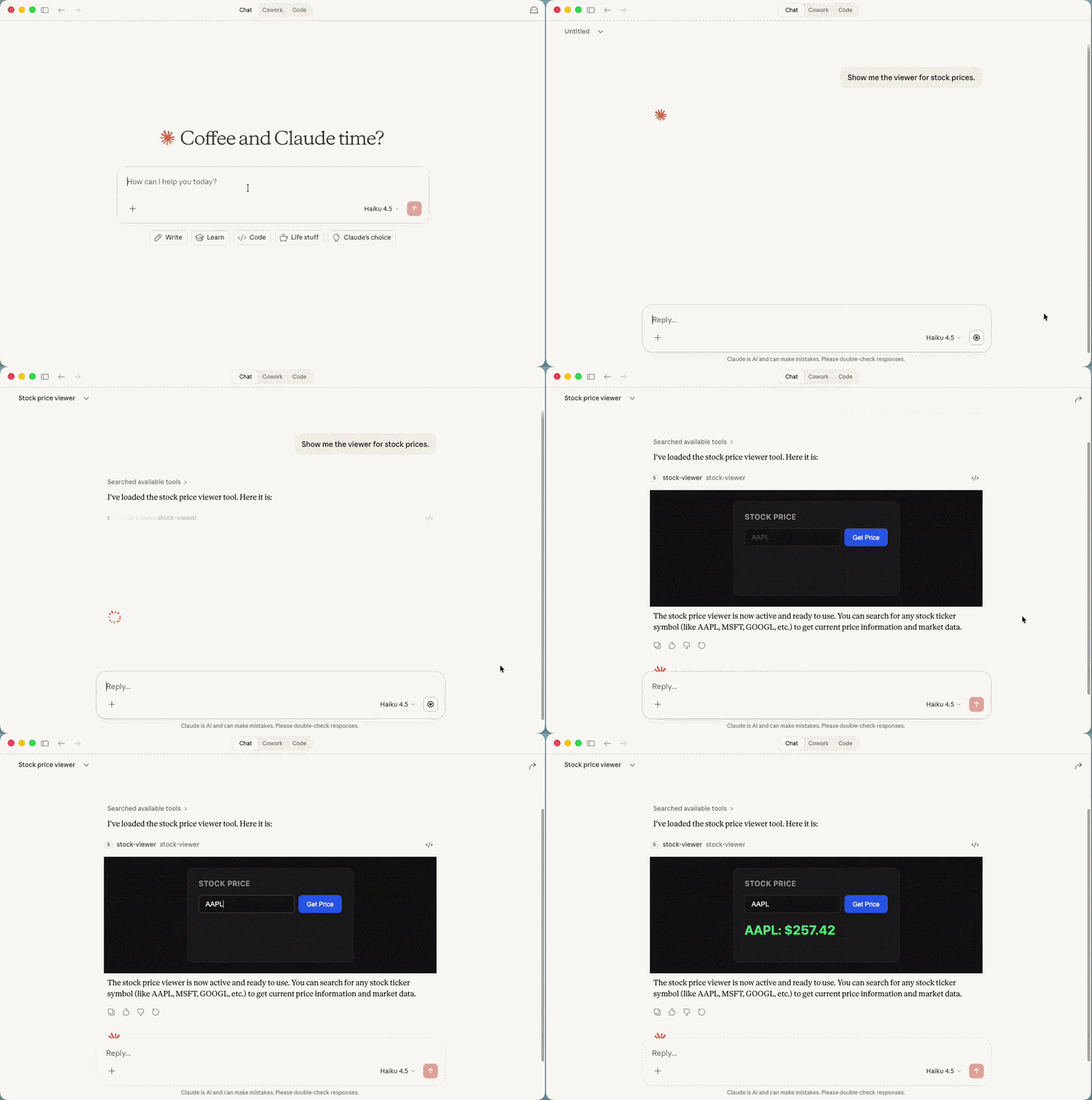
![Stock price viewer running inside Claude Desktop](/assets/mcp/core-concepts/mcp-apps-demo.gif)

## How MCP apps work

MCP apps combine both MCP tools, which execute logic, and MCP resources, which provide read-only data:

- The MCP tool acts as the entry point that triggers the interface.
- The MCP resource delivers the HTML for the host to render.

Register the tool and the resource together; otherwise, the host falls back to text with no error.

Three actors cooperate to deliver an MCP app:

- The **server** is a standard MCP server extended with UI resources and UI-enabled tools. 
- The **host** is the MCP client (Claude Desktop, VS Code with GitHub Copilot, Goose) that renders the interface and proxies all communication. In the SDK, the host represents the model context that the `App` class connects to.
- The **view** is the sandboxed inline frame (HTML `<iframe>` element) that the host renders. It communicates with the host over JSON-RPC via `postMessage`. In the SDK, the view is implemented with the `App` class from `@modelcontextprotocol/ext-apps`.

MCP apps have the following lifecycle:

1. The server registers a `ui://` resource and a tool with `_meta.ui.resourceUri` set to the resource URI. For example, the stock viewer tool definition looks like this:

   ```json
   {
     "name": "stock-viewer",
     "description": "Open a live stock price lookup form.",
     "inputSchema": { "type": "object", "properties": {}, "required": [] },
     "_meta": {
       "ui": { "resourceUri": "ui://stock-viewer/app.html" }
     }
   }
   ```

2. The host connects to the server and negotiates `io.modelcontextprotocol/ui` support during initialization.

3. A user triggers the tool. The host fetches the HTML via `resources/read` and renders it in a sandboxed iframe.

4. The view calls `app.connect()` to open the `postMessage` channel with the host.

5. The view calls server tools through the host proxy. The host forwards the call over the standard MCP transport and returns the result.

<Callout title="Note" type="info">
  The view has no direct network access to your server. All communication passes through the host via `postMessage`. A `fetch()` call targeting your server URL from inside the iframe fails, so you should use `app.callServerTool()` instead.
</Callout>

## Project setup

Before running the code to build the stock viewer MCP app, set up four configuration files. The complete source is available in the [Speakeasy MCP examples repository](https://github.com/ritza-co/speakeasy-examples/tree/mcp-apps/stock-viewer/mcp-apps/stock-viewer).

The first is a `package.json` file:

```json
{
  "name": "mcp-stock-viewer",
  "version": "1.0.0",
  "type": "module",
  "scripts": {
    "build:ui": "vite build",
    "build:server": "tsc -p tsconfig.server.json",
    "build": "npm run build:ui && npm run build:server",
    "start": "node dist/server/server.js"
  },
  "dependencies": {
    "@modelcontextprotocol/ext-apps": "^1.2.0",
    "@modelcontextprotocol/sdk": "^1.27.1",
    "cors": "^2.8.5",
    "express": "^4.21.2",
    "zod": "^3.24.0"
  },
  "devDependencies": {
    "@types/cors": "^2.8.17",
    "@types/express": "^5.0.0",
    "@types/node": "^22.0.0",
    "typescript": "^5.7.3",
    "vite": "^6.0.0",
    "vite-plugin-singlefile": "^2.3.0"
  }
}
```

The project uses two TypeScript configurations.

- `tsconfig.json` for the view (compiled by Vite):

  ```json
  {
    "compilerOptions": {
      "target": "ES2022",
      "module": "ES2022",
      "moduleResolution": "bundler",
      "strict": true,
      "lib": ["ES2022", "DOM"]
    },
    "include": ["src/app.ts"]
  }
  ```

- `tsconfig.server.json` for the MCP server (compiled by `tsc`):

  ```json
  {
    "compilerOptions": {
      "target": "ES2022",
      "module": "ES2022",
      "moduleResolution": "bundler",
      "strict": true,
      "lib": ["ES2022", "DOM"],
      "outDir": "dist/server",
      "rootDir": "src"
    },
    "include": ["src/server.ts"]
  }
  ```

Note the following two settings in `tsconfig.server.json`, which aren't immediately obvious:

- You need `moduleResolution: "bundler"` because `@modelcontextprotocol/ext-apps` references browser types without NodeNext compatibility. 
- You need to put `"DOM"` in `lib` even though the server is a Node.js process, because the `ext-apps` type declarations reference DOM globals.

The last config file is the `vite.config.ts` file:

```typescript

```

Here, the `vite-plugin-singlefile` plugin inlines all JavaScript and CSS directly into the HTML output. Without it, Vite produces a separate JS chunk that the iframe sandbox immediately blocks.

## Building an MCP app in TypeScript

Use the Alpaca API to register the stock viewer MCP app as follows:

```typescript

const server = new McpServer({ name: "stock-viewer", version: "1.0.0" });

const resourceUri = "ui://stock-viewer/app.html";
const ALPACA_KEY = process.env.ALPACA_API_KEY ?? "";
const ALPACA_SECRET = process.env.ALPACA_API_SECRET ?? "";

registerAppTool(
  server,
  "stock-viewer",
  {
    title: "Stock Viewer",
    description: "Open a live stock price lookup form.",
    inputSchema: {},
    _meta: { ui: { resourceUri } },
  },
  async () => ({
    content: [{ type: "text", text: "Stock viewer is ready." }],
  }),
);

registerAppTool(
  server,
  "get-stock-price",
  {
    title: "Get Stock Price",
    description: "Fetch the latest trade price for a stock symbol.",
    inputSchema: {
      symbol: z.string().describe("Stock ticker symbol, for example AAPL"),
    },
    _meta: { ui: { visibility: ["app"] } },
  },
  async ({ symbol }) => {
    const response = await fetch(
      `https://data.alpaca.markets/v2/stocks/${symbol}/trades/latest`,
      {
        headers: {
          "APCA-API-KEY-ID": ALPACA_KEY,
          "APCA-API-SECRET-KEY": ALPACA_SECRET,
        },
      },
    );

    if (!response.ok) {
      return {
        content: [{ type: "text", text: `No data found for ${symbol}.` }],
        isError: true,
      };
    }

    const data = (await response.json()) as { trade: { p: number } };
    const price = data.trade.p;

    return {
      content: [{ type: "text", text: `${symbol}: $${price.toFixed(2)}` }],
      structuredContent: { symbol, price },
    };
  },
);

registerAppResource(
  server,
  resourceUri,
  resourceUri,
  { mimeType: RESOURCE_MIME_TYPE },
  async () => {
    const html = await fs.readFile(
      path.join(import.meta.dirname, "..", "app.html"),
      "utf-8",
    );
    return {
      contents: [{ uri: resourceUri, mimeType: RESOURCE_MIME_TYPE, text: html }],
    };
  },
);

const app = express();
app.use(cors());
app.use(express.json());

app.post("/mcp", async (req, res) => {
  const transport = new StreamableHTTPServerTransport({
    sessionIdGenerator: undefined,
    enableJsonResponse: true,
  });
  res.on("close", () => transport.close());
  await server.connect(transport);
  await transport.handleRequest(req, res, req.body);
});

app.listen(3001, () => {
  console.log("Server running on http://localhost:3001/mcp");
});
```

In this code, the server exposes two tools: a model-visible entry tool that renders the interface, and an app-only tool that fetches live prices. The view connects to the host, accepts a ticker symbol, and displays the result.

<Callout title="Note" type="info">
  `import.meta.dirname` requires Node.js 21.2 or later. On older versions, use `new URL('.', import.meta.url).pathname` instead.
</Callout>

Next, create the HTML entry point:

```html
<!DOCTYPE html>
<html lang="en">
  <body>
    <input id="symbol" type="text" placeholder="AAPL" />
    <button id="fetch-btn">Get Price</button>
    <p id="price"></p>
    <p id="error"></p>
    <script type="module" src="/src/app.ts"></script>
  </body>
</html>
```
The HTML entry point defines the elements the view-side code references. Vite bundles it into `dist/app.html`, a single self-contained file that the resource handler serves to the host. External scripts and stylesheets are blocked by the sandbox, so everything must be in one file.

Then, create the view-side code, which connects to the host and invokes the `get-stock-price` tool when the user submits a symbol:

```typescript

const app = new App({ name: "Stock Viewer", version: "1.0.0" });

const symbolInput = document.getElementById("symbol") as HTMLInputElement;
const fetchButton = document.getElementById("fetch-btn") as HTMLButtonElement;
const priceDisplay = document.getElementById("price") as HTMLElement;
const errorDisplay = document.getElementById("error") as HTMLElement;

fetchButton.disabled = true;

app.connect().then(() => {
  fetchButton.disabled = false;
});

fetchButton.addEventListener("click", async () => {
  const symbol = symbolInput.value.trim().toUpperCase();

  if (!symbol) {
    errorDisplay.textContent = "Enter a ticker symbol.";
    return;
  }

  fetchButton.disabled = true;
  priceDisplay.textContent = "Loading...";
  errorDisplay.textContent = "";

  try {
    const result = await app.callServerTool({
      name: "get-stock-price",
      arguments: { symbol },
    });

    const structured = result.structuredContent as
      | { symbol: string; price: number }
      | undefined;

    if (structured) {
      priceDisplay.textContent = `${structured.symbol}: $${structured.price.toFixed(2)}`;
    } else {
      const text =
        result.content?.find((c) => c.type === "text")?.text ?? "No data.";
      priceDisplay.textContent = text;
    }
  } catch {
    errorDisplay.textContent = "Failed to fetch price. Check the symbol and try again.";
    priceDisplay.textContent = "";
  } finally {
    fetchButton.disabled = false;
  }
});
```

In this example:

- An empty `inputSchema` on the entry tool tells the host to call it immediately, without waiting for user input. A required field in the entry tool prompts the model for arguments instead of rendering the UI.
- `_meta.ui.resourceUri` links the tool to its HTML resource.
- `visibility: ["app"]` on the price fetch tool removes it from the model's `tools/list`, so that only the view can call the tool. The LLM never sees or calls `get-stock-price` directly.
- The resource handler reads `dist/app.html`, the single-file output of the Vite build. The sandbox blocks external scripts and stylesheets.
- `fetchButton` stays disabled until `app.connect()` resolves. Any `callServerTool()` call made before the channel opens hangs silently.
- `structuredContent` carries price data to the view. The `content` field carries a short model-readable summary. Full datasets in `content` accumulate in the LLM context window on every tool call.

## Controlling tool visibility

The `visibility` field controls which actors can call a tool and, specifically, limits which tools the host LLM can call directly. Without it, every registered tool appears in the model's `tools/list`. A model that sees pagination and form submission tools calls them unpredictably, producing broken UI state on the user's side.

The default `visibility` value is `["model", "app"]`, meaning both the model (the host) and the app (the view) can call the tool. Tools that the user never triggers through conversation, such as pagination, data refresh, and form submission, should only have `["app"]` visibility. Excluding them from the model's tool space reduces the risk of unintended calls:

```typescript
registerAppTool(
  server,
  "next-page",
  {
    title: "Next Page",
    description: "Load the next page of results.",
    inputSchema: {
      cursor: z.string(),
    },
    _meta: { ui: { visibility: ["app"] } },
  },
  async ({ cursor }) => {
    // fetch next page with cursor
  },
);
```

A well-structured MCP app exposes a single model-visible entry point and keeps all UI mechanics as app-only tools.

## Error handling

MCP apps cross two transport boundaries: the MCP transport between the host and the server, and the `postMessage` channel between the view and the host. An error at either boundary looks the same to the user — resulting in an unresponsive interface — but each requires a different fix.

MCP apps distinguish between two error types, and each requires a different response:

- **Protocol-level errors** occur when a tool isn't found or a resource is unreadable. They are raised as exceptions and aren't surfaced to the LLM.
- **Execution errors** occur when there is an invalid input or an API call fails. They occur within the tool result and are returned with `isError: true`, so both the model and the view can respond to them.

The `get-stock-price` handler demonstrates both patterns in one function:

```typescript
async ({ symbol }) => {
  const response = await fetch(
    `https://data.alpaca.markets/v2/stocks/${symbol}/trades/latest`,
    { headers: { "APCA-API-KEY-ID": ALPACA_KEY, "APCA-API-SECRET-KEY": ALPACA_SECRET } },
  );

  if (!response.ok) {
    // Execution error: returned as content so the view can display it
    return {
      content: [{ type: "text", text: `No data found for ${symbol}.` }],
      isError: true,
    };
  }

  const data = (await response.json()) as { trade: { p: number } };
  return {
    content: [{ type: "text", text: `${symbol}: $${data.trade.p.toFixed(2)}` }],
    structuredContent: { symbol, price: data.trade.p },
  };
}
```

In the view, a rejected `callServerTool()` promise means the host blocked or failed to proxy the call, meaning you can rule out a tool execution error. Both error types need a visible error state in the UI. A silently failing iframe with no feedback is the worst user experience an MCP app produces.

## Best practices

Be sure to follow best practices once your MCP app is in production:

- **Keep `content` to a short, model-readable summary:** Route display data through `structuredContent` instead. Large datasets in `content` enter the LLM context window on every tool call, slowing inference and inflating token costs.
- **Declare every external domain in `_meta.ui.csp.connectDomains` before deployment:** The default CSP sets `connect-src` to `none`. An undeclared `fetch()` call fails silently, with no error surfaced in either the view or the host.
- **Validate inputs on the server, regardless of client-side validation:** The host forwards raw arguments directly to the tool handler, bypassing the form. Without server-side validation, a malformed call from any MCP client reaches the handler.
- **Set `visibility: ["app"]` on all tools the user cannot trigger through conversation:** Having tools like pagination and form submission in the model's tool space produces unintended LLM calls that break UI state.
- **Register both the tool and the resource, or neither:** A tool without a matching resource causes a silent fallback to text, with no error to debug in the logs.
- **Leave `inputSchema` empty on the entry tool:** Required fields cause the host to prompt the model for arguments instead of rendering the UI immediately. The form collects input; the entry tool does not.
- **Confirm `io.modelcontextprotocol/ui` in the host's supported extensions before building:** Extension support is negotiated at connection time. A host that doesn't declare it renders nothing and doesn't produce any errors for you to debug.

## More resources

MCP apps build on the MCP tools and resources primitives. Visit the following docs to explore the underlying concepts in detail:

- **[MCP tools](/mcp/core-concepts/tools):** Learn about tool registration and the request-response format.
- **[MCP resources](/mcp/core-concepts/resources):** Review resource URI schemes and MIME types.
- **[MCP transports](/mcp/core-concepts/transports):** Read about the host-to-server connection established before app negotiation begins.
