Dialing in scopes for MCP sign-ins

David Danialy
October 9, 2026 · 5 min read
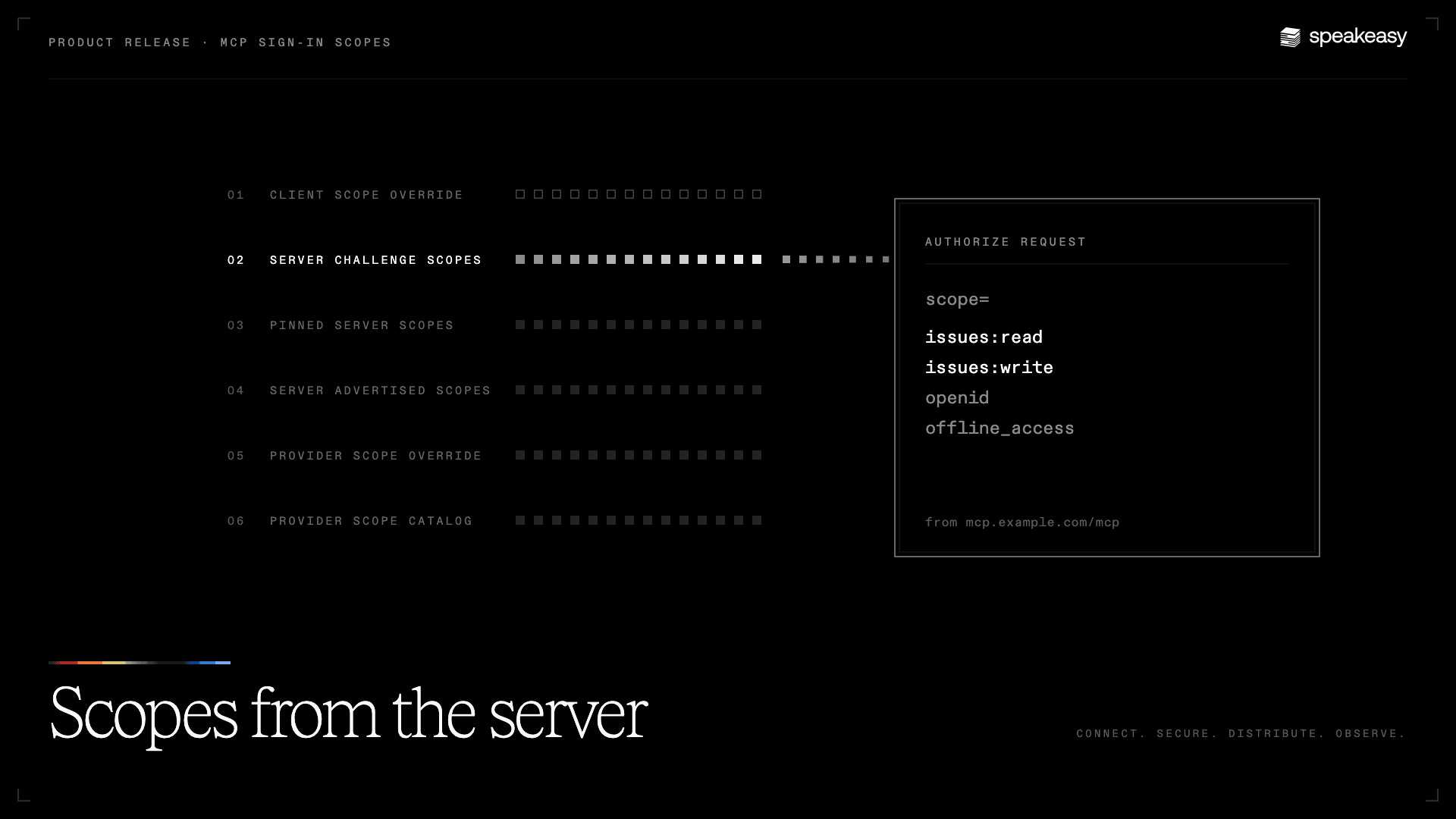
OAuth sign-ins have a Goldilocks problem. Ask for too few scopes and the MCP server can’t do its job. Ask for too many and people face a consent screen longer than a terms-of-service page, or an identity provider that rejects the request outright.
Speakeasy now gets the amount right by asking the one party that knows what it needs, the MCP server. Sign-ins request the scopes the server asks for, and fall back to the identity provider’s full list only when nobody has a better answer.
How an MCP server says what it needs
The MCP authorization spec gives a server two ways to tell us.
The first is the polite rejection. When a request shows up without a valid token, the server replies 401 with a WWW-Authenticate header (RFC 6750). Its scope value lists what the request needs, and the spec treats that list as the final word.
The second is a menu the server publishes at a well-known URL, called protected resource metadata (RFC 9728). It lists every scope the server supports.
For a made-up server at https://mcp.example.com/mcp, the two look like this:
HTTP/1.1 401 UnauthorizedWWW-Authenticate: Bearer scope="issues:read issues:write"
GET /.well-known/oauth-protected-resource/mcp HTTP/1.1Host: mcp.example.com
{  "resource": "https://mcp.example.com/mcp",  "authorization_servers": ["https://auth.example.com"],  "scopes_supported": ["issues:read", "issues:write", "projects:read"]}
Here’s where each piece shows up during a sign-in:
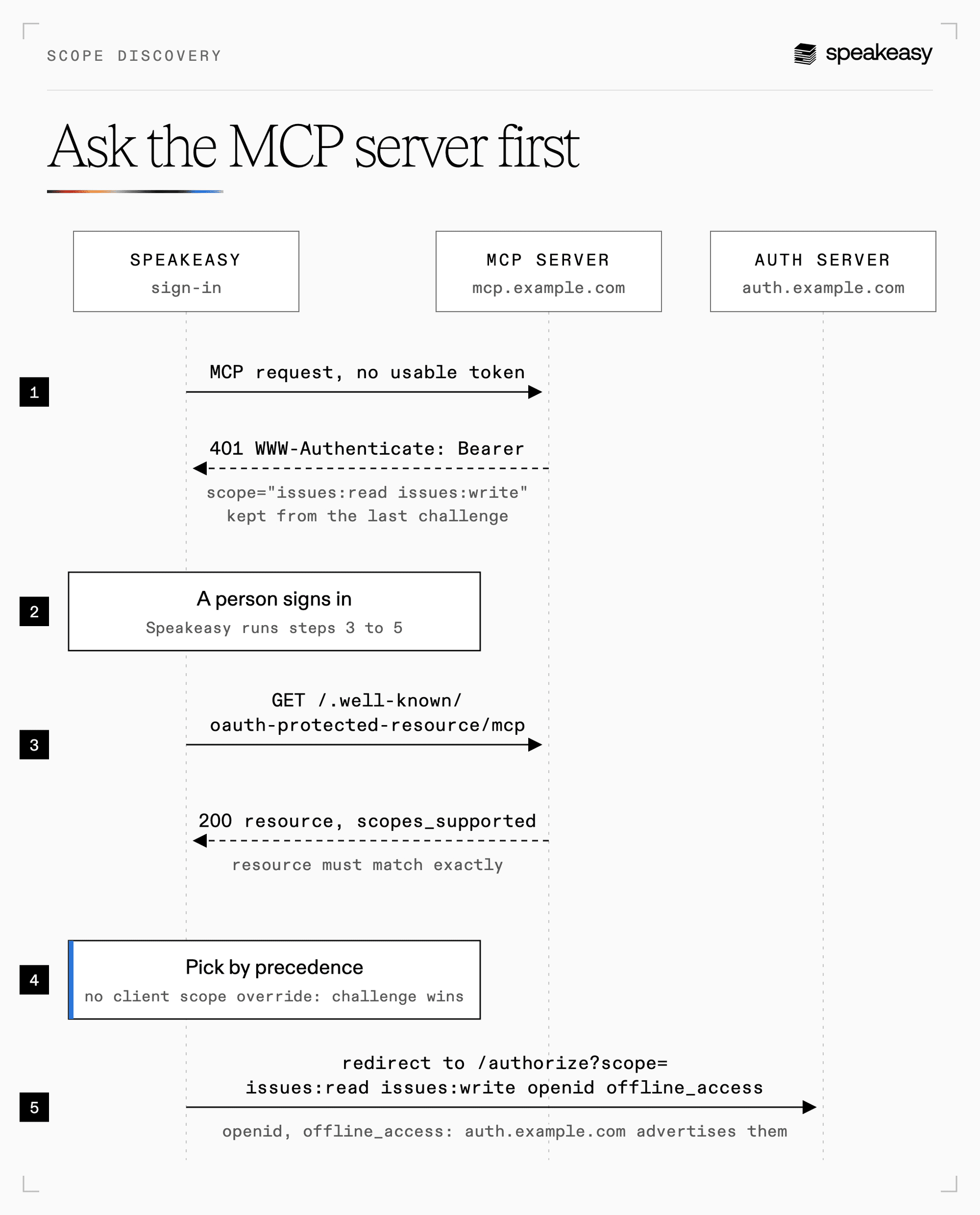
One gotcha. The menu has to name the server’s URL exactly, trailing slash and all. A menu for https://example.com/ doesn’t count for https://example.com, so we skip it. The menu is also a starting point rather than a hard limit. A server can need scopes it doesn’t list, which is what rejections and pins are for.
Who gets the final say
Six sources can supply the scopes. We check them in order, and the first one with an answer wins:
- Client scope override. Scopes an admin sets on the remote session client page. The client is the connection Speakeasy uses to sign in to the identity provider.
- Server challenge scopes. The
scopefrom the server’s latest rejection, itsWWW-Authenticateheader. - Pinned server scopes. A fixed list an admin sets in the Pinned scopes field of an MCP server’s Settings › Identity, sent exactly as written, even if the server doesn’t list those scopes. A pin belongs to the server’s URL, so every server in the project at that URL shares it.
- Server advertised scopes. The
scopes_supportedlist from the server’s advertised menu. - Provider scope override. A fixed list set on the identity provider.
- Provider scope catalog. Every scope the identity provider offers, as a last resort. Turn on Request default scopes when the MCP server advertises none on the identity provider to send no scopes instead, and the identity provider grants its own default set (RFC 6749 §3.3).
Here’s the same order, with who controls each step:
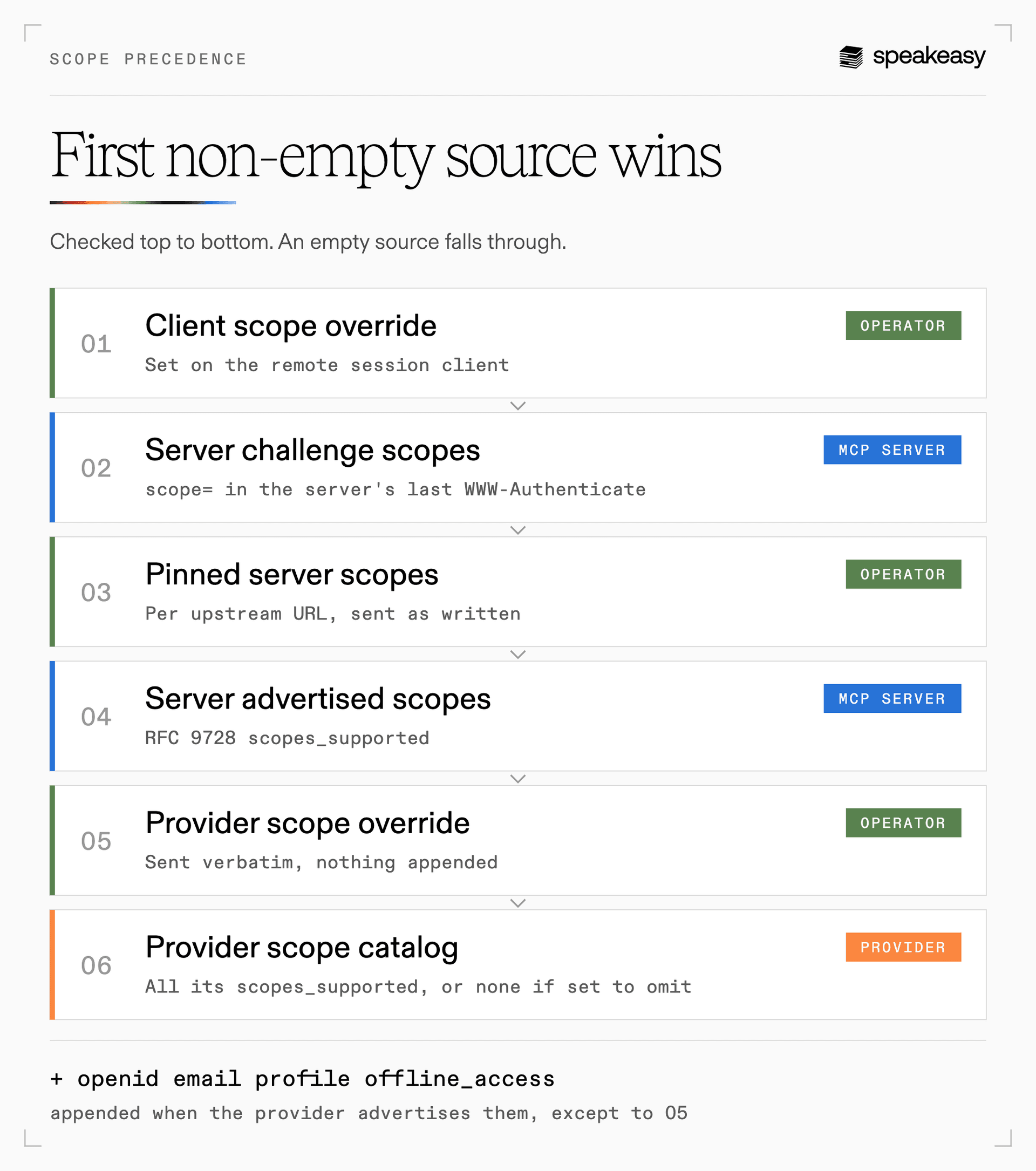
Whichever source wins, we add openid, email, profile, and offline_access when the identity provider supports them, so you still know who signed in and they stay signed in. The provider scope override is the exception and goes out exactly as written.
Seeing what a sign-in will request
To check what a sign-in will ask for, open the MCP server’s Settings › Identity. A note under Pinned scopes says which of the six sources is in charge. Here, the pin wins:
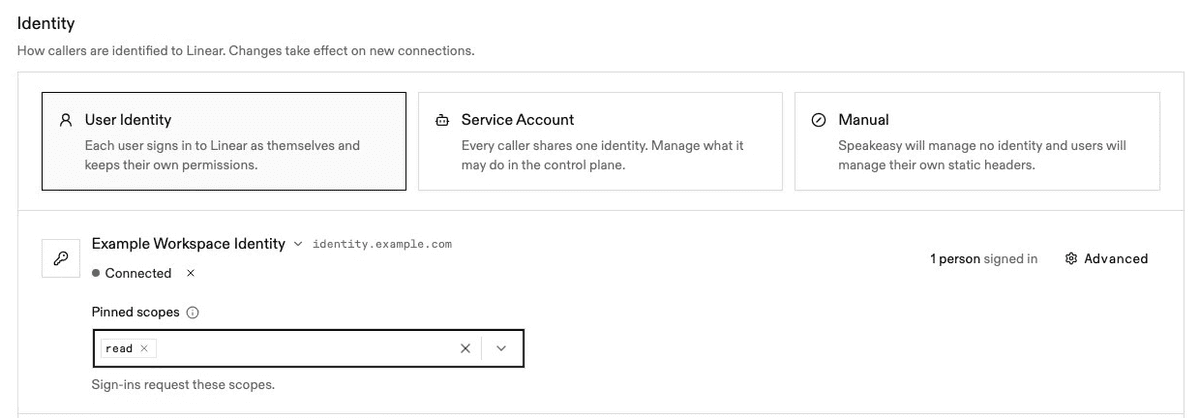
If a pin is set but something higher up wins, the note says what. Teammates who can view the server but not edit it see a read-only “Requested at sign-in” summary instead, with the scopes and where they came from, like “Advertised by the MCP server.”
What happens to existing connections
Nothing, until the next sign-in. Existing connections keep what they were granted, and the next sign-in asks for the new, better-fitting set.
What you need to do
Probably nothing. Sign-ins already ask each server what it needs. A setting helps in three cases:
- The server’s menu asks for more than your team should approve. Pin server scopes on its URL. A pin outranks the server’s menu, though a client scope override or the server’s challenge scopes still win over it.
- The server says nothing. With no challenge scopes and no menu, sign-ins fall through to the identity provider’s settings. Pin server scopes to choose the set yourself. Without a pin or a provider scope override, turn on Request default scopes when the MCP server advertises none so the identity provider applies its defaults instead of being asked for its whole catalog.
- A sign-in asks for something unexpected. Open the server’s Settings › Identity, where the note under Pinned scopes names the source in charge. If the server’s menu is being skipped, check that its
resourcevalue matches the server URL exactly. A trailing slash is enough to break the match.
Standards
Scope discovery follows the MCP authorization spec, RFC 9728 for protected resource metadata, RFC 6750 for bearer token challenges, and RFC 6749 §3.3 for the scope parameter.
Open the Speakeasy MCP Gateway, connect a remote MCP server, and see what its sign-ins will ask for.
Last updated on