Automated Role-based plugins: Automatically provision MCP servers based on role

Nolan Sullivan
October 20, 2026 · 2 min read
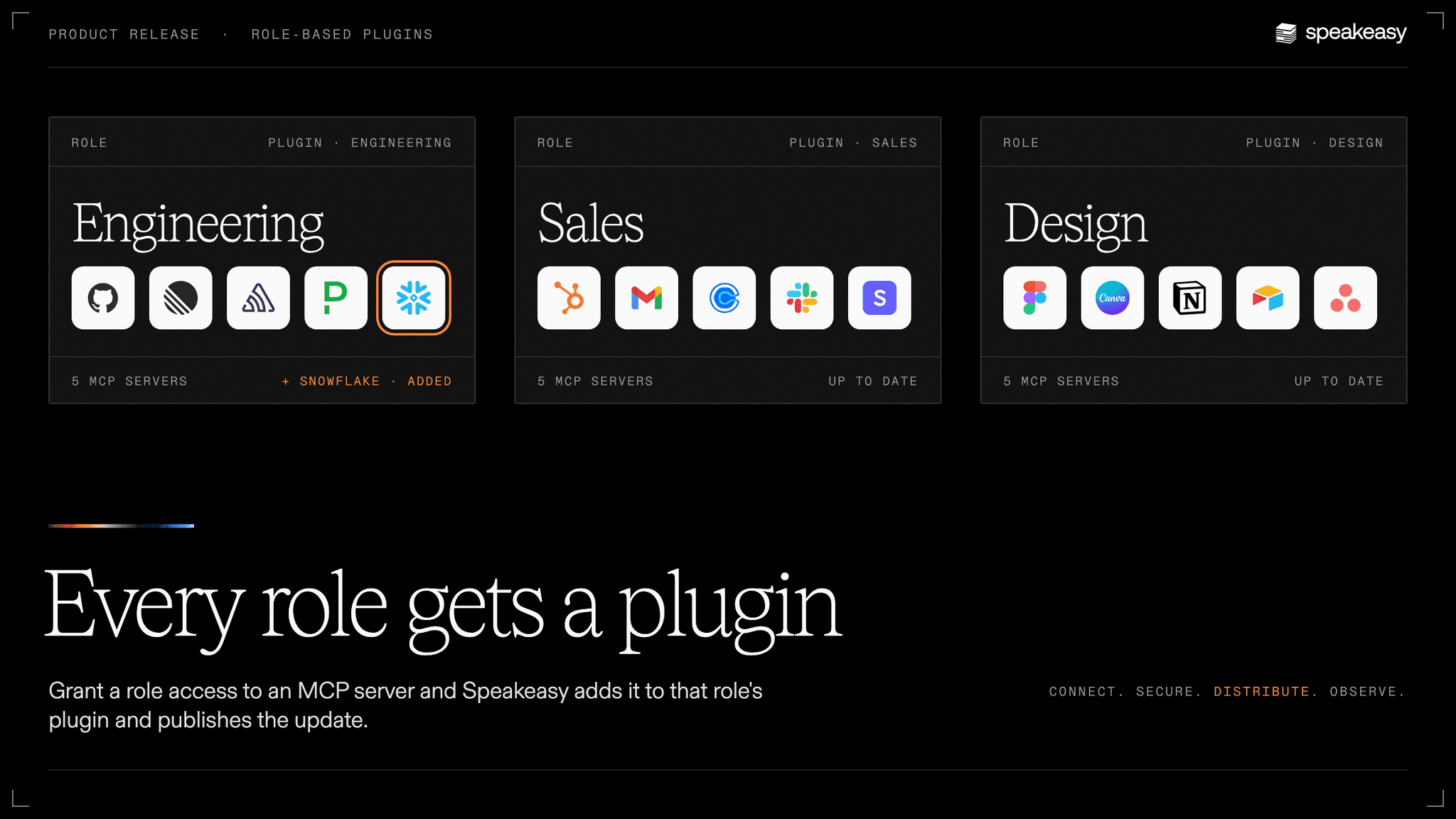
Getting MCP servers to a team used to take two separate steps. An admin granted a role access to a server, then edited a plugin, the package of MCP servers people install in their AI client. Skip the second step and the team had access to a server they couldn’t see. Skip it on removal and the plugin kept a server the team could no longer use.
Role-based plugins connect the two. Every role has a plugin, and the servers the role can access are what go in it. This is now on for every organization, with nothing to enable.
How it works
- Every role gets a plugin. When a role is created, by hand or through directory sync, Speakeasy assigns it a plugin with a matching name. If that plugin already exists, Speakeasy reuses it and keeps its contents.
- Granting access adds the server. Give a role access to an MCP server on its Team Access tab, and Speakeasy adds the server to the role’s plugin and publishes the update to your marketplace.
- Removing access removes the server. The server leaves the plugin, unless another role assigned to the same plugin still has access.
- Existing organizations are already set up. Roles that existed before the rollout have plugins filled from the access they already held.
A server’s Team Access page links each role to the plugins distributing that server to it, so you can see exactly how a tool reaches a team.
Admins stay in control
You can still curate plugins by hand. Remove a server from a plugin and Speakeasy leaves it out until a new grant or role assignment adds it back. Roles can be created without any server access, so you can build a plugin up one server at a time. Collections of internal platform tools are never added automatically. Add them by hand if a role needs them.
Distribution doesn’t widen access. A plugin decides which servers show up in a client, and the server’s Team Access rules decide who can call it. The MCP gateway checks those rules on every request.
What team members still do
Automatic distribution doesn’t install or enable anything on anyone’s machine. Team members install or update the plugin in their client and complete any sign-in a server asks for.
Get started
The automatic MCP distribution guide walks admins through setup. Team members can follow the Claude Code installation steps or the plugin guide for their client.
Last updated on