Agent Budgets: spending limits for teams and individuals

Subomi Oluwalana
Published · 4 min read
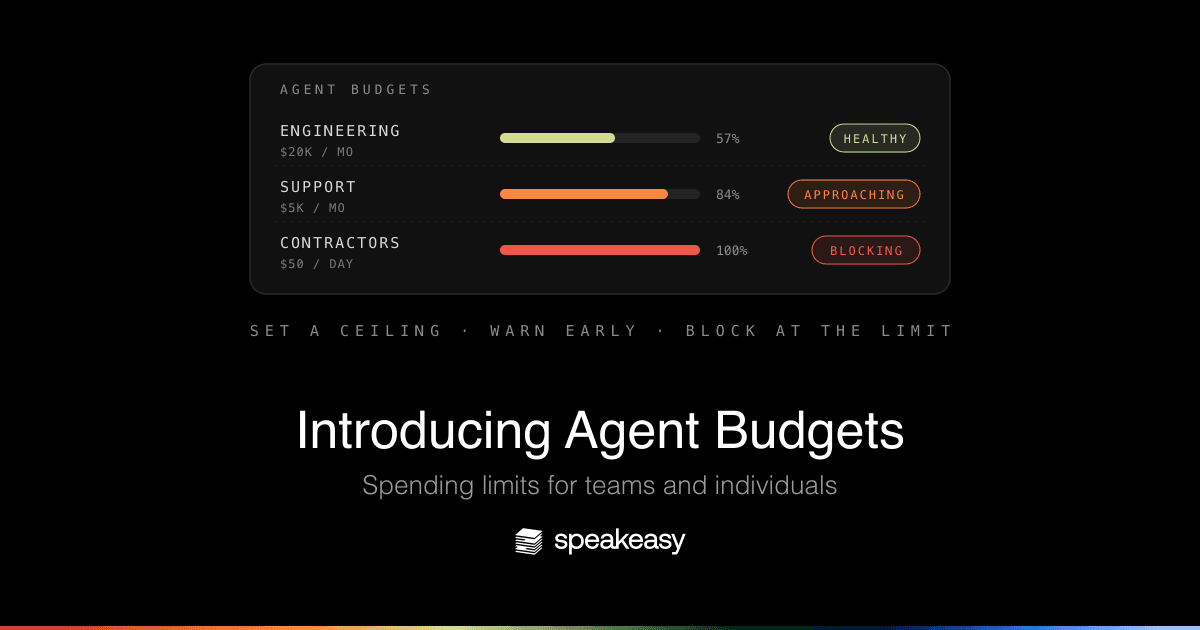
When we released AI Cost Control, the reaction from every platform team was the same: now that we can see the spend, can we proactively allocate it?
Today we’re releasing Agent Budgets: spending limits for teams, individuals enforced by the AI Control Plane. Set a hard cap, or simply flag overspend for review. Provide warnings before limits are hit, and adjust spending rules on the fly. Rather than creating a budget for each tool, budgets enforced by the control plane are applied holistically across your team’s AI usage. Everything they run, from coding agents to internal tools, across any model provider is matched back to the budget. You allocate spend, your team picks how to use it.
How budget rules work
A budget rule has three parts: who it applies to, how much they can spend in a window, and what happens at the limit.
- Who: directory attributes. Rules match on the attributes already synced from your directory, like department, group, employee type, or email. “Engineering gets $20,000 a month” and “contractors get $50 a day” are each a single rule that stays correct as people join and leave. The rule form shows a live preview of who matches before you save.
- How much: a limit over a fixed window. Spend accumulates over calendar windows (daily, weekly, or monthly) and resets when the window does.
- At the limit: flag or block. Flag records the overspend and keeps requests flowing, which is the right default for teams doing real work. Block rejects further requests until the window resets, and is what you want for interns, contractors, and other bounded accounts. A blocked request fails with a structured error that the calling agent can surface to the user.
Every rule also carries a warn threshold, set to 80% by default. When a team crosses it, you hear about it while there’s still budget left to do something useful, whether that’s asking the team what changed or raising the limit before anyone gets cut off.
When several rules match the same person, the most restrictive one wins. A contractor who happens to sit in the engineering department gets the contractor cap.
Seeing what your budgets are doing
Agent Budgets are available as a new page under Observe, next to the cost dashboards it builds on:
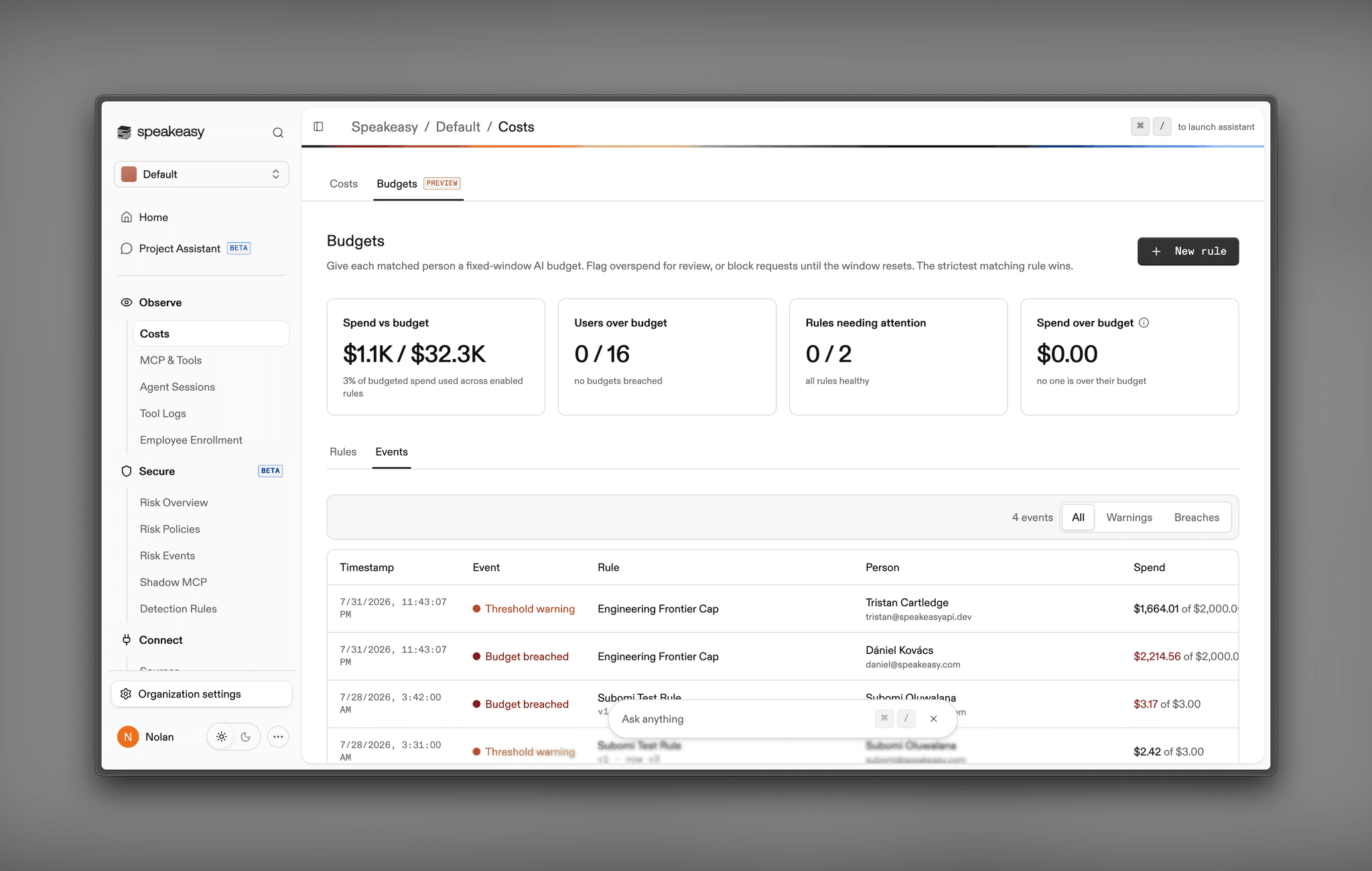
- The overview rolls up spend against budget across every rule: who’s over, which rules need attention, and projected overruns for the current window.
- The rules table shows each rule’s live status as it moves from Healthy to Approaching to Flagging or Blocking, with a usage bar for the window.
- Rule detail breaks down which individuals drove a window’s spend and lists the rule’s warning and breach history.
- The events feed records every threshold warning and breach with the spend and limit captured at event time. A breach on a block rule states its consequence plainly: requests from the matched people are rejected until the window resets.
Rules are versioned, so budget history stays trustworthy as they change. Editing a limit, window, or action starts a fresh evaluation, and old events remain attributed to the version of the rule that produced them. The edits themselves land in the standard audit log.
One budget across every agent and provider
The model providers each offer spending limits of their own: Anthropic has workspace spend limits in its console, OpenAI has monthly budgets per project (which alert on overspend rather than stop it), and Claude Enterprise includes spend controls for Claude Code. Each of these covers usage of that provider’s products, seen from that provider’s account.
That’s rarely the shape of your organization’s spend. The same engineer might run Claude Code in the morning, a Cursor session after lunch, and an internal agent that calls models from two different providers. Provider-side limits treat those as separate pools, but it’s all one budget on the company’s side.
Agent Budgets counts spend where it’s attributed: per person, across every agent and every provider your organization runs. “Contractors get $50 a day” means $50 a day in total, whichever tools they touch, and a block rule holds across all of them at once.
Get started
Agent Budgets is rolling out now to organizations with directory sync enabled. Open Observe, then Agent Budgets, and create your first rule. The matched-people preview confirms the target before anything takes effect. We’d suggest starting with flag rules and a warn threshold, watching a window or two, and then moving your bounded accounts to block.
If you haven’t set up the cost side of the platform yet, start with AI Cost Control for visibility and attribution across every agent your organization runs.
Want a ceiling on AI spend before the next invoice arrives? Book time with our team and we’ll help you set one.