How to connect Claude Code to MCP
Claude Code is Anthropic’s terminal-based tool that brings Claude’s capabilities directly to your command line. Unlike Claude Desktop, which runs in a graphical interface, the Claude Code CLI can access your current project folder.
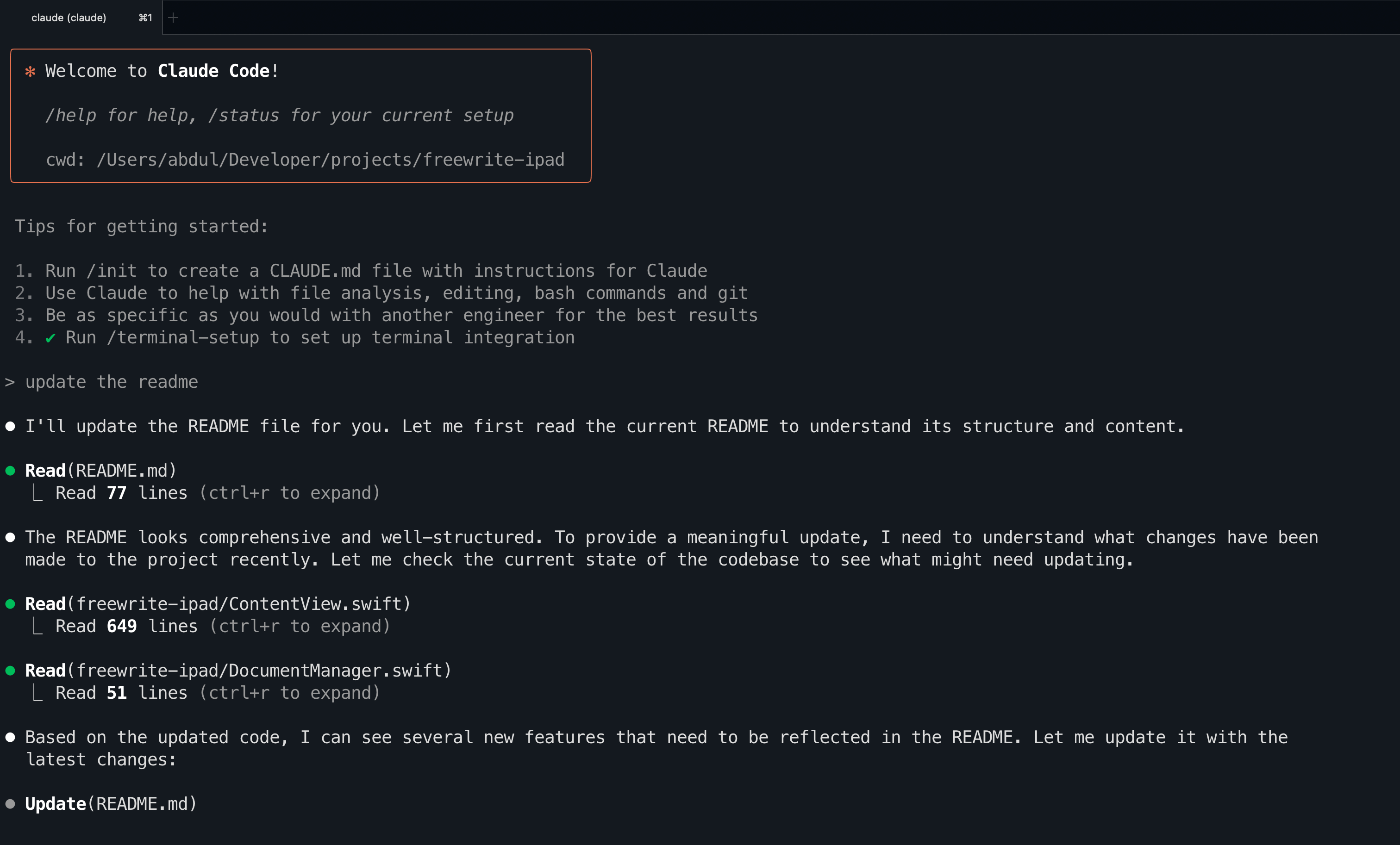
When combined with Model Context Protocol (MCP) servers, Claude Code becomes even more useful. Using MCP servers, you can give Claude access to your tools and infrastructure, allowing it to work with your APIs, databases, and other services.
This guide shows you how to connect Claude Code to a Gram-hosted MCP server using Taskmaster, a full-stack CRUD application for task and project management. Taskmaster includes a web UI for managing projects and tasks, a built-in HTTP API, OAuth 2.0 authentication, and a Neon PostgreSQL database for storing data. Try the demo app to see it in action.
You’ll learn how to set up the connection, test it, and use natural language to manage tasks, projects, and workflows through Claude Code.
Find the full code and OpenAPI document in the Taskmaster repository.
Prerequisites
Section titled “Prerequisites”To follow this tutorial, you need:
- A Gram account
- Claude Code installed
Getting started
Section titled “Getting started”First, authenticate with Claude Code.
Then, verify that Claude Code is installed correctly:
claude --helpIf installation is successful, you’ll see Claude Code’s available commands and options.
Creating an MCP server
Section titled “Creating an MCP server”Before connecting Claude Code to a Taskmaster MCP server, you first need to create one. Follow our guide to creating a Taskmaster MCP server.
Connecting Claude Code to your Gram-hosted MCP server
Section titled “Connecting Claude Code to your Gram-hosted MCP server”Once your Taskmaster MCP server is ready, there are three ways to connect it to Claude Code:
- Use the
claude mcp addcommand from the Gram installation page (recommended). - Use the Gram CLI to automatically configure the connection.
- Manually add the MCP server configuration.
Quick Setup from the Gram installation page
Section titled “Quick Setup from the Gram installation page”The quickest way to connect Claude Code to a Gram-hosted MCP server is to copy the installation command from the Gram dashboard.
Go to your toolset’s installation page at https://app.getgram.ai/mcp/<your-toolset-slug>/install and select Claude Code. Copy the installation command and run it in your terminal:
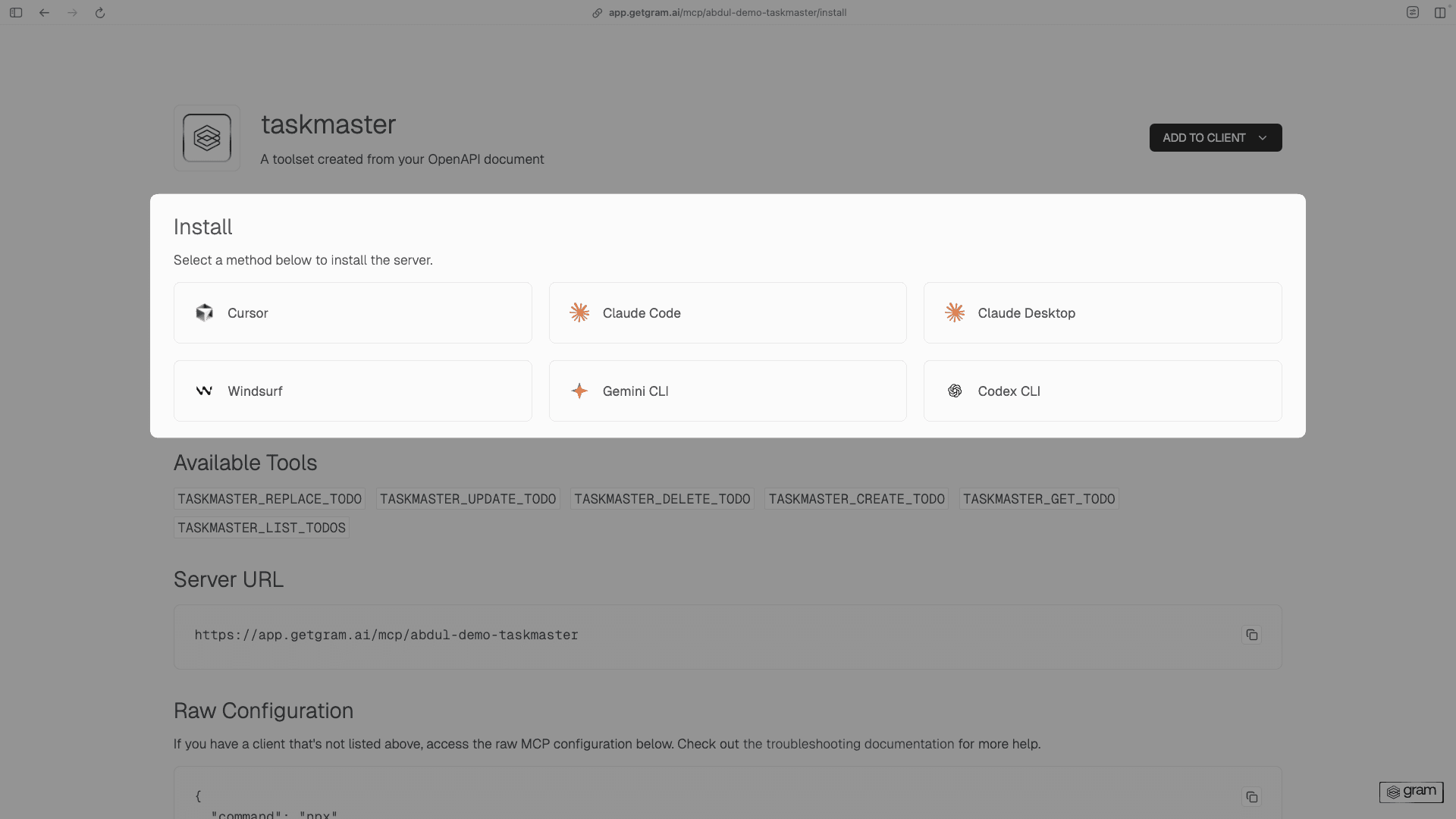
claude mcp add --transport http "taskmaster" "https://app.getgram.ai/mcp/your-toolset-slug"Replace your-toolset-slug with the slug of your toolset.
Using the Gram CLI
Section titled “Using the Gram CLI”Alternatively, you can use the Gram CLI to configure the connection. The CLI automatically fetches your toolset configuration and creates the appropriate settings file.
Go to your toolset’s installation page and select Gram CLI to copy the installation command, or run:
gram install claude-code --toolset taskmaster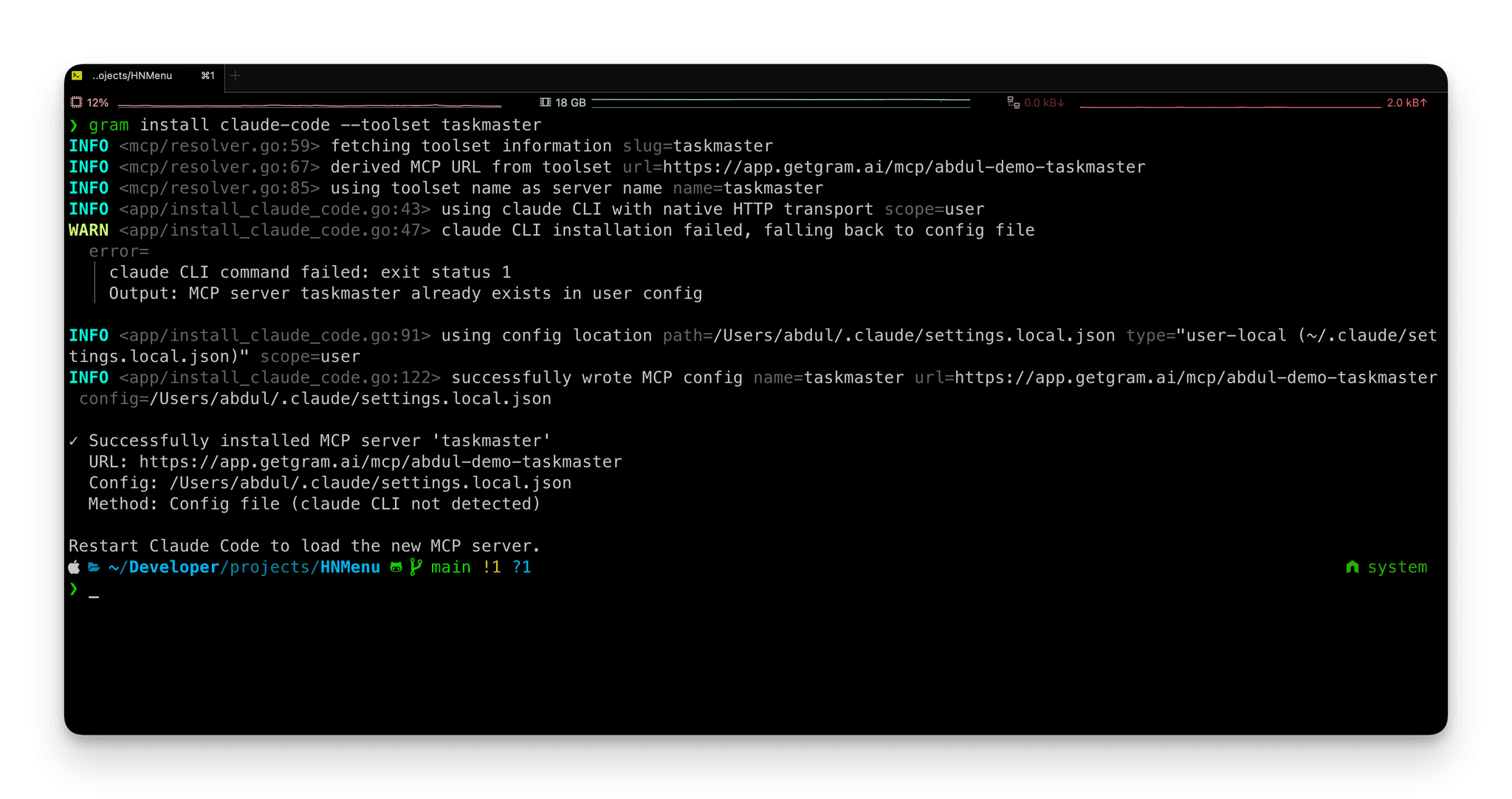
This command automatically:
- Fetches your toolset configuration from Gram
- Derives the MCP URL and authentication settings
- Creates the correct configuration (by default in user-level
~/.claude.json)
Setting up environment variables
Section titled “Setting up environment variables”If your toolset requires authentication, you’ll need to set up environment variables. The gram install command will display the required variable names and provide the export command you need to run to set the variable value.
For the Taskmaster toolset, you’ll need to set the MCP_TASK_MASTER_API_KEY environment variable to your Taskmaster API key. You can do this by running the following command:
export MCP_TASK_MASTER_API_KEY='your-api-key-value'Configuration Scopes
Section titled “Configuration Scopes”You can control where the MCP server configuration is installed using the --scope flag:
# Install to user-level config (default) - available across all projectsgram install claude-code --toolset taskmaster --scope user
# Install to project-level config - can be shared with your teamgram install claude-code --toolset taskmaster --scope project
Use --scope project when you want to commit the .mcp.json configuration to version control and share it with your team.
For more details and advanced options, see the gram install documentation.
Manual Setup
Section titled “Manual Setup”Alternatively, you can manually add an MCP server in Claude Code using the claude mcp add command:
-
If you’re using the Pass-through Authentication configuration, the JSON configuration looks like this:
{"mcpServers": {"taskmaster": {"command": "npx","args": ["mcp-remote","https://app.getgram.ai/mcp/your-taskmaster-slug","--header","MCP-TASKMASTER-API-KEY:<your-api-key>"]}}}So you can add the server by running the following (replace
<your-api-key>with the actual values from your Taskmaster MCP server configuration andyour-taskmaster-slugwith your MCP server slug):Terminal window claude mcp add taskmaster --scope project -- npx mcp-remote https://app.getgram.ai/mcp/your-taskmaster-slug --header "MCP-TASKMASTER-API-KEY:<your-api-key>" -
Whereas if you’re using the Managed Authentication configuration, the JSON configuration looks like this:
{"mcpServers": {"taskmaster": {"command": "npx","args": ["mcp-remote","https://app.getgram.ai/mcp/your-taskmaster-slug","--header","Authorization:Bearer <your-gram-api-key>"]}}}So you can add the server by running the following (replace
<your-gram-api-key>with your actual Gram API key andyour-taskmaster-slugwith your MCP server slug):Terminal window claude mcp add taskmaster --scope project -- npx mcp-remote https://app.getgram.ai/mcp/your-taskmaster-slug --header "Authorization: Bearer <your-gram-api-key>"
Both configurations use the same commands:
taskmasteris the name you’ve given the server locally.--scope projectadds the server to a local.mcp.jsonfile that can be shared with other users on the project. Read more about other scope options in the Anthropic docs.--separates Claude Code flags from the server command.npx mcp-remoteis the package that handles remote MCP server connections.--headeris the flag that passes headers to the remote server.
Verifying the connection
Section titled “Verifying the connection”Check that the server was added successfully:
claude mcp listYou should see taskmaster in the list.
To see the full configuration, run this command:
claude mcp get taskmaster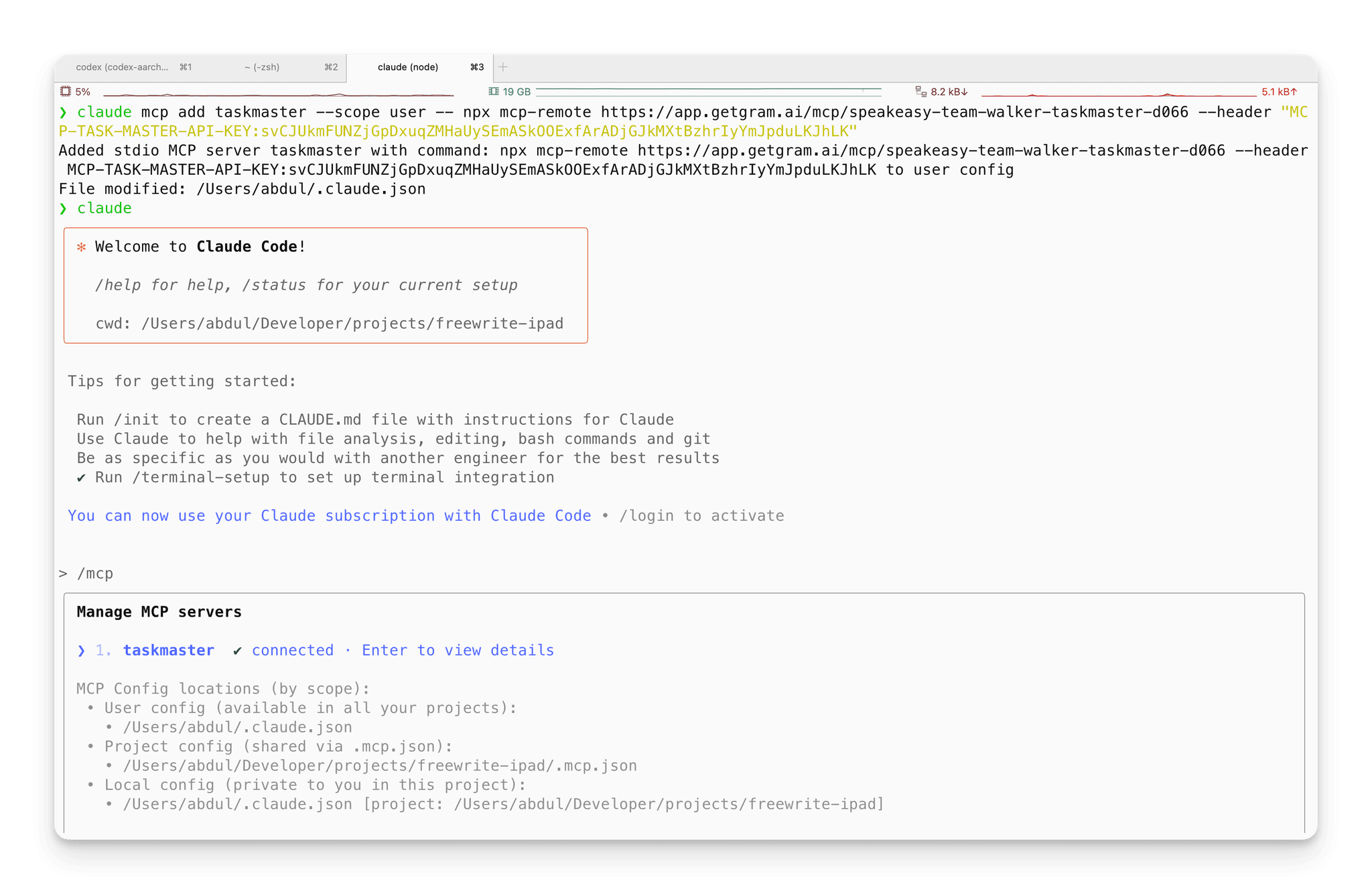
Testing the setup
Section titled “Testing the setup”Now test the connection by starting Claude Code and managing some tasks.
First, start an interactive session with Claude Code in your terminal:
claudeAsk Claude a basic question like, “Can you help me create a new task?”
Troubleshooting
Section titled “Troubleshooting”Let’s go through some common issues and how to fix them.
Server not found
Section titled “Server not found”If Claude Code can’t find your server:
-
Check whether the server is listed.
Terminal window claude mcp list -
Remove and re-add the server
Terminal window claude mcp remove taskmasterclaude mcp add taskmaster --scope project -- npx mcp-remote https://app.getgram.ai/mcp/your-taskmaster-slug --header "Authorization:Bearer <your-gram-api-key>"
Authentication errors
Section titled “Authentication errors”If you get authentication errors:
- Verify your Gram API key in the dashboard under Settings -> API Keys.
- Check that environment variables are correctly set in Gram.
- Ensure the Taskmaster API base URL is accessible.
Tool calls not working
Section titled “Tool calls not working”If Claude Code isn’t calling the tools:
- Test the MCP server in the Gram Playground first.
- Check that the toolset includes the tools to use.
- Verify the environment is correctly configured with the required variables.
What’s next
Section titled “What’s next”You now have Claude Code connected to a Gram-hosted MCP server with task management capabilities.
Ready to build your own MCP server? Try Gram today and see how easy it is to turn any API into agent-ready tools.