How to connect Claude Desktop to MCP
Claude Desktop is Anthropic’s standalone AI assistant application that supports MCP through a JSON configuration file.
When combined with Model Context Protocol (MCP) servers, Claude Desktop becomes even more powerful. Using MCP servers, you can give Claude access to your tools and infrastructure, allowing it to work with your APIs, databases, and other services.
This guide shows you how to connect Claude Desktop to a Gram-hosted MCP server using Taskmaster, a full-stack CRUD application for task and project management. Taskmaster includes a web UI for managing projects and tasks, a built-in HTTP API, OAuth 2.0 authentication, and a Neon PostgreSQL database for storing data. Try the demo app to see it in action.
You’ll learn how to set up the connection, test it, and use natural language to manage tasks, projects, and workflows through Claude Desktop.
Find the full code and OpenAPI document in the Taskmaster repository.
Prerequisites
Section titled “Prerequisites”To follow this tutorial, you need:
- A Gram account
- Claude Desktop installed
Creating an MCP server
Section titled “Creating an MCP server”Before connecting Claude Desktop to a Taskmaster MCP server, you first need to create one. Follow our guide to creating a Taskmaster MCP server.
Once your Taskmaster MCP server is ready, there are four ways to connect it to Claude Desktop:
- Download a
.mcpbfile from the Gram installation page (recommended). - Use the Gram CLI to generate an installation package.
- Use the MCP configuration file in Claude Desktop.
- Use the Claude Connectors feature to connect directly to your Gram-hosted MCP server.
Connecting Claude Desktop from the Gram installation page
Section titled “Connecting Claude Desktop from the Gram installation page”The quickest way to connect Claude Desktop to a Gram-hosted MCP server is to download the installation package directly from the Gram dashboard.
Go to your toolset’s installation page at https://app.getgram.ai/mcp/<your-toolset-slug>/install and click the Claude Desktop button to download a .mcpb file.
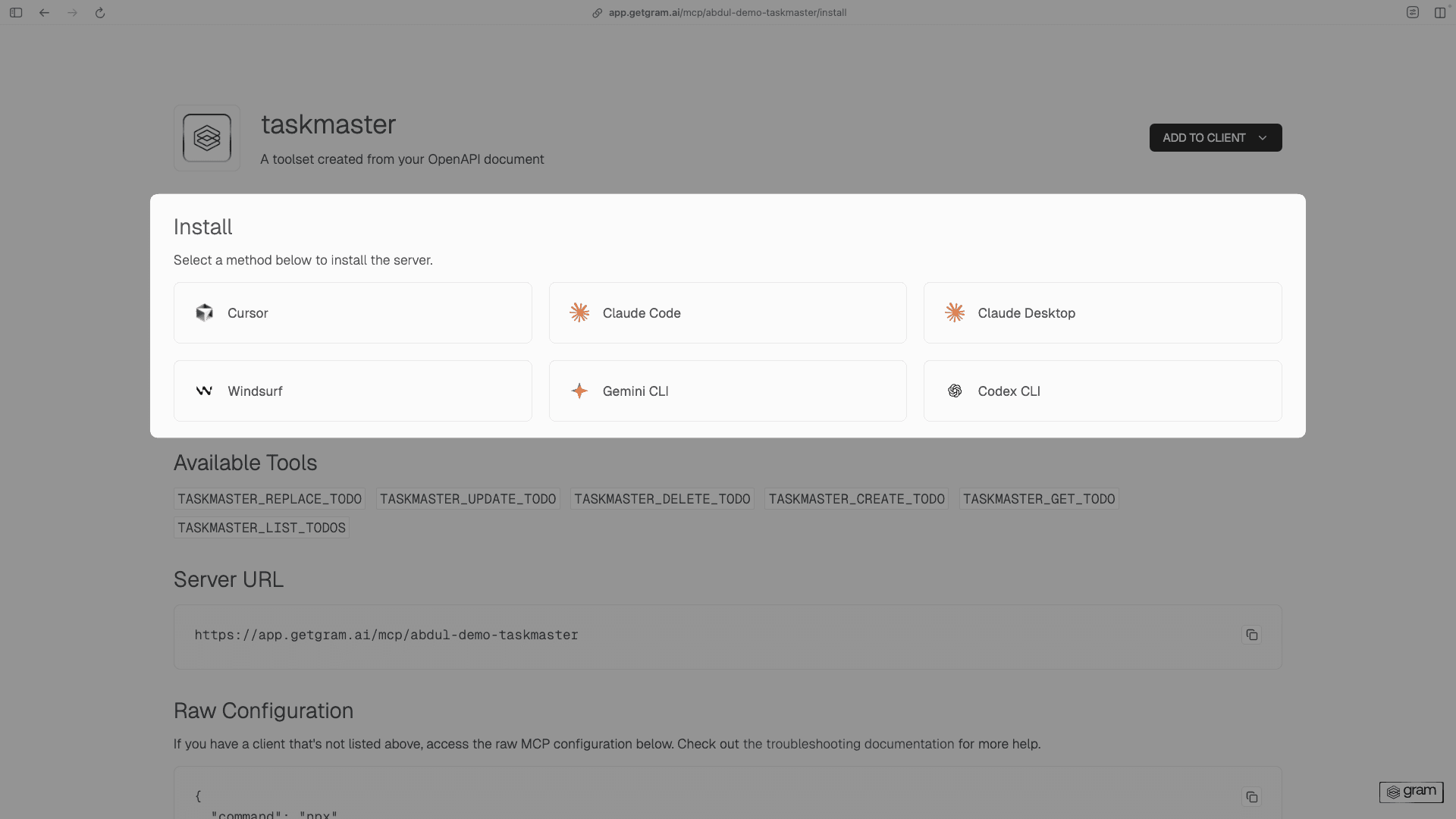
Open the downloaded .mcpb file. Claude Desktop will prompt you to install the MCP server. Click Install to complete the setup.
Connecting Claude Desktop using the Gram CLI
Section titled “Connecting Claude Desktop using the Gram CLI”Alternatively, you can use the Gram CLI to generate an installation package (.mcpb file).
1. Install the Gram CLI
Section titled “1. Install the Gram CLI”Verify the installation:
gram --versionFor more information about the Gram CLI, see the Gram CLI documentation.
2. Authenticate with Gram
Section titled “2. Authenticate with Gram”Authenticate with your Gram account:
gram authFollow the prompts to complete authentication. This creates an API key and saves it locally.
Verify authentication:
gram whoami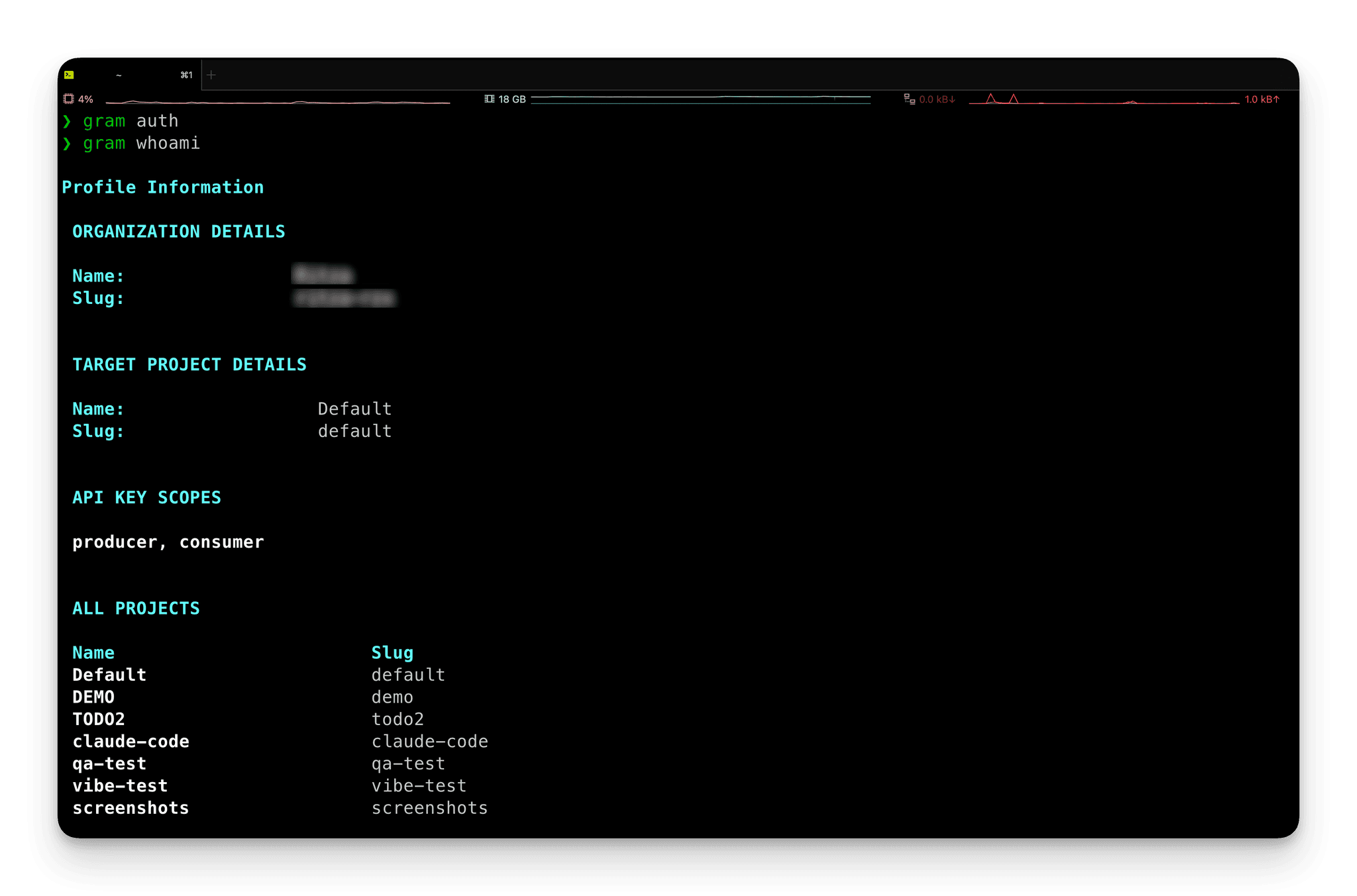
3. Generate the installation package
Section titled “3. Generate the installation package”Run the install command:
gram install claude-desktop --toolset your-toolset-slugReplace your-toolset-slug with the slug of your toolset. For example, to install the Taskmaster toolset:
gram install claude-desktop --toolset taskmasterThe CLI automatically fetches the toolset configuration from Gram and generates the installation package in your Downloads folder.
4. Install in Claude Desktop
Section titled “4. Install in Claude Desktop”Open the generated .mcpb file. Claude Desktop will prompt to install the MCP server. Click Install to complete the setup.
5. Test the connection
Section titled “5. Test the connection”Open Claude Desktop and verify the connection by creating a test task:
Create a new task called "Test MCP connection" with description "Verify that the Taskmaster MCP server is working correctly"Claude will use the Gram-hosted MCP server to create the task through the Taskmaster API.
Connecting Claude Desktop to your Gram-hosted MCP server using the MCP configuration file
Section titled “Connecting Claude Desktop to your Gram-hosted MCP server using the MCP configuration file”1. Access the Claude Desktop settings
Section titled “1. Access the Claude Desktop settings”In Claude Desktop, open settings:
- macOS: Go to Claude -> Settings… from the menu bar.
- Windows: Access settings through the application menu.
2. Open the MCP configuration
Section titled “2. Open the MCP configuration”Select Developer from the left sidebar, then click Edit Config. This will create or open the MCP configuration file at:
- macOS:
~/Library/Application Support/Claude/claude_desktop_config.json - Windows:
%APPDATA%\Claude\claude_desktop_config.json
3. Add the MCP server configuration
Section titled “3. Add the MCP server configuration”Add your Taskmaster MCP server configuration to the file.
-
For Pass-through Authentication, the configuration looks like this:
{"mcpServers": {"GramTaskmaster": {"command": "npx","args": ["mcp-remote","https://app.getgram.ai/mcp/your-taskmaster-slug","--header","MCP-TASKMASTER-API-KEY:<your-key-here>"]}}} -
For a Managed Authentication server, the configuration looks like:
{"mcpServers": {"GramTaskmaster": {"command": "npx","args": ["mcp-remote","https://app.getgram.ai/mcp/your-taskmaster-slug","--header","Authorization: ${GRAM_KEY}"],"env": {"GRAM_KEY": "Bearer <your-gram-api-key>"}}}}
Replace your-taskmaster-slug with your slug from your Taskmaster MCP server configuration and <your-gram-api-key> with your Gram API key.
4. Test the connection
Section titled “4. Test the connection”Save the configuration file, then close Claude Desktop completely and reopen it. When the application has restarted, click the hamburger icon in the chat field to see the available tools.
Test the connection by asking:
Create a new task called "Test MCP connection" with description "Verify that the Taskmaster MCP server is working correctly"Claude will use your Gram-hosted MCP server to create a task by calling the Taskmaster API.
Connecting Claude Desktop to your Gram-hosted MCP server using Claude Connectors
Section titled “Connecting Claude Desktop to your Gram-hosted MCP server using Claude Connectors”Claude Connectors allow you to connect Claude Desktop to your Gram-hosted MCP server without manually editing the configuration file. This is more user-friendly, but comes with one important limitation: Your MCP server must be public and must not require environment variables.
If you need to use an authenticated server or an environment variable, you need to use the MCP configuration file method described above.
Here’s how to set up a connection using Claude Connectors:
1. Access Claude Desktop settings
Section titled “1. Access Claude Desktop settings”In Claude Desktop, open settings:
- macOS: Go to Claude -> Settings… from the menu bar.
- Windows: Access settings through the application menu.
2. Open the Connectors tab
Section titled “2. Open the Connectors tab”Select Connectors from the left sidebar. This is where you can manage your connections to external services.
3. Add a custom connector
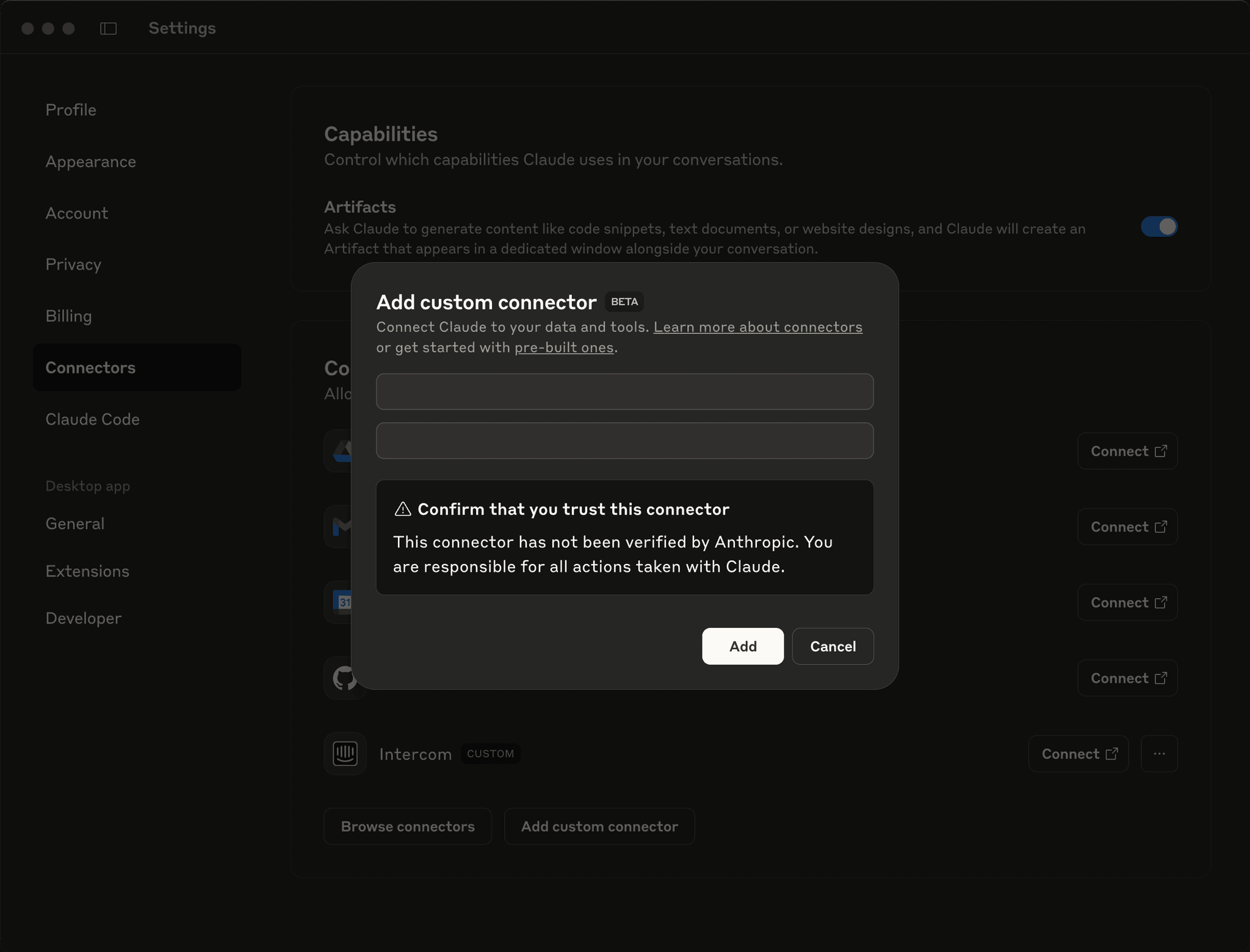
Section titled “3. Add a custom connector”Click the Add custom connector button.
In the popup, provide the following information:
- Name: A descriptive name for your connector (for example,
Taskmaster MCP Server). - URL: The URL of your Gram-hosted MCP server (for example,
https://app.getgram.ai/mcp/your-slug).
Claude Desktop may show a warning about trusting the server. Since this is your own MCP server, you can safely ignore this warning.
Click Add to create the connector.
4. Test the connection
Section titled “4. Test the connection”There’s no need to restart; you can test the connection immediately. In the chat, ask Claude something that requires the MCP server.
Claude should prompt you with a tool call request. This means the connection is working, and Claude can now use your Gram-hosted MCP server.
Deciding which method to use
Section titled “Deciding which method to use”All three methods connect Claude Desktop to a Gram-hosted MCP server, but they have different use cases:
- Gram CLI: The recommended method for most users. It provides a simple, automated setup process and supports authenticated servers. Requires installing the Gram CLI and authenticating with a Gram API key.
- MCP configuration file: Use this method for advanced configuration scenarios or when the Gram CLI is not available. Provides full control over the connection configuration.
- Claude Connectors: The simplest method for public MCP servers that don’t require authentication. Does not support authenticated servers or environment variables.
Comparison of connection methods
Section titled “Comparison of connection methods”| Attribute/Requirement | Gram CLI | MCP Configuration File | Claude Desktop Connectors |
|---|---|---|---|
| Public MCP server | ✅ | ✅ | ✅ |
| Local MCP server | ❌ | ✅ | ❌ |
| Supports authenticated server | ✅ | ✅ | ❌ |
| Manual configuration needed | ❌ | ✅ | ❌ |
| User-friendly setup | ✅ | ❌ | ✅ |
| Supports passthrough variables | ✅ | ✅ | ❌ |
| Requires CLI installation | ✅ | ❌ | ❌ |
Troubleshooting
Section titled “Troubleshooting”If you’re experiencing issues:
-
Gram CLI method:
- Ensure the Gram CLI is installed and accessible in the PATH.
- Verify authentication by running
gram whoami. - Check that the toolset slug is correct and accessible with the API key.
- For unauthorized errors, verify the Gram API key in the dashboard under Settings > API Keys.
-
MCP configuration file method:
- Verify the MCP server URL is correct in the configuration.
- Check that the API behind the MCP server is reachable from the machine.
- Ensure the
npxcommand is available (reinstall Node.js if needed). - Try restarting Claude Desktop after making configuration changes.
- For authenticated servers, verify the Gram API key in the dashboard under Settings > API Keys.
-
Claude Connectors method:
- Verify the MCP server URL is correct.
- Ensure the MCP server is public and does not require authentication.
What’s next
Section titled “What’s next”Ready to build your own MCP server? Try Gram today and see how easy it is to turn any API into agent-ready tools that work across all your development environments.