Using MCP servers
How to set up the Figma MCP server
Governing MCP across your organization?
Speakeasy’s AI control plane connects, secures, and observes every agent and MCP server from one entry point — with SSO, RBAC, runtime guardrails, and a full audit trail.
Figma has an official MCP server, hosted by Figma at https://mcp.figma.com/mcp. It lets an AI agent read the frames and layers in your Figma files and turn them into code, and it can also create files, capture web pages as designs, and generate FigJam diagrams.
This guide shows you how to connect the Figma MCP server to Claude Code and Codex. You’ll add the server to your agent, sign in to Figma to approve access, and try it with a prompt that builds code from a Figma frame and one that creates a FigJam diagram.
Prerequisites
To follow along, you’ll need:
- A Figma account. The Figma MCP server works on every plan, including the free Starter plan, but on Starter you get 20 tool calls a month. See Figma MCP rate limits.
- Claude Code or Codex CLI installed
Copy a link to a Figma frame
The Figma MCP server uses links to know which design to work with. To point your agent at a frame or layer, open your file in Figma, right-click the frame in the Layers panel or on the canvas, and select Copy/Paste as → Copy link to selection.
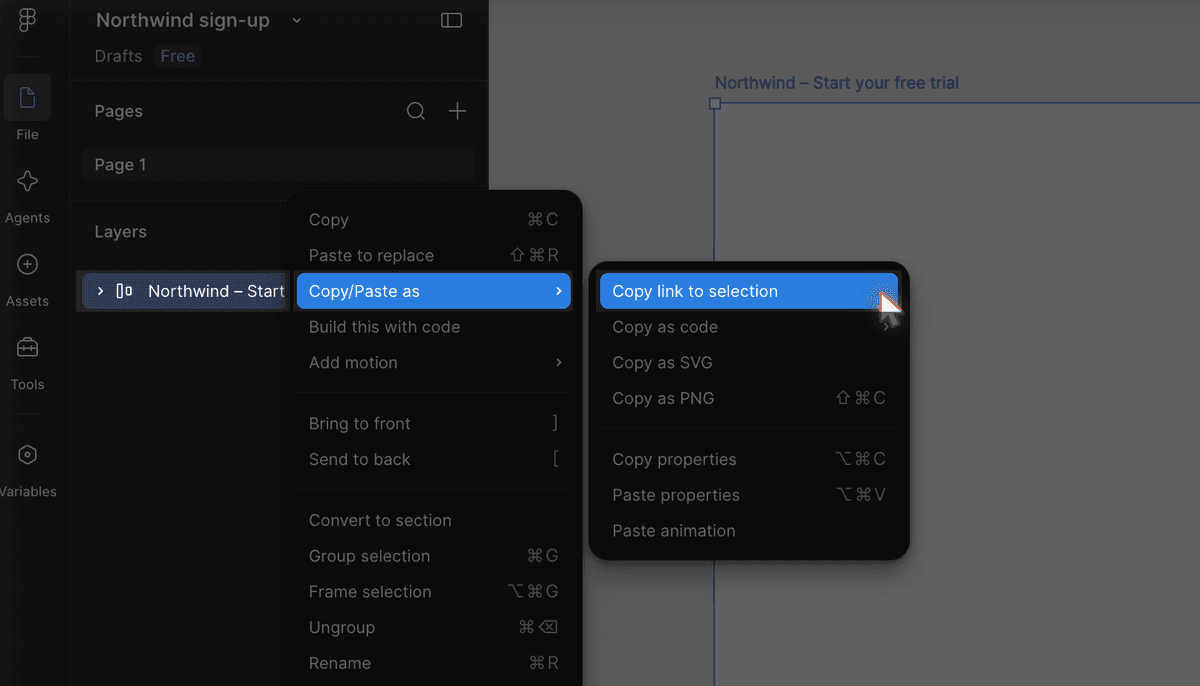
You’ll paste this link into your prompt later. It includes a node-id parameter that tells the server which layer to read.
Connect your agent to the Figma MCP server
Follow the instructions for the agent you use: Claude Code or Codex. For any other agent, see Connect other MCP clients.
Both agents sign in to Figma with OAuth, so you don’t need to create or copy a token. Your agent gets the same access to files that you have in Figma.
Claude Code
Add the Figma MCP server to Claude Code:
claude mcp add --transport http --scope user figma https://mcp.figma.com/mcpThe --scope user option makes the server available in all your projects.
Then sign in to Figma:
claude mcp login figmaClaude Code opens Figma’s consent page in your browser. Click Agree & Allow Access.
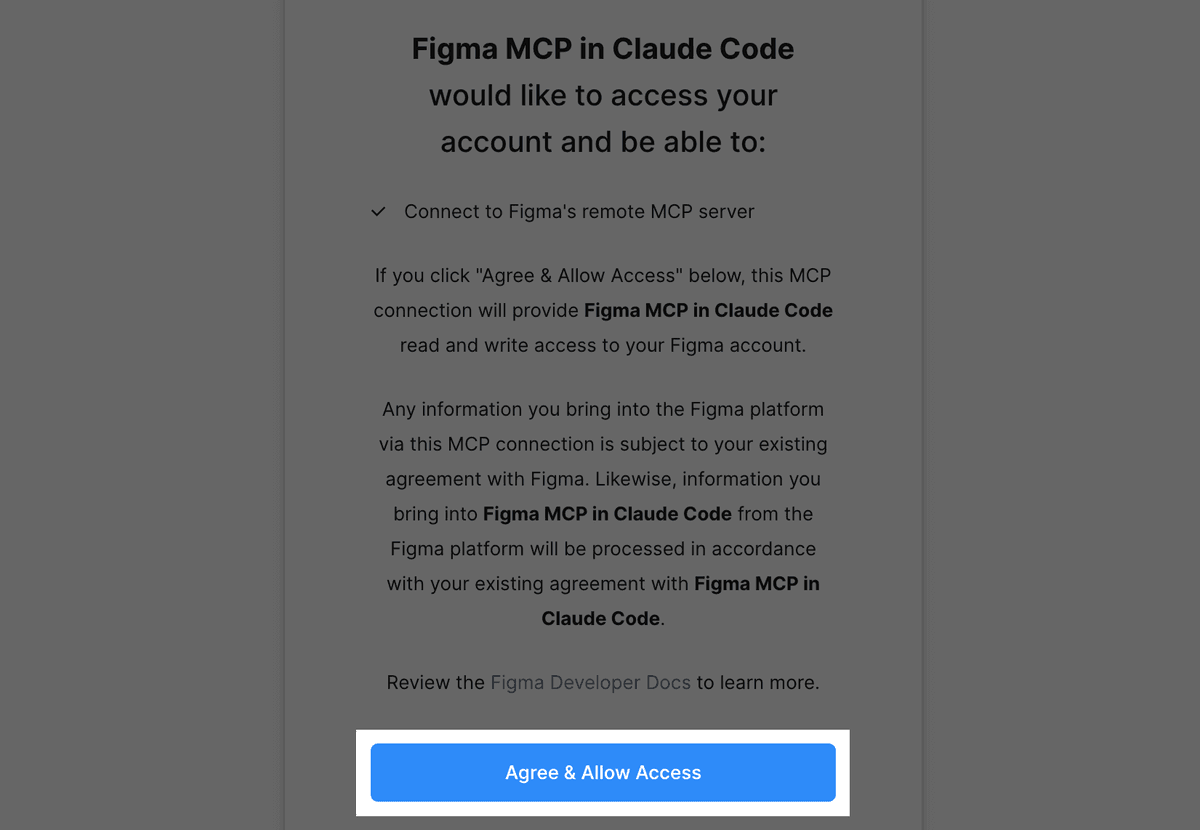
The terminal confirms the sign-in:
Authenticated with "figma". Its tools are now available in Claude Code.Check that the server connects:
claude mcp listThe figma server shows as Connected:
figma: https://mcp.figma.com/mcp (HTTP) - ✔ ConnectedFigma also offers a Claude Code plugin that adds the same server along with Figma’s skills. To use it instead, run claude plugin install figma@claude-plugins-official.
Start Claude Code with claude in your project folder and ask it to build the frame you copied, for example:
Build this Figma frame as a React component with Tailwind in SignUpCard.tsx: https://www.figma.com/design/G1hHoxrPK15VZ3Btl2w9iF/Northwind-sign-up?node-id=1-2Replace the link with the one you copied.
If Claude Code asks for permission to use a Figma tool or write the file, select Yes.
Claude Code reads the frame’s design context from Figma, writes the component, and summarizes what it built.
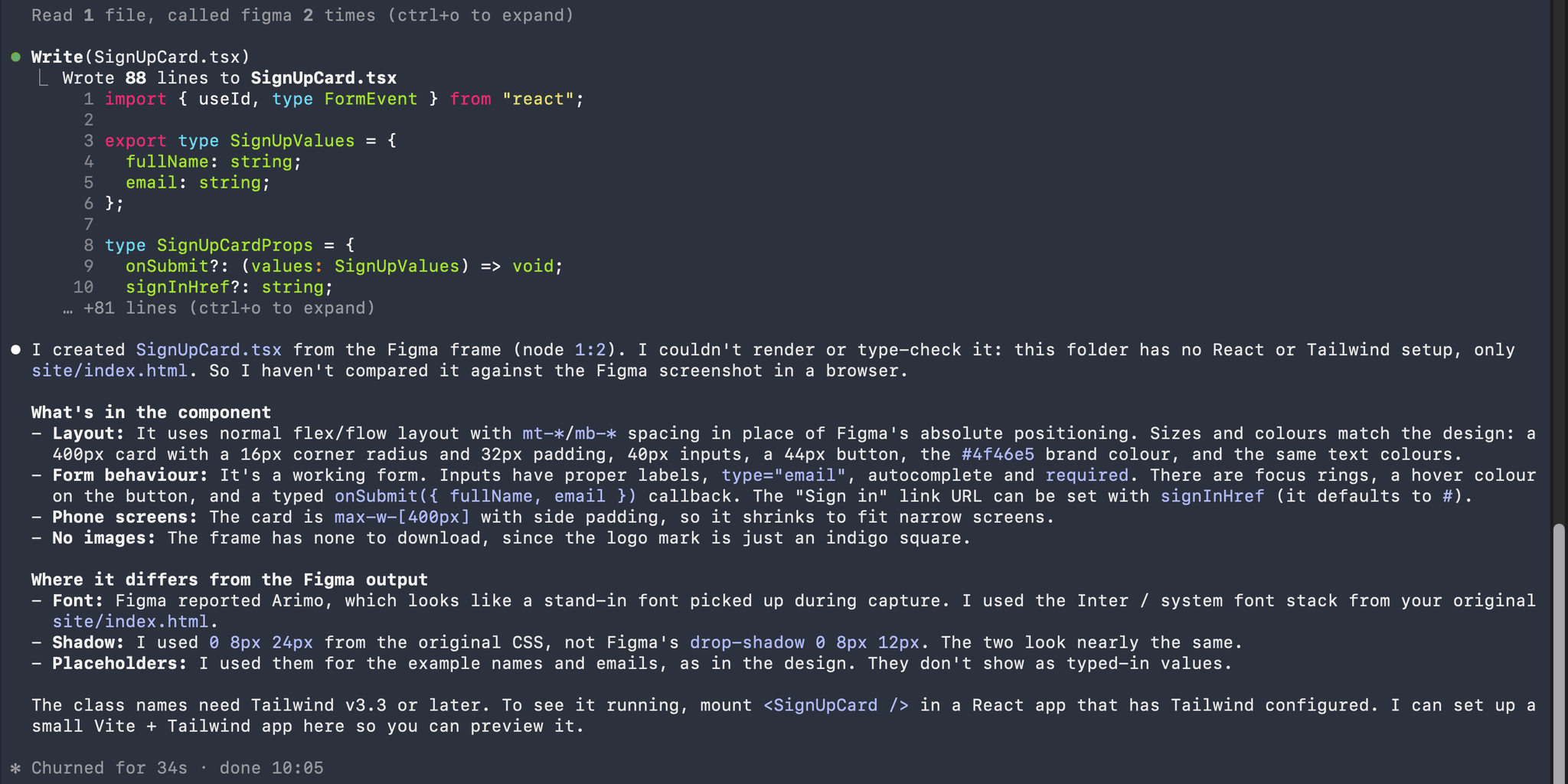
Codex
Add the Figma MCP server to Codex:
codex mcp add figma --url https://mcp.figma.com/mcpCodex detects that the server uses OAuth and starts the sign-in straight away:
Added global MCP server 'figma'.Detected OAuth support. Starting OAuth flow…Your browser opens Figma’s consent page for Figma MCP in Codex. Click Agree & Allow Access. The terminal then shows Successfully logged in.
Check the server’s configuration:
codex mcp listThe figma row shows OAuth as its authentication method:
Name Url Bearer Token Env Var Status Authfigma https://mcp.figma.com/mcp - enabled OAuthStart Codex with codex and enter /mcp. The figma server shows as connected (45 tools).
Ask Codex to create something in Figma, for example:
Create a FigJam flowchart of the Northwind sign-up flow: sign-up form, verify email, create workspace, invite teammates, dashboardIf Codex asks for permission to run a Figma tool, select Allow.
Codex loads Figma’s diagram skill, generates the flowchart, and returns a link to the new FigJam file.
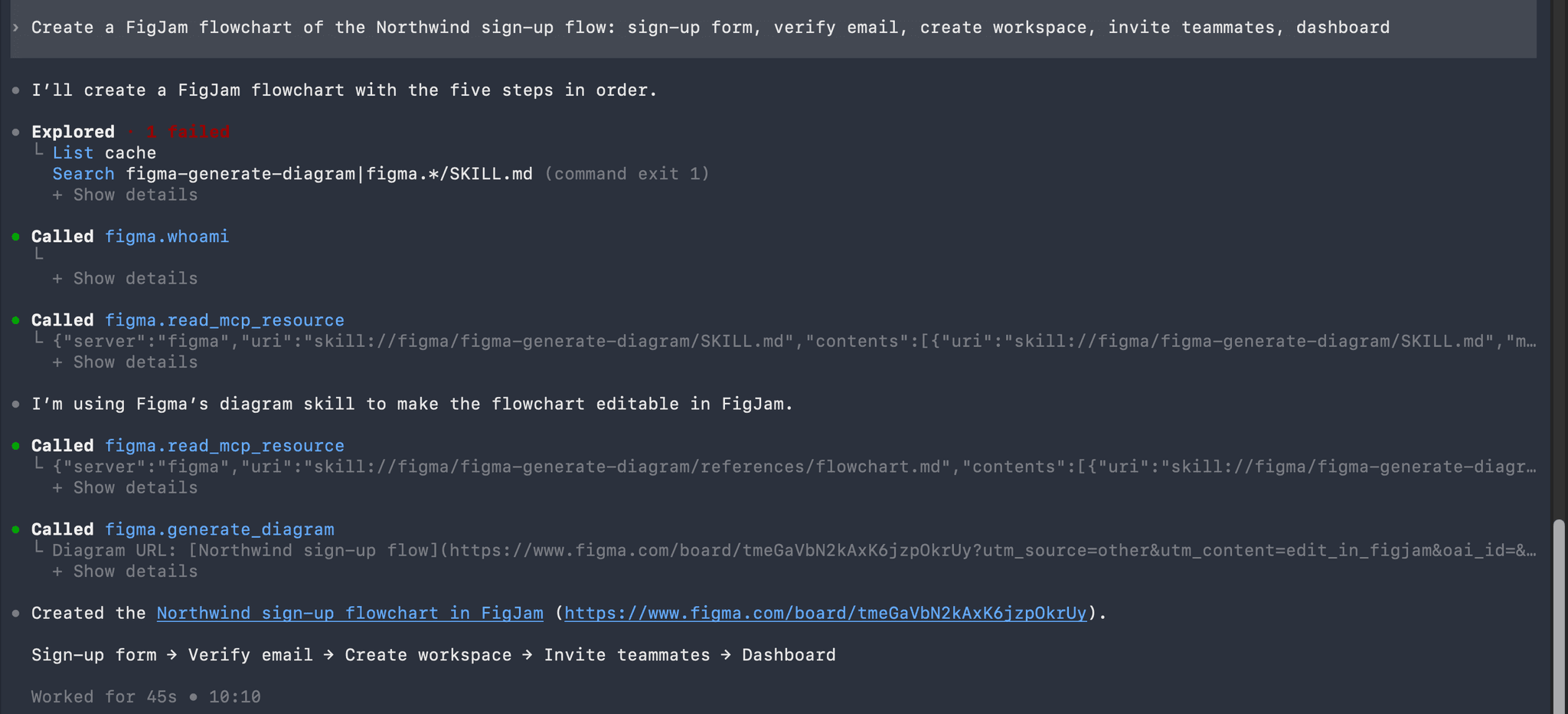
The flowchart opens in FigJam as an editable diagram.

Figma MCP rate limits
Figma limits how many tool calls you can make, based on your plan and seat:
| Seat | Starter | Professional | Organization | Enterprise |
|---|---|---|---|---|
| View, Collab | 20 per month | 20 per month | 20 per month | 20 per month |
| Full, Dev | Not available | 200 per day, 10 per minute | 200 per day, 15 per minute | 600 per day, 20 per minute |
The limits apply to tools that read data from Figma, such as the design context Claude Code fetched above. Tools that write to Figma files are exempt, including create_new_file, generate_figma_design, add_code_connect_map, and whoami. For the latest numbers, see Figma’s rate limits and access page.
The Claude Code prompt in this guide used two of those calls, so on a free Starter account, plan your prompts. Writing to the canvas with the use_figma tool needs a Professional, Education, Organization, or Enterprise plan.
Connect other MCP clients
Figma only accepts clients listed in its MCP catalog, such as VS Code, Cursor, Claude Code, and Codex. If your client is in the catalog, add a remote server with these values:
| Setting | Value |
|---|---|
| Server URL | https://mcp.figma.com/mcp |
| Transport | Streamable HTTP |
| Authentication | OAuth. The client opens Figma’s consent page. |
Troubleshooting
Claude Code shows Needs authentication
If claude mcp list shows this line, Claude Code has the server but isn’t signed in to Figma:
figma: https://mcp.figma.com/mcp (HTTP) - ! Needs authenticationclaude mcp add saves the server without signing in, so you see this until you complete the sign-in. Run the login command and approve access in your browser:
claude mcp login figmaIf the consent page opens in a browser where you aren’t signed in to Figma, run claude mcp login figma --no-browser instead. Claude Code prints the sign-in URL, and you can open it in the browser you use for Figma.
Next steps
You now have the Figma MCP server connected to your agent. You added the server to Claude Code or Codex, approved access in Figma, and tried a prompt that turns a Figma frame into code and one that creates a FigJam diagram. Your agent can read your designs, generate code from them, and create new files and diagrams in Figma.
To keep going:
- Connect more services to your agent with the other guides in Connect popular MCP servers.
- Learn how to get better results from your agent’s tools in Best practices for using MCP tools.
- See what teams build with MCP in MCP use cases.