Using MCP servers
Hubspot
Governing MCP across your organization?
Speakeasy’s AI control plane connects, secures, and observes every agent and MCP server from one entry point — with SSO, RBAC, runtime guardrails, and a full audit trail.
This guide shows you how to connect your HubSpot CRM data to Claude Desktop using the Model Context Protocol (MCP). Once connected, you can analyze deals, update contacts, and manage your sales pipeline using natural language commands.
With the HubSpot MCP Server set up in Claude Desktop, you can ask Claude to “show me all deals in the negotiation stage” or “update the contact information for John Smith” and get immediate results instead of navigating through the HubSpot interface.
Prerequisites
- A HubSpot account with admin access
- An MCP Client like Claude Desktop
Setting up the HubSpot MCP Server
The HubSpot MCP Server enables real-time connection between Claude and your HubSpot CRM data.
To set up this connection, you’ll need to create a “private application” in HubSpot and configure it with the necessary permissions. Once created, HubSpot will provide an API key that the MCP server will use to access your CRM data.
Creating a HubSpot private application
On the HubSpot dashboard, click the settings icon in the top navigation bar.
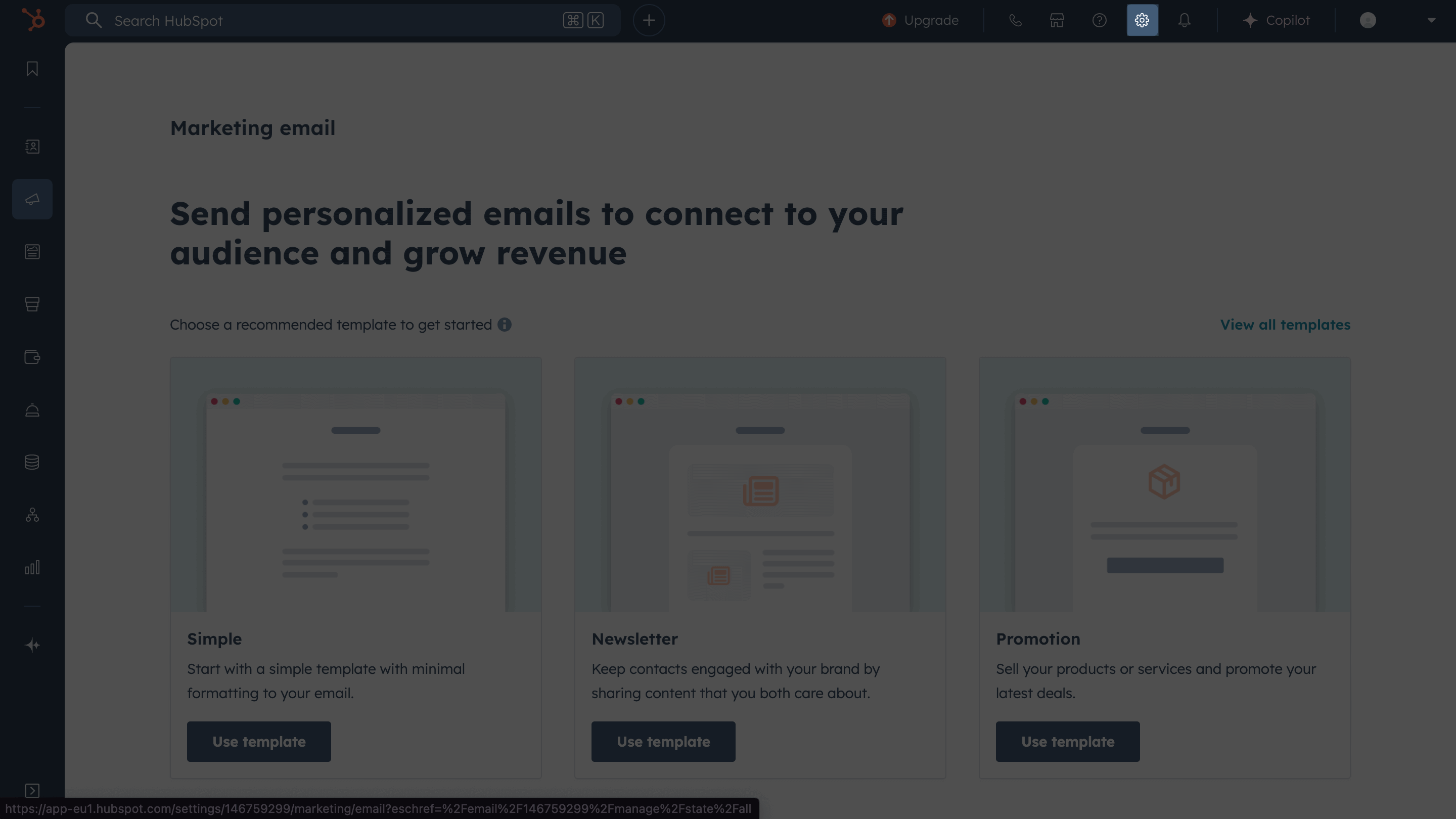
In your HubSpot account settings, go to Integrations > Private Apps and click Create a private app.

Enter a name for the application.

Navigate to the Scopes tab and add the following scopes:
crm.lists.readandcrm.lists.writecrm.objects.companies.readcrm.objects.contacts.readandcrm.objects.contacts.writecrm.objects.deals.readandcrm.objects.deals.writecrm.objects.appointments.readandcrm.objects.appointments.writecrm.objects.leads.readandcrm.objects.leads.writecrm.objects.custom.readandcrm.objects.custom.write

Add additional scopes based on the specific HubSpot features Claude needs to access in your workflow.
Click Create app in the top-right corner and validate the creation.
In the modal that opens, copy the API key and store it safely. You’ll use this key when you add the MCP server to Claude Desktop.

Adding the HubSpot MCP Server to Claude Desktop
Now update your Claude Desktop configuration to include the MCP server.
In Settings, go to Developer > Edit Config.

In the claude_desktop_config.json file that opens, add the HubSpot MCP Server configuration:
{ "mcpServers": { "HubspotMCP": { "command": "npx", "args": ["-y", "@hubspot/mcp-server"], "env": { "PRIVATE_APP_ACCESS_TOKEN": "YOUR_HUBSPOT_KEY" } } }}Replace YOUR_HUBSPOT_KEY with the API key you copied from HubSpot.
Restart Claude Desktop to load the server.
Testing the connection
In Claude Desktop, start a new chat. Click the Search and tools button to see the HubSpot MCP Server listed. Enable all tools if they’re disabled.

Ask Claude to list the current contacts in your HubSpot application.

Conclusion
Claude can now access and update your HubSpot data through natural language conversations. Here are some ways to get more from your setup.
Expand integration capabilities
- Add more scopes to your private app for custom objects, advanced reporting, or marketing tools.
- Explore other MCP servers from the official MCP servers repository to connect more tools in your sales stack.
Optimize your workflow
- Create custom slash commands for common queries like pipeline analysis or contact updates.
- Set up regular data reviews using Claude’s analytical capabilities.
- Train your team on natural language commands for faster CRM interactions.
Learn more about MCP
- Explore the Model Context Protocol documentation to understand advanced connection patterns.
- Check the HubSpot MCP Server documentation for additional configuration options and troubleshooting.