Using MCP servers
How to set up the GitHub MCP server
Governing MCP across your organization?
Speakeasy’s AI control plane connects, secures, and observes every agent and MCP server from one entry point — with SSO, RBAC, runtime guardrails, and a full audit trail.
GitHub’s official MCP server is hosted at https://api.githubcopilot.com/mcp/. It gives an AI agent access to your GitHub repositories, so the agent can read code, triage issues, review pull requests, and comment for you.
This guide shows you how to connect the GitHub MCP server to Claude Code and Codex. You’ll create a personal access token, save it, and add the server to your agent.
Prerequisites
To follow along, you’ll need:
- A GitHub account. The GitHub MCP server is available on every GitHub plan.
- Claude Code or Codex CLI installed
Step 1: Create a GitHub personal access token for MCP
The GitHub MCP server accepts a personal access token as a bearer token. Use a fine-grained token, so you can limit the agent to the repositories and permissions it needs.
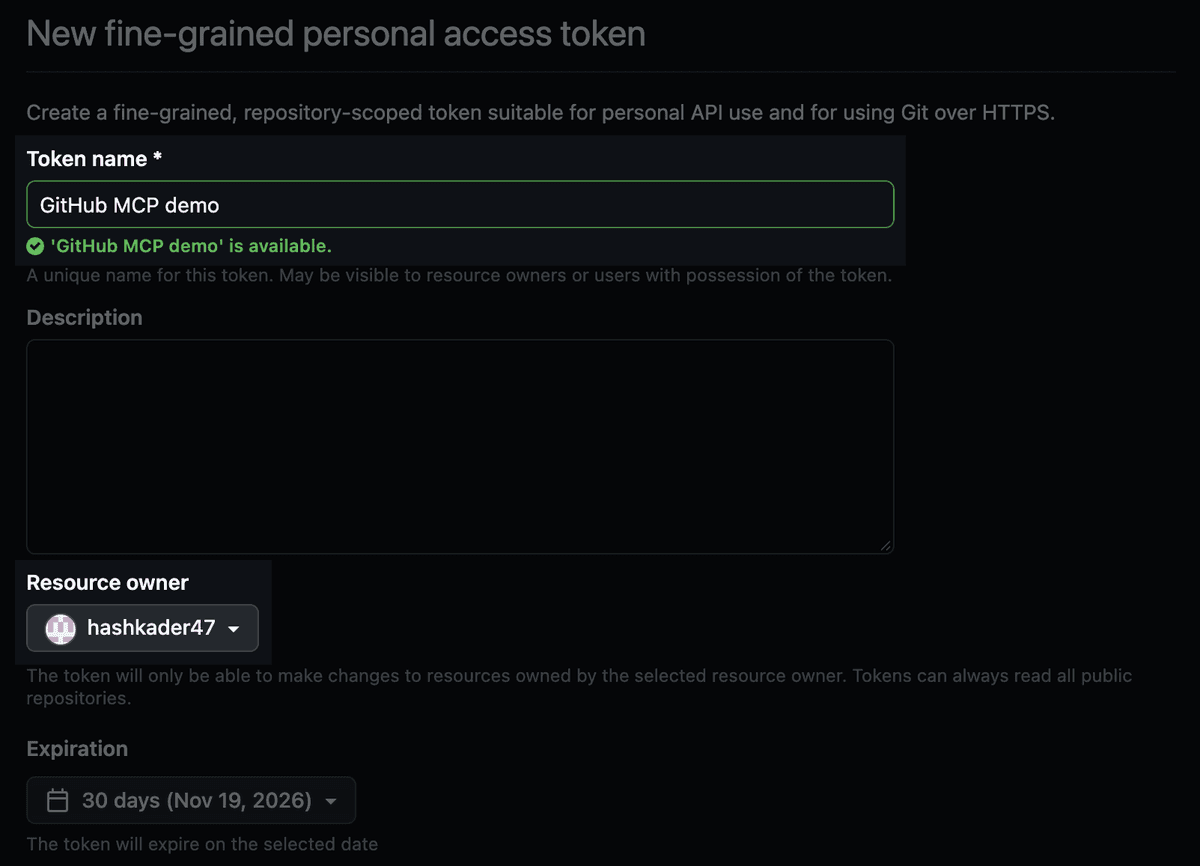
Go to github.com/settings/personal-access-tokens/new. Enter a Token name and check that Resource owner is your account. You can leave Expiration at its default.
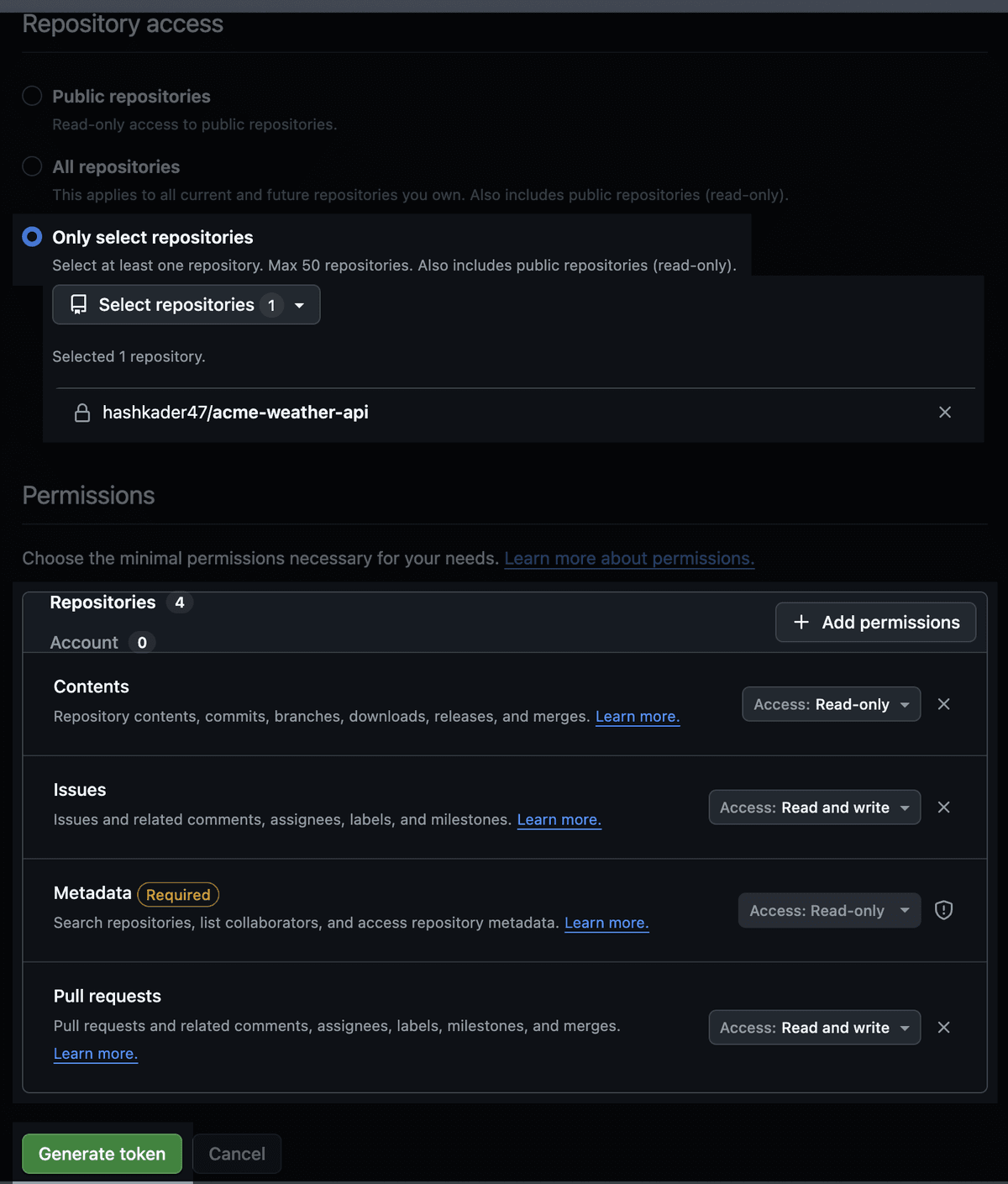
Under Repository access, select Only select repositories and choose the repositories you want your agent to work with.
Under Permissions, click Add permissions and add these repository permissions:
- Contents: Read-only
- Issues: Read and write
- Pull requests: Read and write
GitHub adds Metadata as read-only automatically. Add more permissions later if you want your agent to do more, such as run workflows.
Click Generate token.
Step 2: Save your GitHub MCP token
GitHub shows your new token once. Click the copy icon next to it. The token starts with github_pat_.
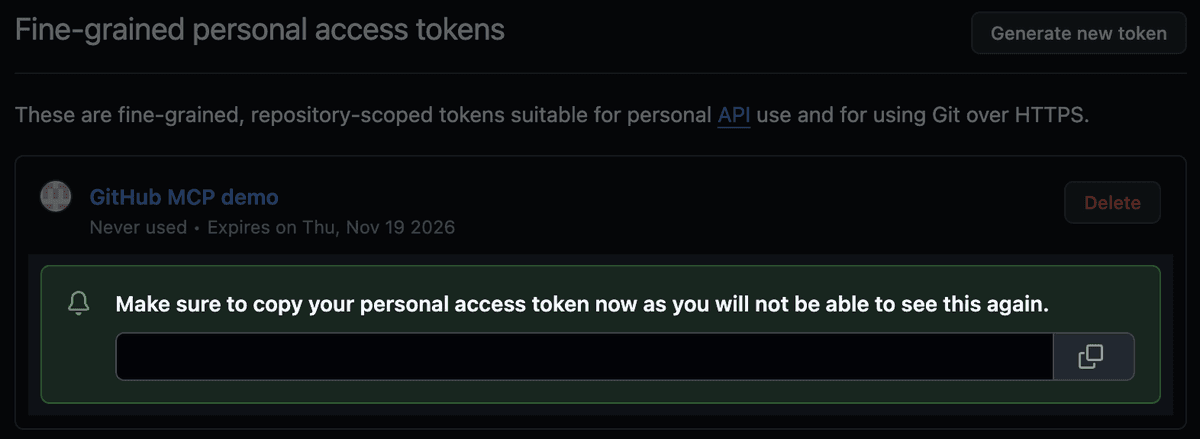
The token lets your agent act as you on GitHub, so keep it out of config files and code. Instead, save it as an environment variable in your shell profile:
echo 'export GITHUB_MCP_TOKEN="github_pat_your-token"' >> ~/.zshrcReplace github_pat_your-token with the token you copied. If you use Bash, write to ~/.bashrc instead.
Open a new terminal window so the variable loads.
Step 3: Connect your agent to the GitHub MCP server
Follow the instructions for the agent you use: Claude Code or Codex. For any other agent, see Connect other MCP clients.
Claude Code
Add the GitHub MCP server to Claude Code:
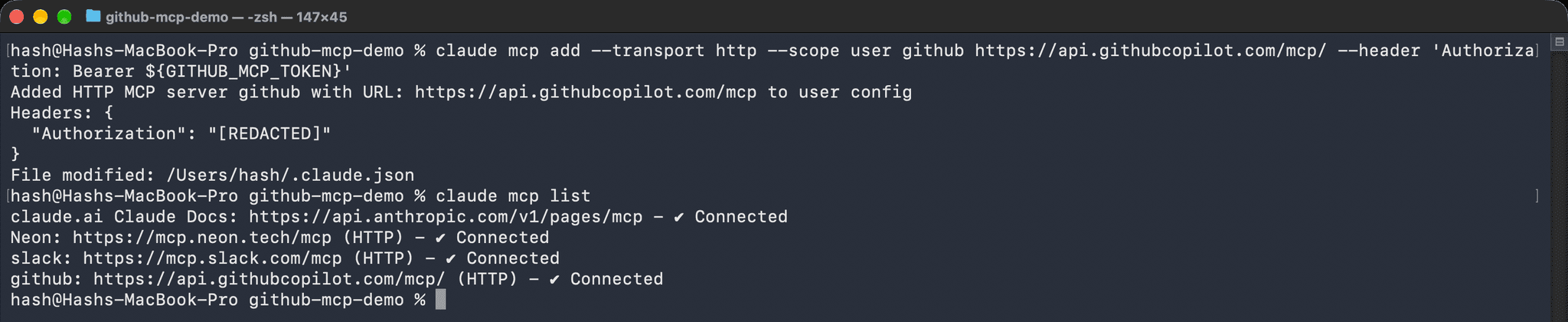
claude mcp add --transport http --scope user github https://api.githubcopilot.com/mcp/ --header 'Authorization: Bearer ${GITHUB_MCP_TOKEN}'Keep the single quotes around the header. They tell Claude Code to save the variable name rather than the token itself, and Claude Code reads the token from your environment when it starts. The --scope user option makes the server available in all your projects.
Check that the server connects:
claude mcp listThe github server shows as Connected.
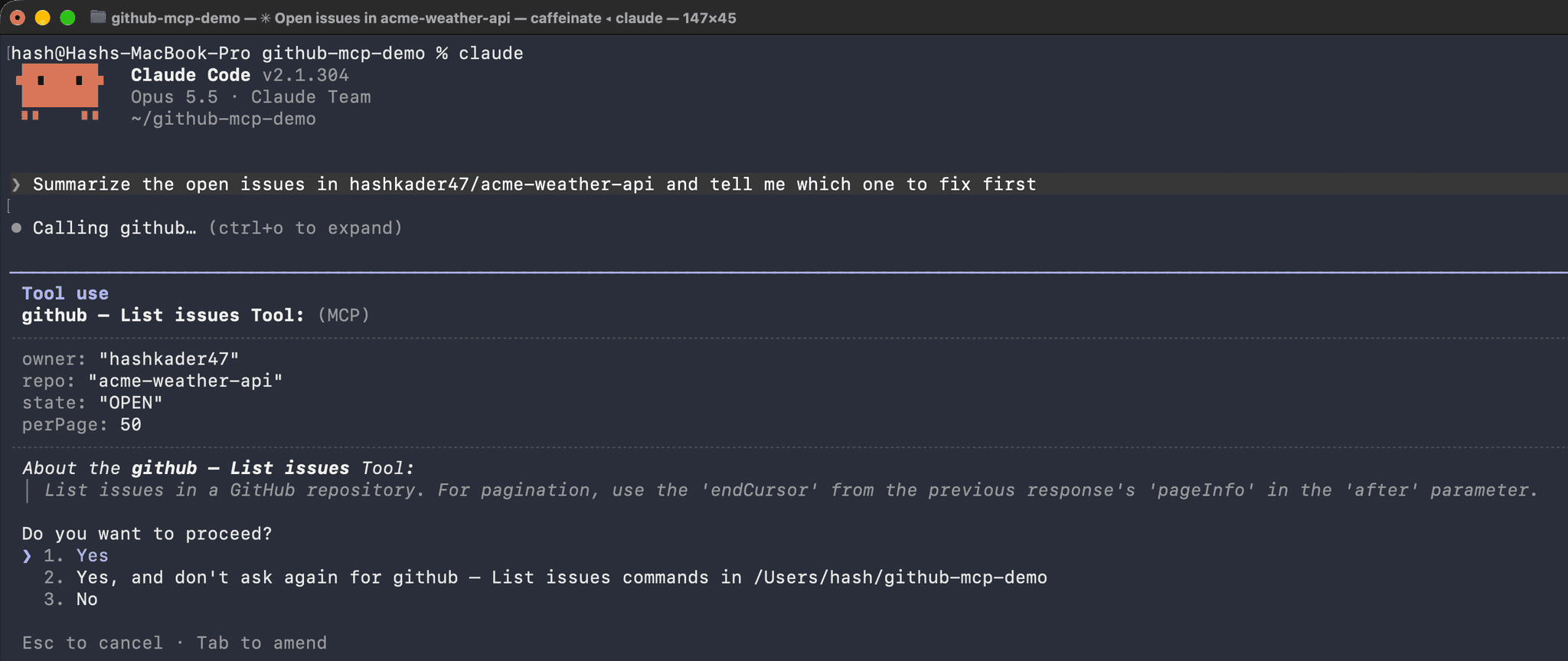
Start Claude Code with claude and ask about one of your repositories, for example:
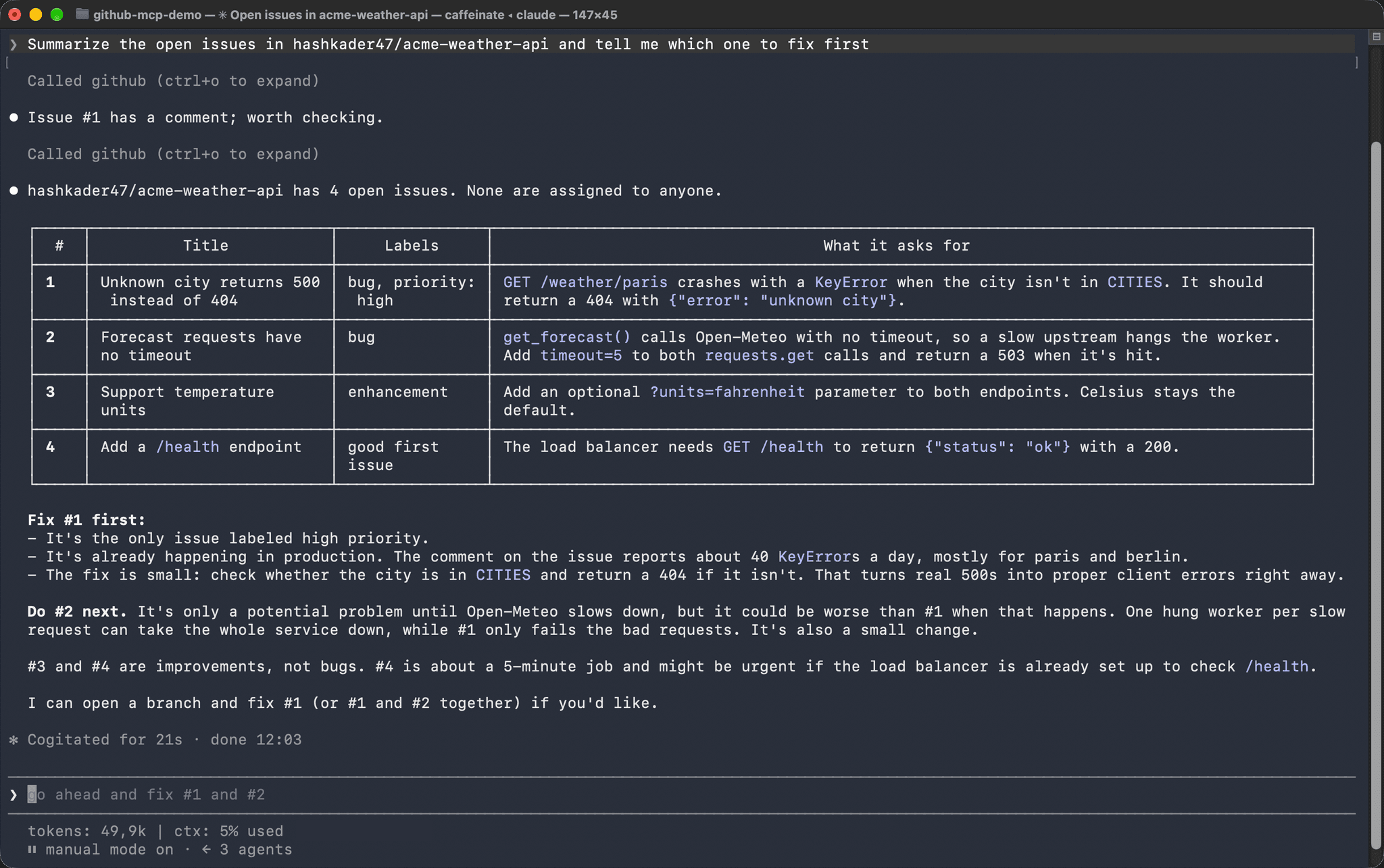
Summarize the open issues in hashkader47/acme-weather-api and tell me which one to fix firstReplace hashkader47/acme-weather-api with a repository your token can access.
Claude Code asks for permission the first time it uses each GitHub tool. Select Yes to let it run.
Claude Code reads the issues and answers your question.
Codex
Add the GitHub MCP server to Codex:
codex mcp add github --url https://api.githubcopilot.com/mcp/ --bearer-token-env-var GITHUB_MCP_TOKENThe --bearer-token-env-var option tells Codex to read the token from the GITHUB_MCP_TOKEN environment variable and send it with each request.
Check the server’s configuration:
codex mcp list
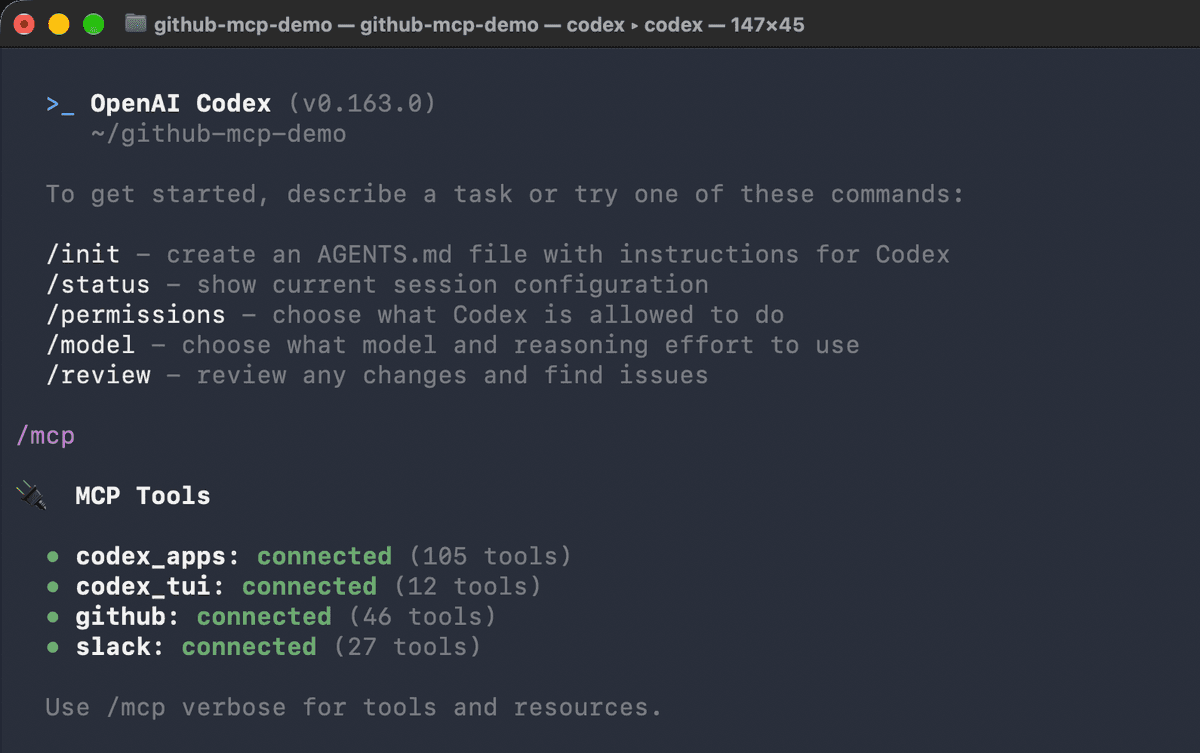
Start Codex with codex and enter /mcp. The github server shows as connected.
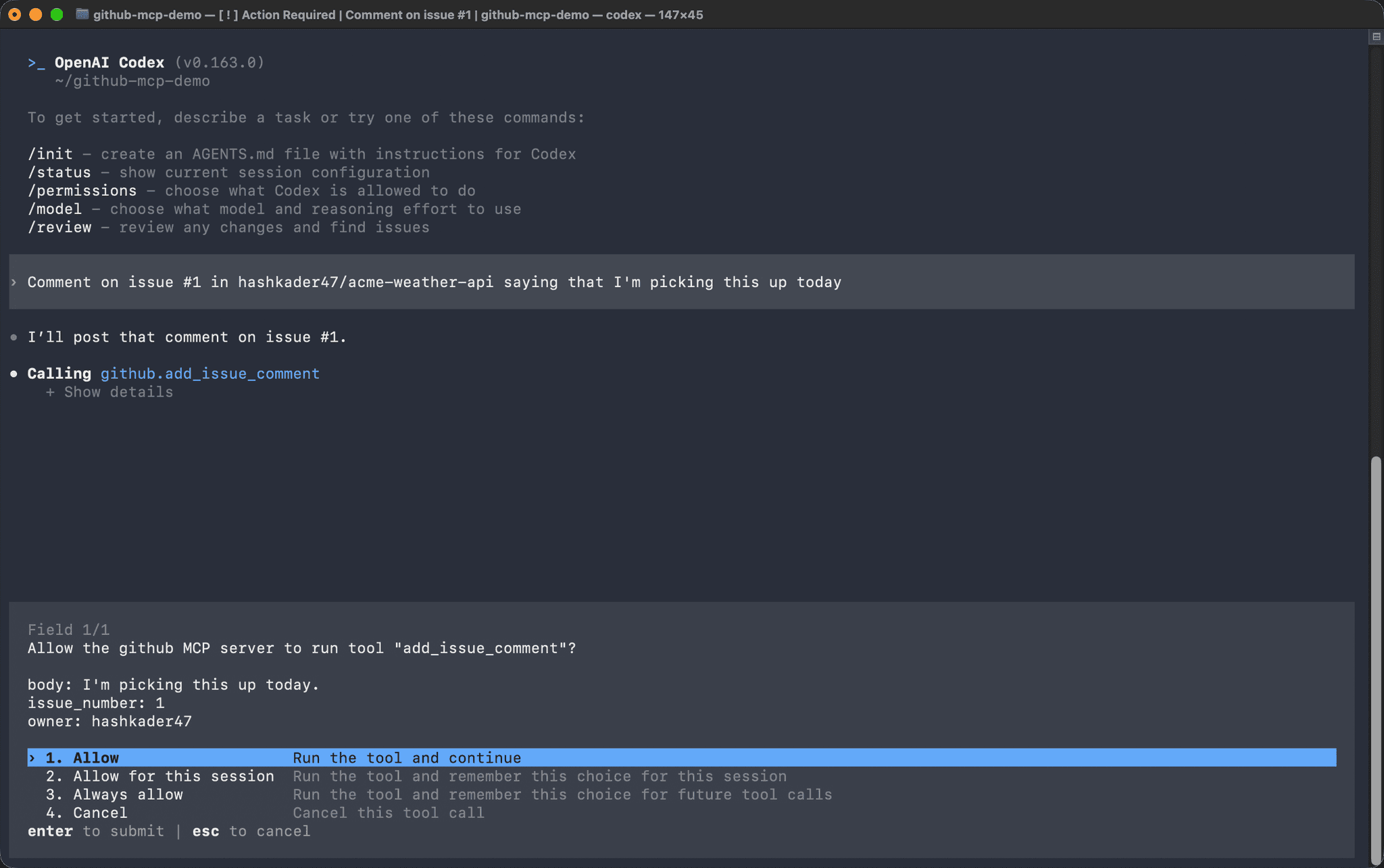
Ask Codex to do something on GitHub, for example:
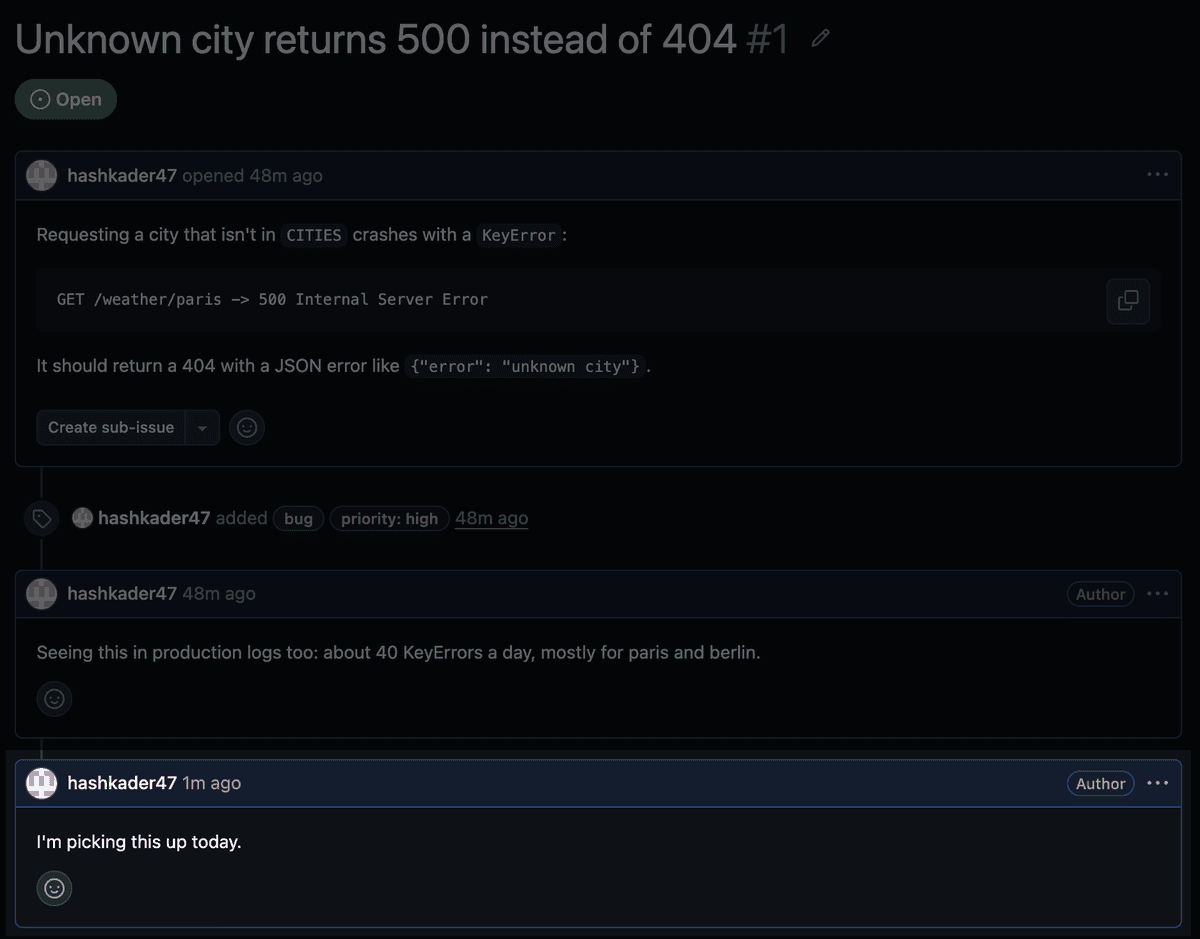
Comment on issue #1 in hashkader47/acme-weather-api saying that I'm picking this up todayCodex asks for permission before it runs a GitHub tool. Select Allow to let it continue.
The comment appears on the issue, posted as you.
Connect other MCP clients
You can connect any MCP client that supports remote (Streamable HTTP) servers and custom headers. Use these values:
| Setting | Value |
|---|---|
| Server URL | https://api.githubcopilot.com/mcp/ |
| Header | Authorization: Bearer <your github_pat_ token> |
Troubleshooting
Codex shows github: failed (0 tools)
If /mcp in Codex shows the GitHub server as failed, press F2 to view the warning.
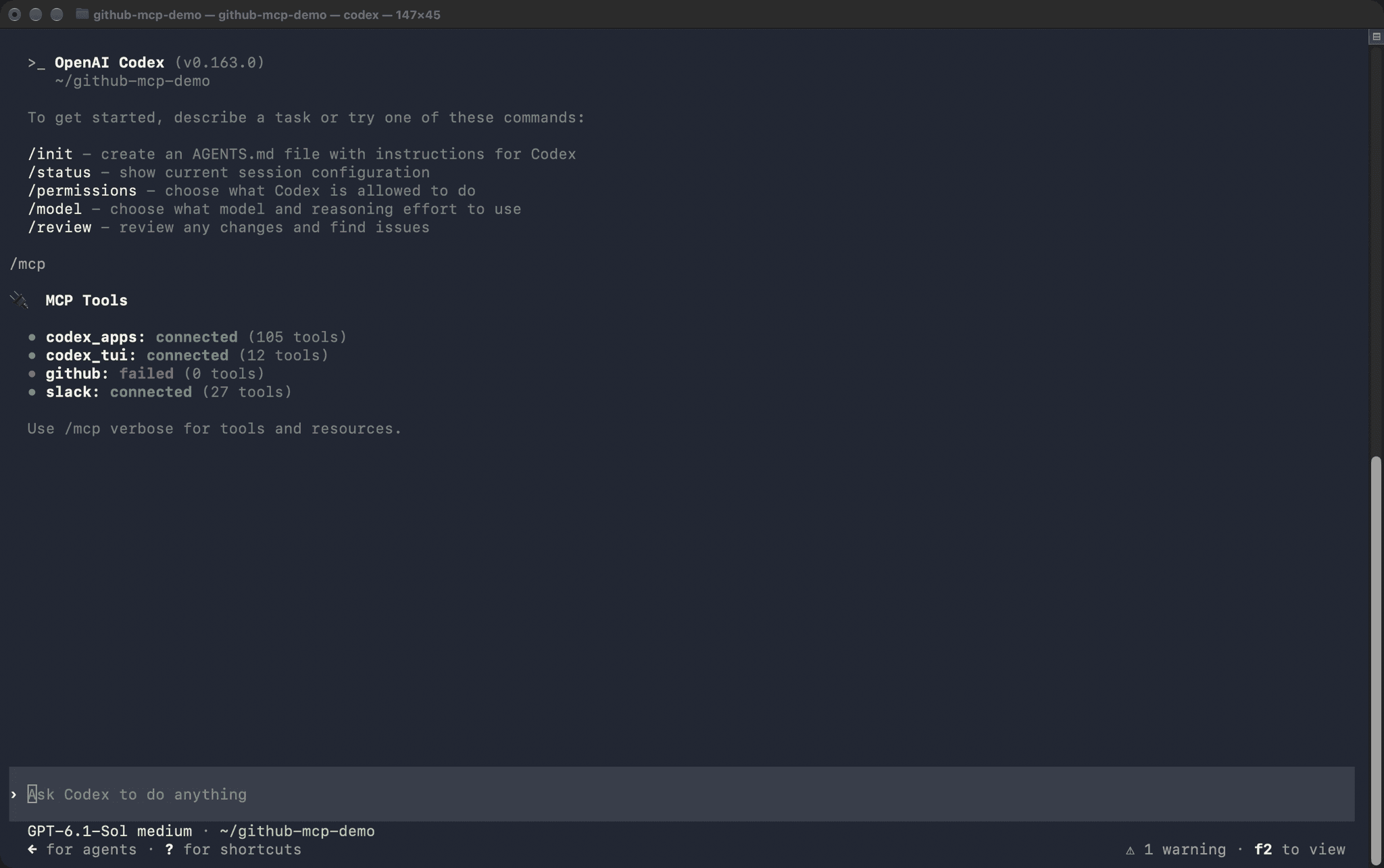
The warning looks like this:
MCP client for `github` failed to start: MCP startup failed: Environment variable GITHUB_MCP_TOKEN for MCP server 'github' is not setMCP startup incomplete (failed: github)This warning means Codex started before the GITHUB_MCP_TOKEN variable was set. Codex runs a background process that keeps the environment it started with, so you need to restart it.
Quit Codex, then stop its background process:
pkill -f "codex app-server"; pkill -f codex-code-mode-hostOpen a new terminal window, start codex, and enter /mcp again.
Next steps
You now have the GitHub MCP server connected to your agent. You created a fine-grained personal access token, saved it as an environment variable, and added the server to Claude Code or Codex. Your agent can read your repositories, triage issues and pull requests, and comment for you.
To keep going:
- Connect more services to your agent with the other guides in Connect popular MCP servers.
- Learn how to get better results from your agent’s tools in Best practices for using MCP tools.
- See what teams build with MCP in MCP use cases.