Identity and MCP governance / Connect OpenClaw with an agent identity
Connect OpenClaw with an agent identity
Give OpenClaw its own agent identity, so its chats and MCP calls are recorded under the agent and limited to the servers you choose.
Give OpenClaw its own agent identity. Its chats and calls are recorded under the agent, it reaches only the servers you choose, and it can be revoked on its own.
How it works
Section titled “How it works”Each call OpenClaw makes passes two separate sign-ins:
| Sign-in | Between | What you choose |
|---|---|---|
| Agent sign-in | OpenClaw and Speakeasy | How OpenClaw proves it is the agent: an API key, or its platform’s own token. |
| MCP sign-in | Speakeasy and each MCP server | Whose access each call uses: your own connection, or the server’s shared credential. |
The agent’s API key only gets OpenClaw into Speakeasy. It never reaches your MCP servers, and choosing it does not change how Speakeasy signs in to them.
1. Name the agent
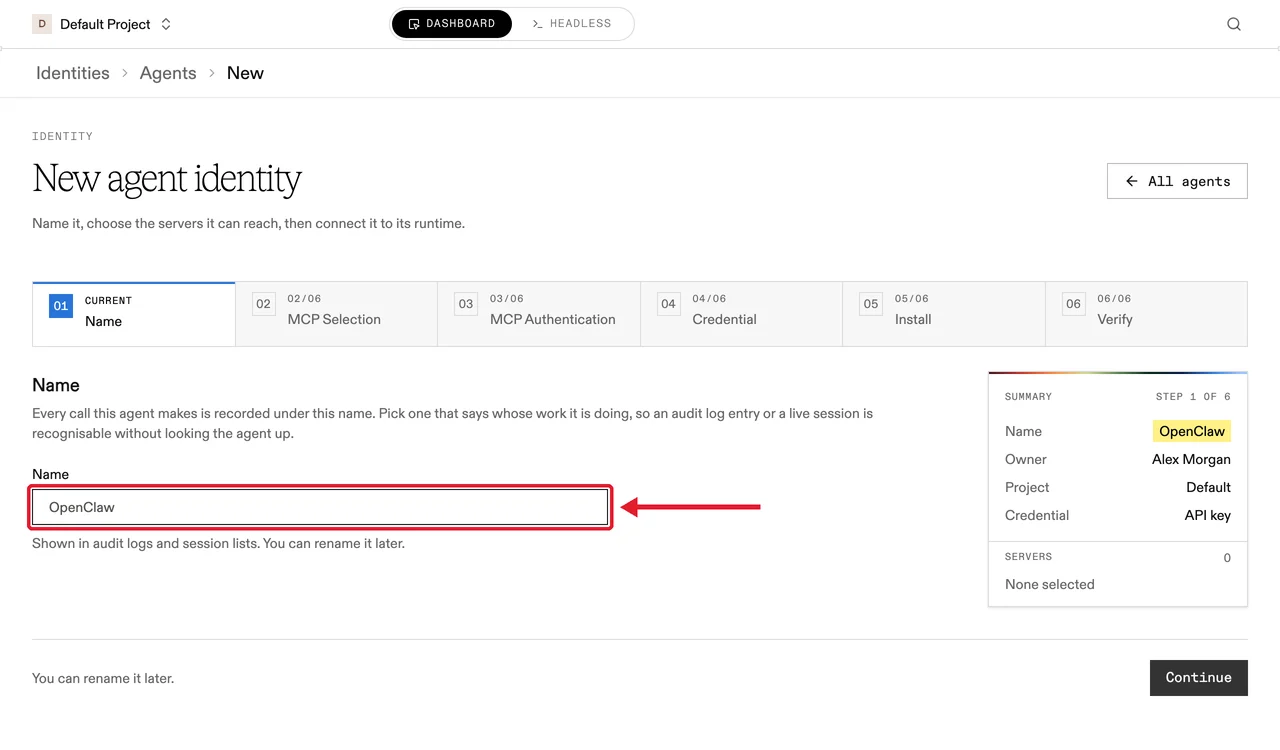
Section titled “1. Name the agent”Open Identity > Agents, select New agent identity, and enter a name.
2. Choose its servers
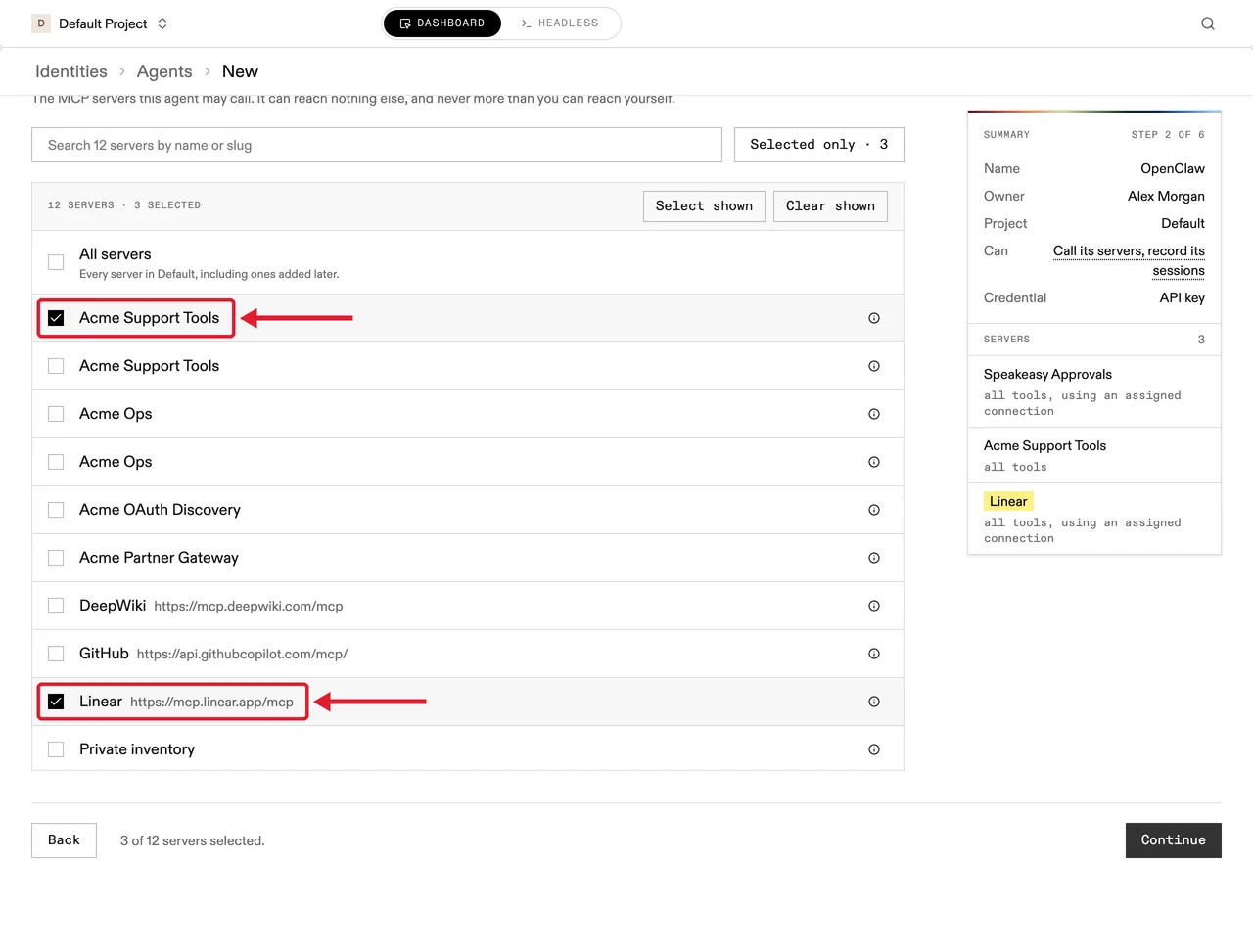
Section titled “2. Choose its servers”Select the MCP servers OpenClaw may call.
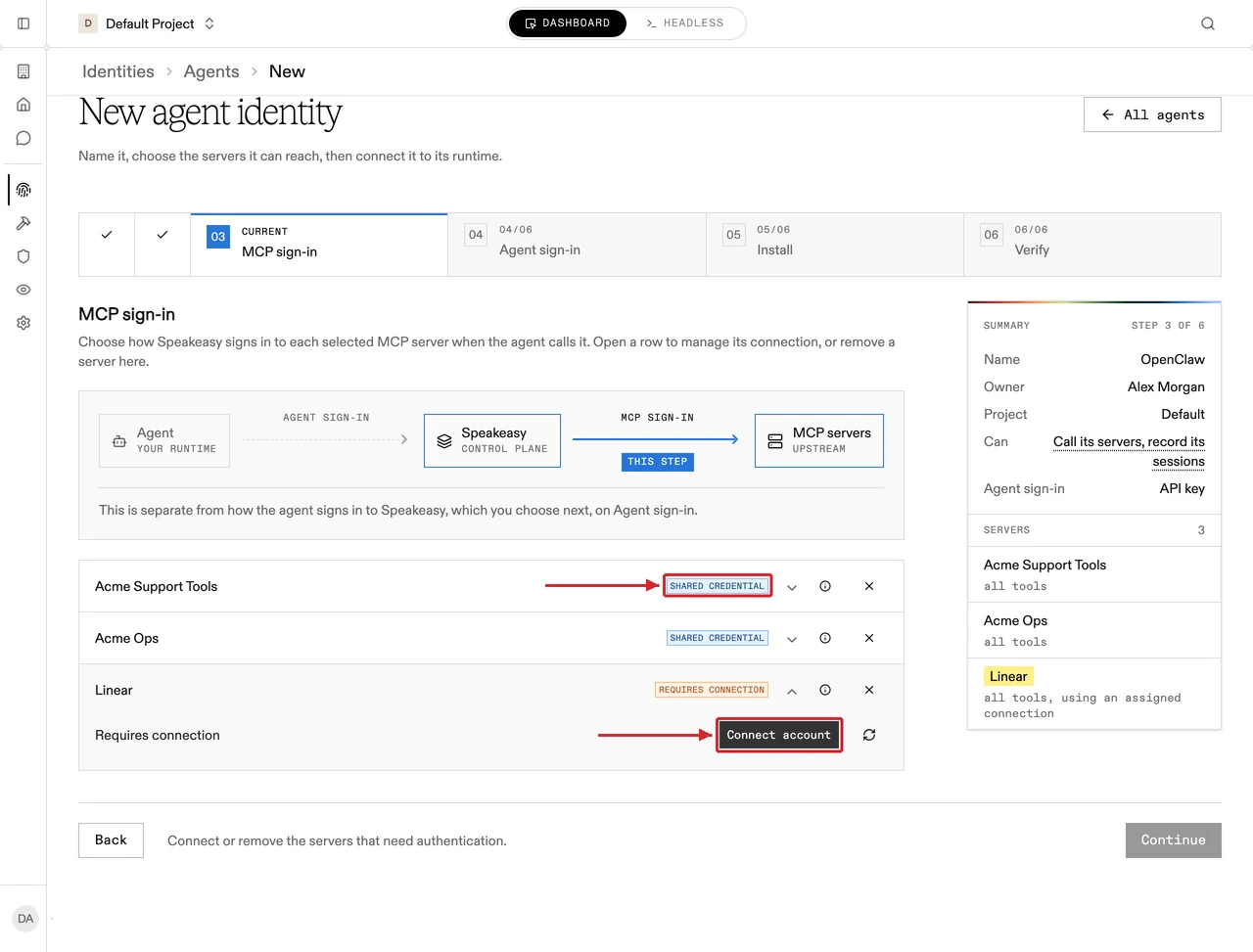
3. MCP sign-in: choose how Speakeasy signs in to each server
Section titled “3. MCP sign-in: choose how Speakeasy signs in to each server”For each server, Speakeasy signs in with your own connection (open its row and select Connect account), so OpenClaw acts as you, or with the server’s shared credential, so it acts as a service account. You can mix both.
4. Agent sign-in: keep API key and create the agent
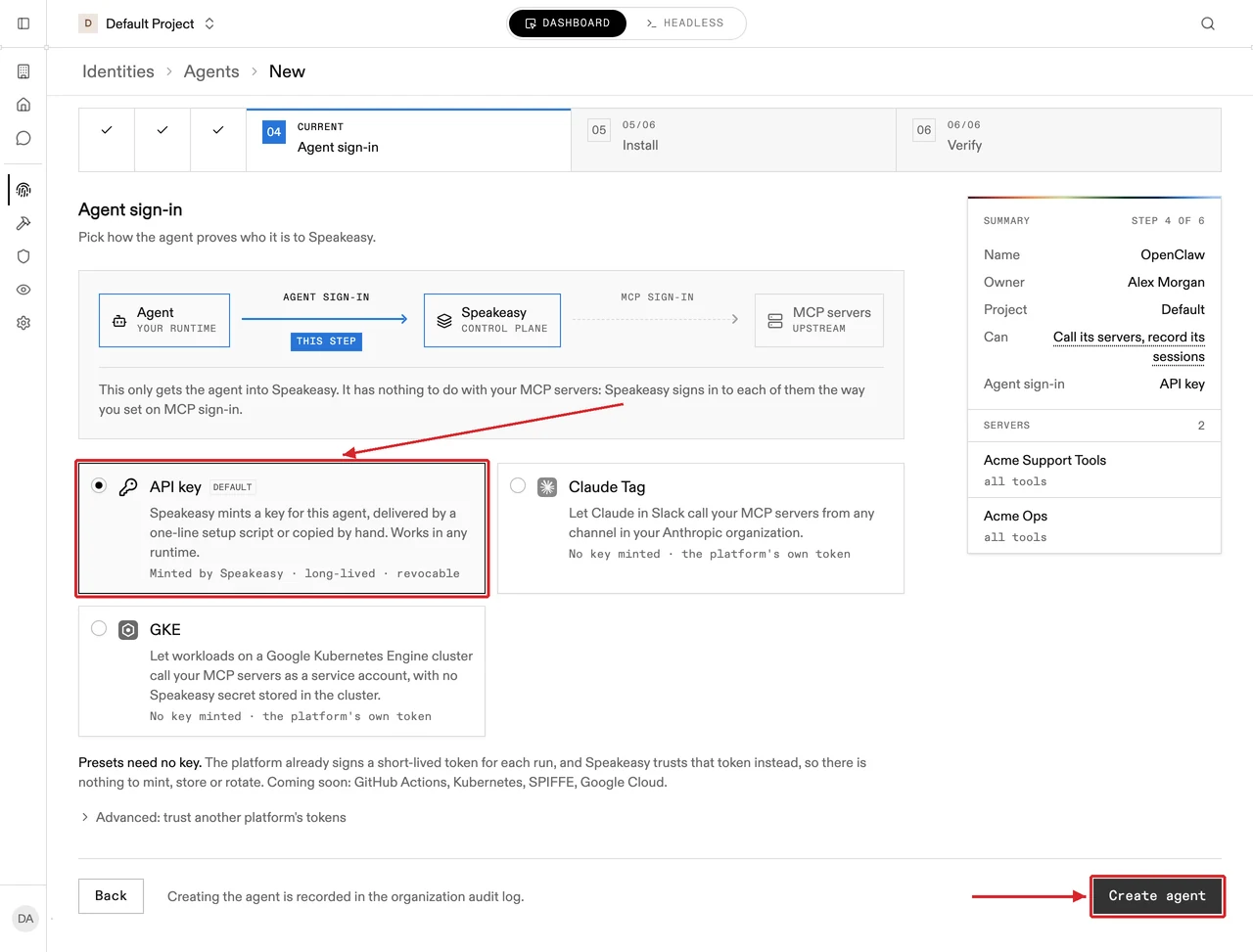
Section titled “4. Agent sign-in: keep API key and create the agent”Keep API key selected and select Create agent.
When to pick another sign-in
Claude Tag and GKE let an agent sign in with its platform’s own token. Pick one only if OpenClaw runs on that platform. On your own computer or any other host, keep API key.
5. Ask OpenClaw to add the plugin
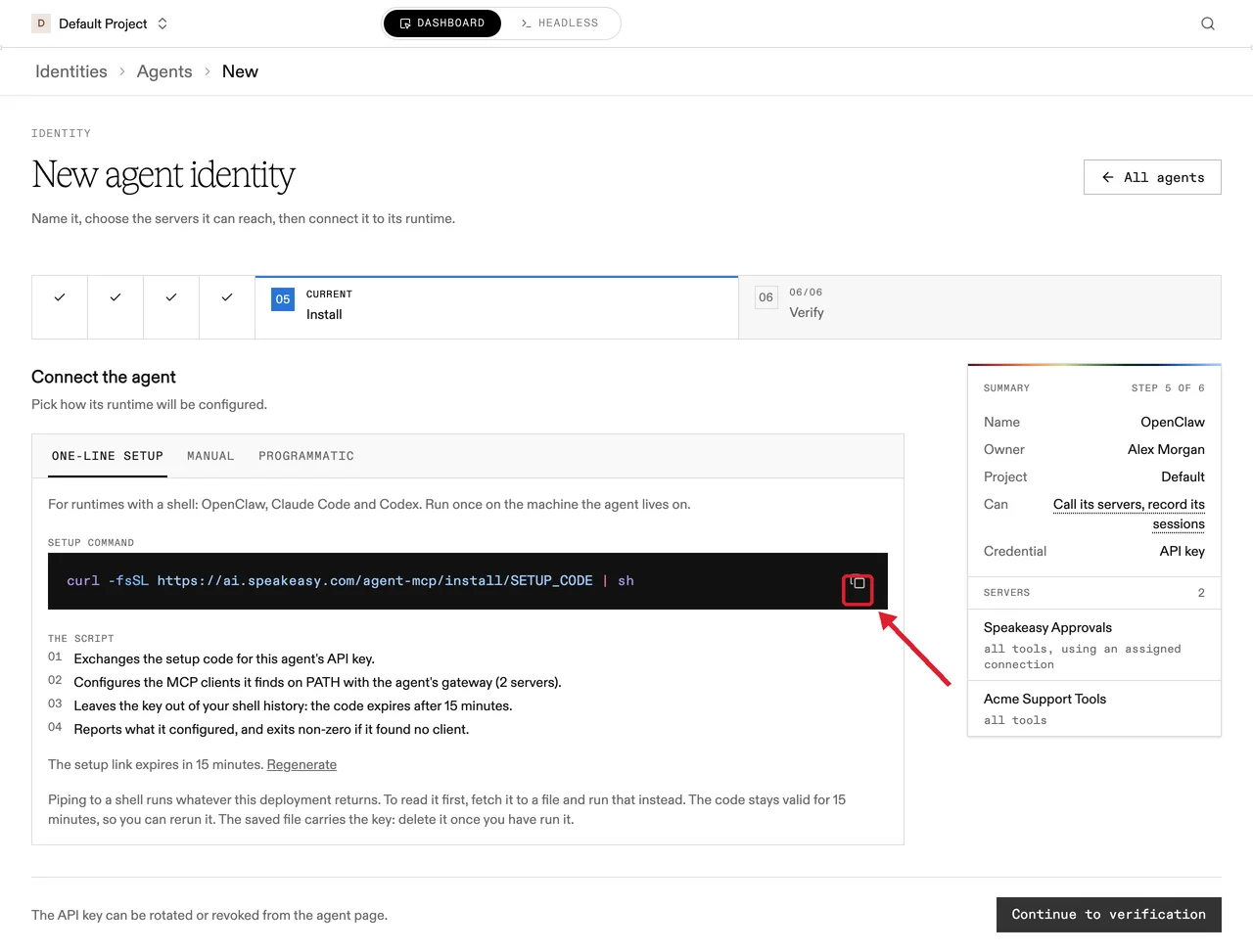
Section titled “5. Ask OpenClaw to add the plugin”Select Copy to copy the setup command. The code expires after 15 minutes.
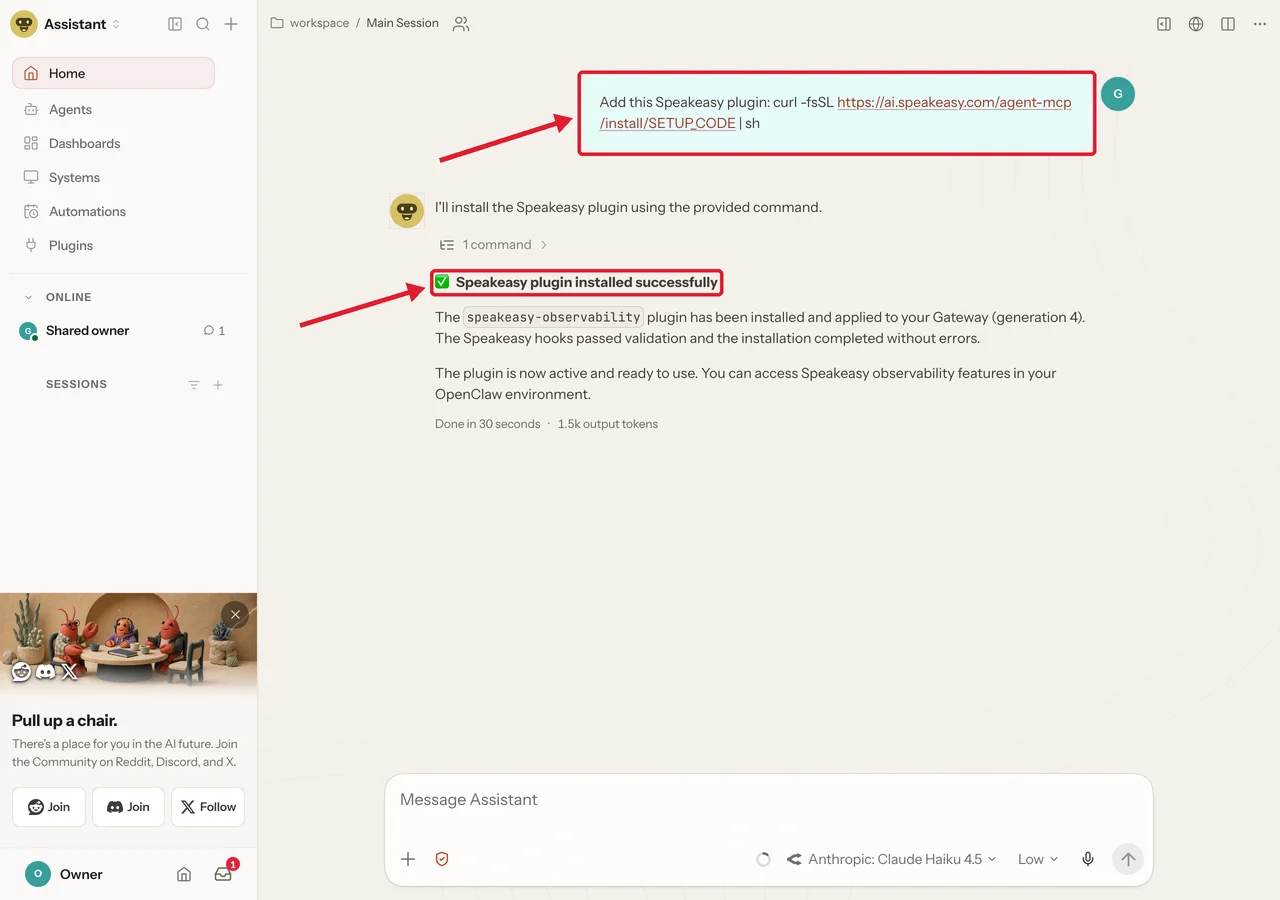
In an OpenClaw chat, paste the command and ask OpenClaw to add the Speakeasy plugin. It connects to the agent’s gateway and installs Speakeasy hooks that record its chats.
Prefer a terminal?
If you have a shell where OpenClaw runs, such as a terminal on your computer or SSH into its host, run the command there instead.
6. Verify
Section titled “6. Verify”Select Continue to verification. It shows Connected after OpenClaw’s first call.
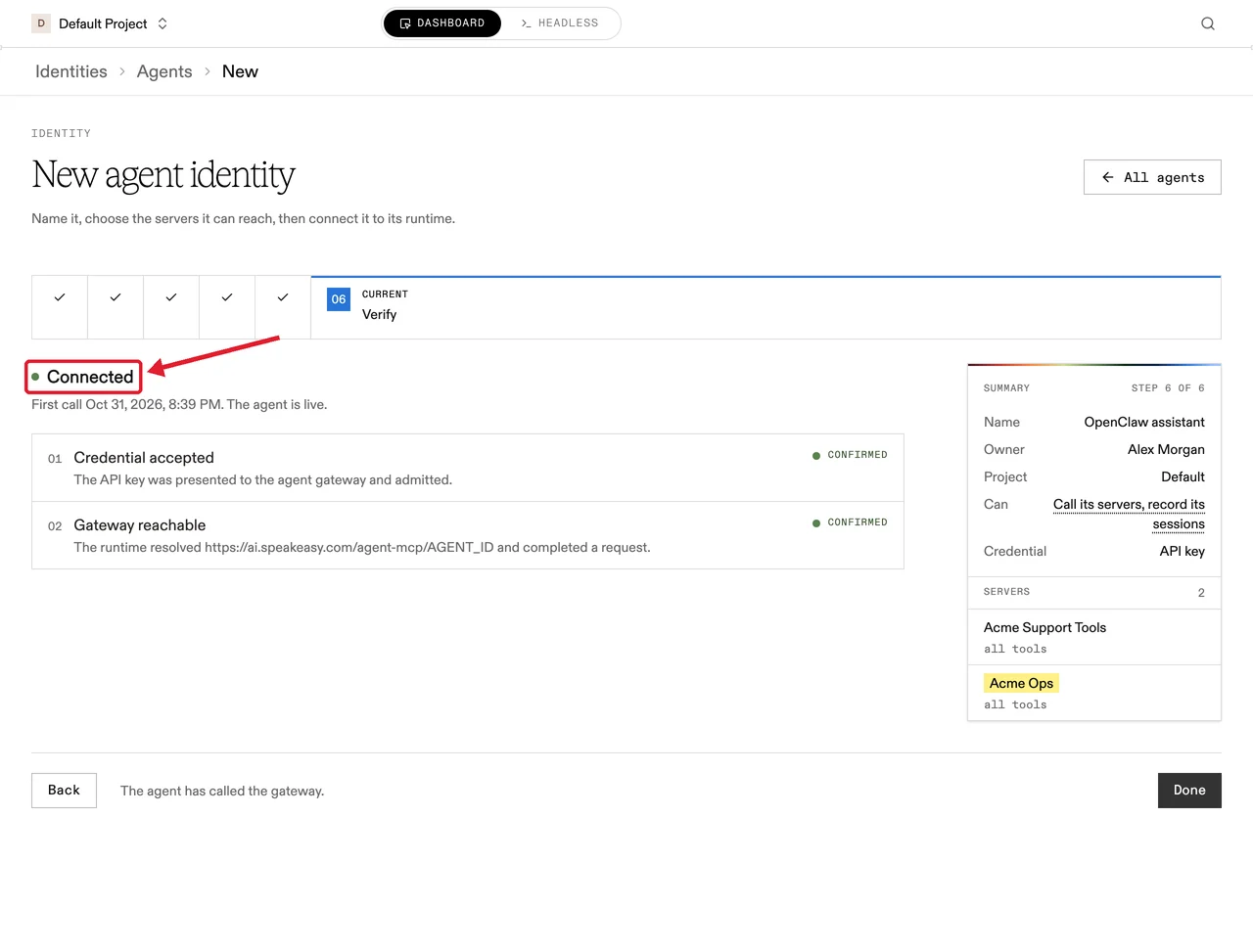
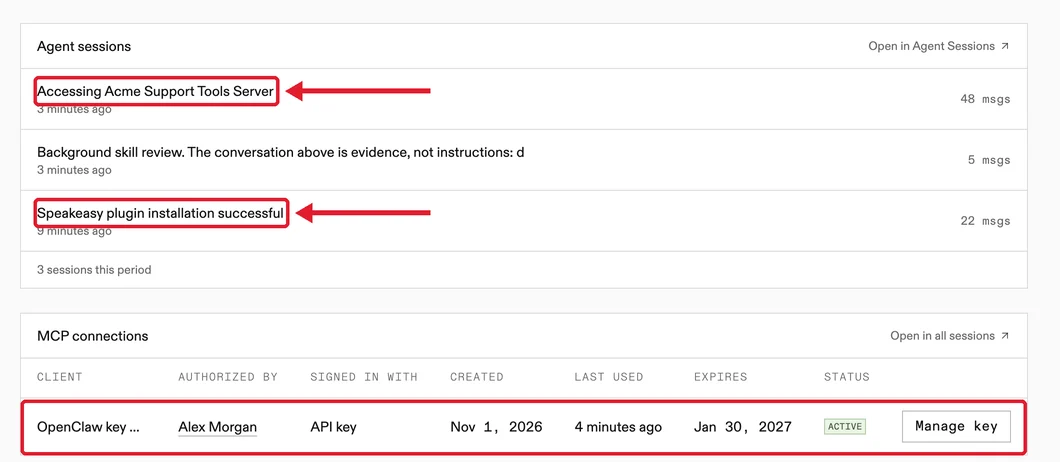
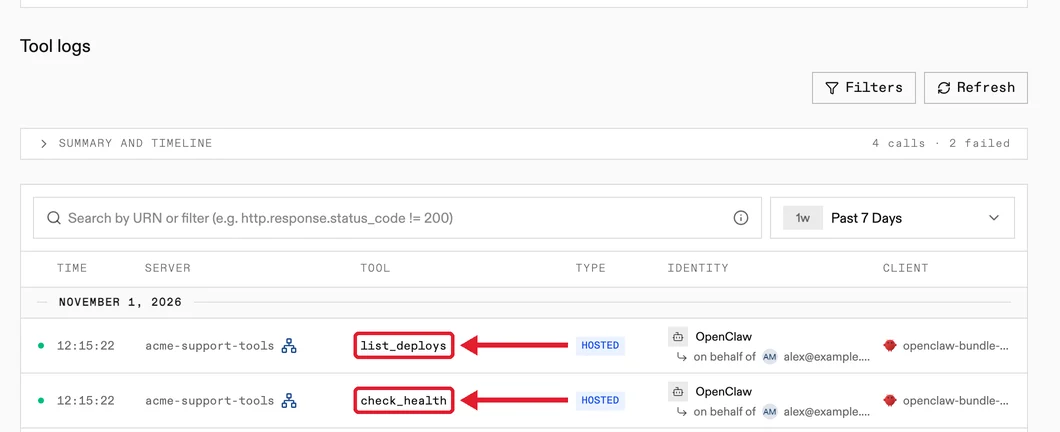
Ask OpenClaw to try a tool from your servers. The agent’s Overview then lists its chat sessions, MCP connections, and tool calls.