MCP Gateway / MCP Gateway
MCP Gateway
Turn APIs, code, and third-party servers into governed MCP servers and gateway endpoints, then deliver them to the organization. Every MCP server has one backend, remote, tunneled, or built, and everything above it works the same way.
The MCP Gateway is the one governed place where an organization turns tool sources into MCP servers and delivers them, along with skills and plugins, to the people and agents that use them. Open it from the MCP Gateway group in the project sidebar.
An MCP server is an address that MCP clients connect to. OpenAPI documents, TypeScript functions, third-party catalog servers, remote servers, and servers inside a private network all become hosted MCP servers. Each server has exactly one backend, which decides where its tools come from. Everything above the backend works the same way for every server: authentication, upstream credentials, visibility, custom addresses, team access, and tool logs belong to the MCP server, not to the system behind it. Servers are listed on the MCP page, under MCP Gateway > MCP in the project sidebar.
Several servers can sit behind one gateway endpoint, so people connect once instead of per server. Skills and servers then bundle into plugins that reach agent marketplaces, while shared environments keep secrets out of individual client configurations.
MCP 2026-07-28 supported
The gateway supports MCP protocol version 2026-07-28. Clients and upstream servers on an older protocol version keep working: the gateway falls back to the version each side supports, so nothing has to upgrade in step.
Access requirements
Section titled “Access requirements”Viewing the pages in this group requires the mcp:read or project:read scope, which both default roles include. Viewing MCP servers requires mcp:read. Creating a server and changing its settings, visibility, authentication, or tools requires mcp:write. Creating and editing gateway endpoints, sources, and environments requires mcp:write, project:write, or environment:write. The default Admin role holds all of these write scopes and the Member role does not. Changing who can reach a server on its Team Access tab requires org:admin. Each page in this group states its exact requirements.
Sections
Section titled “Sections”Register an MCP server that someone else runs, by URL or from the catalog. The platform proxies whole MCP sessions to it and adds authentication, per-tool access control, and tool logs in front.
Give an MCP server inside a private network a hosted URL. A tunnel agent dials out to the platform, so no inbound connectivity is needed. Add an internal MCP walks through deployment, signed caller identity, and high availability.
Put several MCP servers behind one address, one sign-in, and one consent screen. Agents discover and call member tools through four tools instead of loading every member’s full catalog.
Discover official third-party MCP servers from the official MCP Registry, review each server’s tools and usage, and add it to the project as a remote MCP server.
A section on servers the platform generates from OpenAPI documents or TypeScript functions. It covers the project’s sources, deployments (a source becomes a connectable tool only once deployed, and failed or older deployments can be retried or redeployed), tag-based tool filtering, OAuth, and the Playground, which tests a server before a real client connects: authenticate, chat with a model that calls the tools, and inspect the logs.
Bundle MCP servers and skills into plugins, assign them to roles, and publish them to Claude Code, Cursor, and Codex marketplaces with per-client install instructions.
Record, inspect, and version the skills available to the project. Every version is kept with diffs, and skills reach agents by being bundled into plugins.
Reusable configuration and secret sets shared across MCP servers. Sensitive values stay masked and centralized.
Connect an organization tailnet, then choose whether hosted MCP servers and gateway endpoints serve clients through public URLs, private Tailscale URLs, or both.
How a server gets its tool list. Built servers capture tools once per deployment, while remote and tunneled servers proxy tools/list live, which decides how changes propagate and which tool features apply.
A section on who can reach a server and with which credentials: user sessions, upstream credentials, team access rules, and the clients and sessions connected to each server.
Choosing a backend
Section titled “Choosing a backend”Select Add new on the MCP page to add a server. The options map onto three backends:
- Remote: points at an MCP server that someone else runs, added by its URL. The platform proxies whole MCP sessions to it. Reviewed third-party servers such as Salesforce, Datadog, Linear, Slack, and Okta are added this way from the MCP Catalog.
- Tunneled: points at an MCP server inside a private network. A tunnel agent dials out to the platform, so the server gets a hosted URL without any inbound connectivity. Tunneling is enabled per organization.
- Built: generated by the platform from an OpenAPI document or TypeScript functions. Uploading an OpenAPI document creates a built server automatically. A function becomes a server through Build a server on its source. Functions are enabled per organization.
The backend is fixed when the server is created. A server cannot proxy a remote URL and serve built tools at the same time.
| Situation | Backend | Start here |
|---|---|---|
| A vendor already runs an MCP server and it needs governance, auth, and logging | Remote | Remote MCP servers |
| An MCP server already exists but runs behind a firewall or inside a VPC | Tunneled | Tunneled MCP servers |
| No MCP server exists yet, but an OpenAPI document or a TypeScript codebase does | Built | Building MCP servers |
| Several servers should share one URL, one sign-in, and one consent screen | Any, grouped | Gateway Endpoints |
Every server has a copyable MCP URL and a hosted installation page with setup instructions for each client. For client-specific walkthroughs, see the setup guides. The platform also runs its own MCP server, which exposes the control plane to agents and is documented in the Platform MCP reference.
Tools on a server
Section titled “Tools on a server”Built servers and proxied servers get their tools in opposite ways. A built server captures its tool list once per deployment, and its Tools tab curates exactly which tools it exposes, alongside the resources and prompts it serves. A remote or tunneled server proxies tools/list live, and its Inspect tab connects to the server to list the tools it advertises and record their metadata. The difference decides how changes propagate and which features apply to which backend, as covered in Tool discovery.
Tool definitions
Section titled “Tool definitions”A built server’s tools start as tool definitions. When a source such as an OpenAPI document or a function is uploaded, a deployment processes it and converts every operation in it into a tool definition. For an OpenAPI document, that is every operation in the document. For a function, it is every tool declared in the function manifest.
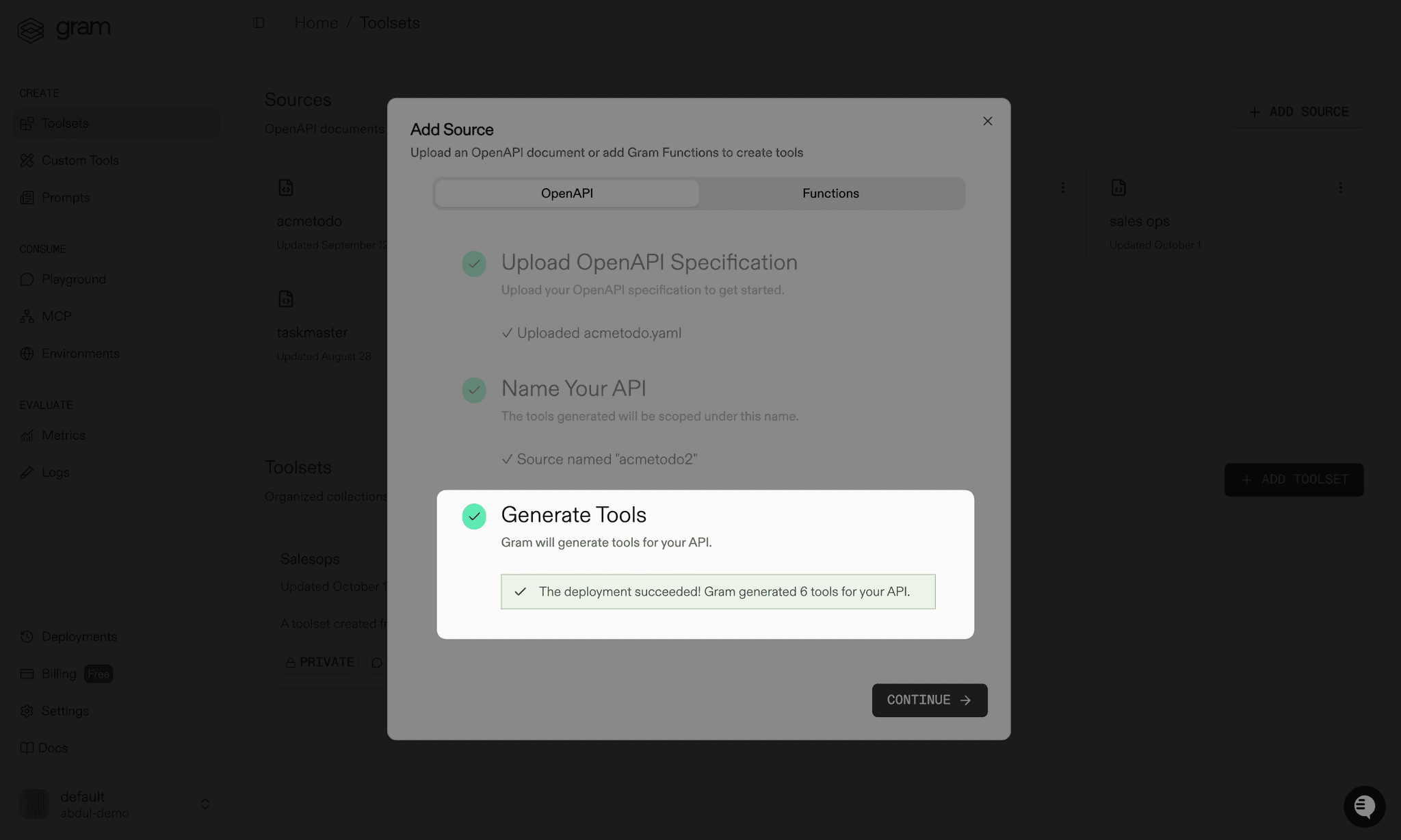
A tool definition holds both the metadata that describes the tool to an LLM and the configuration the platform uses to execute it, such as how to construct the HTTP request to an API. Select the tool definitions a server exposes, then invoke them through the Playground, the SDK, or the server itself. To build and proxy the HTTP request to the right endpoint, the platform combines the tool definition with the selected environment. Each project starts with an environment named Default.
Choosing which tools a server exposes
Section titled “Choosing which tools a server exposes”Giving an LLM access to too many tools can exhaust the context window, which may stop agents from working properly or lead the LLM to choose the wrong tool. Some models also cap the number of tools accepted in a single chat completion call.
Start from the specific task an agent should perform, then expose only the tools that task needs. A cohesive, task-focused server makes it much more likely that an agent uses an API correctly. Tools from different sources can be combined on one server, so a server built to find inactive customers and email them a coupon might pair a customer lookup tool with an email tool.
Scoping servers this way also scopes access. A server built for sales exposes a different set of tools than one built for support, so each team’s agents see only what is relevant to their workflows.
Two features refine a selection further:
- Editing a tool sharpens its name and description so the LLM picks the right tool.
- Tag-based tool filtering lets a client connect to a focused subset of a server’s tools by selecting tags at install time.
Test a selection in the Playground before a real client connects to it. Send natural language prompts and watch how the LLM selects tools and handles responses.
Tool kinds and URNs
Section titled “Tool kinds and URNs”Every tool definition is identified by a URN in the format tools:<kind>:<source>:<name>. The kind reflects how the tool executes:
http: generated from an OpenAPI operation and executed as an HTTP request to the APIfunction: backed by a functionexternalmcp: proxied to a third-party MCP server added from the catalog or registered by URLtunneledmcp: proxied to a private MCP server connected through a tunnelprompt: a prompt template exposed as a toolplatform: a built-in platform tool
Tool URNs appear in the API and SDK when selecting the tools a server exposes.
Editing a tool
Section titled “Editing a tool”Endpoints in an OpenAPI document often lack summaries and descriptions that convey their intent. When a tool definition inherits a vague or incomplete description, an LLM may struggle to decide when to call the tool, how to use it, or how to interpret its output. Improving tool metadata is a form of prompt engineering and a critical step in building reliable agents.
There are two ways to improve a tool’s metadata:
- Edit the OpenAPI document and add the
x-gramextension to the endpoint to override or enrich the tool’s metadata. See Optimize the document for LLMs. - Edit the tool directly in the dashboard. An edit made this way is called a tool variation.
A tool variation overrides a tool’s metadata without changing the underlying source. Beyond the name and description, a variation can override the tool’s tags, its MCP annotations (the title and the read-only, destructive, idempotent, and open-world hints), and its confirmation prompt. Variations made in the dashboard are global. They apply to the tool everywhere it is used, across every MCP server. Variations edit stored tool definitions, so they apply to built servers only. Remote and tunneled servers use recorded tool metadata instead, as Tool discovery explains.
Edit a tool from the Tools tab of a built server, or from the Tools tab of a source’s detail page, which opens from the Sources tab of the MCP page (see Sources). Both are under MCP Gateway > MCP. Each tool has an actions menu behind its three-dot button.
To rename a tool, open the actions menu, select Edit name, and update the name in the dialog that opens.
To change a tool’s description, open the actions menu and select Edit description. Validate and save the new description in the dialog:
The same menu holds Edit annotations and Edit tags for tools generated from OpenAPI documents and functions. Tags set here drive tag-based tool filtering.
Authentication
Section titled “Authentication”Authentication answers two separate questions:
- Who is calling the server? User sessions answer this. The platform acts as the authorization server and issues tokens to MCP clients.
- Which credential does the server use upstream? Upstream credentials answer this, either per person through authorization servers or with one shared credential for every caller. Secrets shared across servers live in Environments.
Configure both in the Authentication section of Settings on a built or tunneled server, or in the Identity and Sessions sections of Settings on a remote server. Changes take effect on new connections. See Access, OAuth, and sessions for how the two fit together.
A built server can also authenticate against an authorization server outside the platform. Secure with OAuth covers the OAuth credential styles those servers accept, and Build MCP with external OAuth covers pointing clients at a third-party authorization server.
Distribution
Section titled “Distribution”Visibility decides whether a server serves traffic at all and to whom. Set it from the status control on the server page:
- Disabled: the server is offline and nobody can connect.
- Private: the server serves authenticated callers.
- Public on a built server: anyone with the URL can read the tools, but using them still requires authentication. Managed OAuth in front of a built server requires it to be public. See Secure with OAuth.
- Public on a tunneled server: anyone can connect anonymously, and every tool is exposed to the public internet. The option unlocks only after the tunnel source owner turns on public access in its Settings. Remote servers cannot be made public.
Making a server public does not strip its credentials. A public server still sends its attached system environment variables and upstream headers on every call, so anonymous callers spend the same API keys an authenticated caller would. See Upstream credentials.
A server reaches people through its address and through plugins:
- Address: a server can use a custom slug or a custom address on a domain an organization admin has verified under Custom Domains. One address per domain can serve as the domain root.
- Network access: a remote or tunneled server can serve through public routes, the organization private network, or both. Switching to private only stops the public URLs, and the dashboard lists them before the change is confirmed. Private endpoints have their own installation page for organization admins. Network access is separate from visibility and authentication. See Tailscale for setup.
- Plugins: a server reaches teammates’ AI clients and other projects by joining a plugin. Publish or update plugin membership from the server Overview tab. Enabling a disabled server adds it to the default plugin automatically. Roll out MCP servers to a team with plugins walks through a role-based rollout end to end.
Settings also holds the instructions returned to agents when they connect (on a built server, drafted by hand or with Generate with AI), the icon and display name shown on the installation page (on a remote or tunneled server), and the delete action. A built server can also export its MCP configuration as JSON.
Team access
Section titled “Team access”The Team Access tab of each server controls who can connect to it, see it in the catalog, and manage it. Rules name everyone, a role, a person, an agent, or, once an identity provider is connected, a directory group or attribute, and they share one model with the organization-wide role editor. See Team access for how grants, blocks, and tool narrowing combine.
Guardrails
Section titled “Guardrails”The Guardrails tab of each server lists the risk policies that inspect its tool requests and tool responses, with the server’s recent risk events. Guardrails are MCP-scoped policies: the gateway evaluates them on every call, whichever client makes it, and can block a call before it reaches the server or withhold a result before it reaches the client. See Guardrails for adding one from a server.
Clients and sessions
Section titled “Clients and sessions”The Clients and Sessions tab of each server shows who is connected, which clients they use, and the upstream providers the platform reaches on their behalf, and it revokes individual sessions or whole client registrations. See Clients and sessions.
Monitoring
Section titled “Monitoring”The server Overview tab reports tool calls, failed calls, error rate, and average latency against the previous period, with top tools and top users. A tunneled server also shows its live connections, and a built server has a separate Performance tab.
Each tool call is attributed to the MCP client that made it, using the name and version the client reports when it connects. That separates Claude Code acting for a person from Cursor acting for the same person, both here and in Tool Logs, which records the individual calls across every server in the project. Calls without a client handshake are grouped as unattributed.
Assistants
Section titled “Assistants”Assistants (beta) deploy governed assistants to Slack. Each assistant connects a model to the MCP servers and skills the organization already uses, with identity, guardrails, and audit built in. Assistants are enabled per organization. To turn them on, contact Speakeasy.
Related organization settings
Section titled “Related organization settings”Several controls that shape this group live under Organization settings rather than in the project sidebar:
- Roles and Permissions grant the
mcp:read,mcp:write, andmcp:connectscopes that decide who can view, manage, and connect to MCP servers and gateway endpoints. - Team covers team membership and invites, which decide who can be granted access to a server in the first place.
- Custom Domains verifies the domains that branded MCP server and gateway endpoint addresses use.
- API keys issue the credentials the
speakeasyCLI uses to push OpenAPI documents and functions as new deployments. - Skill capture settings configure organization-wide skill capture and efficacy sampling, which feed the project Skills page.