Intro to MCP
What are MCP apps?
Governing MCP across your organization?
Speakeasy’s AI control plane connects, secures, and observes every agent and MCP server from one entry point — with SSO, RBAC, runtime guardrails, and a full audit trail.
What are MCP apps?
MCP apps let servers deliver and render interactive HTML interfaces directly within a supported host, such as an AI chat window. Rather than sharing links to external apps, MCP apps display directly within a conversation. An MCP app calls the same server tools the agent uses and returns results without requiring the user to switch tabs, giving the benefit of convenience and context: There’s no separate web app to deploy, no OAuth to reconfigure, and no copy-pasting between windows.
Consider the example of a financial developer who asks Claude Desktop to check a stock price. Rather than checking the current stock price online or sharing a stock-viewer URL, the agent renders a live lookup form in the Claude Desktop chat. The full workflow stays within the conversation.
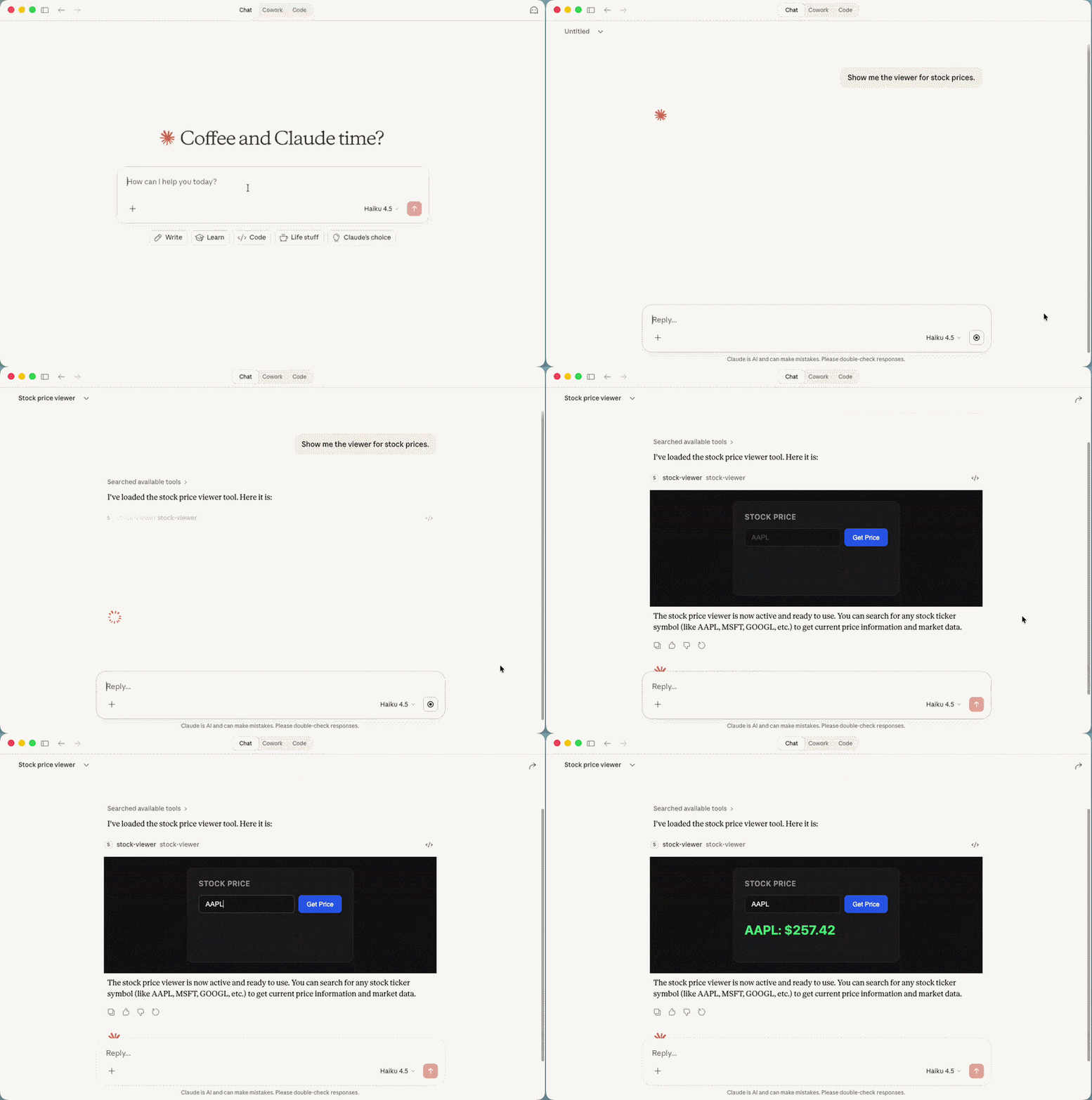
How MCP apps work
MCP apps combine both MCP tools, which execute logic, and MCP resources, which provide read-only data:
- The MCP tool acts as the entry point that triggers the interface.
- The MCP resource delivers the HTML for the host to render.
Register the tool and the resource together; otherwise, the host falls back to text with no error.
Three actors cooperate to deliver an MCP app:
- The server is a standard MCP server extended with UI resources and UI-enabled tools.
- The host is the MCP client (Claude Desktop, VS Code with GitHub Copilot, Goose) that renders the interface and proxies all communication. In the SDK, the host represents the model context that the
Appclass connects to. - The view is the sandboxed inline frame (HTML
<iframe>element) that the host renders. It communicates with the host over JSON-RPC viapostMessage. In the SDK, the view is implemented with theAppclass from@modelcontextprotocol/ext-apps.
MCP apps have the following lifecycle:
-
The server registers a
ui://resource and a tool with_meta.ui.resourceUriset to the resource URI. For example, the stock viewer tool definition looks like this:{"name": "stock-viewer","description": "Open a live stock price lookup form.","inputSchema": { "type": "object", "properties": {}, "required": [] },"_meta": {"ui": { "resourceUri": "ui://stock-viewer/app.html" }}} -
The host connects to the server and negotiates
io.modelcontextprotocol/uisupport during initialization. -
A user triggers the tool. The host fetches the HTML via
resources/readand renders it in a sandboxed iframe. -
The view calls
app.connect()to open thepostMessagechannel with the host. -
The view calls server tools through the host proxy. The host forwards the call over the standard MCP transport and returns the result.
Note
The view has no direct network access to your server. All communication passes through the host via postMessage. A fetch() call targeting your server URL from inside the iframe fails, so you should use app.callServerTool() instead.
Project setup
Before running the code to build the stock viewer MCP app, set up four configuration files. The complete source is available in the Speakeasy MCP examples repository.
The first is a package.json file:
{ "name": "mcp-stock-viewer", "version": "1.0.0", "type": "module", "scripts": { "build:ui": "vite build", "build:server": "tsc -p tsconfig.server.json", "build": "npm run build:ui && npm run build:server", "start": "node dist/server/server.js" }, "dependencies": { "@modelcontextprotocol/ext-apps": "^1.2.0", "@modelcontextprotocol/sdk": "^1.27.1", "cors": "^2.8.5", "express": "^4.21.2", "zod": "^3.24.0" }, "devDependencies": { "@types/cors": "^2.8.17", "@types/express": "^5.0.0", "@types/node": "^22.0.0", "typescript": "^5.7.3", "vite": "^6.0.0", "vite-plugin-singlefile": "^2.3.0" }}The project uses two TypeScript configurations.
-
tsconfig.jsonfor the view (compiled by Vite):{"compilerOptions": {"target": "ES2022","module": "ES2022","moduleResolution": "bundler","strict": true,"lib": ["ES2022", "DOM"]},"include": ["src/app.ts"]} -
tsconfig.server.jsonfor the MCP server (compiled bytsc):{"compilerOptions": {"target": "ES2022","module": "ES2022","moduleResolution": "bundler","strict": true,"lib": ["ES2022", "DOM"],"outDir": "dist/server","rootDir": "src"},"include": ["src/server.ts"]}
Note the following two settings in tsconfig.server.json, which aren’t immediately obvious:
- You need
moduleResolution: "bundler"because@modelcontextprotocol/ext-appsreferences browser types without NodeNext compatibility. - You need to put
"DOM"inlibeven though the server is a Node.js process, because theext-appstype declarations reference DOM globals.
The last config file is the vite.config.ts file:
import { defineConfig } from "vite";import { resolve } from "path";import { viteSingleFile } from "vite-plugin-singlefile";
export default defineConfig({  plugins: [viteSingleFile()],  build: {    outDir: "dist",    rollupOptions: {      input: resolve(__dirname, "app.html"),    },  },});
Here, the vite-plugin-singlefile plugin inlines all JavaScript and CSS directly into the HTML output. Without it, Vite produces a separate JS chunk that the iframe sandbox immediately blocks.
Building an MCP app in TypeScript
Use the Alpaca API to register the stock viewer MCP app as follows:
import { McpServer } from "@modelcontextprotocol/sdk/server/mcp.js";import { StreamableHTTPServerTransport } from "@modelcontextprotocol/sdk/server/streamableHttp.js";import {  registerAppTool,  registerAppResource,  RESOURCE_MIME_TYPE,} from "@modelcontextprotocol/ext-apps/server";import express from "express";import cors from "cors";import fs from "node:fs/promises";import path from "node:path";import { z } from "zod";
const server = new McpServer({ name: "stock-viewer", version: "1.0.0" });
const resourceUri = "ui://stock-viewer/app.html";const ALPACA_KEY = process.env.ALPACA_API_KEY ?? "";const ALPACA_SECRET = process.env.ALPACA_API_SECRET ?? "";
registerAppTool(  server,  "stock-viewer",  {    title: "Stock Viewer",    description: "Open a live stock price lookup form.",    inputSchema: {},    _meta: { ui: { resourceUri } },  },  async () => ({    content: [{ type: "text", text: "Stock viewer is ready." }],  }),);
registerAppTool(  server,  "get-stock-price",  {    title: "Get Stock Price",    description: "Fetch the latest trade price for a stock symbol.",    inputSchema: {      symbol: z.string().describe("Stock ticker symbol, for example AAPL"),    },    _meta: { ui: { visibility: ["app"] } },  },  async ({ symbol }) => {    const response = await fetch(      `https://data.alpaca.markets/v2/stocks/${symbol}/trades/latest`,      {        headers: {          "APCA-API-KEY-ID": ALPACA_KEY,          "APCA-API-SECRET-KEY": ALPACA_SECRET,        },      },    );
    if (!response.ok) {      return {        content: [{ type: "text", text: `No data found for ${symbol}.` }],        isError: true,      };    }
    const data = (await response.json()) as { trade: { p: number } };    const price = data.trade.p;
    return {      content: [{ type: "text", text: `${symbol}: $${price.toFixed(2)}` }],      structuredContent: { symbol, price },    };  },);
registerAppResource(  server,  resourceUri,  resourceUri,  { mimeType: RESOURCE_MIME_TYPE },  async () => {    const html = await fs.readFile(      path.join(import.meta.dirname, "..", "app.html"),      "utf-8",    );    return {      contents: [{ uri: resourceUri, mimeType: RESOURCE_MIME_TYPE, text: html }],    };  },);
const app = express();app.use(cors());app.use(express.json());
app.post("/mcp", async (req, res) => {  const transport = new StreamableHTTPServerTransport({    sessionIdGenerator: undefined,    enableJsonResponse: true,  });  res.on("close", () => transport.close());  await server.connect(transport);  await transport.handleRequest(req, res, req.body);});
app.listen(3001, () => {  console.log("Server running on http://localhost:3001/mcp");});
In this code, the server exposes two tools: a model-visible entry tool that renders the interface, and an app-only tool that fetches live prices. The view connects to the host, accepts a ticker symbol, and displays the result.
Note
import.meta.dirname requires Node.js 21.2 or later. On older versions, use new URL('.', import.meta.url).pathname instead.
Next, create the HTML entry point:
<!DOCTYPE html><html lang="en"> <body> <input id="symbol" type="text" placeholder="AAPL" /> <button id="fetch-btn">Get Price</button> <p id="price"></p> <p id="error"></p> <script type="module" src="/src/app.ts"></script> </body></html>The HTML entry point defines the elements the view-side code references. Vite bundles it into dist/app.html, a single self-contained file that the resource handler serves to the host. External scripts and stylesheets are blocked by the sandbox, so everything must be in one file.
Then, create the view-side code, which connects to the host and invokes the get-stock-price tool when the user submits a symbol:
import { App } from "@modelcontextprotocol/ext-apps";
const app = new App({ name: "Stock Viewer", version: "1.0.0" });
const symbolInput = document.getElementById("symbol") as HTMLInputElement;const fetchButton = document.getElementById("fetch-btn") as HTMLButtonElement;const priceDisplay = document.getElementById("price") as HTMLElement;const errorDisplay = document.getElementById("error") as HTMLElement;
fetchButton.disabled = true;
app.connect().then(() => {  fetchButton.disabled = false;});
fetchButton.addEventListener("click", async () => {  const symbol = symbolInput.value.trim().toUpperCase();
  if (!symbol) {    errorDisplay.textContent = "Enter a ticker symbol.";    return;  }
  fetchButton.disabled = true;  priceDisplay.textContent = "Loading...";  errorDisplay.textContent = "";
  try {    const result = await app.callServerTool({      name: "get-stock-price",      arguments: { symbol },    });
    const structured = result.structuredContent as      | { symbol: string; price: number }      | undefined;
    if (structured) {      priceDisplay.textContent = `${structured.symbol}: $${structured.price.toFixed(2)}`;    } else {      const text =        result.content?.find((c) => c.type === "text")?.text ?? "No data.";      priceDisplay.textContent = text;    }  } catch {    errorDisplay.textContent = "Failed to fetch price. Check the symbol and try again.";    priceDisplay.textContent = "";  } finally {    fetchButton.disabled = false;  }});
In this example:
- An empty
inputSchemaon the entry tool tells the host to call it immediately, without waiting for user input. A required field in the entry tool prompts the model for arguments instead of rendering the UI. _meta.ui.resourceUrilinks the tool to its HTML resource.visibility: ["app"]on the price fetch tool removes it from the model’stools/list, so that only the view can call the tool. The LLM never sees or callsget-stock-pricedirectly.- The resource handler reads
dist/app.html, the single-file output of the Vite build. The sandbox blocks external scripts and stylesheets. fetchButtonstays disabled untilapp.connect()resolves. AnycallServerTool()call made before the channel opens hangs silently.structuredContentcarries price data to the view. Thecontentfield carries a short model-readable summary. Full datasets incontentaccumulate in the LLM context window on every tool call.
Controlling tool visibility
The visibility field controls which actors can call a tool and, specifically, limits which tools the host LLM can call directly. Without it, every registered tool appears in the model’s tools/list. A model that sees pagination and form submission tools calls them unpredictably, producing broken UI state on the user’s side.
The default visibility value is ["model", "app"], meaning both the model (the host) and the app (the view) can call the tool. Tools that the user never triggers through conversation, such as pagination, data refresh, and form submission, should only have ["app"] visibility. Excluding them from the model’s tool space reduces the risk of unintended calls:
registerAppTool( server, "next-page", { title: "Next Page", description: "Load the next page of results.", inputSchema: { cursor: z.string(), }, _meta: { ui: { visibility: ["app"] } }, }, async ({ cursor }) => { // fetch next page with cursor },);A well-structured MCP app exposes a single model-visible entry point and keeps all UI mechanics as app-only tools.
Error handling
MCP apps cross two transport boundaries: the MCP transport between the host and the server, and the postMessage channel between the view and the host. An error at either boundary looks the same to the user — resulting in an unresponsive interface — but each requires a different fix.
MCP apps distinguish between two error types, and each requires a different response:
- Protocol-level errors occur when a tool isn’t found or a resource is unreadable. They are raised as exceptions and aren’t surfaced to the LLM.
- Execution errors occur when there is an invalid input or an API call fails. They occur within the tool result and are returned with
isError: true, so both the model and the view can respond to them.
The get-stock-price handler demonstrates both patterns in one function:
async ({ symbol }) => {  const response = await fetch(    `https://data.alpaca.markets/v2/stocks/${symbol}/trades/latest`,    { headers: { "APCA-API-KEY-ID": ALPACA_KEY, "APCA-API-SECRET-KEY": ALPACA_SECRET } },  );
  if (!response.ok) {    // Execution error: returned as content so the view can display it    return {      content: [{ type: "text", text: `No data found for ${symbol}.` }],      isError: true,    };  }
  const data = (await response.json()) as { trade: { p: number } };  return {    content: [{ type: "text", text: `${symbol}: $${data.trade.p.toFixed(2)}` }],    structuredContent: { symbol, price: data.trade.p },  };}
In the view, a rejected callServerTool() promise means the host blocked or failed to proxy the call, meaning you can rule out a tool execution error. Both error types need a visible error state in the UI. A silently failing iframe with no feedback is the worst user experience an MCP app produces.
Best practices
Be sure to follow best practices once your MCP app is in production:
- Keep
contentto a short, model-readable summary: Route display data throughstructuredContentinstead. Large datasets incontententer the LLM context window on every tool call, slowing inference and inflating token costs. - Declare every external domain in
_meta.ui.csp.connectDomainsbefore deployment: The default CSP setsconnect-srctonone. An undeclaredfetch()call fails silently, with no error surfaced in either the view or the host. - Validate inputs on the server, regardless of client-side validation: The host forwards raw arguments directly to the tool handler, bypassing the form. Without server-side validation, a malformed call from any MCP client reaches the handler.
- Set
visibility: ["app"]on all tools the user cannot trigger through conversation: Having tools like pagination and form submission in the model’s tool space produces unintended LLM calls that break UI state. - Register both the tool and the resource, or neither: A tool without a matching resource causes a silent fallback to text, with no error to debug in the logs.
- Leave
inputSchemaempty on the entry tool: Required fields cause the host to prompt the model for arguments instead of rendering the UI immediately. The form collects input; the entry tool does not. - Confirm
io.modelcontextprotocol/uiin the host’s supported extensions before building: Extension support is negotiated at connection time. A host that doesn’t declare it renders nothing and doesn’t produce any errors for you to debug.
More resources
MCP apps build on the MCP tools and resources primitives. Visit the following docs to explore the underlying concepts in detail:
- MCP tools: Learn about tool registration and the request-response format.
- MCP resources: Review resource URI schemes and MIME types.
- MCP transports: Read about the host-to-server connection established before app negotiation begins.