Organization settings / Custom Domains
Custom Domains
Connect a custom domain to serve MCP servers from a branded URL, with DNS verification, health checks, an optional IP allowlist, a default MCP server at the domain root, and ChatGPT app verification.
Custom Domains connect one domain to the organization so MCP servers are served from a branded URL instead of the platform default. Open the page from Organization settings > Settings > Network Access in the dashboard. When private network access is not enabled for the organization, the sidebar entry and page are called Custom Domain instead.
For client-facing routes inside a tailnet, see Tailscale private access. Its private endpoint namespace is pinned when the tailnet is connected, and the public custom-domain IP allowlist does not restrict the separate private route.
Adding a custom domain requires an enterprise plan. Organizations on the base tier see a prompt to request the feature.
Access requirements
Section titled “Access requirements”Viewing the page requires the org:read scope, so both default Admin and Member roles can see it. Connecting, editing, reverifying, or deleting a domain requires the org:admin scope, held only by the Admin role by default.
Domain card
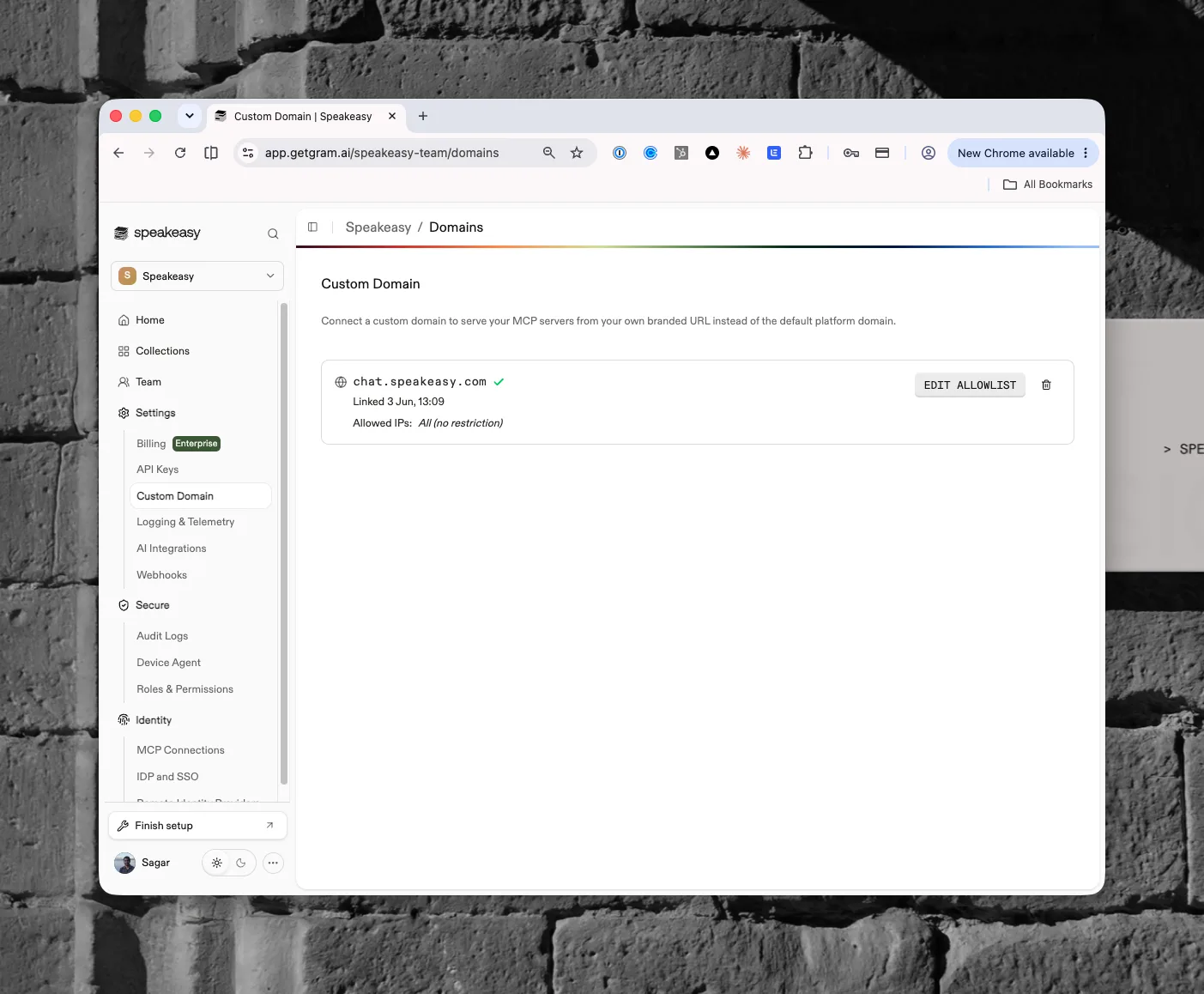
Section titled “Domain card”Each organization can link one custom domain. The card shows the domain name, a status icon, and a “Linked” line with the date the domain was added. An Allowed IPs row shows either “All (no restriction)” or one badge per allowed IP address or CIDR range. The status icon has four states:
- A spinner while DNS records propagate and verification is pending. The platform re-checks every few minutes for up to 24 hours.
- A check mark once the domain is verified and active.
- A warning triangle when the latest health check found a problem with a verified domain.
- A cross when verification failed, or when the domain was disabled after failing health checks for over a week.
Connecting a domain
Section titled “Connecting a domain”Click Add Domain to open the Connect a Custom Domain dialog. In Step 1, enter the domain. In Step 2, create the DNS records at the domain provider:
- For a subdomain such as
mcp.example.com, create a CNAME record pointing the domain at the platform. - For an apex domain such as
example.com, which cannot take a CNAME, create A records for the zone root using the addresses the dialog lists. The dialog suggests CNAME (subdomain) or A record (apex domain) from the domain entered, and either can be chosen explicitly, since a delegated subzone can take a CNAME.
In both cases, also create a TXT record at _gram.<domain> containing the verification value shown. Each record value has a copy button. An optional advanced step configures an IP allowlist and a default MCP server before registration. Click Register (or Reverify when retrying) to submit.
Verification depends on DNS propagation, so a newly registered domain may show as being verified until the records resolve. While verification is pending, Check now triggers an immediate DNS re-check. If verification fails, click Reverify to open the dialog again with the records to fix.
Health checks
Section titled “Health checks”After verification, the platform keeps checking that the domain resolves to the expected target and that its TLS certificate is present and valid. A single failed probe is treated as transient; once a problem persists, the card shows This custom domain may not be working with the specific issue (for example, DNS records not found, DNS pointing at a different target, or a certificate that is missing, not ready, expired, or mismatched), the exact record to create where DNS is at fault, when the check last ran, and a Check again button.
A domain that fails health checks continuously for over a week is disabled automatically: its routing and TLS certificate are removed, and the card shows This custom domain was disabled with the time it became unhealthy. Fix the DNS issue, then click Reverify domain to provision it again.
How network access works for MCP
Section titled “How network access works for MCP”The IP allowlist restricts which networks can reach the branded domain. Enforcement happens at the platform’s network edge, before requests reach any MCP server: a request from an address outside the allowlist receives a 403 response and never touches the server behind it.
The restriction covers everything the custom domain serves, uniformly:
- The MCP endpoints themselves, including a default MCP server mapped to the domain root
- The OAuth authorization and token endpoints
- The OAuth discovery documents under
.well-known - The ChatGPT app verification URL
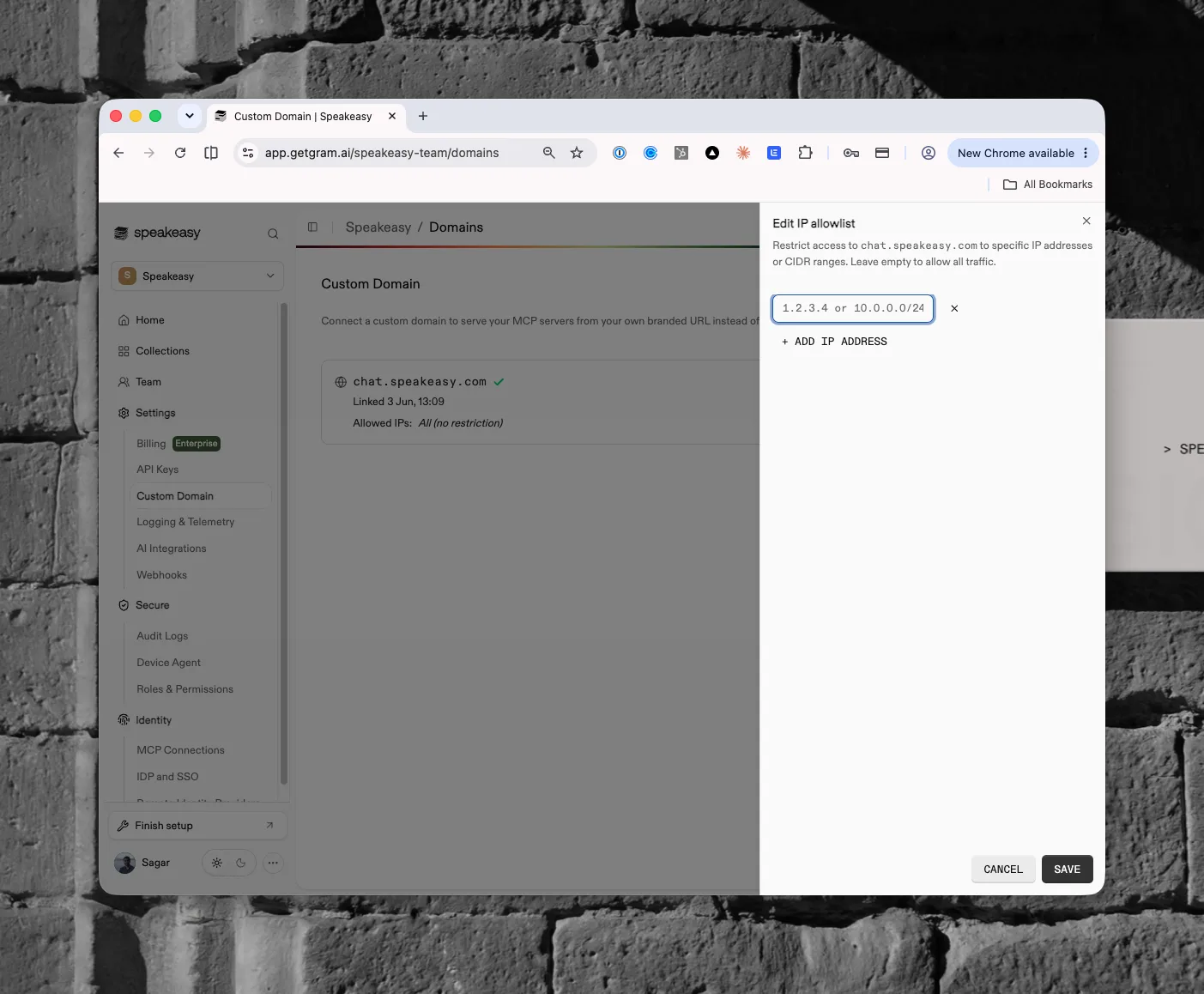
Entries are IPv4 addresses (1.2.3.4) or CIDR ranges (10.0.0.0/24); IPv6 isn’t supported. There’s no limit on the number of entries, and an empty allowlist allows all traffic. Saving the allowlist completes only after the network configuration updates, so changes enforce near-immediately.
Scope of the restriction
The allowlist protects the branded hostname only. The same MCP servers stay reachable at their default platform URLs, which the allowlist doesn’t cover, so treat it as a network perimeter for the branded domain and rely on server authentication and visibility as the primary access control. To remove the public path entirely, use Tailscale private access.
Managing the allowlist
Section titled “Managing the allowlist”Click Edit allowlist to open the Edit IP allowlist side sheet. Each entry accepts an IPv4 address or CIDR range and is validated individually. Click + Add IP address to add entries; leave the list empty to allow all traffic.
Default MCP server
Section titled “Default MCP server”By default, MCP servers on a custom domain are served under /mcp/<slug>. The Default MCP server control routes the domain root itself to one of those servers, so clients can connect at https://your-domain.com/ with no path.
Pick any MCP server in the organization from the dropdown; servers are grouped by project, and a server not yet attached to the domain is marked as such. Once set, the root behaves like the chosen server’s own URL: MCP clients connect and get the server directly, while browsers see the server’s installation page. Renaming the chosen server’s slug updates the routing automatically, and selecting No root mapping stops serving the root again.
The same mapping can also be set from an MCP server’s own settings page in MCP Gateway. Changing the mapping requires the org:admin scope.
ChatGPT app verification
Section titled “ChatGPT app verification”Submitting an app built on one of the domain’s MCP servers to OpenAI’s ChatGPT app directory requires proving ownership of the domain. OpenAI’s app-submission flow issues a verification token and then fetches it from a well-known URL on the domain:
https://your-domain.com/.well-known/openai-apps-challengePaste the token into the ChatGPT app verification field and click Save; the domain serves it at that URL immediately, and OpenAI’s verifier can complete the check. The card shows the exact verification URL with a copy button. Click Clear to stop serving the token once verification is done; it can stay in place harmlessly, since the token is public by design.
Tokens are a single line of up to 256 characters. Saving or clearing the token requires the org:admin scope.
IP allowlists can block verification
The IP allowlist applies to the verification URL too. If the allowlist is enabled, OpenAI’s verifier is likely to be blocked and verification will fail. Temporarily clear the allowlist while verifying, then restore it.
Deleting a domain
Section titled “Deleting a domain”Deleting the custom domain opens the Remove Custom Domain confirmation, which lists the MCP endpoints that will be deactivated along with their project and server. Traffic to those branded URLs stops once the domain is removed, and the associated ingress and TLS certificate are deleted.
Used by
Section titled “Used by”- MCP servers and Gateways, which create a Custom Address on a verified domain
- Secure with OAuth and user sessions
- Shadow MCP
- Tailscale private access