Organization settings / Billing
Billing
How Tokens Under Management is calculated, the meter-backed usage explorer, spend by product, inference caps, and payment management for the organization.
Billing shows usage for the current billing cycle and, for self-serve organizations, payment management. Open the page from Organization settings > Settings > Billing in the dashboard.
Enterprise organizations bill on Tokens Under Management (TUM), described below. Pay-as-you-go organizations bill on metered products at list prices.
Access requirements
Section titled “Access requirements”Viewing the Billing page requires the org:read scope, so both default Admin and Member roles can see usage. Billing actions, including adding a payment method, opening the customer portal, setting inference caps, and changing the notification email, require org:admin, which only the default Admin role holds.
What the page shows
Section titled “What the page shows”The sections on the page depend on the organization’s plan:
- Enterprise organizations see the Usage explorer and, during an active trial, the Inference caps section.
- Pay as you go organizations see Spend by product, the Usage explorer, Inference caps, the Payment section, and Billing notifications. During a trial, a Pay as you go pricing section lists the rates that apply once the trial converts.
- Legacy self-serve tiers see a Usage summary of Tool Calls, Servers, and Chat Based Credits against the period’s included amounts, plus a Pricing section comparing tiers, with the billing portal for account management.
The sidebar footer shows a Trial card while a trial is running, with the day count and a Talk to sales link. Banners on the billing page and elsewhere call out a failed payment (Payment failed, with Update payment method) or a reached cap.
Tokens Under Management
Section titled “Tokens Under Management”Tokens Under Management is the volume of agent traffic the platform observes from users’ sessions each billing cycle, measured in tokens. It reflects the AI activity the platform governs, not the inference the platform itself runs. Enterprise contracts compare each cycle against a contracted allowance, and the breakdowns below explain how a cycle’s total is attributed.
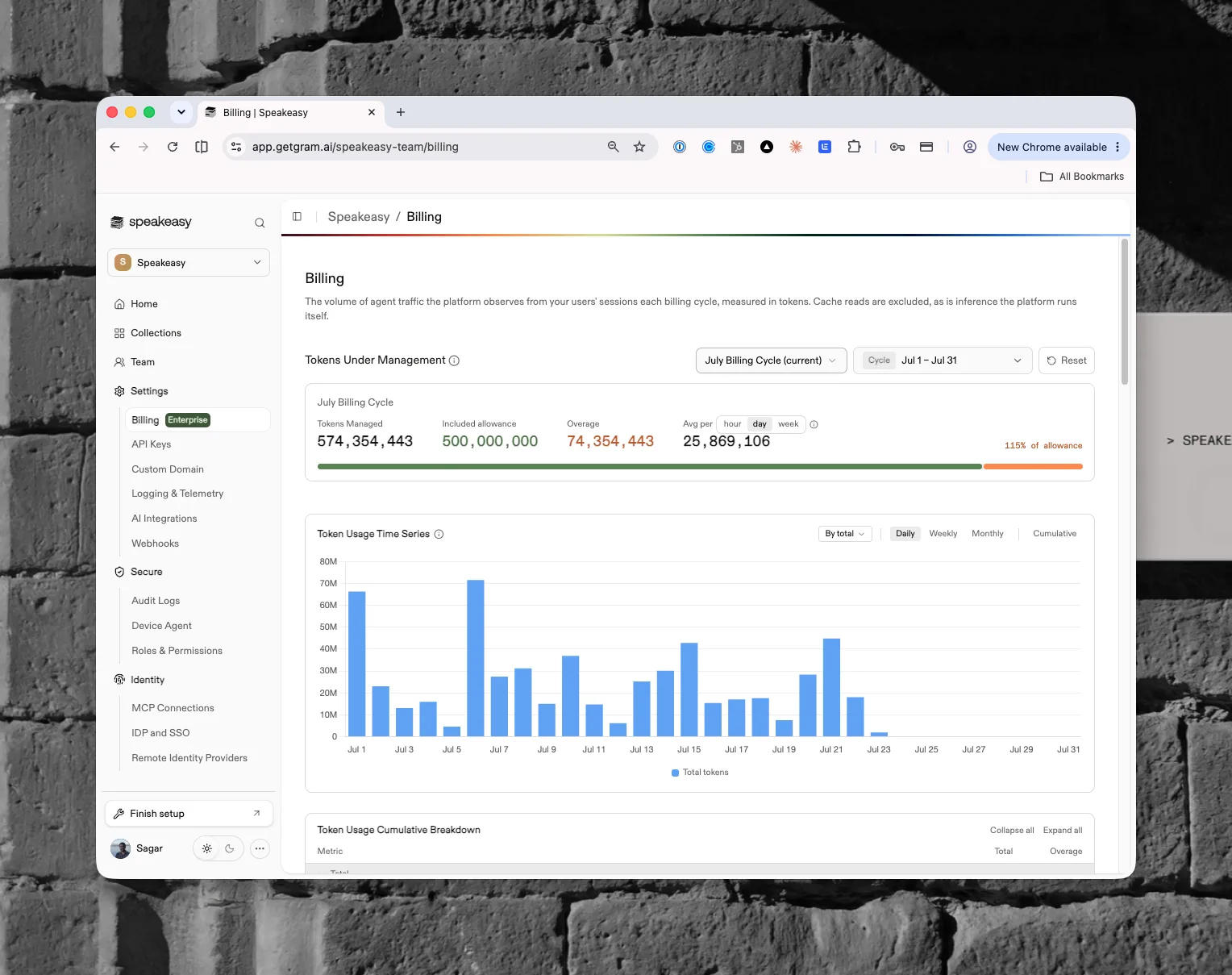
The usage panel has changed
The screenshot above shows the earlier Tokens Under Management panel. The Billing page now presents measured usage through the meter-backed Usage explorer, which reports exact storage, bandwidth, and risk-scan volume by UTC day. The contract terms in this section still describe how enterprise cycles are billed.
What counts
Section titled “What counts”Every observed agent session contributes:
- Input tokens: prompt content sent to the model
- Output tokens: content the model generates
- Cache-write tokens: new content written to a prompt cache for the first time
- MCP tool calls: tool-call traffic processed through MCP servers
Observed sessions come from the instrumented agent platforms: Claude Code, Claude Cowork, Cursor, and Codex. Tokens attribute to the organization through its projects, and each session carries a snapshot of the user’s identity (role, department, division) taken at the time of the event, which powers the breakdowns below.
What doesn’t count
Section titled “What doesn’t count”- Cache reads. Re-reading cached content isn’t new traffic; that content was already counted once, as a cache write, when first observed.
- Inference the platform runs itself. Risk-policy analysis, prompt-injection scanning, the playground, hosted chat, and the dashboard assistant all consume tokens on the platform’s side and are excluded from TUM. Inference the platform runs is governed separately by inference caps.
Billing cycles and the allowance
Section titled “Billing cycles and the allowance”Cycles are monthly windows anchored to a contract-specific day of the month, in UTC. The cycle summary compares the cycle’s Tokens Managed against the contracted Included allowance:
- Overage is any usage beyond the allowance; the meter shows the included portion in green and the overage in amber, with the total as a percentage of allowance
- Avg per hour, day, or week averages the cycle’s tokens over the elapsed portion of an active cycle, or the full window of a closed one
Cycle totals finalize 72 hours after a cycle closes and become the invoiced record; until then, recent days can shift slightly as late-arriving telemetry lands.
Reading the charts
Section titled “Reading the charts”The earlier Token Usage Time Series chart plotted tokens daily, weekly, or monthly, with a cumulative view for tracking a cycle’s trajectory against the allowance, and the Token Usage Cumulative Breakdown table split the same usage by model, token type, agent, provider, account type, project, division, department, user, and role, each with its share of any overage (attributed by tokens recorded after the allowance ran out, prorated on the crossing day). The Usage explorer now provides the same chart-plus-breakdown view over exact meter readings.
Role rows overlap
Users can hold multiple roles, and a session’s tokens count under each. Role rows can sum to more than the total.
Usage explorer
Section titled “Usage explorer”The Usage section explores storage, bandwidth, and risk-scanning volume by UTC day. Today’s totals update as readings arrive, and the section states that these usage totals are not invoice estimates. A segmented control switches between three meter families:
- Storage (stored sessions): stored-message workload measured in tokens, not provider input or output tokens. Break it down by Total, by workload (Project, Model, Provider, Billing mode, Assistant), or by people and organization (Billing user, Division, Department, Job title, Employee type, Cost center, Directory group set). The directory attributes come from Directory Sync.
- Bandwidth (MCP bandwidth): application-visible request and response body bytes through the MCP gateway, excluding headers, framing, and upstream fanout, broken down by Direction, MCP server, or Server type in binary KiB, MiB, and GiB units.
- Risk scans (risk content scans): content volume scanned by the six risk scanners behind Guardrails, measured in tokens, broken down by Scanner, Policy, Judge model, Judge provider, or Tool name. Content scanned by several scanners counts toward each.
Pick a billing cycle from the cycle picker or select a custom UTC date range of up to three calendar months; Reset returns to the active cycle. Each family shows a Total usage figure, an Average daily usage rate over the elapsed window, a chart over time with the chosen breakdown, and a Cumulative breakdown table with exact values. Quantities display in compact units (KTok, MTok, BTok) with the exact figure on hover.
Spend by product
Section titled “Spend by product”Pay-as-you-go organizations also see Spend by product: an estimated metered-product cost at current pay-as-you-go list prices, not an invoice. Inference is excluded. A stacked chart and a table with Product, Usage, Rate, and Estimated cost columns cover agent session storage, risk scanning, and MCP egress, with product filters, cycle or custom date selection, daily, weekly, or monthly views, and a cumulative mode. Because the estimate applies current rates to the whole range, it excludes credits, discounts, taxes, and billing adjustments.
The Pay as you go pricing section, shown during a trial, lists the rates that apply once the trial converts: Agent session storage per million tokens, Risk scanning per million tokens scanned, and MCP gateway per GiB of egress.
Inference caps
Section titled “Inference caps”The Inference caps section limits what the organization can spend each month on the inference the platform runs for it, such as playground completions, assistant runs, and risk-policy judges. Each platform-managed inference key has its own cap, enforced on its own. Caps follow the calendar month rather than the billing cycle, so the spend they meter isn’t an invoice figure. The section appears for pay-as-you-go organizations and for enterprise organizations during an active trial; organizations that bring their own model provider keys manage budgets on the provider side instead.
Payment and notifications
Section titled “Payment and notifications”For pay-as-you-go organizations, the Payment section shows the subscription, payment method, and invoices, or prompts to Add payment method before a trial ends so that pay as you go starts when it converts. Canceling opens the Cancel pay as you go? confirmation. Billing notifications chooses who receives invoices, payment failures, and usage alerts; the default recipient set is all organization admins.
Used by
Section titled “Used by”- Costs and Budgets, which report spend per user and team
- Agent Sessions, whose capture produces stored-session usage
- Guardrails, which drive risk-scan usage and judge completions
- Model Provider Keys