MCP Gateway / Skills
Skills
Author, capture, scan, version, distribute, and measure the skills available to the project.
A skill is a versioned SKILL.md manifest: reusable instructions that agents load on demand. The Skills page records, inspects, and versions the skills available to the project. Open it from MCP Gateway > Skills in the project sidebar.
Access requirements
Section titled “Access requirements”Viewing this page requires the skill:read scope. Adding, editing, or
archiving a skill requires the skill:write scope. The default Admin
role includes full
access; the default Member role can browse skills but cannot add, edit, or
archive them. Organization-wide capture and sampling limits live under
Organization settings > Settings > Skills
and require the org:admin scope.
Skills can also be authored from an agent through the Platform MCP. The create_skill, add_skill_version, and update_skill_metadata tools check the same project-scoped skill:write grant as the dashboard, while distribute_skill remains available only to organization administrators.
How skills work
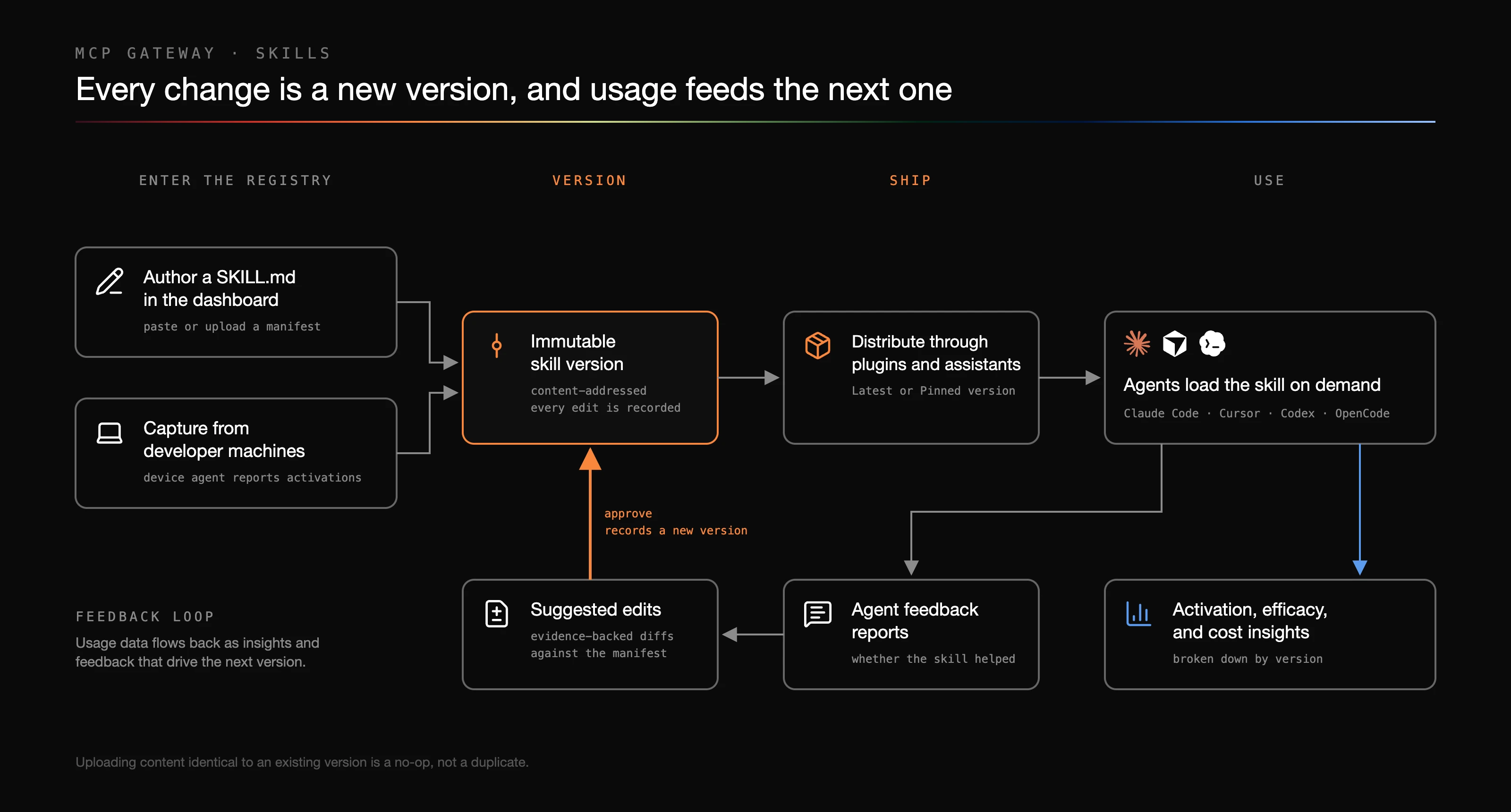
Section titled “How skills work”Skills follow a lifecycle: a manifest enters the registry by being authored in the dashboard or captured from developer machines, every change records an immutable version, versions ship to agents through plugins and assistants, and usage data flows back as insights and feedback that drive the next version.
Skill list
Section titled “Skill list”The list shows each skill with its display name, canonical name, and tags, its source badge, 30-day activations, sampled efficacy, estimated savings, and when it was last updated. A skill with an open suggestion carries a Suggested edit badge, and a shared skill shows a copy button for its public link. Search by name, filter by Source, Classification, Tags, and Accessible by, and sort any column, including activation volume, efficacy, and estimated savings. Add skills with Add skill.
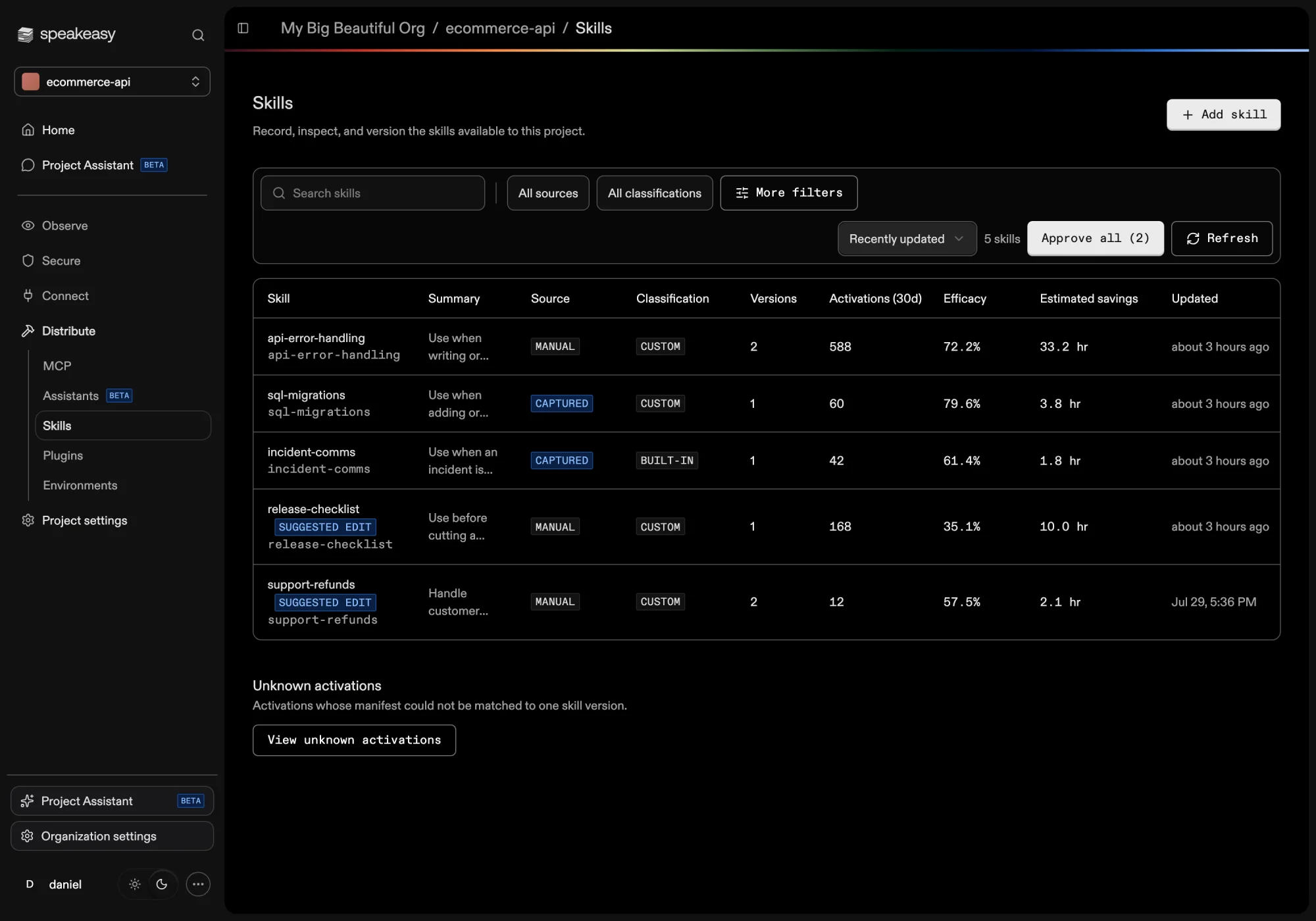
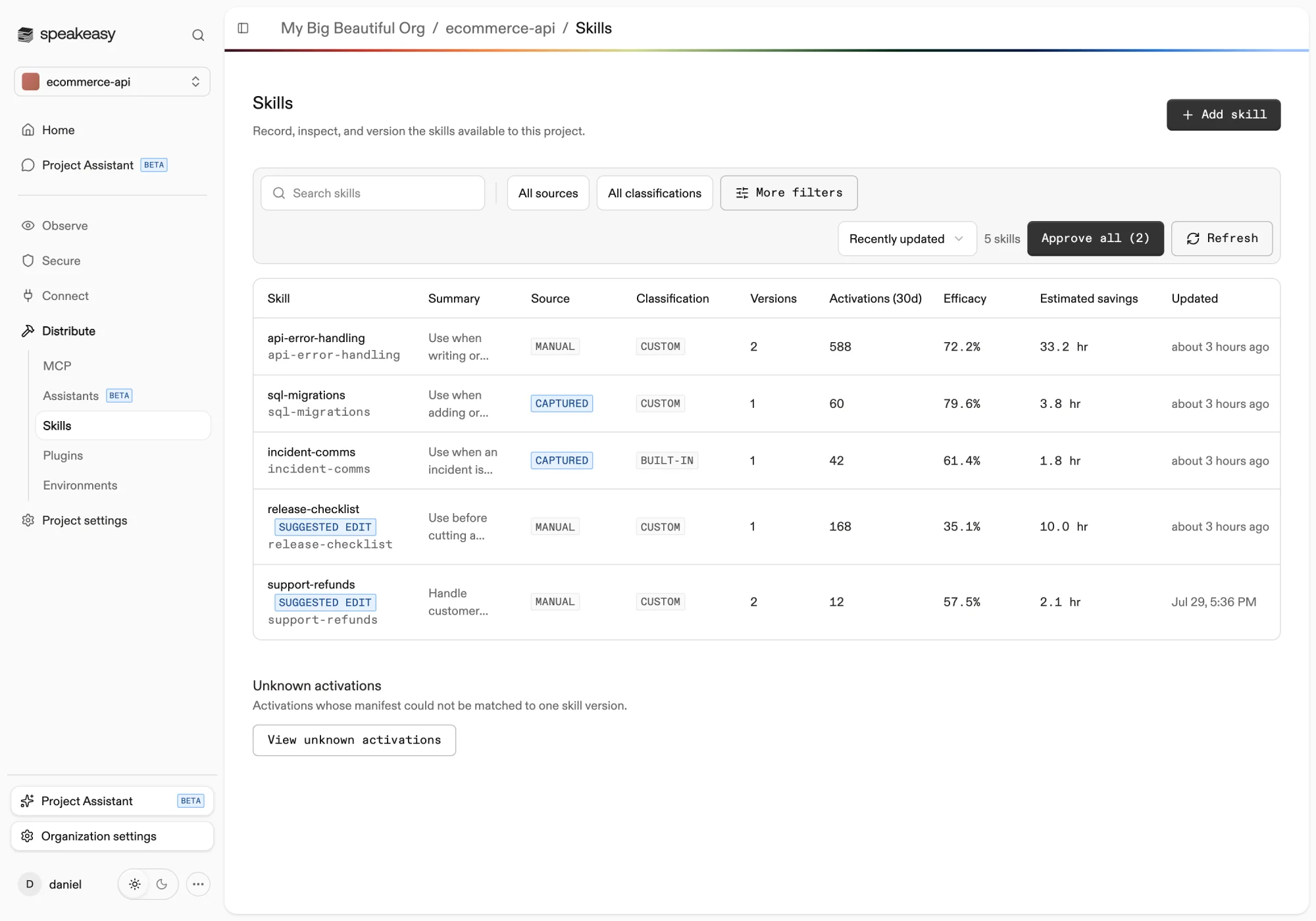
Each skill carries two labels. The source records how the skill entered the registry: Manual for skills added in the dashboard and Captured for skills observed in use on developer machines. The classification separates Custom skills owned by the project from Built-in skills that ship with agent tooling.
The Accessible by filter shows the skills a person is authorized to reach, through a grant on them or on a role they hold. Plugin distribution is not access, so distributing a skill does not widen this filter.
The Unknown activations section below the list collects activations whose manifest could not be matched to one skill version, with the reason: an invalid name, a manifest that was not captured, or an ambiguous version.
Adding a skill
Section titled “Adding a skill”Add skill accepts a pasted SKILL.md manifest or an uploaded Markdown file, and can prefill a starter template with the required frontmatter. A manifest starts with YAML frontmatter that declares at minimum a name (lowercase letters, numbers, and single hyphens, up to 64 characters) and a description (up to 1,024 characters). Optional keys such as compatibility, license, and metadata are recorded and shown on the skill’s detail page. A manifest can be up to 65,536 bytes.
A manifest that fails validation is still recorded. The errors are surfaced on the detail page and the skill is flagged Needs review until a valid version replaces it.
Versions are content-addressed: saving an edit records a new immutable version, and uploading content identical to an existing version is a no-op rather than a duplicate.
Capturing skills from developer machines
Section titled “Capturing skills from developer machines”The device agent detects skill activations in coding agents such as Claude Code, Cursor, Codex, and OpenCode, and reports them to the platform. When Upload Skill Content is enabled in the organization’s skill settings, the manifest content is uploaded at activation, so skills already in use across the organization appear in the registry with the Captured badge and full version tracking. When the toggle is off, only skill names, source details, hashes, users, and hostnames are reported.
Prompt injection scanning
Section titled “Prompt injection scanning”The platform analyzes tool call results for prompt injection while a skill is active. Scanning requires an enabled Prompt Injection risk policy. Organization administrators can select “Set up scanning” or “View policy” from the configuration card at the top of the Skills page.
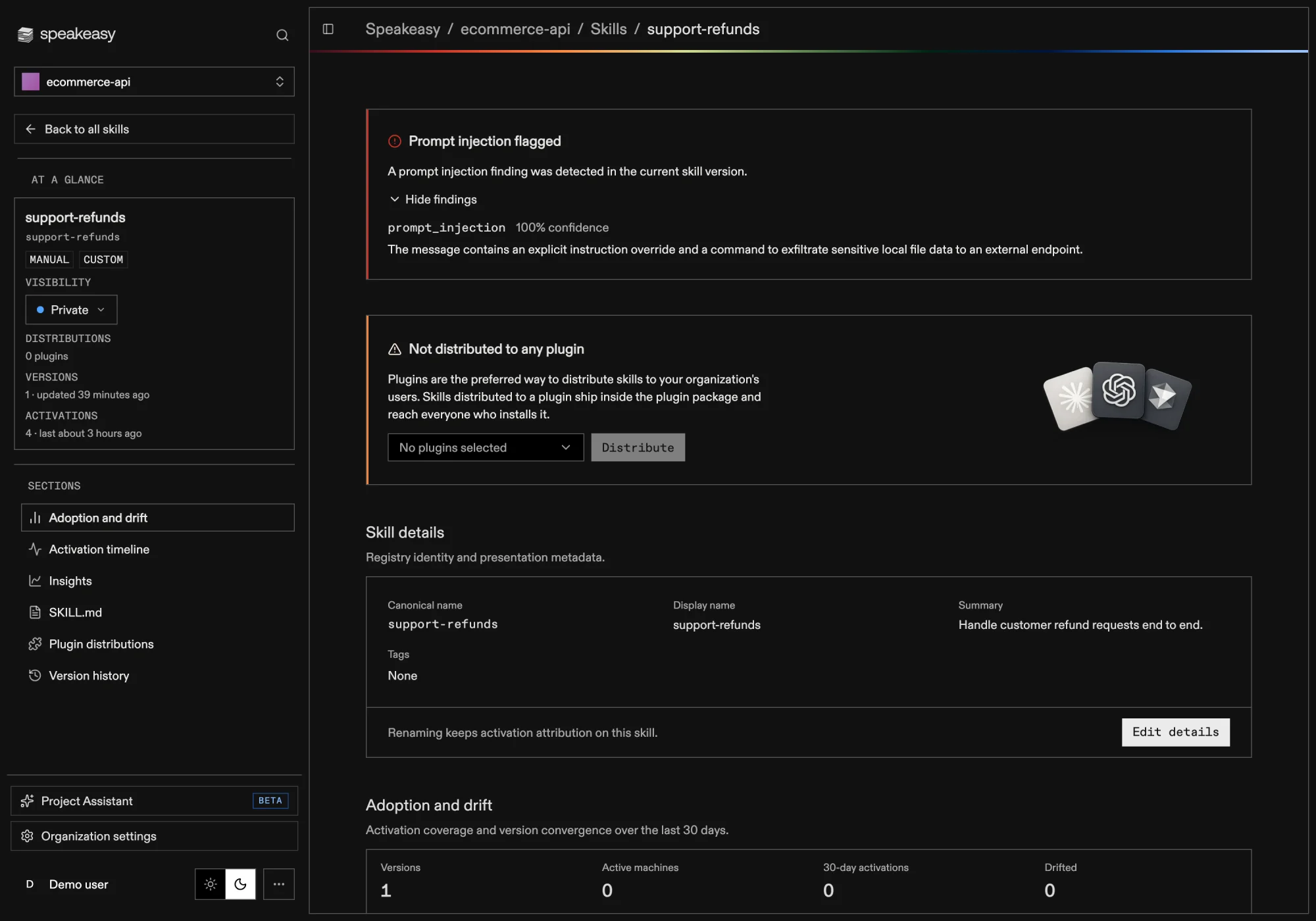
If the current version has a finding, a Prompt injection flagged warning appears at the top of the skill’s Overview tab. Select “Show findings” to review the detection rule, confidence, and description. The warning does not display the raw tool call result.
The warning is hidden when the current version has no associated finding. A missing warning does not confirm that all tool call results are safe.
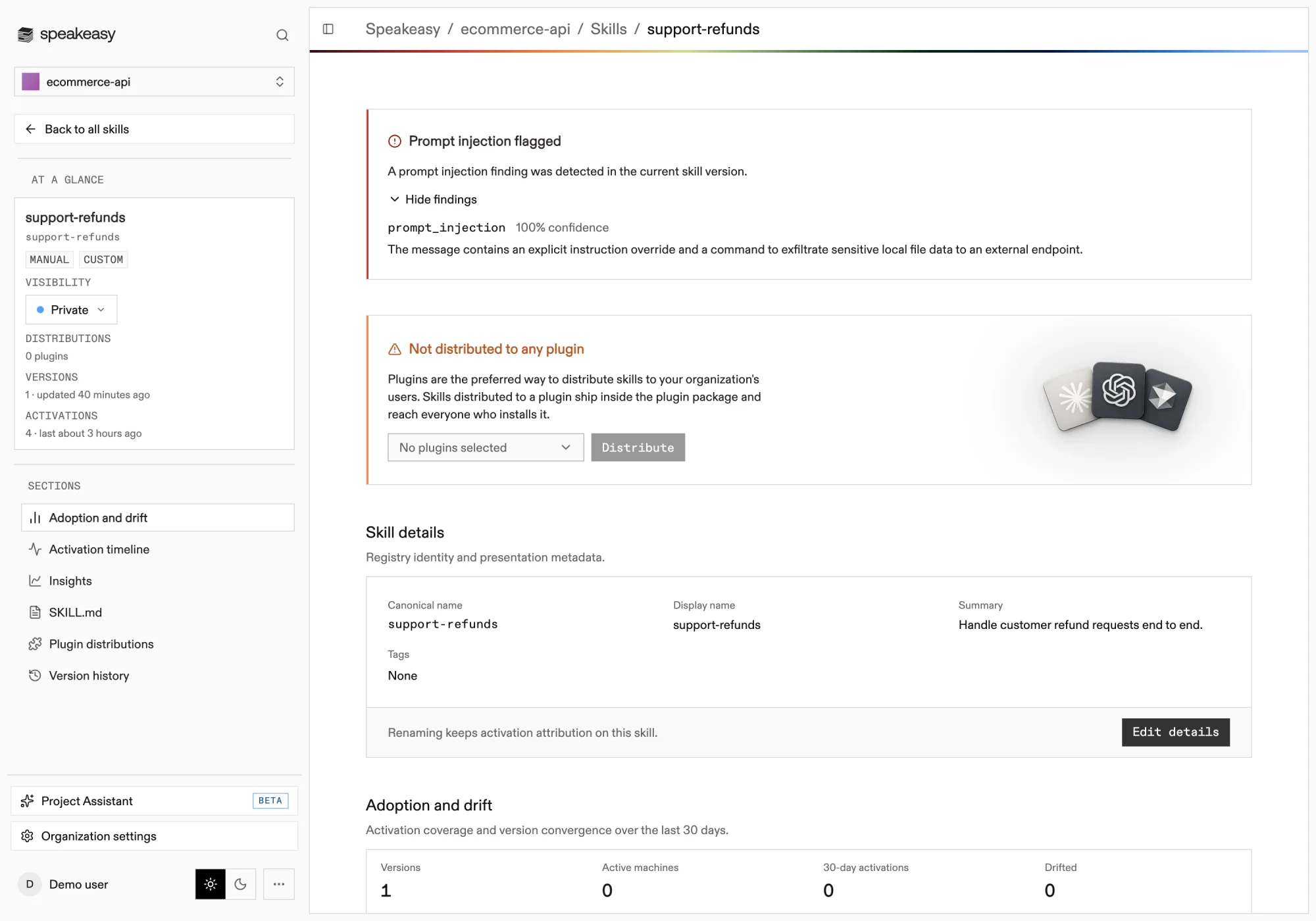
Skill detail
Section titled “Skill detail”Opening a skill shows its detail page, split into tabs in the left-hand menu: Overview, Skill Content, Usage, Scored Sessions, Agent Feedback, Version History, and Settings. The sidebar summarizes visibility, distributions, versions, and activations at a glance.
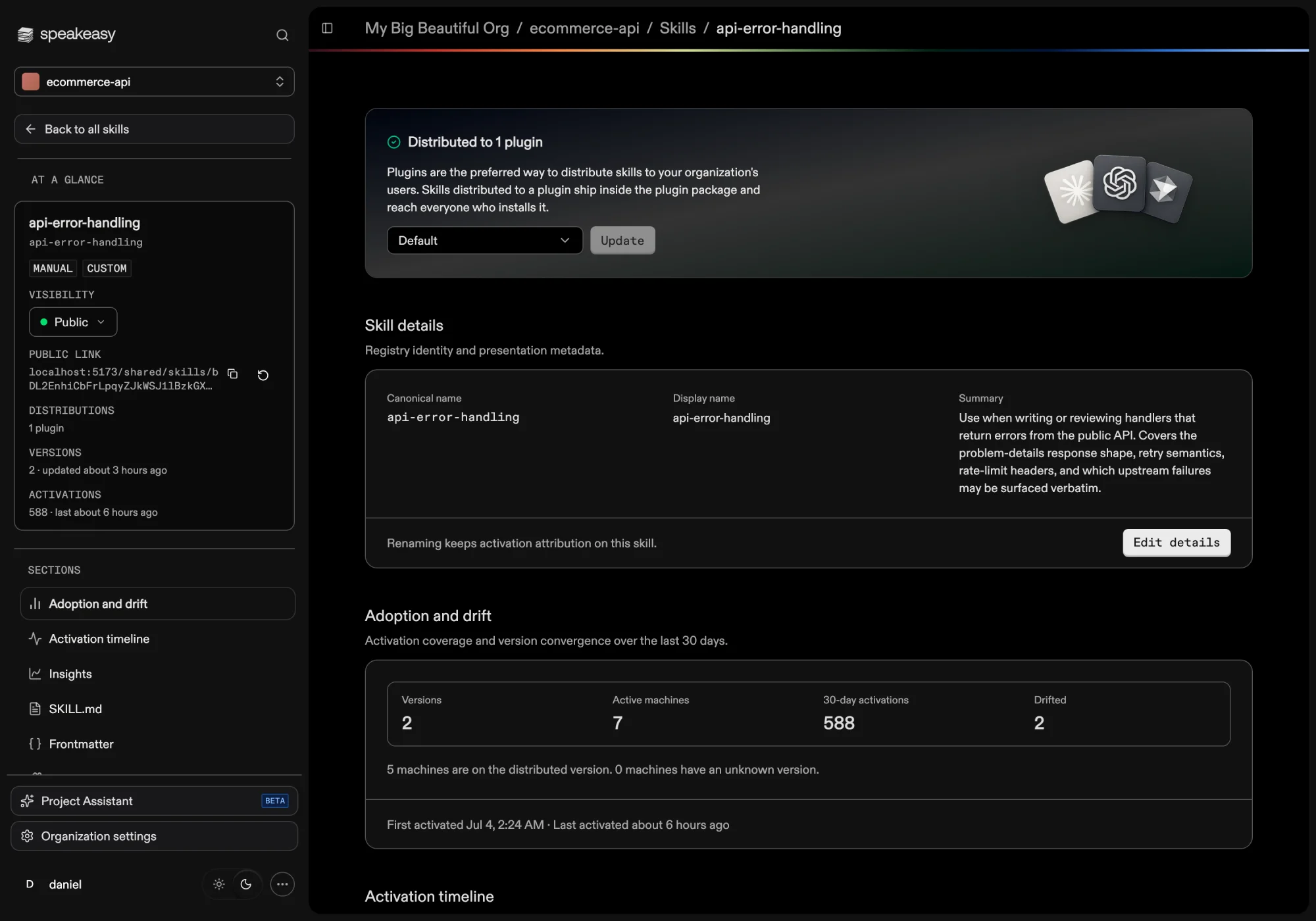
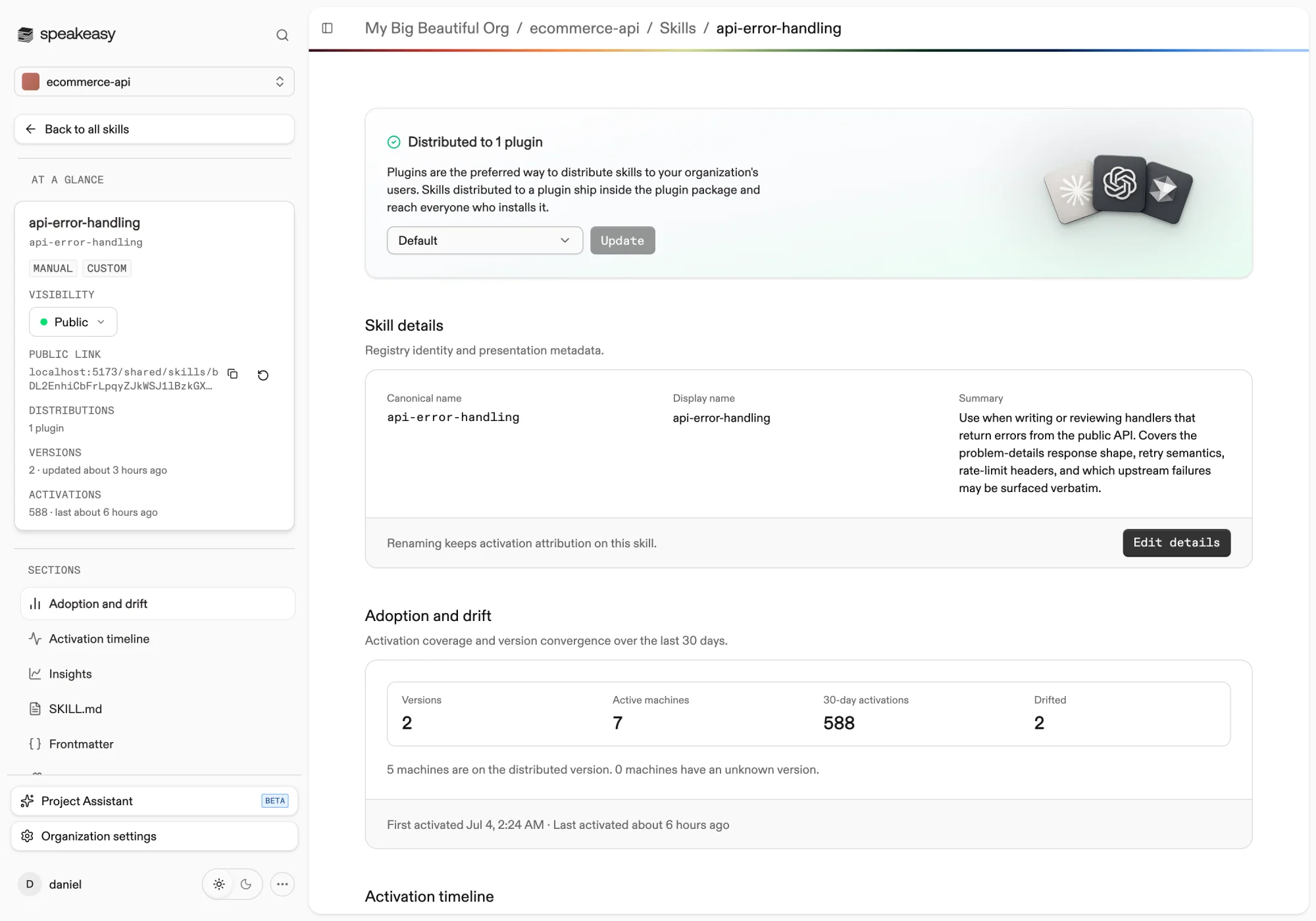
The Overview tab opens with the distribution banner and any prompt injection warning, followed by Skill details (canonical name, display name, summary, and tags) and the Insights section. Edit details changes the display name, summary, and tags. Renaming a skill keeps activation attribution intact.
The Skill Content tab shows the latest version of the manifest exactly as agents load it, with validation errors surfaced when a manifest is invalid and any additional frontmatter listed separately. Edit SKILL.md records the change as a new immutable version.
The Usage tab holds the Adoption and drift section, which tracks activation coverage and version convergence over the last 30 days: how many machines are active, how many run the distributed version, and how many have drifted to another version. The Activation timeline charts daily activations broken down by version, and Plugin distributions lists the plugins carrying the skill.
Archiving a skill from the Danger zone on the Settings tab removes it from the project’s catalog and revokes its plugin distributions.
Version history
Section titled “Version history”The Version History tab records every version of the skill’s manifest with its validity, activation counts, first and last activation, and creation date. The current version carries a Current badge, and a version created from an earlier one carries a Derived badge. Select one version to compare it with the current one, or select any two versions to see a side-by-side diff, so changes to a skill are auditable over time.
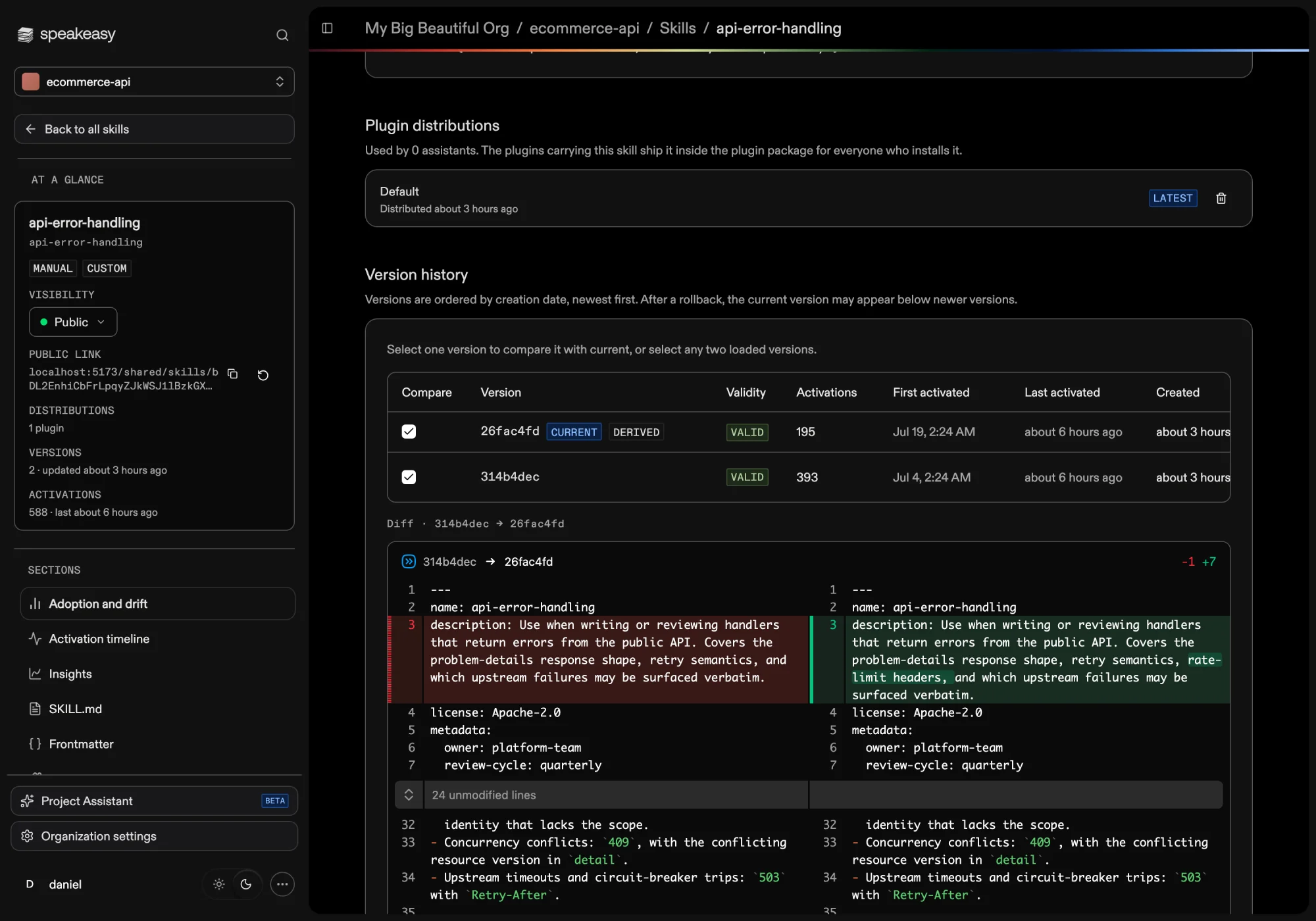
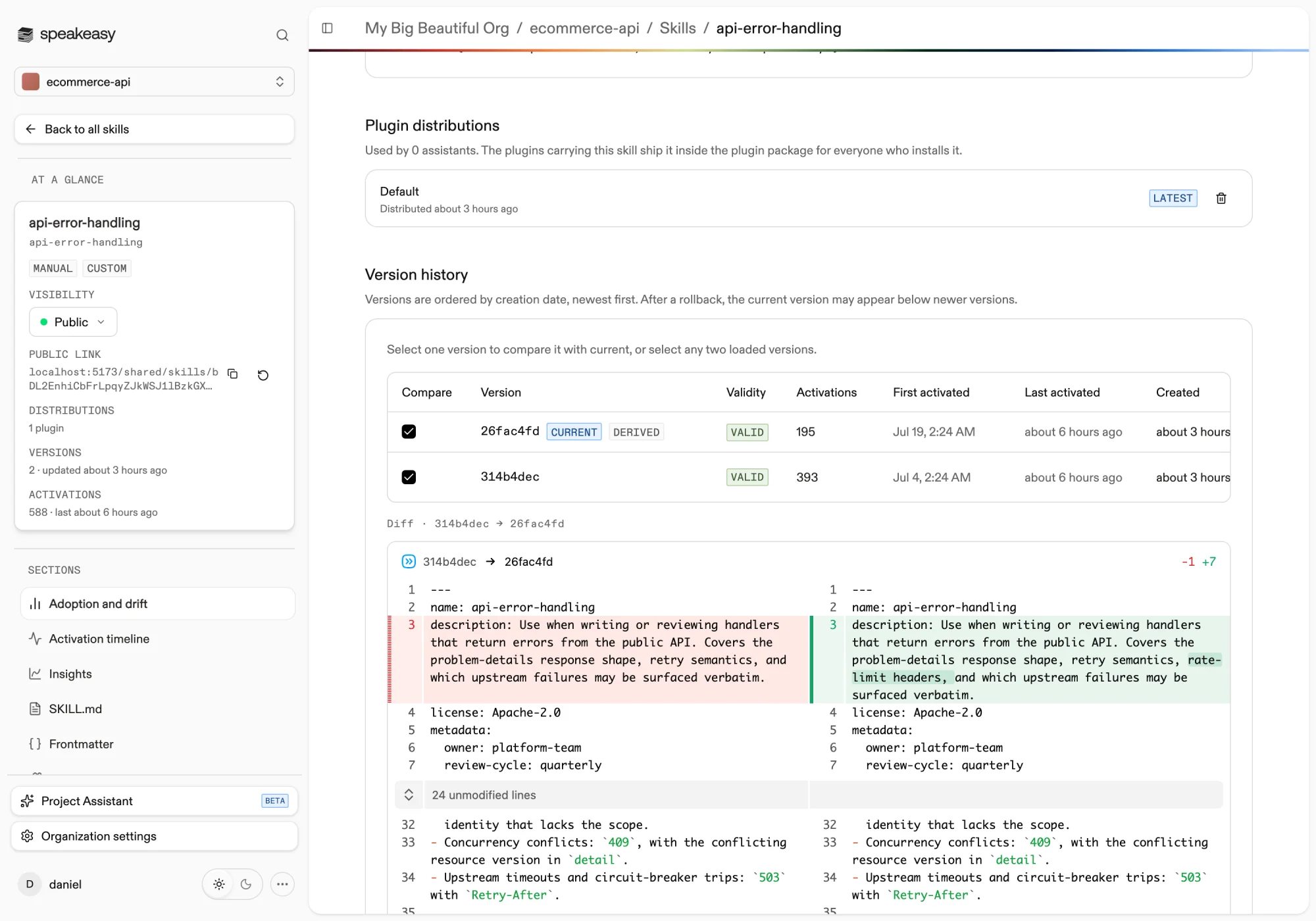
Any valid, non-current version can be restored with Roll back or Promote. Restoring makes that historical content current again without rewriting the immutable record, and explicit version pins on distributions are preserved. See Improving skills with agent feedback for the full restore semantics.
Distributing skills
Section titled “Distributing skills”Skills reach agents by being bundled into plugins alongside MCP servers. A distributed skill ships inside the plugin package as skills/<name>/SKILL.md, the layout that Claude Code, Cursor, Codex, and OpenCode load plugin skills from, and reaches everyone who installs the plugin.
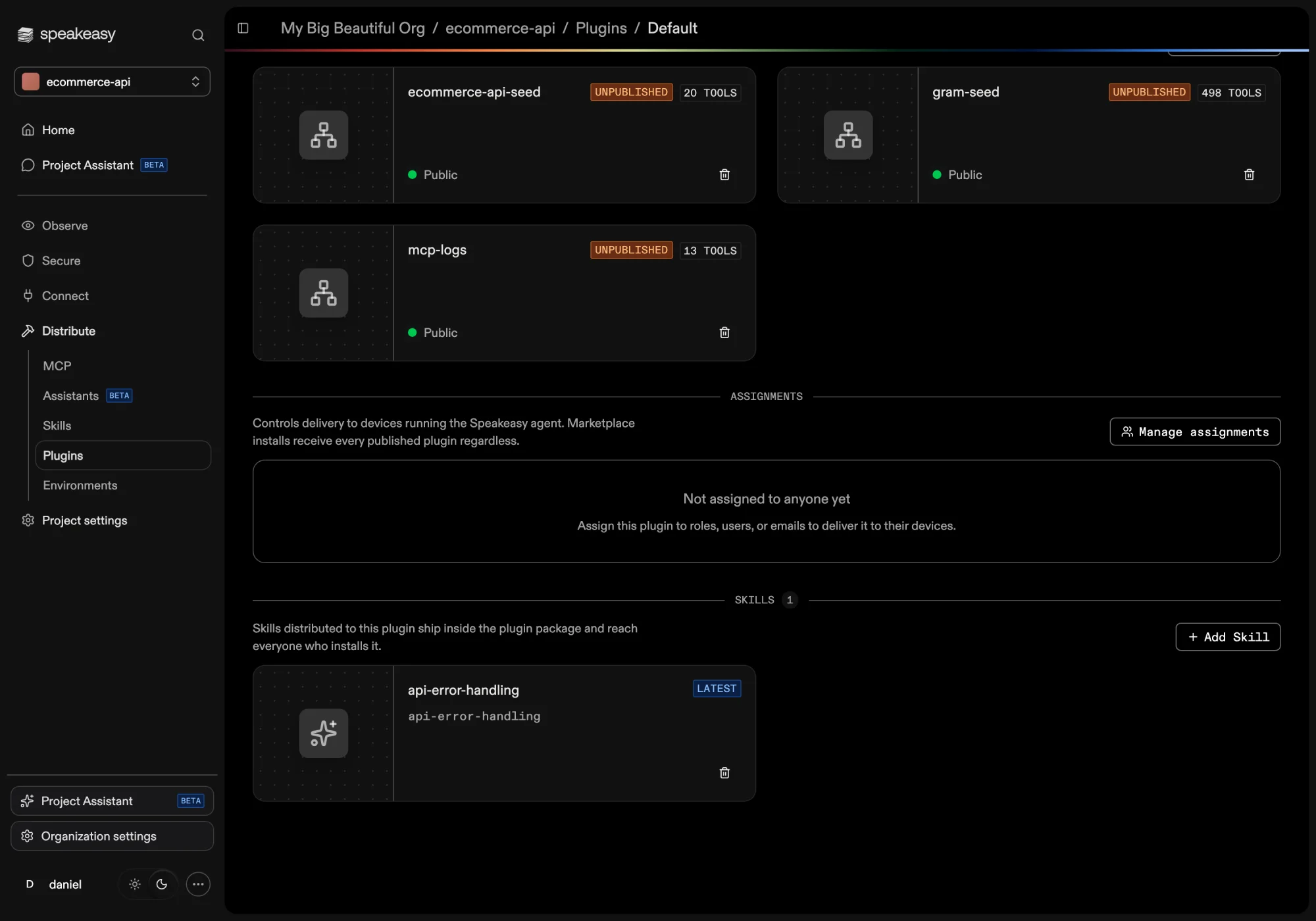
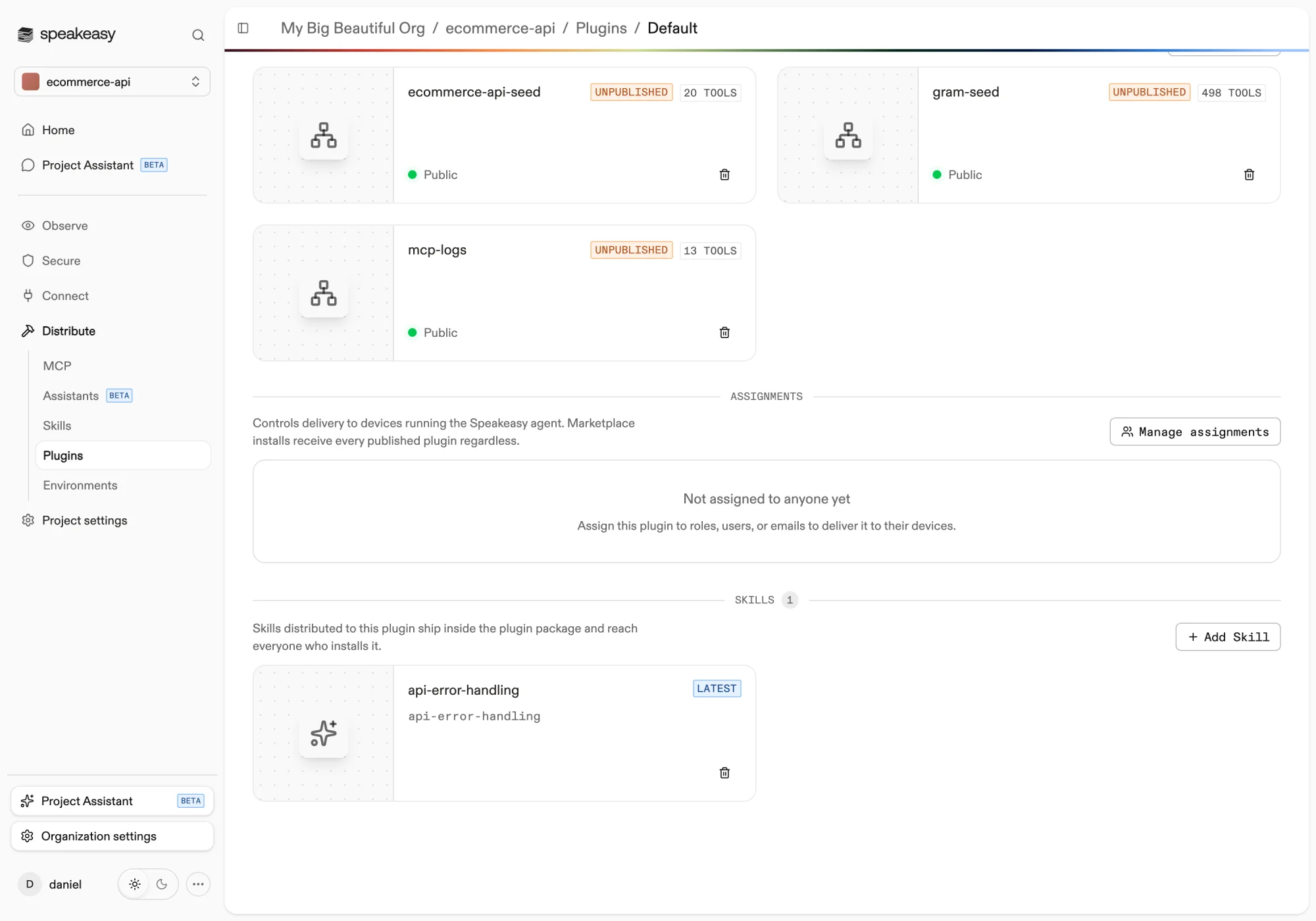
Manage distributions from the banner at the top of the skill’s Overview tab, which stages plugin membership and saves it with Distribute or Update, or from the Skills section of a plugin, where Add Skill picks project skills to bundle. A distribution either tracks the latest valid version (Latest) or pins a specific one (Pinned). A skill with no valid version cannot be distributed; the banner explains what blocks it. When a plugin carries at least one skill, the package also bundles a local feedback server so agents can report how the skill performed.
Skills can also be attached to assistants. An attached skill tracks the latest valid version by default, or pins a specific version, and the assistant loads it on demand at runtime.
Assistants appear in the MCP Gateway group only for organizations with the feature enabled. Distributing through plugins is available to every project.
Sharing a skill
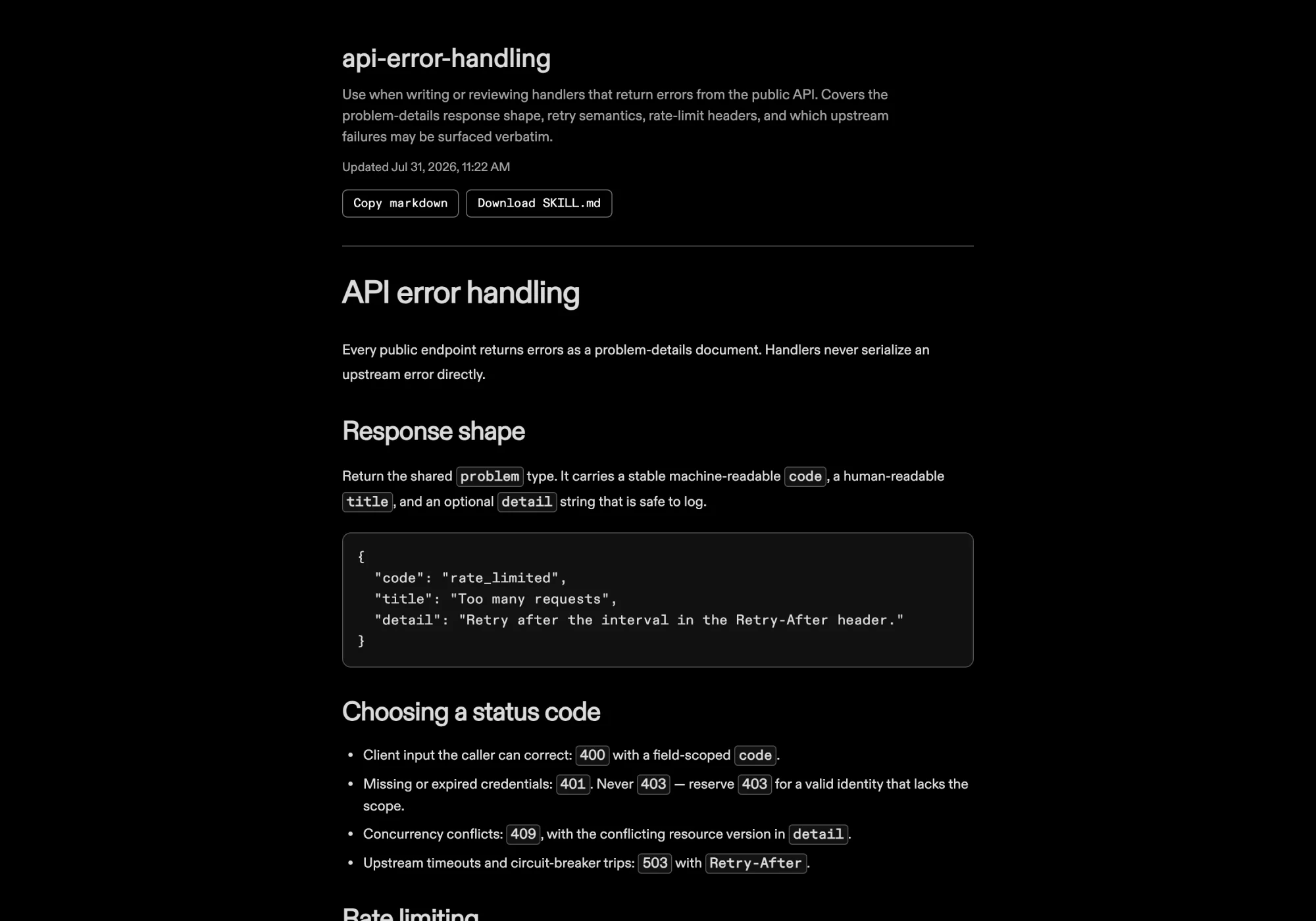
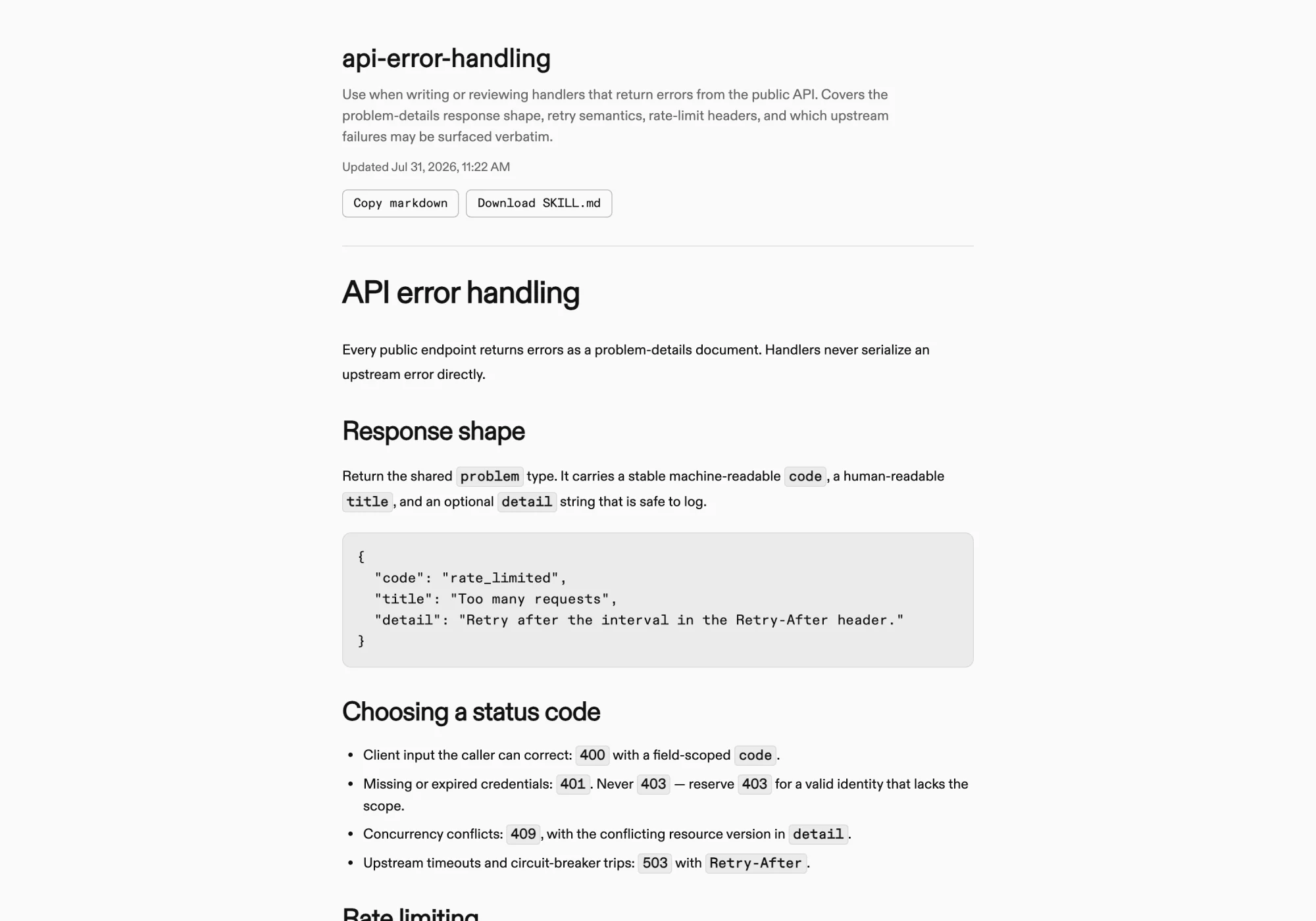
Section titled “Sharing a skill”Every skill is private to its project by default. Switching Visibility in the sidebar from Private to Public creates a share link to a read-only page showing the skill’s latest manifest, with options to copy the Markdown or download the SKILL.md file. The link works without a Speakeasy account and can be reset at any time to revoke the previous URL. When the organization has a live custom domain, the copied link uses that domain.
Skill insights
Section titled “Skill insights”Once a skill is in use, the Insights section on the Overview tab estimates how much it actually helps agent sessions: sampled efficacy scores, estimated time saved, and attributed session cost, each broken down by version. The Scored Sessions tab lists the judge rationale and raw flags for recent sampled sessions.
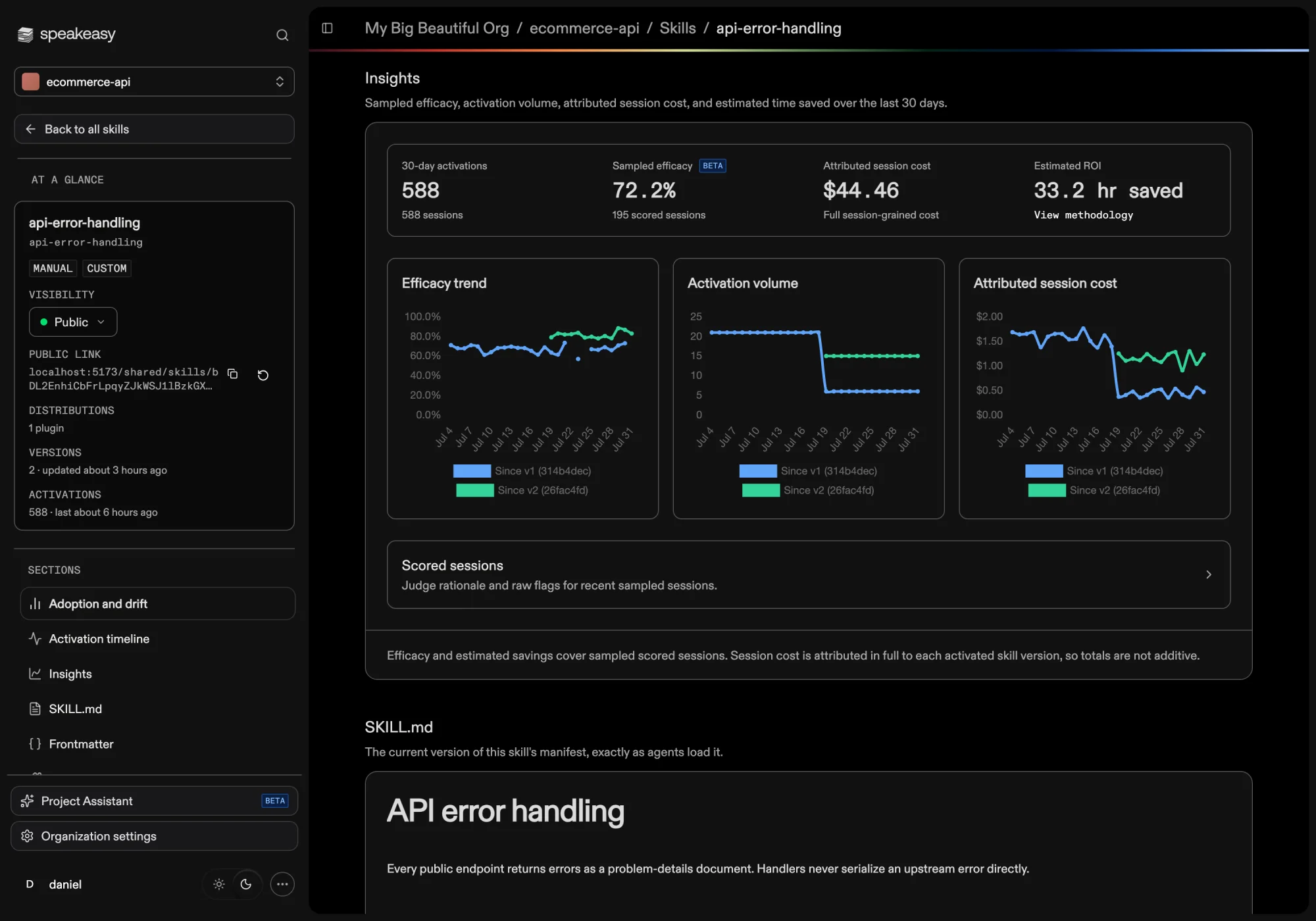
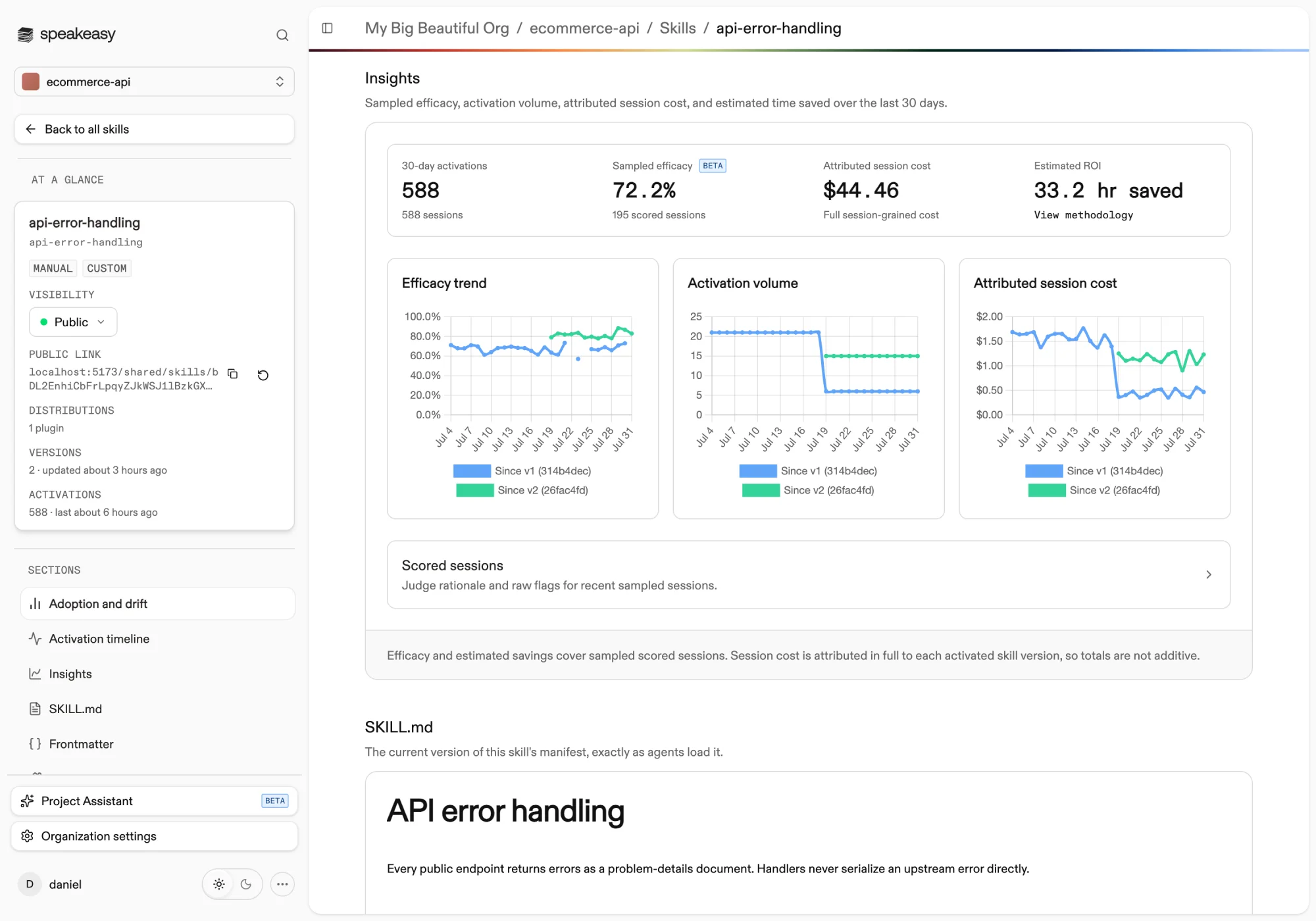
See Measuring skill efficacy for how the scoring works and how to interpret the results. Organization administrators control sampling limits from the Skills settings page.
Improving skills with agent feedback
Section titled “Improving skills with agent feedback”Agents report whether a skill helped after using it, and the platform turns that feedback into reviewable suggested edits: evidence-backed diffs against the current manifest that a project member can apply as a new version. See Improving skills with agent feedback for the full review workflow.