MCP Gateway / Improving skills with agent feedback
Improving skills with agent feedback
How agent feedback and sampled efficacy scores become reviewable suggested edits, and how to apply, dismiss, or batch-apply them.
The platform can use feedback reported by agents and sampled efficacy scores to propose changes to a skill. The review workflow keeps those proposals separate from the current SKILL.md until a project member approves them. Everything described here lives on a skill’s Agent Feedback and Version History tabs, reached from MCP Gateway > Skills in the project sidebar.
Access requirements
Section titled “Access requirements”Reading feedback and suggested edits requires the skill:read scope. Running
the analysis, applying or dismissing a suggestion, and restoring a version
require the skill:write scope, which the default Admin
role holds and the
default Member role does not.
What agents report
Section titled “What agents report”After using a skill, an agent can report whether it helped, partially helped, did not help, was misleading, or was harmful. A report can include a short note and the skill version used in the session. Plugins that carry skills bundle a local feedback server for exactly this purpose, and assistants report through a built-in feedback tool.
These reports are raw, agent-reported signals. They are inputs to analysis, not authoritative measurements of a skill’s efficacy. Treat outcome counts and notes as context alongside sampled efficacy scores, session rationale, and version trends.
How analysis works
Section titled “How analysis works”An automated analysis agent reviews eligible feedback and scored sessions for a skill. When the evidence supports a concrete improvement, it records the edit as a diff against the skill version it analyzed, along with a short summary of what goes wrong today and what the edit fixes, a link to every feedback record the proposal was generated from, how many scored sessions informed the proposal, and the exact skill version used as the proposal’s base.
The analysis agent does not update the skill directly. The proposal remains an open suggestion until someone reviews it.
A suggestion is a list of separate changes rather than one rewritten manifest. Each change is self-contained and cites only the feedback behind it, so a reviewer reading a change sees the reports that motivated it and not the ones behind an unrelated edit. On each analysis pass, open changes are replayed onto the current version: the ones that still apply are carried forward, and the ones that conflict or are already applied are dropped. A suggestion is superseded once nothing is left to propose.
Review a suggested edit
Section titled “Review a suggested edit”The Suggested edit section of the Agent Feedback tab shows a suggestion as a diff between the current and proposed manifests, with a review marker beside each proposed change. Expanding a marker shows that change’s summary, how many sessions asked for it, and the agent reports cited as its reason. A skill with an open suggestion also carries a Suggested edit badge in the skills list.
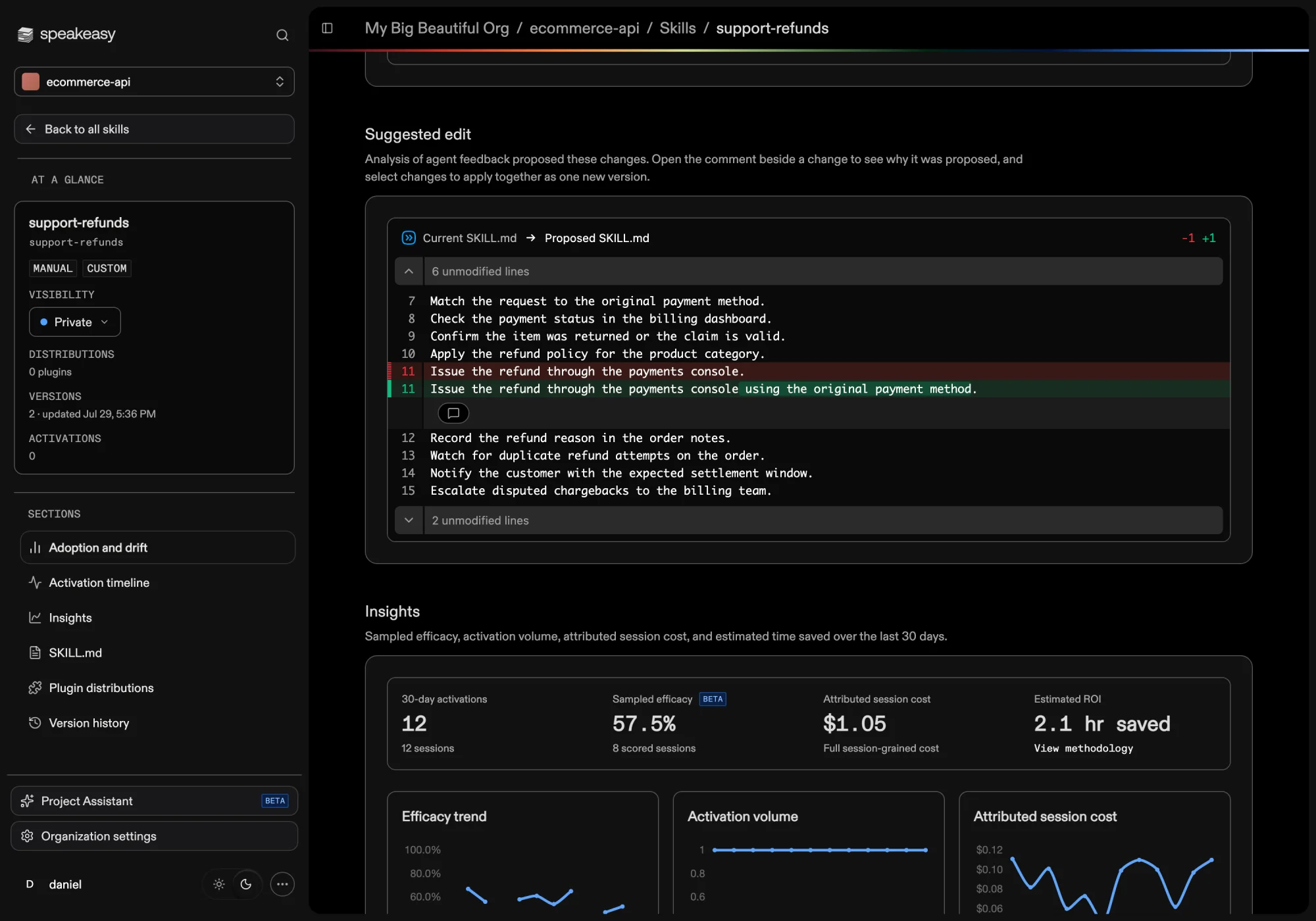
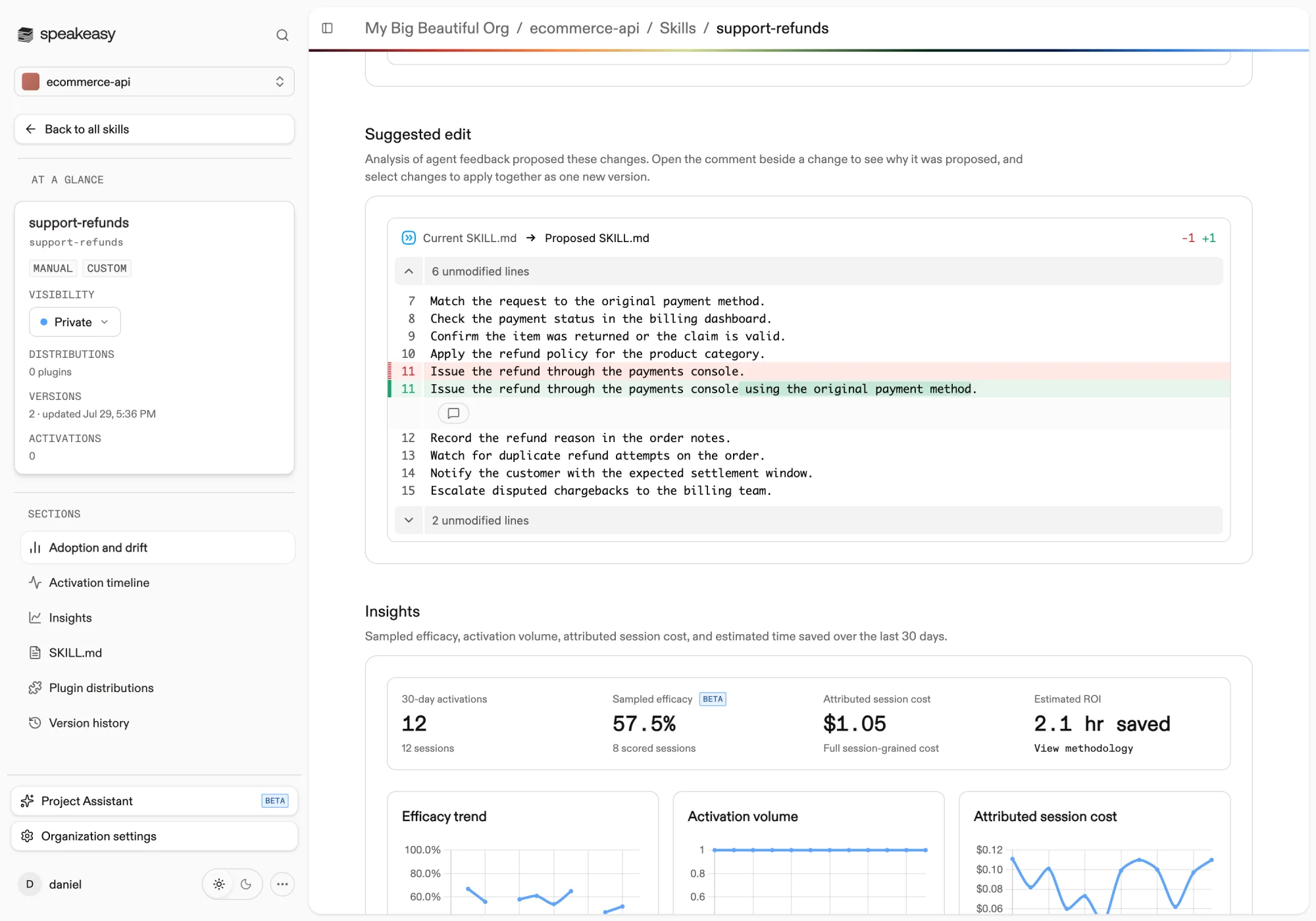
Project members with skill write access can act on a suggestion in three ways.
- Apply on a single marker takes just that change. A new immutable version is recorded carrying only it, and the suggestion stays open proposing the remaining changes, now measured against the version just created. Applying the last remaining change closes the suggestion.
- Apply selected takes the changes ticked in the diff as one new version. The bar above the diff shows how many of the proposed changes are selected.
- Apply all opens a review of every change the suggestion still proposes and takes them as one new version. From the same review, the complete proposed manifest can be adjusted before applying it (Edit and approve suggestion), or the suggestion dismissed without changing the skill. The normal manifest validation and 65,536-byte limit still apply.
There is no draft state. Every apply records a new version immediately, and that version becomes the one agents load, so plugin distributions that are not pinned to a specific version pick it up.
Approval applies the change to the version that is current at that moment. If the change no longer applies, the platform reports a conflict or supersedes the suggestion rather than applying it over newer work. A suggestion that no longer lines up with the current manifest is marked as such and retired on the next analysis pass. If an apply request fails, refresh the suggestion and review the current state before retrying, because the edit may already have been applied.
Read feedback and regression signals
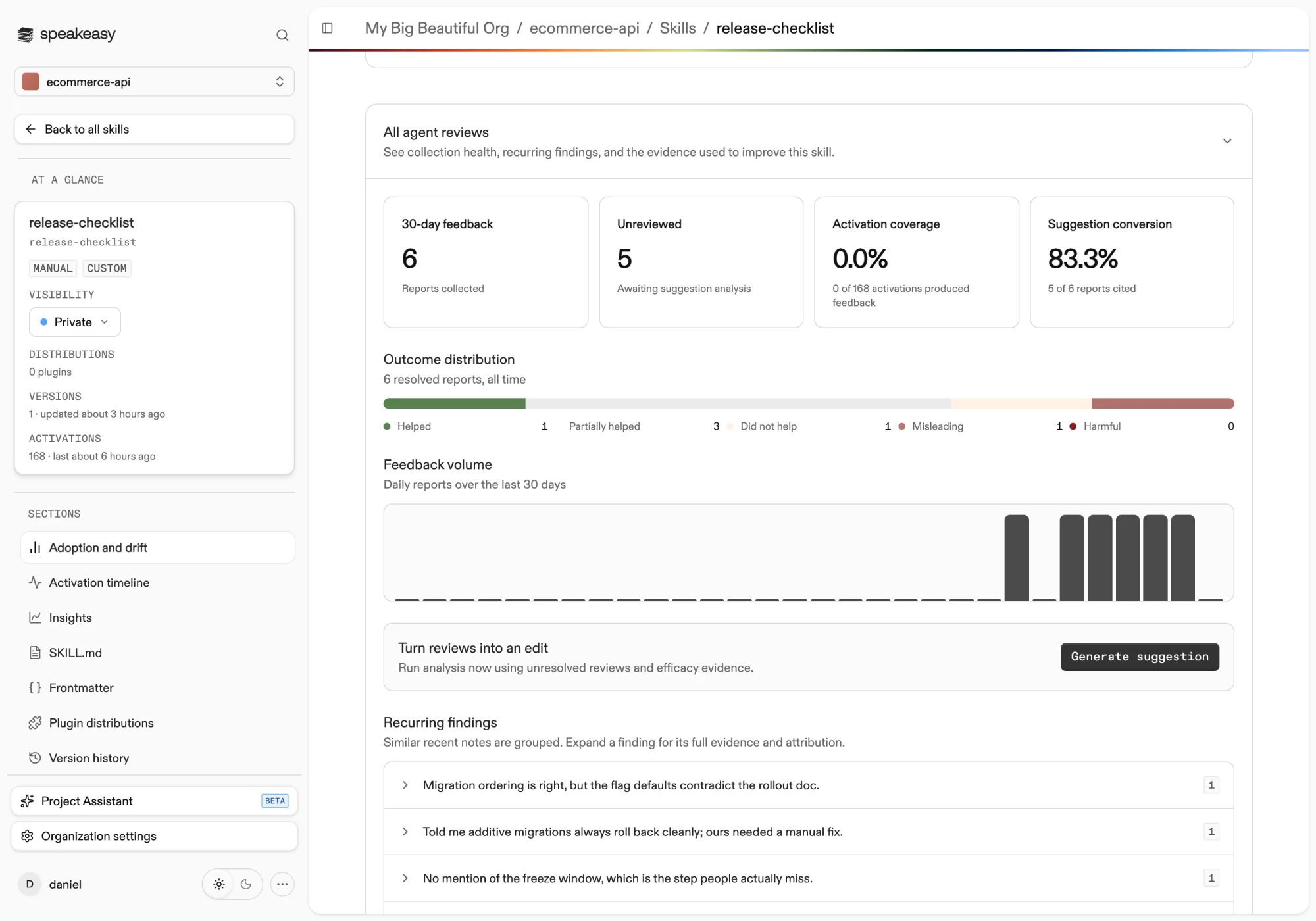
Section titled “Read feedback and regression signals”The collapsible Agent Feedback panel at the top of the tab shows collection health and all-time outcome counts across every report, not only the ones behind the current suggestion: 30-day feedback reports collected, Unreviewed reports awaiting analysis, Activation coverage (the share of activations that produced feedback), and Suggestion conversion (the share of reports cited in suggestions), followed by the outcome distribution, a feedback timeline, and recurring findings grouped by note. Generate suggestion runs the analysis on demand using unresolved reviews and efficacy evidence.
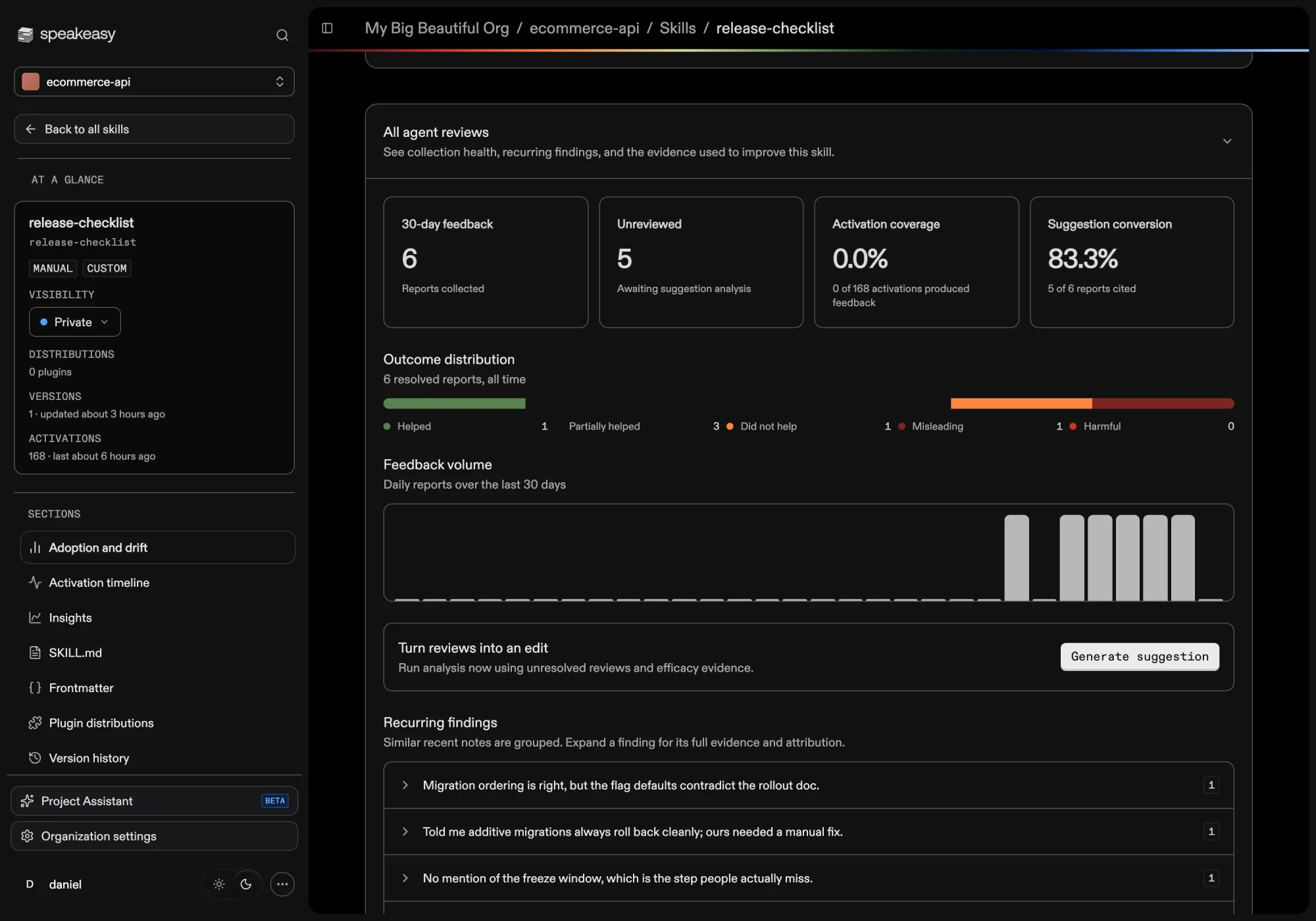
Skill insights on the Overview tab may also show a Current version shows an efficacy regression warning when the current version scores worse than its predecessor. The warning includes current and predecessor scores and sample counts, and Review version to restore links to the predecessor in version history.
Restore an earlier version
Section titled “Restore an earlier version”The Version History tab can restore any valid, non-current version with Roll back (to an older version) or Promote (to a newer, non-current version). Restoring makes that historical content current again without changing the immutable historical record. Versions are content-addressed, so a restore reactivates the existing version rather than creating a duplicate with the same canonical content. It does not rewrite or remove versions. After a rollback, the current version may appear below newer versions in the list.
Explicit distribution pins for plugins and assistants are preserved. A pinned distribution continues to target its selected version; only distributions that follow the current skill version observe the restore.