MCP Gateway / Organization and project gateways
Organization and project gateways
One MCP URL for the whole organization, or for one project. Each person signs in with their Speakeasy account and reaches every MCP server they have access to, with no gateway to create or maintain.
The organization gateway is one MCP URL for the whole organization, shown in the dashboard as Organization Gateway. A person adds it to Claude, Cursor, or any other MCP client, signs in once with their Speakeasy account, and reaches every MCP server they have access to, across all projects. As their access changes, so does what they see. People no longer add servers one at a time or keep that list in step with their access.
A project gateway is the same gateway narrowed to one project. It shares the organization gateway’s sign-in, availability, and access rules, but lists and calls only the servers in that project.
Both gateways serve the same tools as a gateway endpoint: agents discover member servers with list_servers, describe_server, and describe_tools, call them with execute_tool, and check pending sign-ins with connection_status. The difference is that there is nothing to create or maintain. Their members follow each person’s access.
Access requirements
Section titled “Access requirements”The organization gateway is off until an organization admin turns it on, which requires the org:admin scope. Viewing the Organization Gateway page and looking up the gateway URL through the API or the Platform MCP require org:read. Looking up a project gateway URL requires project:read on that project. Once the gateway is on, any member of the organization can connect to it. Which servers each person reaches depends on their own access, as described in Which servers a person reaches.
How the gateways are served
Section titled “How the gateways are served”Neither gateway is stored as a server. Each request works out the gateway from the organization in the URL, the optional project, and the signed-in person’s live access:
flowchart TD
  A[Admin reviews MCP assignments] --> B[Admin turns on Organization Gateway]
  B --> C[Person adds the gateway URL to an MCP client]
  C --> D[Person signs in with their Speakeasy account]
  D --> E{URL includes /projects/project-slug?}
  E -- No --> F[Organization gateway: servers the person can reach in every project]
  E -- Yes --> G[Project gateway: servers the person can reach in that project]
  F --> H[Agent discovers and calls member servers]
  G --> H
Turn on the organization gateway
Section titled “Turn on the organization gateway”The organization gateway starts off. Before turning it on, an admin reviews who will reach what, because each person gets every MCP server they can access across all projects, including access inherited from broad roles.
To turn it on:
- Open the Organization Gateway card on the server list under MCP Gateway > MCP, or select Org Gateway in the organization sidebar.
- Turn on the Disabled switch at the top of the page. The page opens the View assignments tab under Review access before enabling.
- Review the MCP access and blocks for each role. Use Check user access to see how one person’s roles, direct assignments, and restrictions combine, and remove assignments people no longer need.
- Select the confirmation checkbox, then click Enable Organization Gateway.
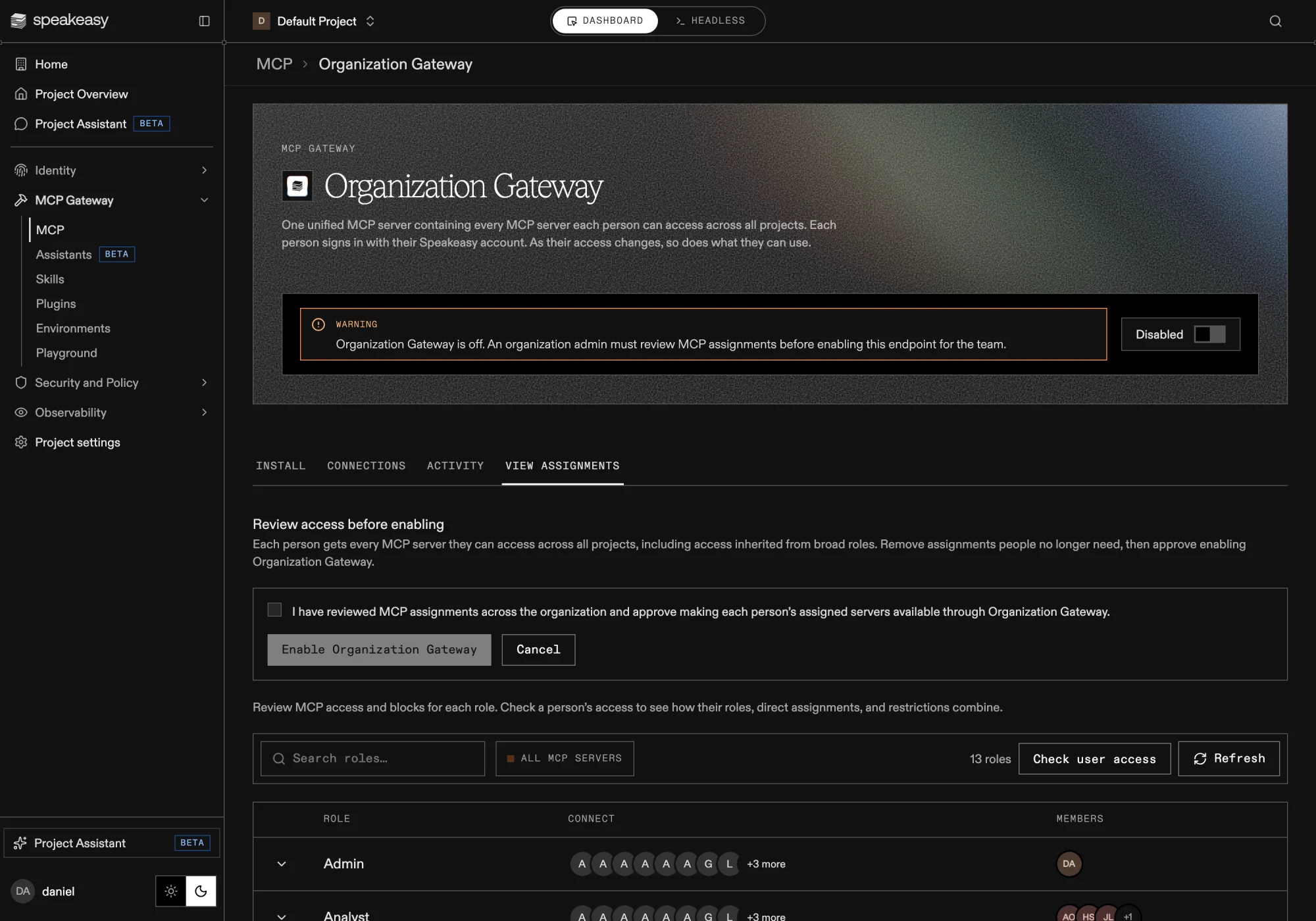
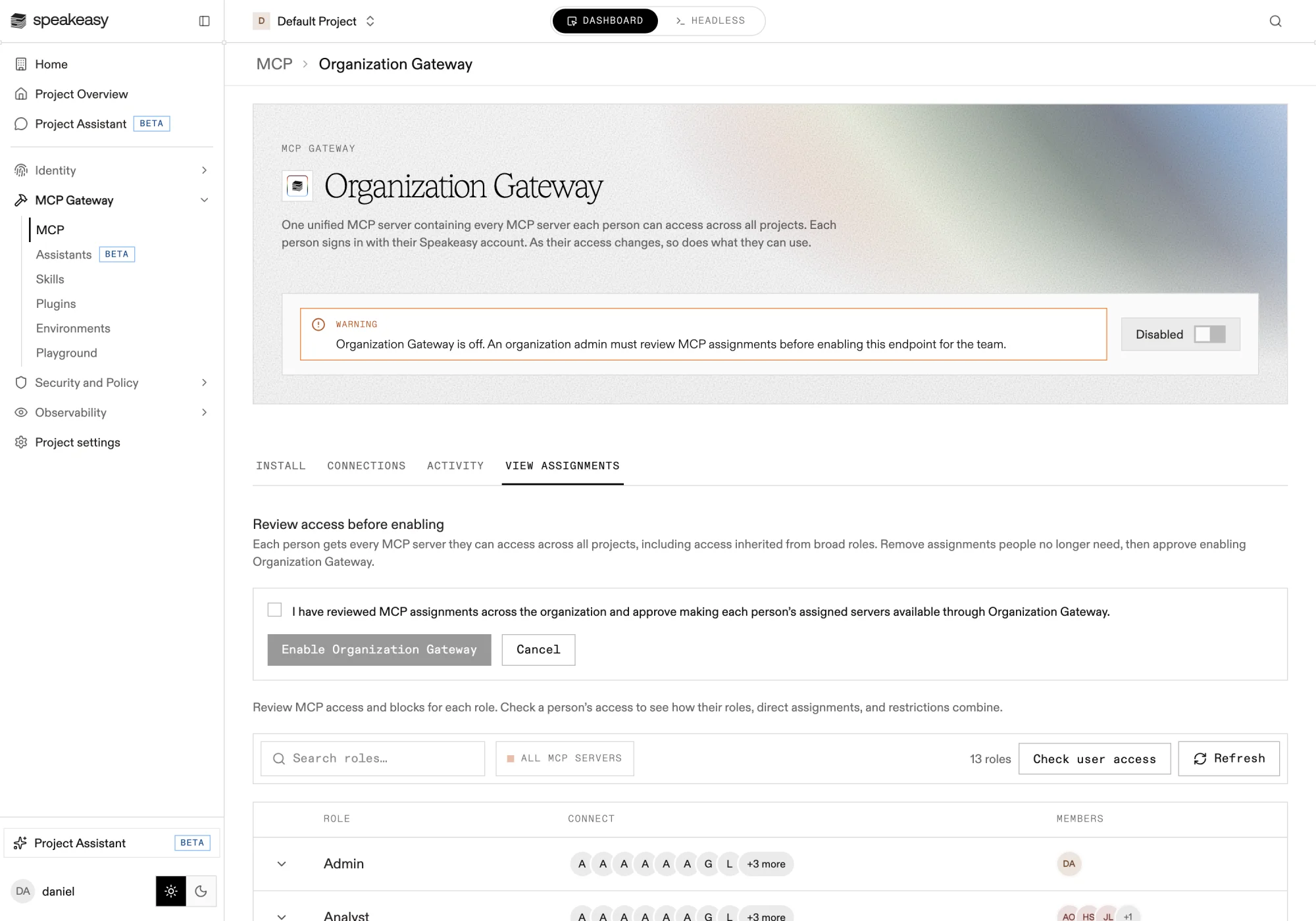
Turning on the organization gateway also serves every project gateway in the organization. There is no separate switch per project.
Find the gateway URL
Section titled “Find the gateway URL”The Organization Gateway card sits at the top of the server list under MCP Gateway > MCP, next to any gateway endpoints the organization has created. While the gateway is off, admins see the card with an Off badge and other members don’t see it at all.
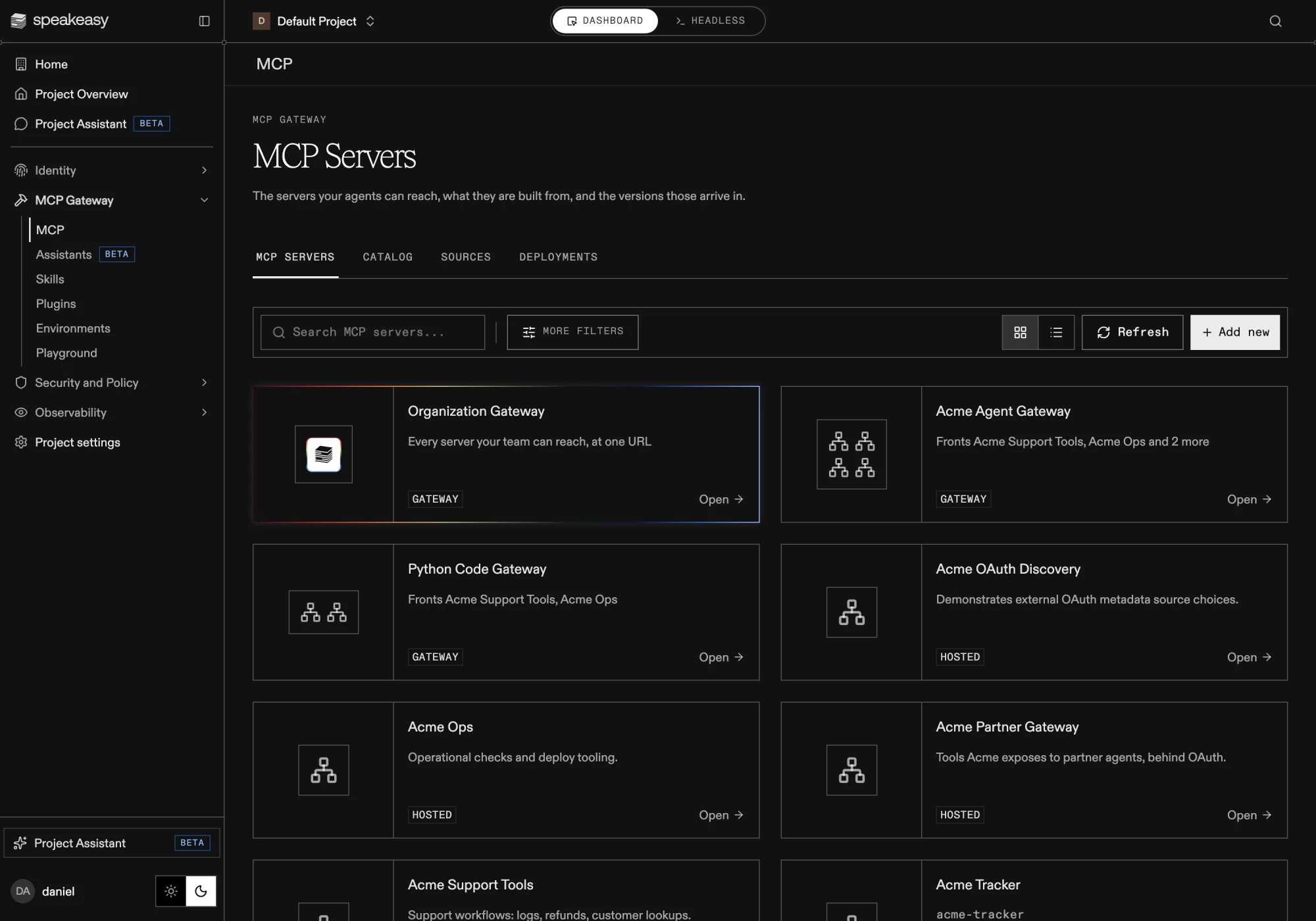

Click Open on the card to see the gateway’s Endpoint URL. The URL takes the form https://<organization host>/mcp/gateway/<organization slug>.
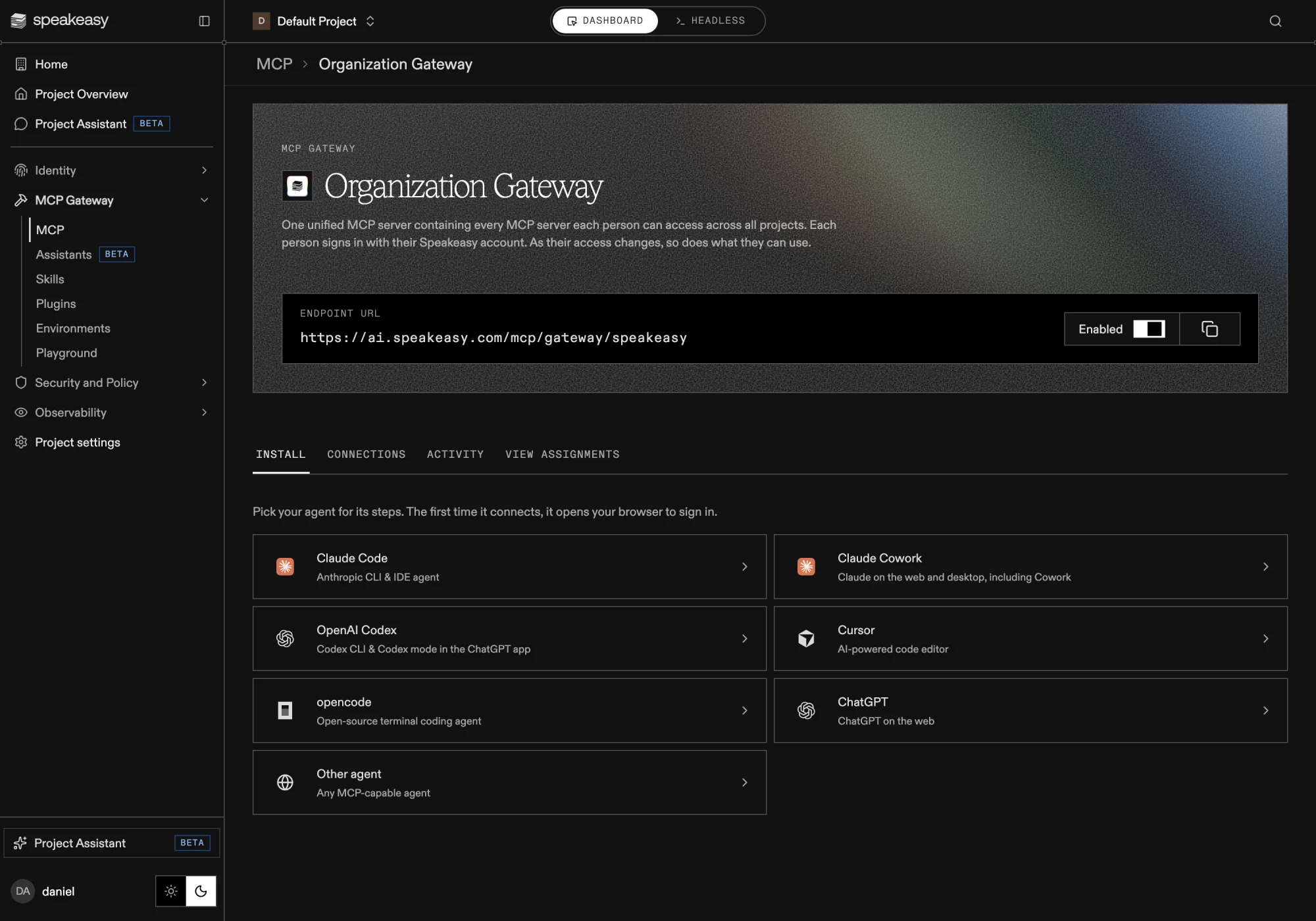

The URL is also available in these places:
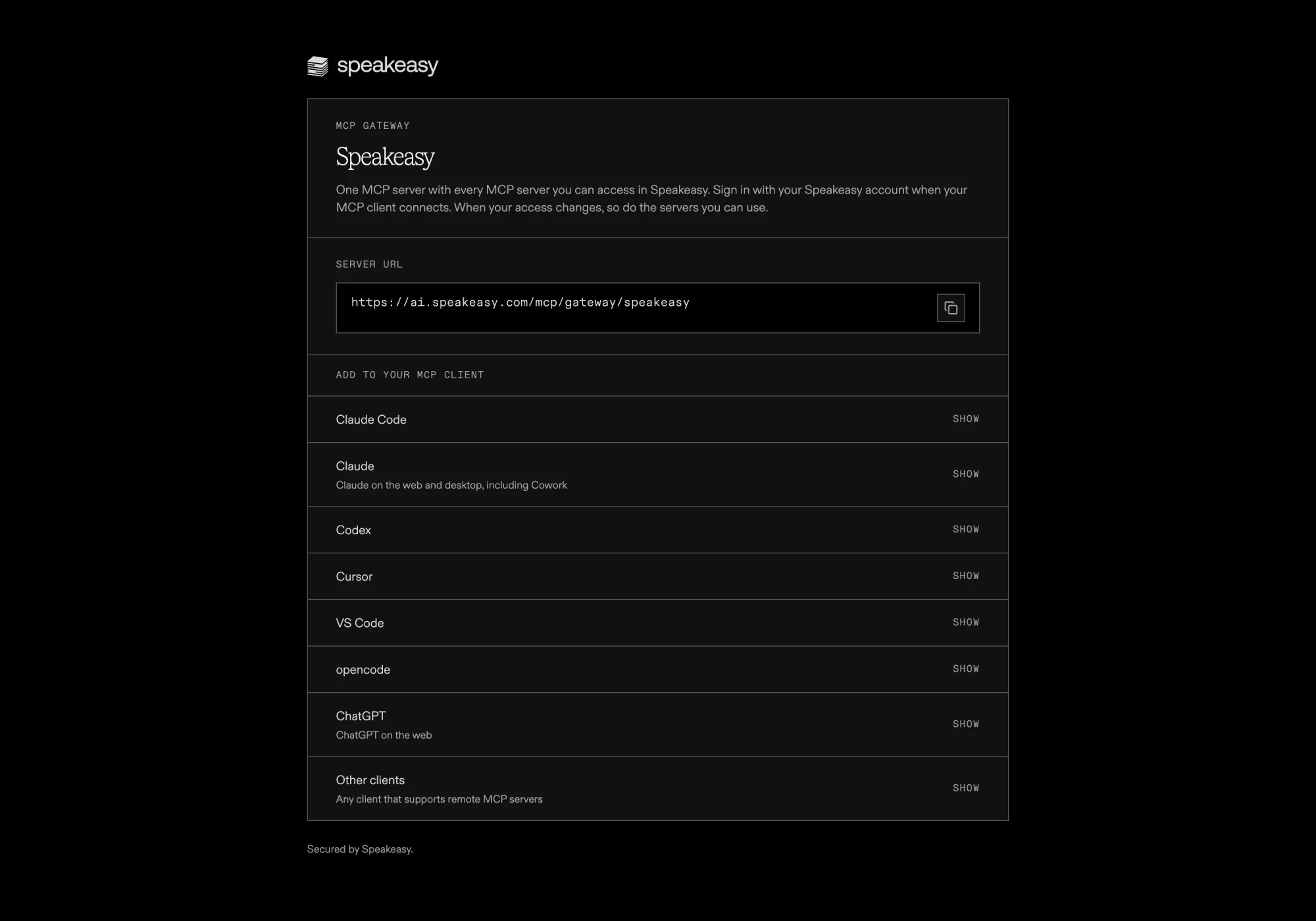
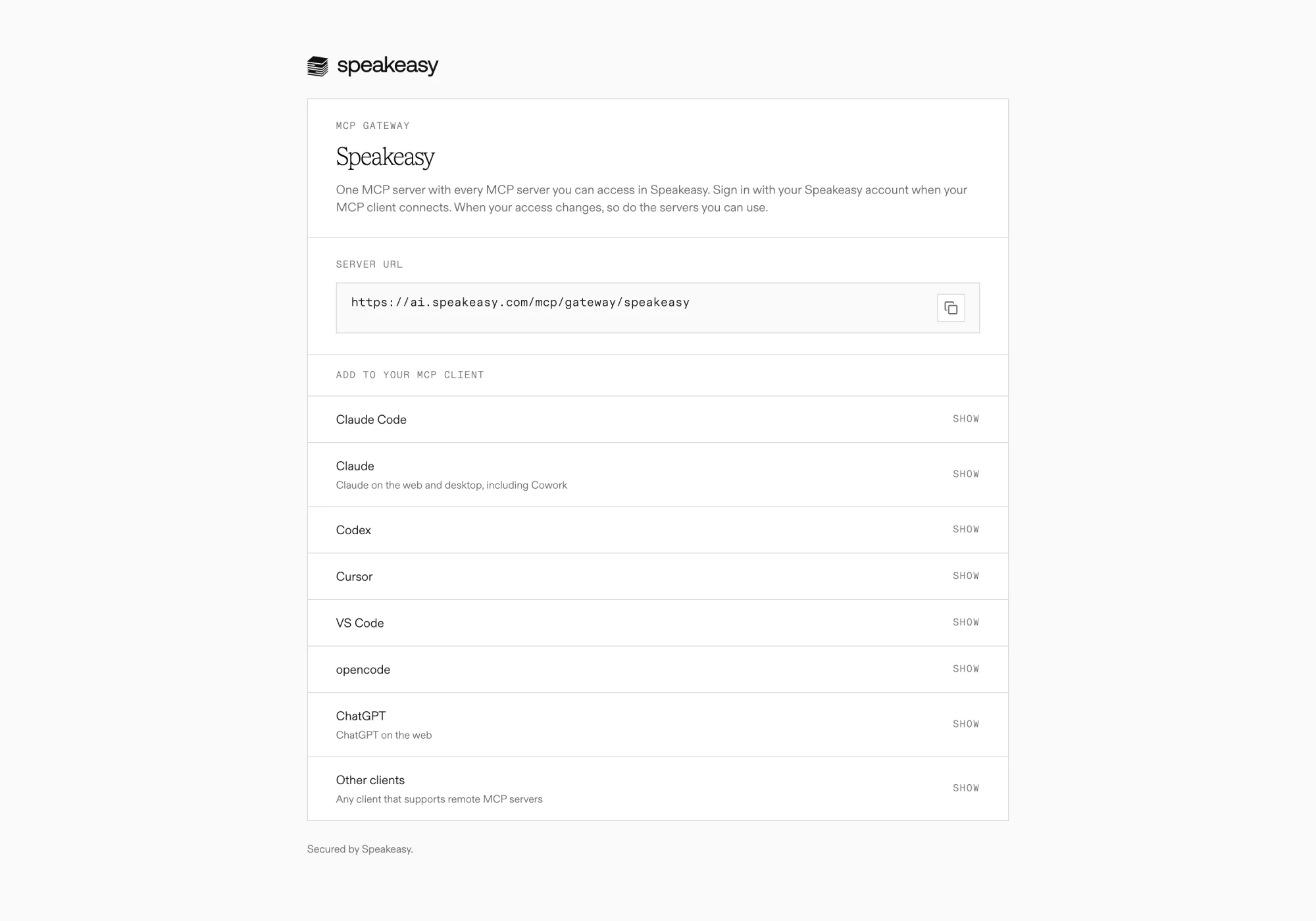
- Opening the gateway URL in a browser shows a landing page with the URL, a copy button, and setup steps for each MCP client. See Share the gateway URL.
- On a device enrolled in the device agent, the menu bar app links to the organization gateway.
- In an agent connected to the Platform MCP, asking for the organization gateway URL returns it, or the reason the organization has none.
Share the gateway URL
Section titled “Share the gateway URL”The gateway URL doubles as a page people can open in a browser. Members of the organization see the server URL with a copy button and setup steps for Claude Code, Claude, Codex, Cursor, VS Code, opencode, ChatGPT, and other clients. Visitors who are signed out are sent to log in first and return to the page afterward. People outside the organization see a not-found page, so the page reveals nothing about the organization. While the gateway is off, members see a message to ask an admin instead of the URL.
Project gateways
Section titled “Project gateways”A project gateway URL adds the project slug to the organization gateway URL:
https://<organization host>/mcp/gateway/<organization slug>/projects/<project slug>Use a project gateway when people only need the servers of one team or product, or when a smaller tool set helps agents pick the right tool. A project gateway behaves like the organization gateway in every other way:
- People sign in with the same Speakeasy account, through the same organization-wide authorization server.
- Members follow each person’s access, limited to servers in that project. Upstream credentials are also chosen only from that project.
- It is served only while the organization gateway is on. Unknown, deleted, and other organizations’ projects are not served.
- Each project gateway is a separate MCP resource, so a client signs in to it separately from the organization gateway and from other project gateways.
The dashboard does not list project gateway URLs. Build the URL from the organization gateway URL and the project slug shown in the project switcher, or ask an agent connected to the Platform MCP for its project gateway. The get_my_project_gateway tool takes a project_slug and returns the URL, or the reason the organization gateway is unavailable. It requires project:read on that project and never returns tokens, credentials, or other people’s access.
Connect an MCP client
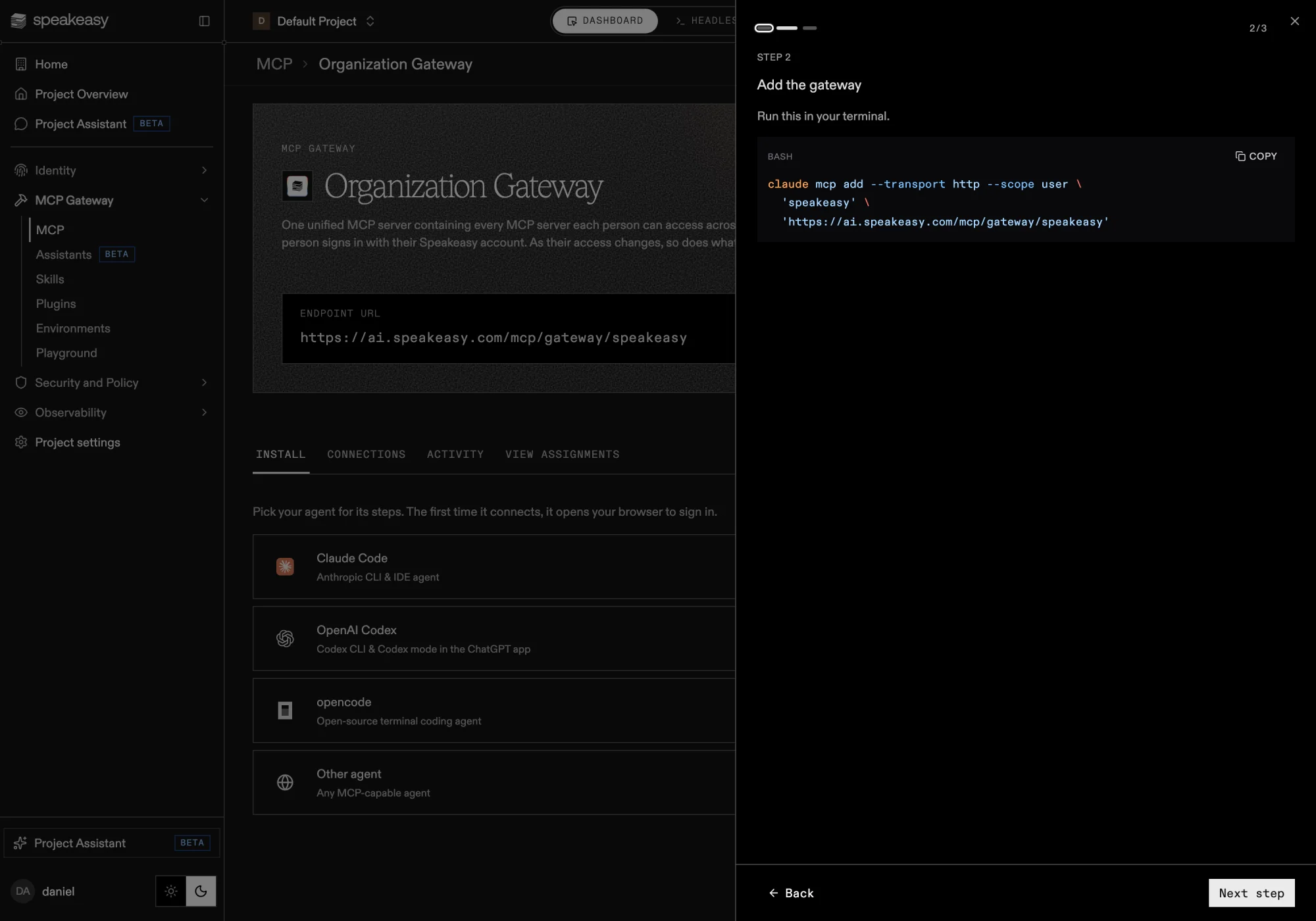
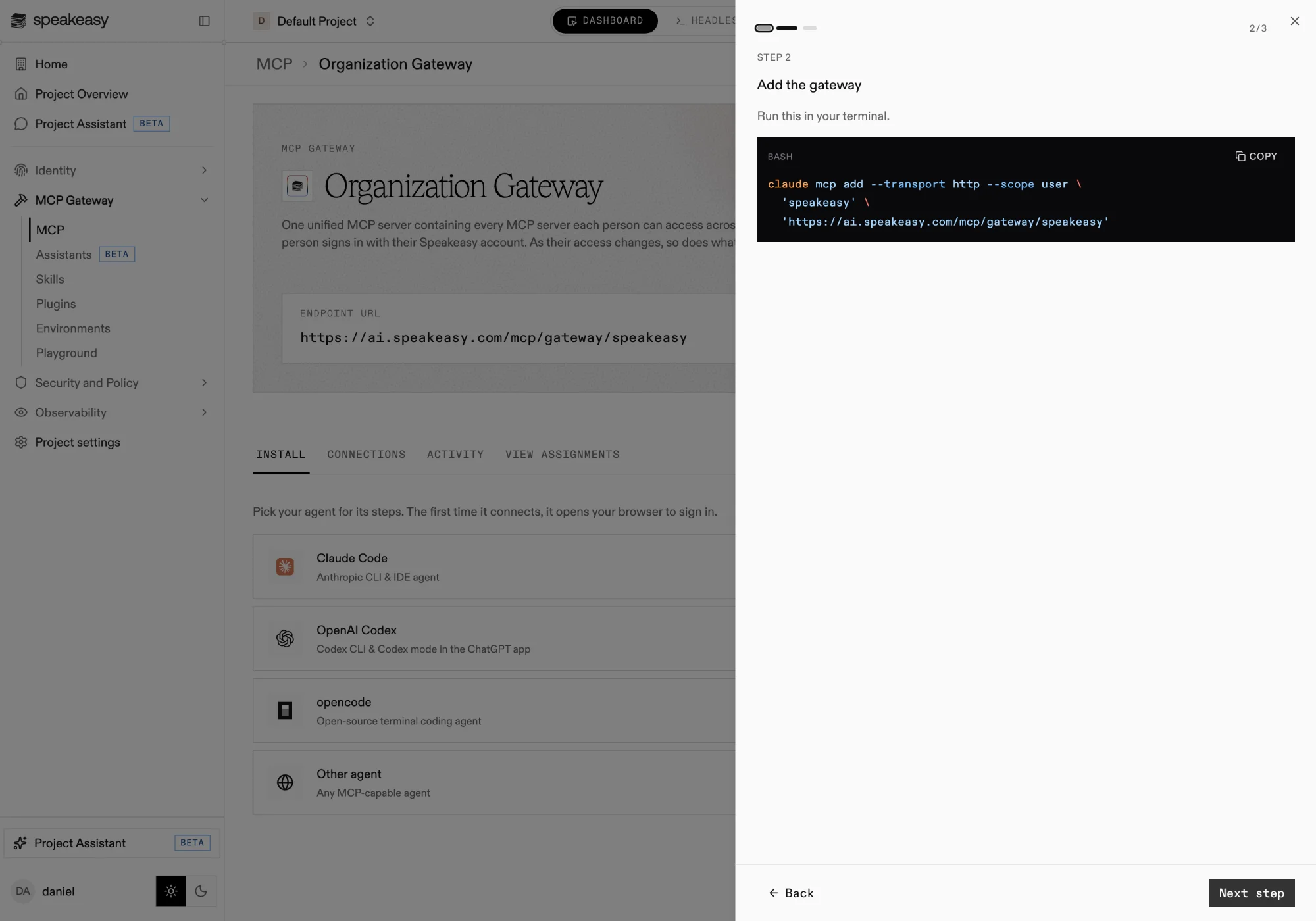
Section titled “Connect an MCP client”The first time a client connects, it opens a browser to sign in. Under Install on the Organization Gateway page, choose an agent to see its setup steps with the organization’s URL filled in.
In the examples below, replace the URL with the organization gateway URL or a project gateway URL.
Claude Code
Section titled “Claude Code”Run this command, then open /mcp in Claude Code and choose Authenticate:
claude mcp add --transport http --scope user \ 'speakeasy' \ 'https://<organization host>/mcp/gateway/<organization slug>'Claude
Section titled “Claude”On Team and Enterprise plans, an Owner adds the connector for the organization under Organization settings > Connectors by choosing Add > Custom > Web and pasting the gateway URL. Each person then opens Settings > Connectors and clicks Connect to sign in.
On Pro and Max plans, each person opens Settings > Connectors > Add custom connector in Claude on the web or desktop and pastes the gateway URL.
Cursor
Section titled “Cursor”On the Organization Gateway page, choose Cursor under Install, then click Add to Cursor to add the gateway to Cursor’s MCP settings in one step.
OpenAI Codex
Section titled “OpenAI Codex”Run these two commands. The second one signs in:
codex mcp add 'speakeasy' \ --url 'https://<organization host>/mcp/gateway/<organization slug>'codex mcp login 'speakeasy'Any other MCP client that supports remote servers connects the same way: add the URL as a remote MCP server and sign in when prompted.
Choose a tool discovery mode
Section titled “Choose a tool discovery mode”The organization and project gateways have no default discovery mode of their own. Each connection picks one under Tool discovery on the sign-in consent page:
- Progressive serves the five gateway tools, and agents discover member tools as needed.
- Direct lists every available tool by its qualified name, in the form
server--tool, for clients that cannot discover tools progressively. - Code Mode serves one execute tool for discovering and calling tools in Python. It requires Code Mode to be enabled for the organization. To turn it on, contact Speakeasy.
The consent page also lets a person hide servers they don’t want their agent to see. See Tool discovery for how each mode lists tools.
Which servers a person reaches
Section titled “Which servers a person reaches”The gateway works out its members each time it is called, from the person’s live access:
- Every MCP server the person can connect to is a member. That covers public servers and servers where the person holds the
mcp:connectscope through team access or their role. - On the organization gateway, members come from every project. When two members in different projects share a slug, both are named
project.serverso neither hides the other. Other members keep their plain slug. - On a project gateway, members come from that project only.
- Access changes take effect on the next call. Granting someone access to a server adds it to their gateway, and removing access takes it away. Nothing needs to be edited on the gateway itself.
Skills served by the gateway
Section titled “Skills served by the gateway”The organization gateway serves skills over MCP: the skills added to it plus the skills added to every member server the person reaches. A project gateway serves the organization gateway’s skills plus those of its members in that project. The organization gateway has no project page, so add a skill to it from the Served over MCP section of the skill’s Usage tab.
Sign-in and upstream connections
Section titled “Sign-in and upstream connections”Only people sign in to the organization and project gateways. API keys, agent keys, and workload identities are refused. Agents that run without a person should connect to a server’s own URL or to a gateway endpoint instead.
Servers that need their own upstream OAuth grant, such as a SaaS service, still need each person to connect them once. Until they do, calls to that server fail while the rest of the gateway keeps working. People can ask their agent to check the connection status, as described in Check which members are connected. Upstream credentials stay with the project that owns each server, so a person connects each service the same way they would on the server directly.
Monitor connections and activity
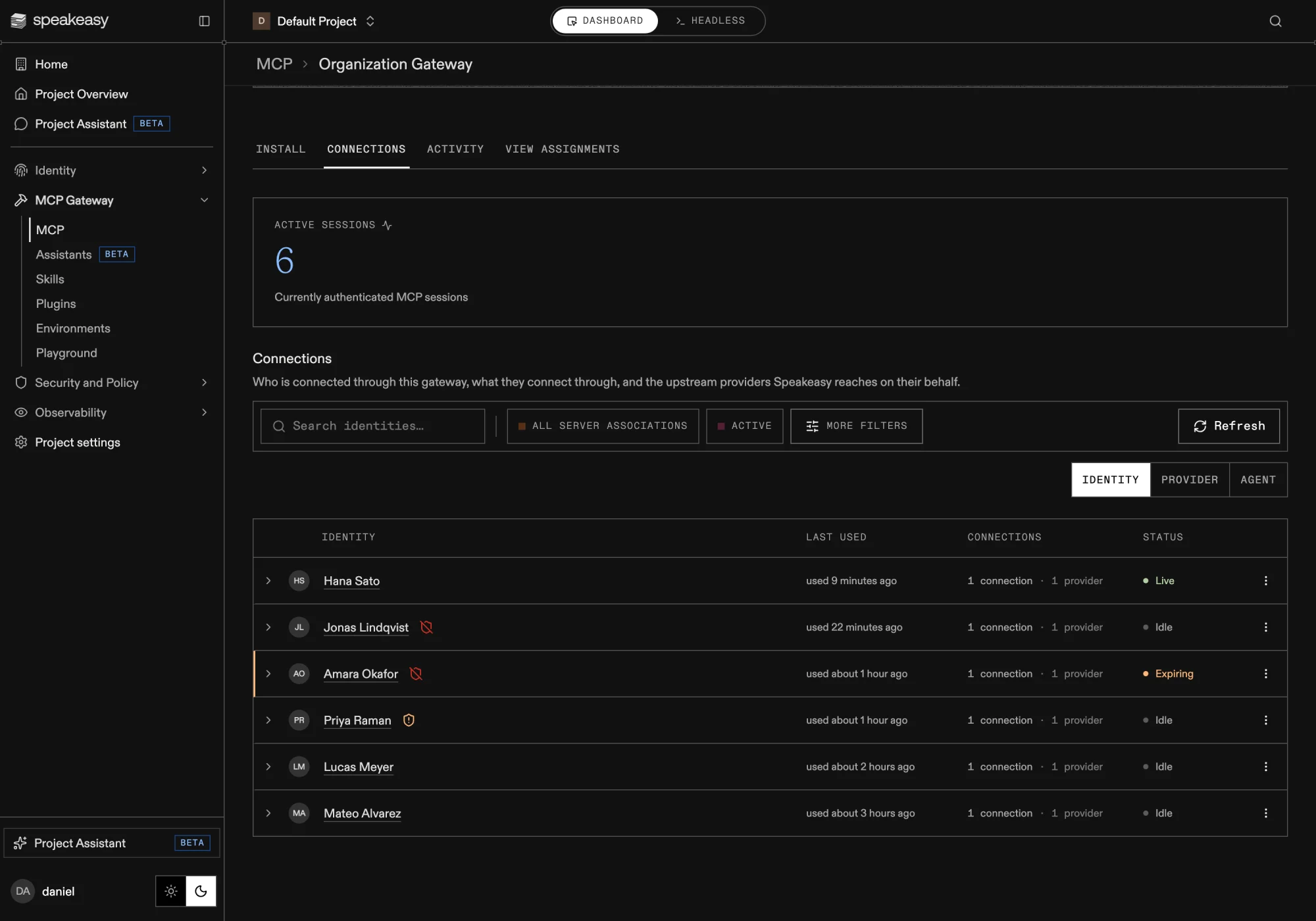
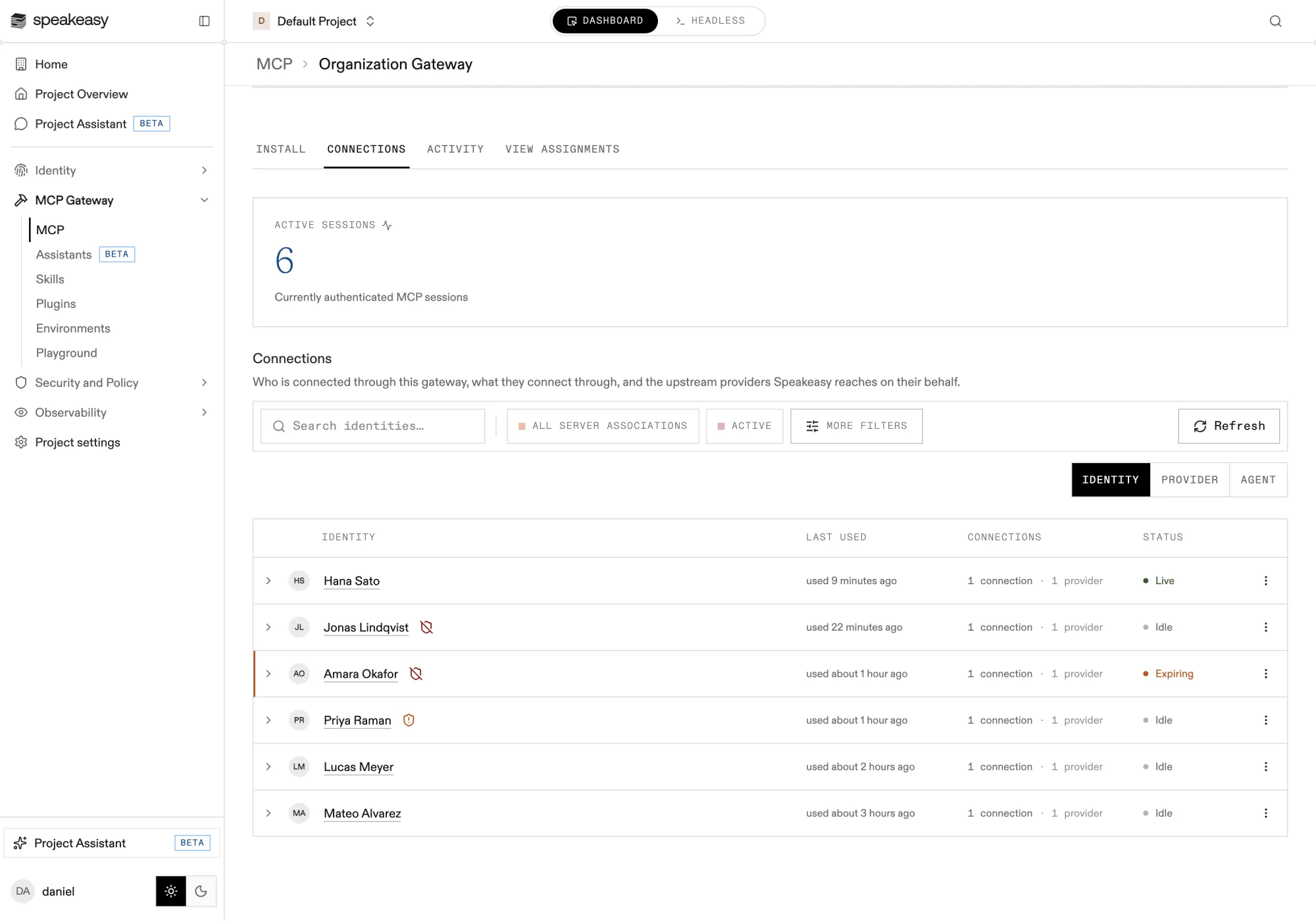
Section titled “Monitor connections and activity”The Connections tab lists who is signed in through the organization gateway: each identity, when they last used it, their connections and upstream providers, and the session status, such as Live, Idle, or Expiring. Switch between the Identity, Provider, and Agent views, filter by server or status, and choose Revoke all connections from a row’s menu to sign a person out of the gateway.
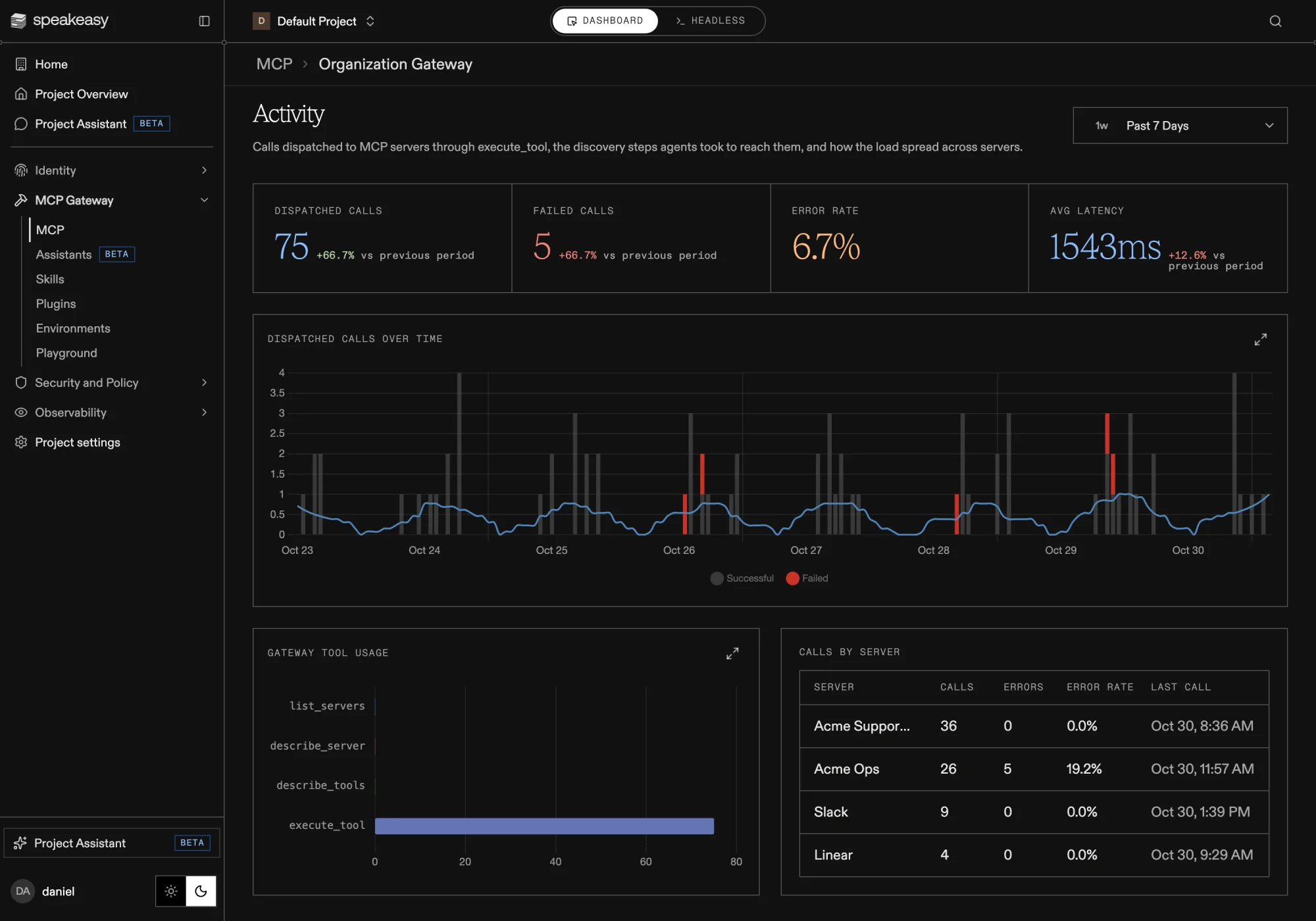
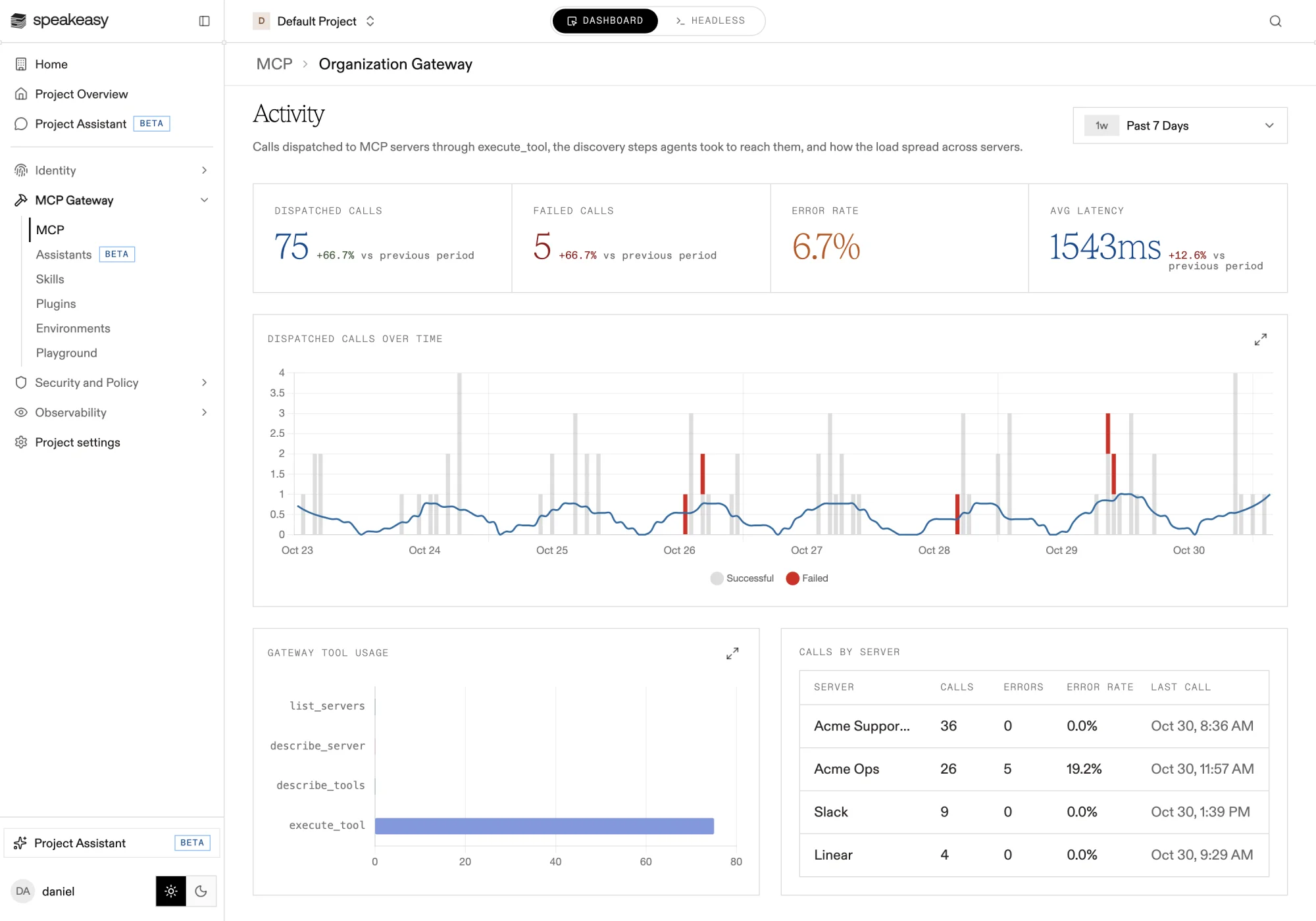
The Activity tab shows how calls flow through the organization gateway across every project: dispatched calls, failed calls, error rate, and average latency against the previous period, calls over time, the discovery steps agents took (list_servers, describe_server, describe_tools, and execute_tool), and Calls by server. Choose the time range in the top-right corner.
Turn the gateway off
Section titled “Turn the gateway off”An admin can turn the organization gateway off with the Enabled switch at the top of the Organization Gateway page. The confirmation dialog warns that clients connected to the gateway stop working right away. Turning it off also stops every project gateway. Each MCP server keeps working at its own URL, and the gateway can be turned back on at any time.
When the gateway is unavailable
Section titled “When the gateway is unavailable”The gateway signs people in through a Speakeasy authorization server that belongs to the whole organization rather than to one project. Organization admins can see these under Organization settings > Speakeasy Authorization Servers.
Even when it is switched on, the Organization Gateway page shows Not available with the reason when the gateway can’t be served:
- The organization has no organization-wide authorization server. Organizations created through sign-up get one automatically. Other organizations can make a project’s authorization server organization-wide.
- The organization has more than one organization-wide authorization server. Use Consolidate into another until one is left.
- The organization’s custom domain only allows access from listed IP addresses. The gateway is served on the organization’s platform host, not on a custom domain. Change this in Network Access.
Deleting the organization-wide authorization server also makes the gateway unavailable.
Choose a gateway
Section titled “Choose a gateway”| Organization gateway | Project gateway | Gateway endpoint | |
|---|---|---|---|
| Setup | An admin turns it on once | None beyond the organization gateway | Created by an admin in a project |
| Members | Every server the person can reach, in every project | Every server the person can reach, in one project | Servers an admin adds |
| Who can sign in | People only | People only | Set by the gateway’s own authentication and team access |
| Settings | On or off | Follows the organization gateway | Custom instructions, discovery default, team access, authentication, addresses |
Use the organization gateway as the default URL for people in the organization. Use a project gateway when people should only see one project’s servers. Use a gateway endpoint when a team needs a curated set of servers, its own instructions, or access for agents that run without a person.