Observability / Budgets
Budgets
Give each matched person a fixed-window AI budget: flag overspend for review, or block requests until the window resets.
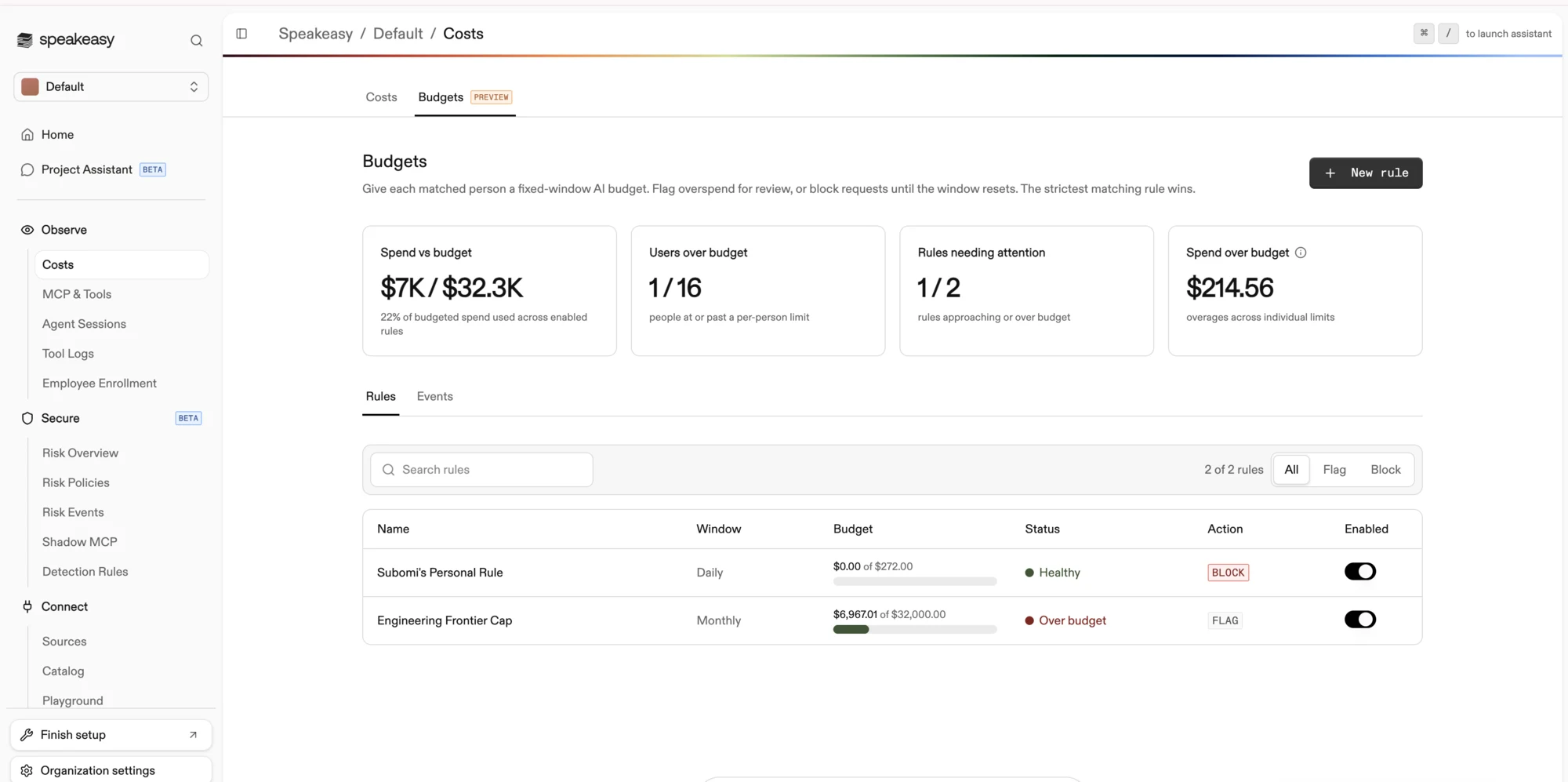
The Budgets tab on the Costs page gives each matched person a fixed-window AI budget. Overspend can be flagged for review, or requests can be blocked until the window resets. Open it from Observability > Costs in the dashboard and select the Budgets tab.
Budgets is in preview. The tab appears once the feature is enabled for the organization, and enforcement turns on with it; contact the team for access.
Access requirements
Section titled “Access requirements”Viewing and managing budgets requires the org:admin scope, held by the default Admin role. Budget rules are organization-wide: they match organization members and count spend across every project, even though the page opens inside a project.
Budget rules
Section titled “Budget rules”A rule gives every person it matches the same per-person budget. New rule opens the editor:
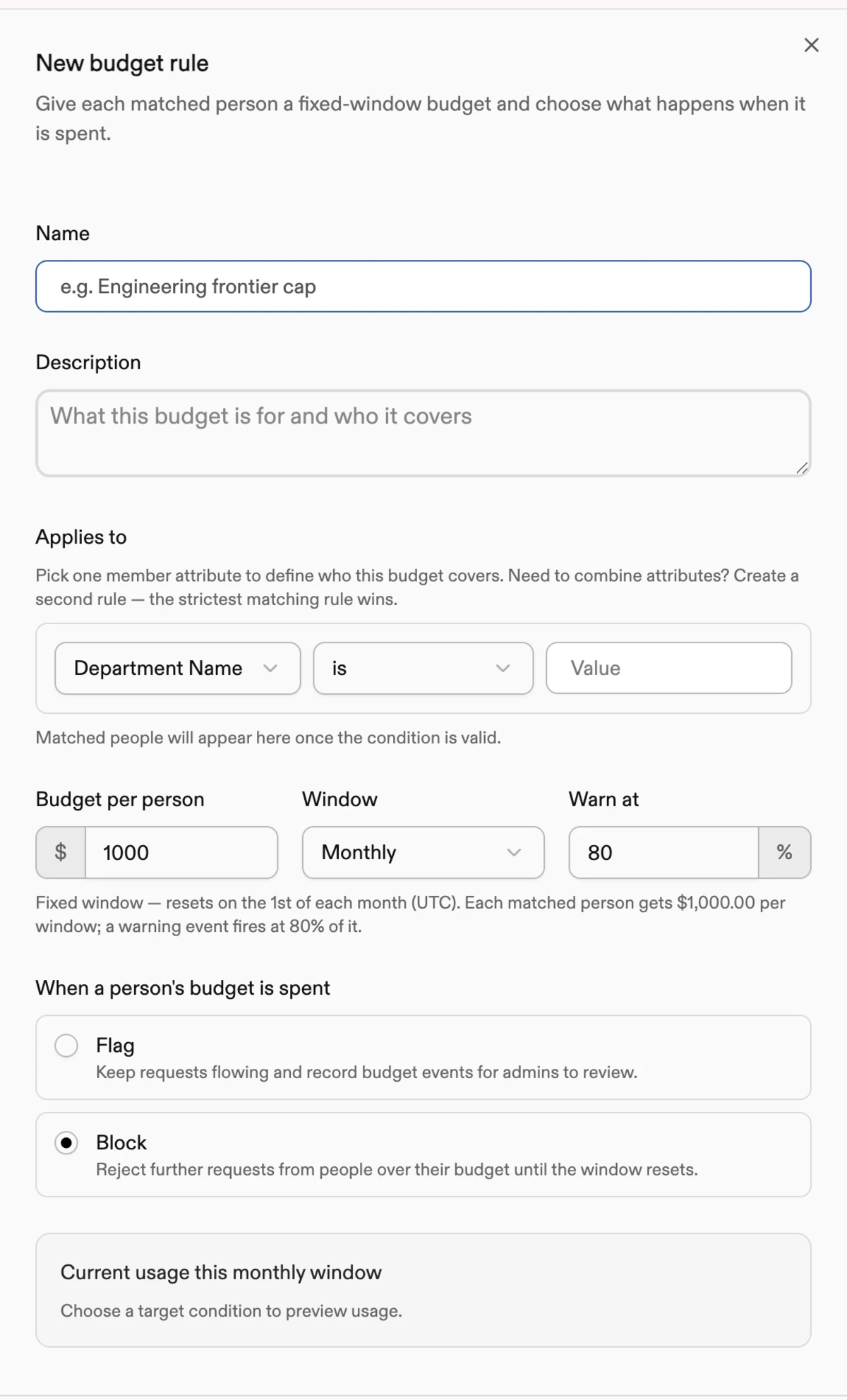
- Applies to - One member-attribute condition defines who the rule covers: department, job title, employee type, division, cost center, email, IdP groups, or organization roles, with operators like is, starts with, contains, matches pattern, and includes for list attributes. Attribute values come from the directory sync profile, and each matched person resolves to an identity. Each rule carries exactly one condition; to combine attributes, create a second rule.
- Budget per person and window - A dollar amount per matched person, per fixed calendar window: daily (resets at midnight UTC), weekly (resets Monday, UTC), or monthly (resets on the 1st, UTC).
- Warn at - The percent of the budget at which a warning event fires. The default is 80%.
- When a person’s budget is spent - Flag keeps requests flowing and records budget events for admins to review. Block rejects further requests from people over their budget until the window resets.
The editor previews who the condition matches and each person’s spend in the current window. When an edit to a blocking rule would put already-over-budget people behind the block, a confirmation spells that out before saving.
When several rules match the same person, they don’t merge: every enabled matching rule evaluates independently, and one breached blocking rule is enough to block. The strictest matching rule wins.
What counts toward a budget
Section titled “What counts toward a budget”Budgets count agent spend from Claude Code, Codex, and Cursor, attributed to each person by email and summed across all of the organization’s projects for the current window. Claude web and desktop usage and platform-hosted completions are excluded from budgets even though the Costs view reports them, so the Budgets totals can read lower than Costs.
How blocking behaves
Section titled “How blocking behaves”- Blocking applies to Claude Code, Codex, and Cursor traffic. An over-budget person’s prompts and tool calls, native and MCP alike, are denied with a message naming the rule and when the budget resets.
- Blocks lift automatically the moment the window resets.
- Spend evaluates roughly every 30 seconds, so there can be a short delay between crossing a limit and the block taking effect.
- Enforcement fails open: if the platform cannot evaluate a rule, requests are allowed rather than denied.
Statuses and stat cards
Section titled “Statuses and stat cards”Each enabled rule shows a status: Healthy (no matched person near their limit), Approaching (someone has crossed the warn threshold), or Over budget (someone has reached their limit; the Action badge alongside says whether that flags or blocks). Disabled rules are not evaluated.
The stat cards summarize enabled rules: total spend against total budgeted spend, people at or past a per-person limit, rules approaching or over budget, and the total spend beyond individual limits.
Events
Section titled “Events”The Events tab records two event types per rule: Threshold warning when a person crosses the warn percentage, and Budget breached when a person reaches their limit. At most one of each is recorded per person, per rule version, per window. Blocked requests themselves appear in Tool Logs, not here.
Rule lifecycle
Section titled “Rule lifecycle”Any edit beyond the enabled toggle creates a new version of the rule, and events name the version that fired, so budget history stays auditable. Rules are archived rather than deleted, which retains their version history and events; rule changes are also recorded in the audit log.