Using Vellum Workflows with Gram-hosted MCP servers
Vellum Workflows can connect to Model Context Protocol (MCP) servers to interact with external APIs and tools. This guide shows you how to connect a Vellum Workflow to a Gram-hosted MCP server using the Push Advisor API from the Gram core concepts guide.
By the end, you’ll have a Workflow that uses natural language to check whether it’s safe to push to production.
Find the full code and OpenAPI document in the Push Advisor API repository .
Prerequisites
To follow this tutorial, you need:
- A Gram account
- A Vellum account with an API key
- A Python environment set up on your machine
- The
uvpackage manager installed on your machine - Basic familiarity with making API requests
Creating a Gram MCP server
If you already have a Gram MCP server configured, you can skip to connecting Vellum to your Gram-hosted MCP server. For an in-depth guide to how Gram works and creating a Gram-hosted MCP server, check out core concepts documentation.
Setting up a Gram project
In the Gram dashboard , click New Project to create a new project. Enter a project name and click Submit

Once you’ve created the project, click the Get Started button.
Choose Start from API. Gram then guides you through the following steps.
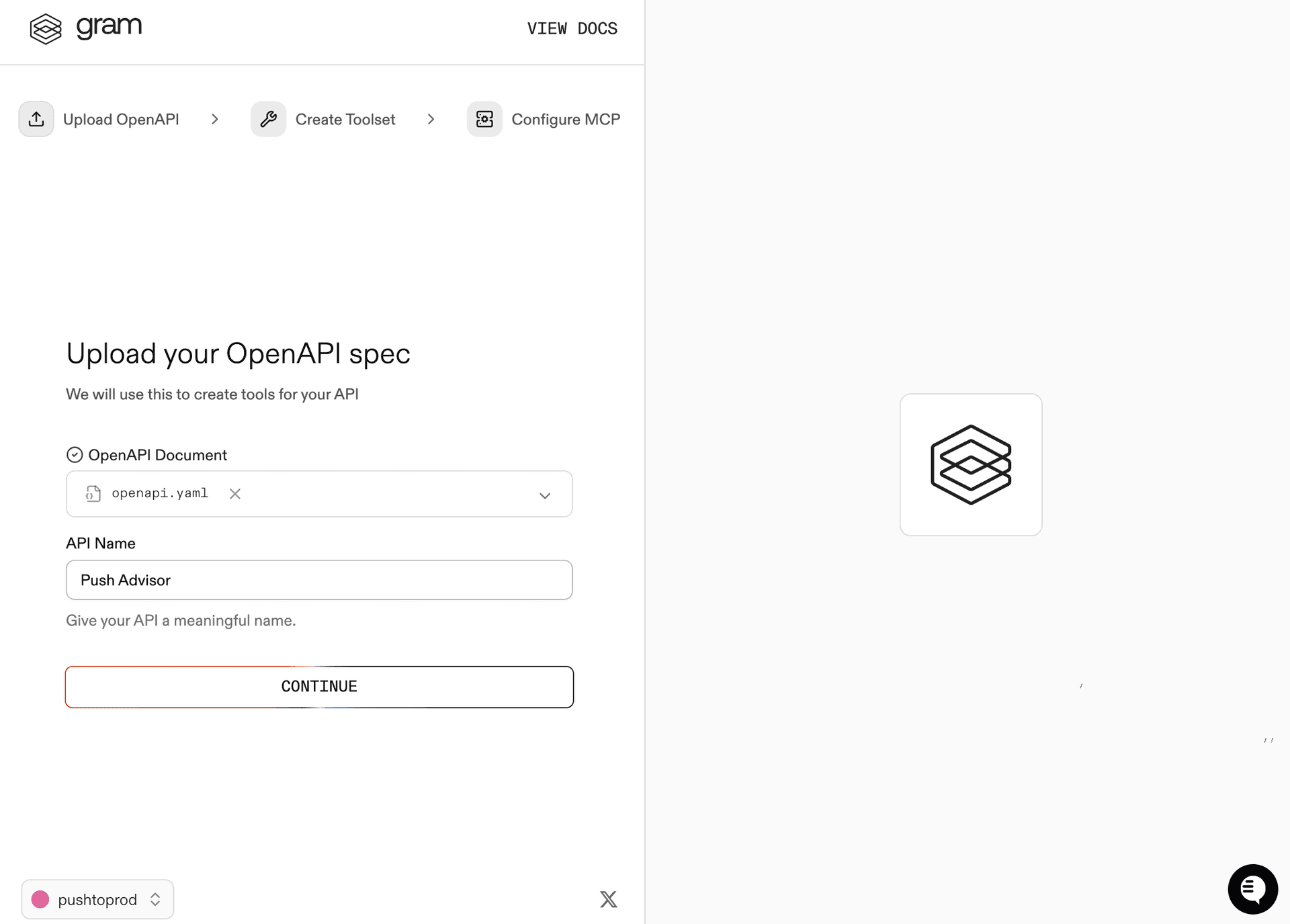
Step 1: Upload the OpenAPI document
Upload the Push Advisor OpenAPI document , enter the name of your API, and click Continue.
Step 2: Create a toolset
Give your toolset a name (for example, Push Advisor) and click Continue.
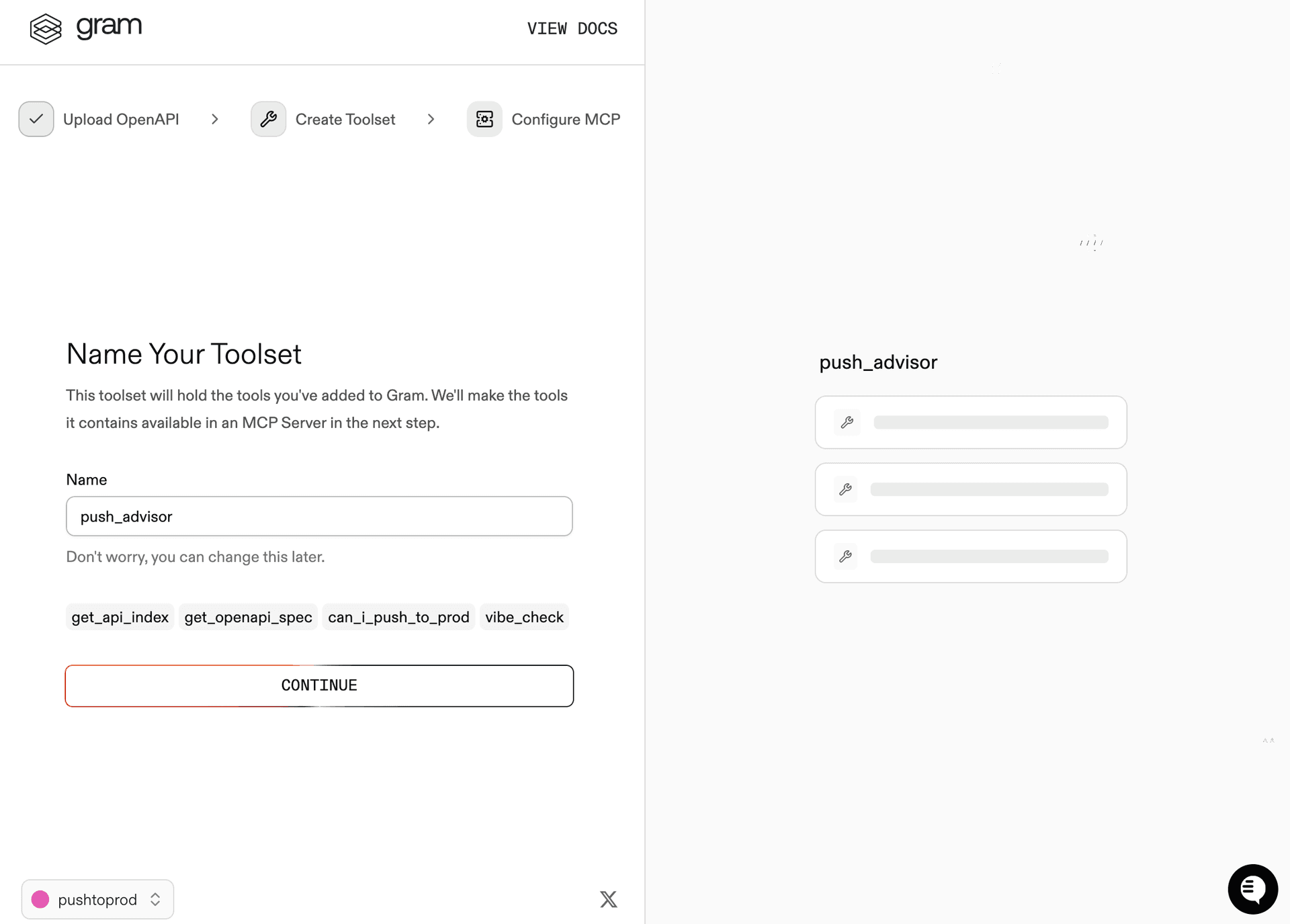
Notice that the Name Your Toolset dialog displays the names of the tools that Gram will generate from your OpenAPI document.
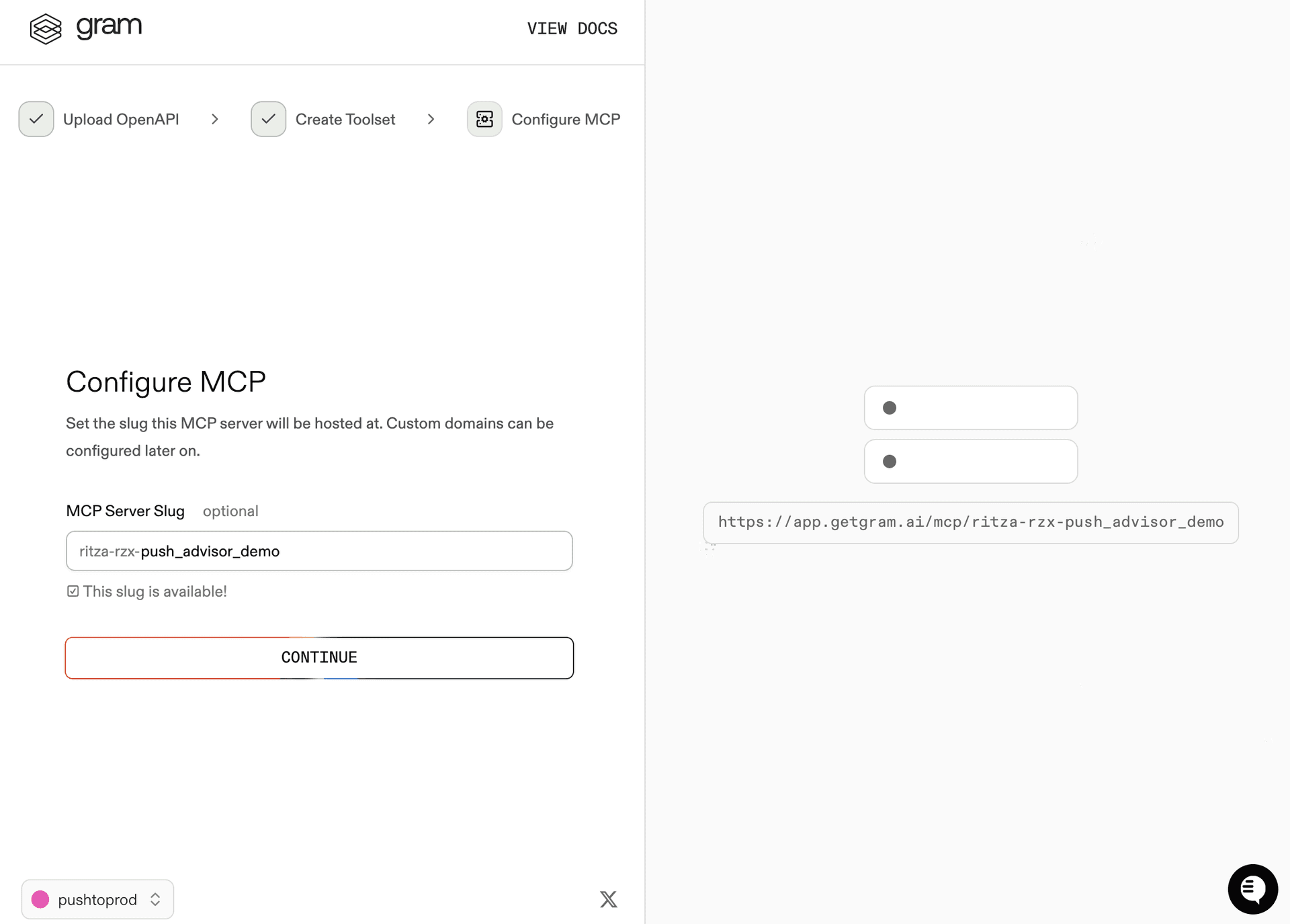
Step 3: Configure MCP
Enter a URL slug for the MCP server and click Continue.
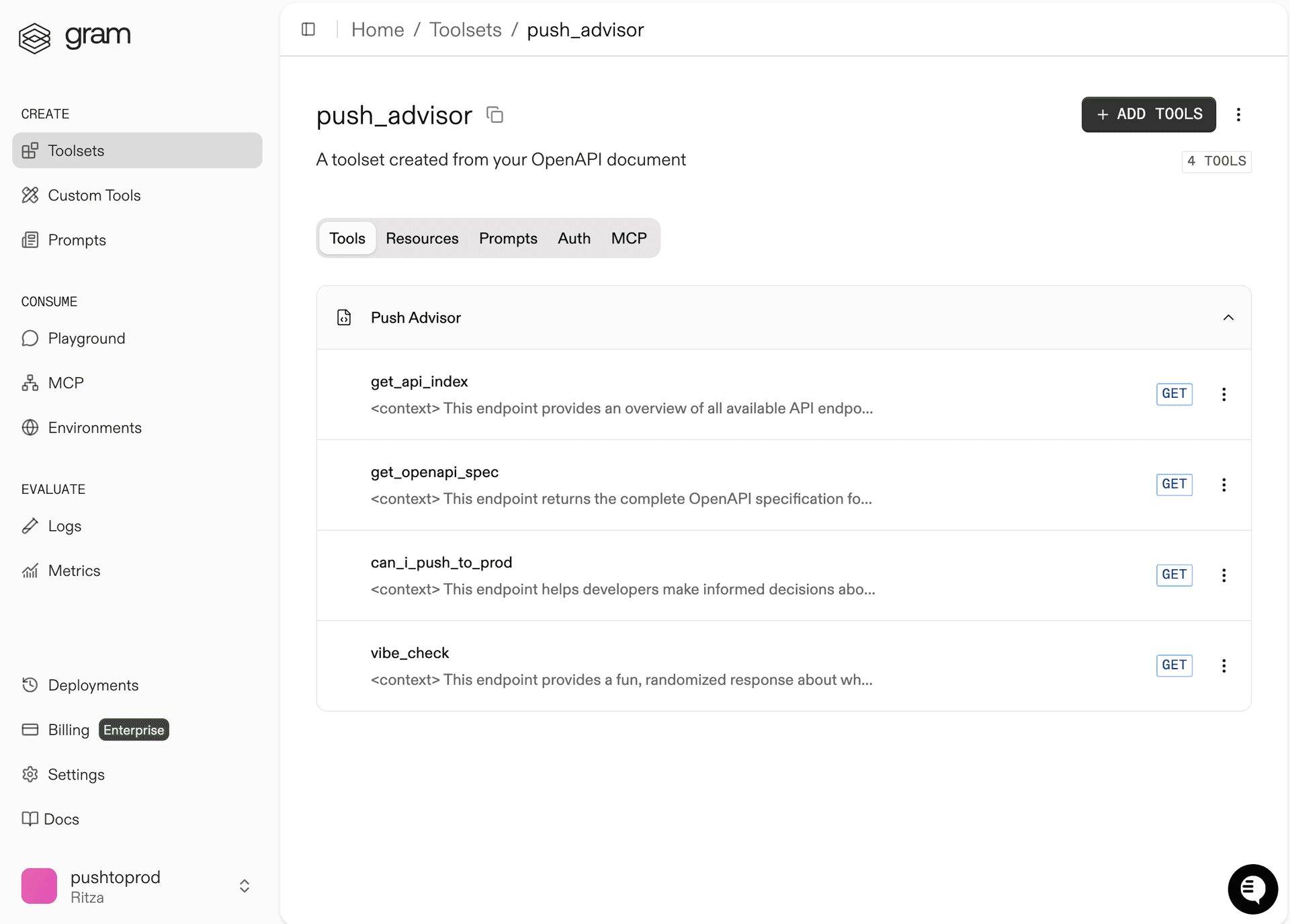
Gram will create a new toolset from the OpenAPI document.
Click Toolsets in the sidebar to view the Push Advisor toolset.
Configuring environment variables
Environments store API keys and configuration separately from your toolset logic.
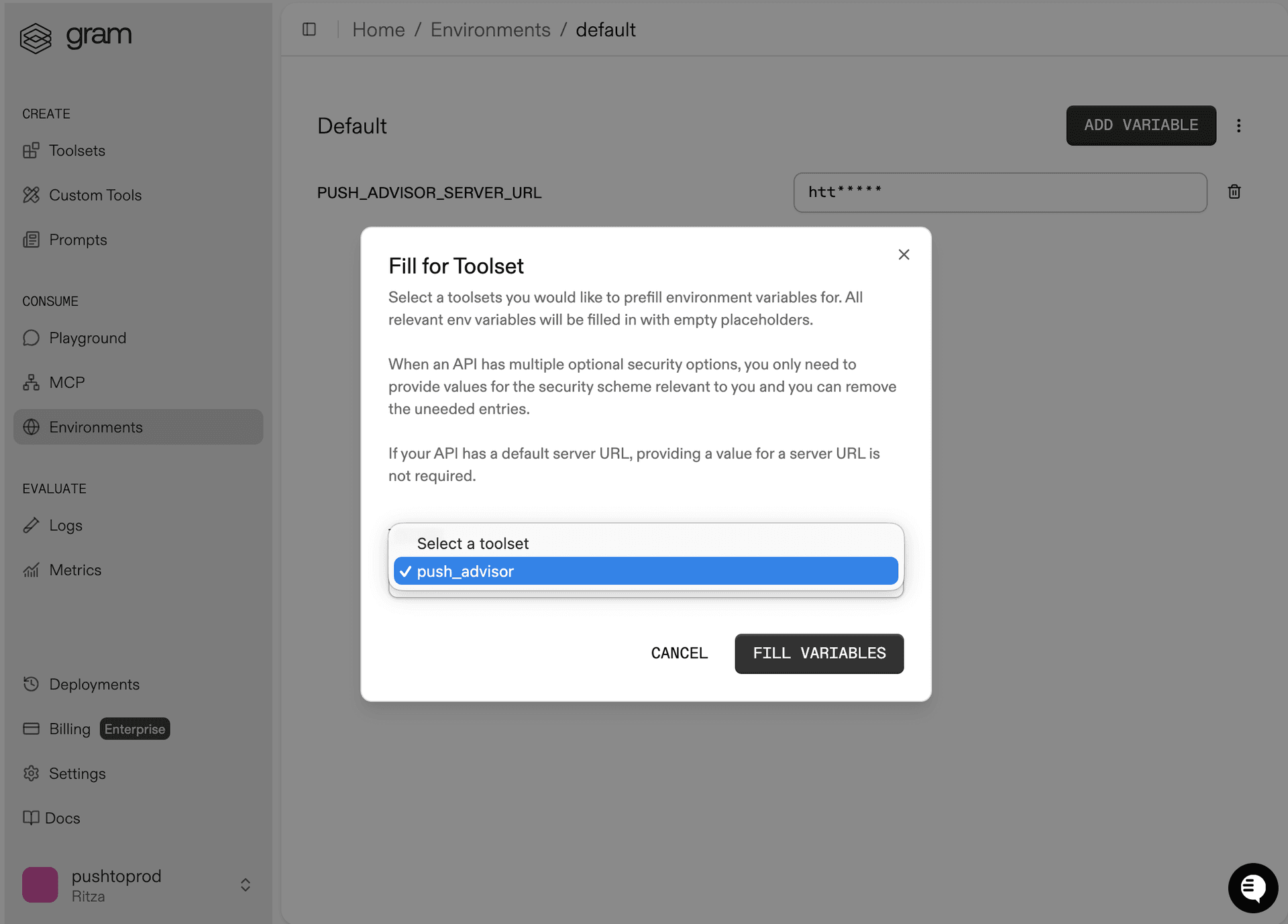
In the Environments tab, click the Default environment. Click Fill for Toolset. Select the Push Advisor toolset and click Fill Variables to automatically populate the required variables.
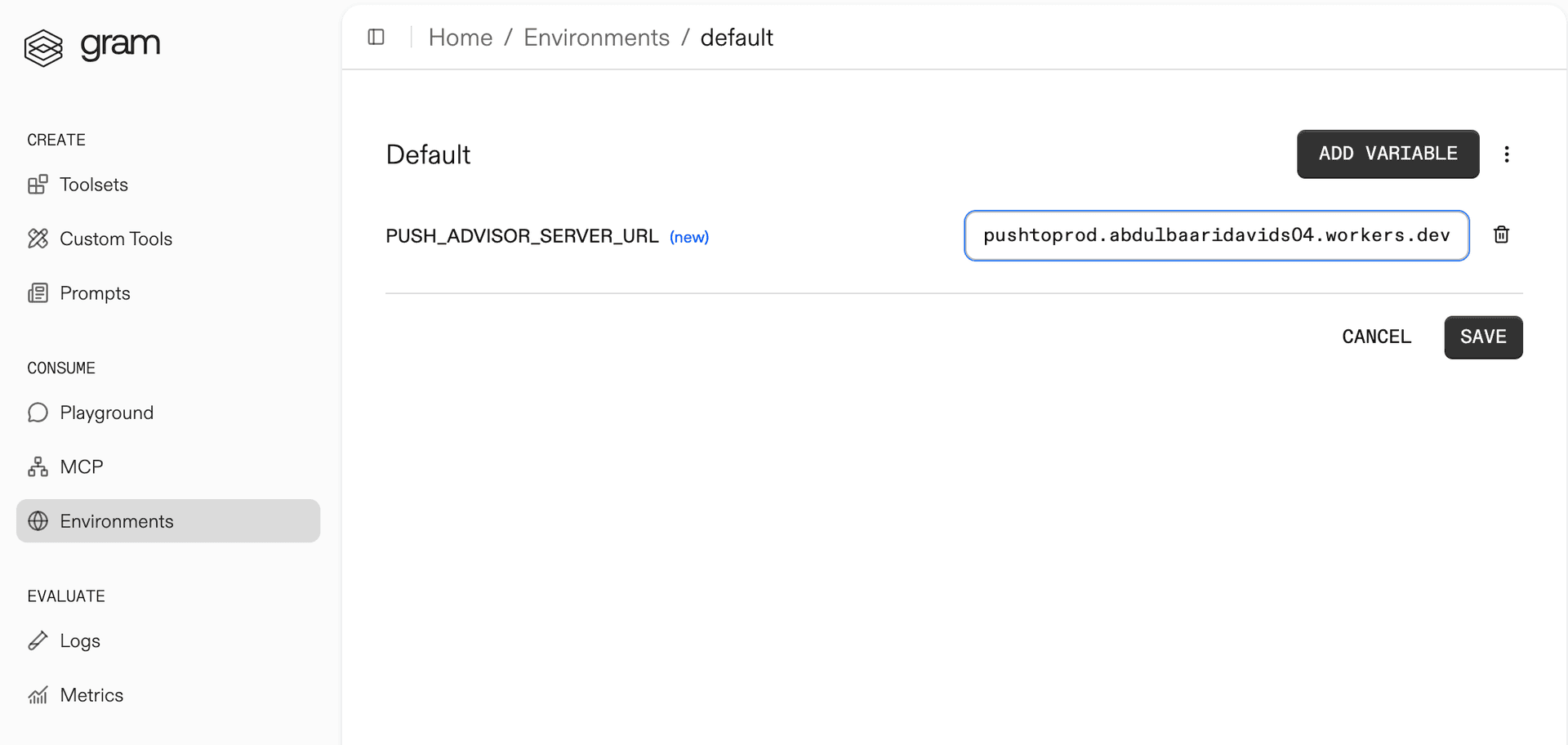
The Push Advisor API is hosted at https://canpushtoprod.abdulbaaridavids04.workers.dev, so set the <your_API_name>_SERVER_URL environment variable to https://canpushtoprod.abdulbaaridavids04.workers.dev. Click Save.
Publishing an MCP server
Let’s make the toolset available as an MCP server.
Go to the MCP tab, find the Push Advisor toolset, and click the title of the server.
On the MCP Details page, click Enable and then Enable Server to enable the server.
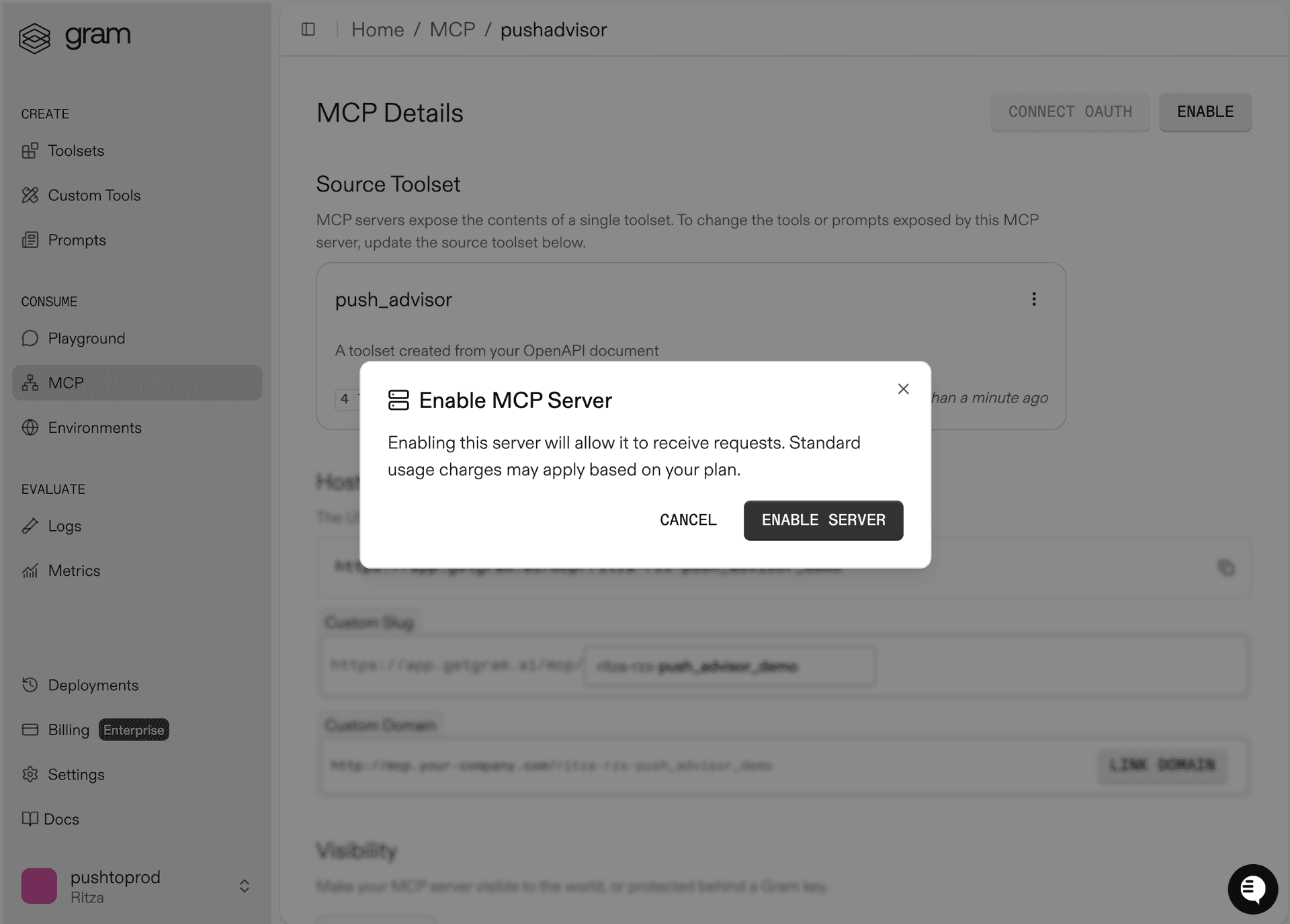
Take note of your MCP server URL in the Hosted URL section.
Generate a GRAM API key in the Settings tab.
Connecting Vellum to your Gram-hosted MCP server
This section walks you through creating a Vellum Workflow using the Workflow SDK. The Workflow will include an entry point, an agent node, and an output that determines whether today is a good day to push to production.
Run these commands to create the project directory and initialize a Python project:
# Create project directory
mkdir vellum-workflows-sdk
cd vellum-workflows-sdk

# Initialize with uv
uv init
Install the dependencies:
# Add Vellum SDK
uv add vellum-ai

# Add python-dotenv for environment variable management
uv add python-dotenv
Create a .env file in the project root with your API keys:
// .env

VELLUM_API_KEY=your-vellum-api-key-here
GRAM_KEY=your-gram-api-key-here
Create your Vellum API key by clicking your username (top right) on the dashboard and navigating to Settings -> API Keys.
Test that your Vellum API key works:
export VELLUM_API_KEY=$(grep "^VELLUM_API_KEY=" .env | cut -d'=' -f2-)
uv run vellum ping
You should see your organization, workspace, and environment information printed to the console.
Creating the Workflow
A Vellum Workflow has three main components:
- Inputs that define what data the Workflow accepts
- Nodes that process the data
- Outputs that the Workflow returns
For this Workflow, the Agent node can make multiple calls to the MCP server (as many as needed to answer the query).

Inside the project directory, create a file called workflow.py. Start by defining the input structure:
from vellum.workflows.inputs.base import BaseInputs

class Inputs(BaseInputs):
    """Workflow input variables."""
    query: str
This defines a single input field query that accepts a string containing the user’s question.
Next, define the MCP server connection:
from vellum.workflows.constants import AuthorizationType
from vellum.workflows.references import EnvironmentVariableReference
from vellum.workflows.types.definition import MCPServer

...

# MCP server configuration
mcp_server = MCPServer(
    name="push_advisor",
    url="https://app.getgram.ai/mcp/your_server_slug",
    authorization_type=AuthorizationType.API_KEY,
    api_key_header_key="Authorization",
    api_key_header_value=EnvironmentVariableReference(name="GRAM_KEY"),
)
Replace the your_server_slug with your actual MCP server slug.
Now define the agent node. The Agent class is a ToolCallingNode that uses the MCP server:
from vellum import ChatMessagePromptBlock, PlainTextPromptBlock, PromptParameters, RichTextPromptBlock
from vellum.workflows.nodes.displayable.tool_calling_node import ToolCallingNode

...

class Agent(ToolCallingNode):
    """Agent node that uses the push_advisor MCP server as a tool."""

    ml_model = "gpt-5-responses"
    prompt_inputs = {"query": Inputs.query}
    max_prompt_iterations = 25

    blocks = [
        ChatMessagePromptBlock(
            chat_role="SYSTEM",
            blocks=[
                RichTextPromptBlock(
                    blocks=[
                        PlainTextPromptBlock(
                            text="You are a helpful assistant with access to the push_advisor MCP server. When users ask questions about pushing to production, you must actively use the available MCP tools to check the current status and provide a direct, clear answer. Do not ask the user what they want - instead, automatically use the appropriate tools and provide a helpful response based on the tool results. Always give a definitive answer when possible."
                        )
                    ]
                )
            ],
        ),
        ChatMessagePromptBlock(
            chat_role="USER",
            blocks=[
                RichTextPromptBlock(
                    blocks=[
                        PlainTextPromptBlock(text="{{ query }}")
                    ]
                )
            ],
        ),
    ]

    parameters = PromptParameters(
        temperature=0,
        max_tokens=1000,
        custom_parameters={"json_mode": False},
    )

    settings = {"stream_enabled": False}

    functions = [mcp_server]
The Agent class defines a tool-calling node that uses GPT-5 with the push_advisor MCP server. The blocks list structures the conversation: a system message sets the assistant’s role, and a user message injects the query using Jinja templating ({{ query }}). The functions list connects the MCP server, giving the agent access to its tools.
Create the output node to define how the Workflow returns results:
from vellum.workflows.nodes.displayable.final_output_node import FinalOutputNode
from vellum.workflows.state.base import BaseState

...

class FinalOutput(FinalOutputNode[BaseState, str]):
    """Final output node that returns the agent's text response."""

    class Outputs(FinalOutputNode.Outputs):
        value = Agent.Outputs.text
This node extracts the text output from the agent node.
Finally, connect all components:
from vellum.workflows.workflows.base import BaseWorkflow

class Workflow(BaseWorkflow[Inputs, BaseState]):
    """Vellum workflow with Agent node configured to use push_advisor MCP server."""

    graph = Agent >> FinalOutput

    class Outputs(BaseWorkflow.Outputs):
        final_output = FinalOutput.Outputs.value
The graph defines the execution flow: Agent >> FinalOutput means data flows from the Agent node to the FinalOutput node.
Running the Workflow
Create a run.py file and add the following code:
import os
import sys
from dotenv import load_dotenv
from workflow import Workflow, Inputs

load_dotenv()


def main():
    """Execute the workflow with the provided query."""
    if not os.getenv("VELLUM_API_KEY"):
        print("Error: VELLUM_API_KEY environment variable is not set")
        print("Please set it in your .env file or export it")
        sys.exit(1)

    query = sys.argv[1] if len(sys.argv) > 1 else "Can I push to production?"
    workflow = Workflow()

    print(f"Executing workflow with query: {query}")
    print("-" * 60)

    result = workflow.run(inputs=Inputs(query=query))

    if result.name == "workflow.execution.fulfilled":
        print("\n✓ Workflow completed successfully!")
        print("-" * 60)

        for output_descriptor, output_value in result.outputs:
            if output_descriptor.name == "final_output":
                print(f"\nOutput: {output_value}")
                return

        print("\nWarning: Could not find output. Full result:")
        print(result.outputs)
    else:
        print(f"\n✗ Workflow execution failed: {result.name}")
        if hasattr(result, "body") and hasattr(result.body, "error"):
            error = result.body.error
            print(f"Error: {error.message if hasattr(error, 'message') else str(error)}")
        sys.exit(1)


if __name__ == "__main__":
    main()
Run the Workflow with a query:
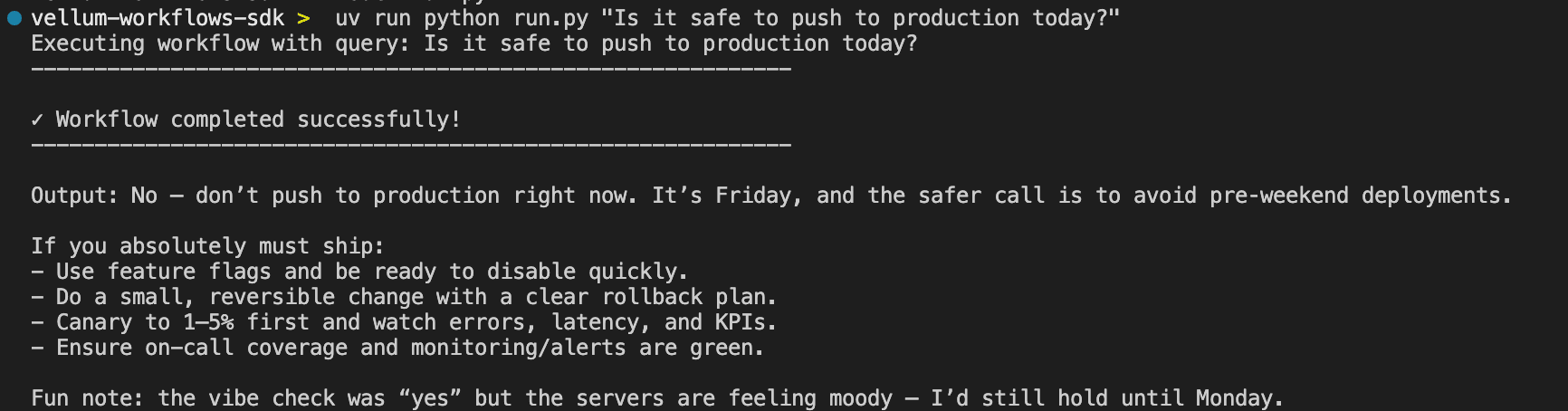
uv run python workflow.py "Is it safe to push to production today?"The output shows the agent’s response after it queries the MCP server and evaluates whether pushing to production is safe.
What’s next
You now have Vellum Workflows connected to your Gram-hosted MCP server, giving it access to your custom APIs and tools.
Ready to build your own MCP server? Try Gram today and see how easy it is to turn any API into agent-ready tools that work with both Anthropic and OpenAI models.
Last updated on