Using Vellum agents with Gram-hosted MCP servers
Vellum agents can connect to Model Context Protocol (MCP) servers to interact with external APIs and tools. This guide shows you how to connect a Vellum agent to a Gram-hosted MCP server using the Push Advisor API from the Gram core concepts guide.
By the end, you’ll have a Vellum Workflow that uses natural language to check whether it’s safe to push to production.
Find the full code and OpenAPI document in the Push Advisor API repository .
Prerequisites
To follow this tutorial, you need:
Creating a Gram MCP server
If you already have a Gram MCP server configured, you can skip to connecting Vellum to your Gram-hosted MCP server. For an in-depth guide to how Gram works and more details on how to create a Gram-hosted MCP server, check out the core concepts documentation.
Setting up a Gram project
In the Gram dashboard , click New Project to create a new project. Enter a project name and click Submit

Once you’ve created the project, click the Get Started button.
Choose Start from API. Gram then guides you through the following steps.
Step 1: Upload the OpenAPI document
Upload the Push Advisor OpenAPI document , enter the name of your API, and click Continue.
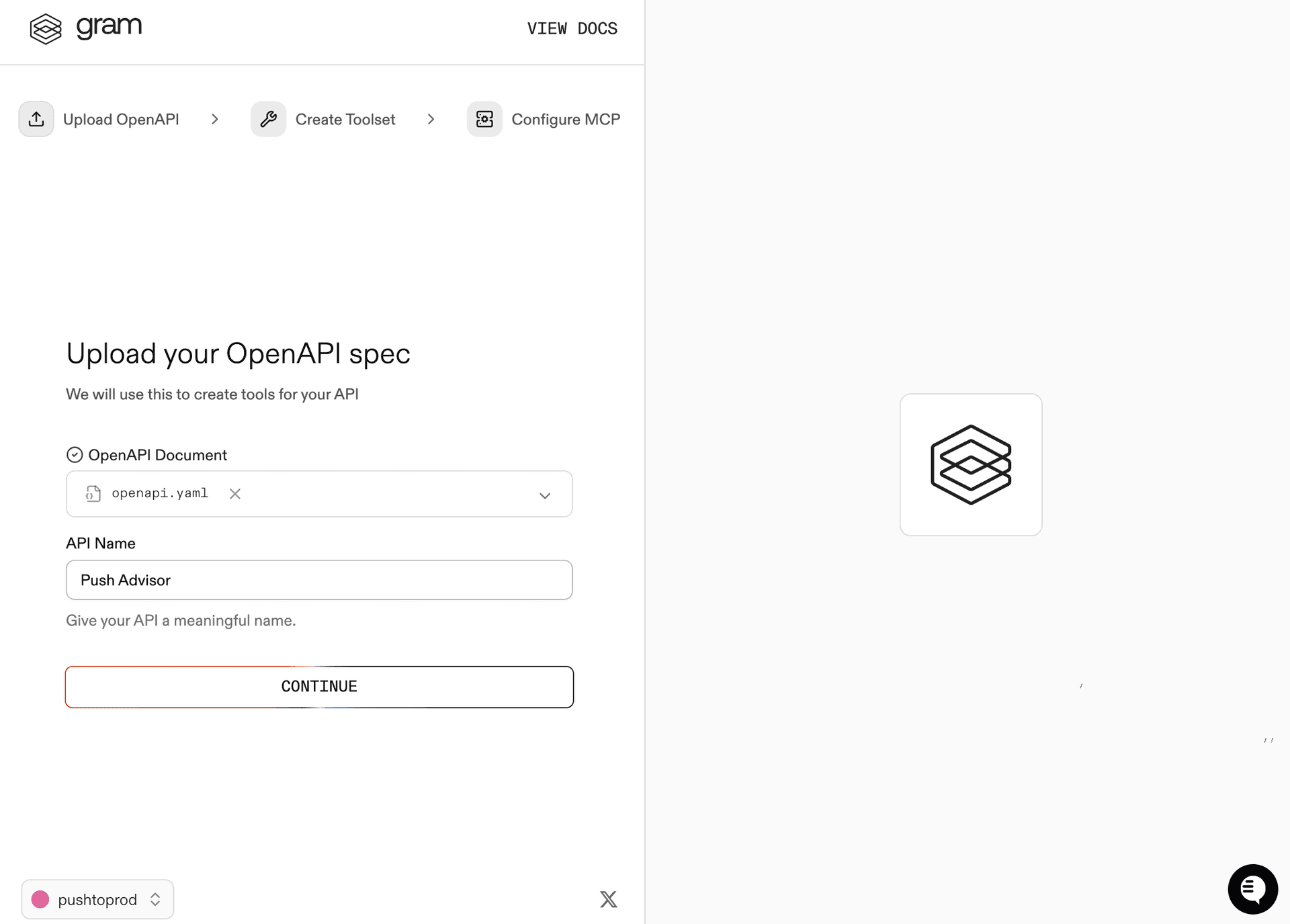
Step 2: Create a toolset
Give your toolset a name (for example, Push Advisor) and click Continue.
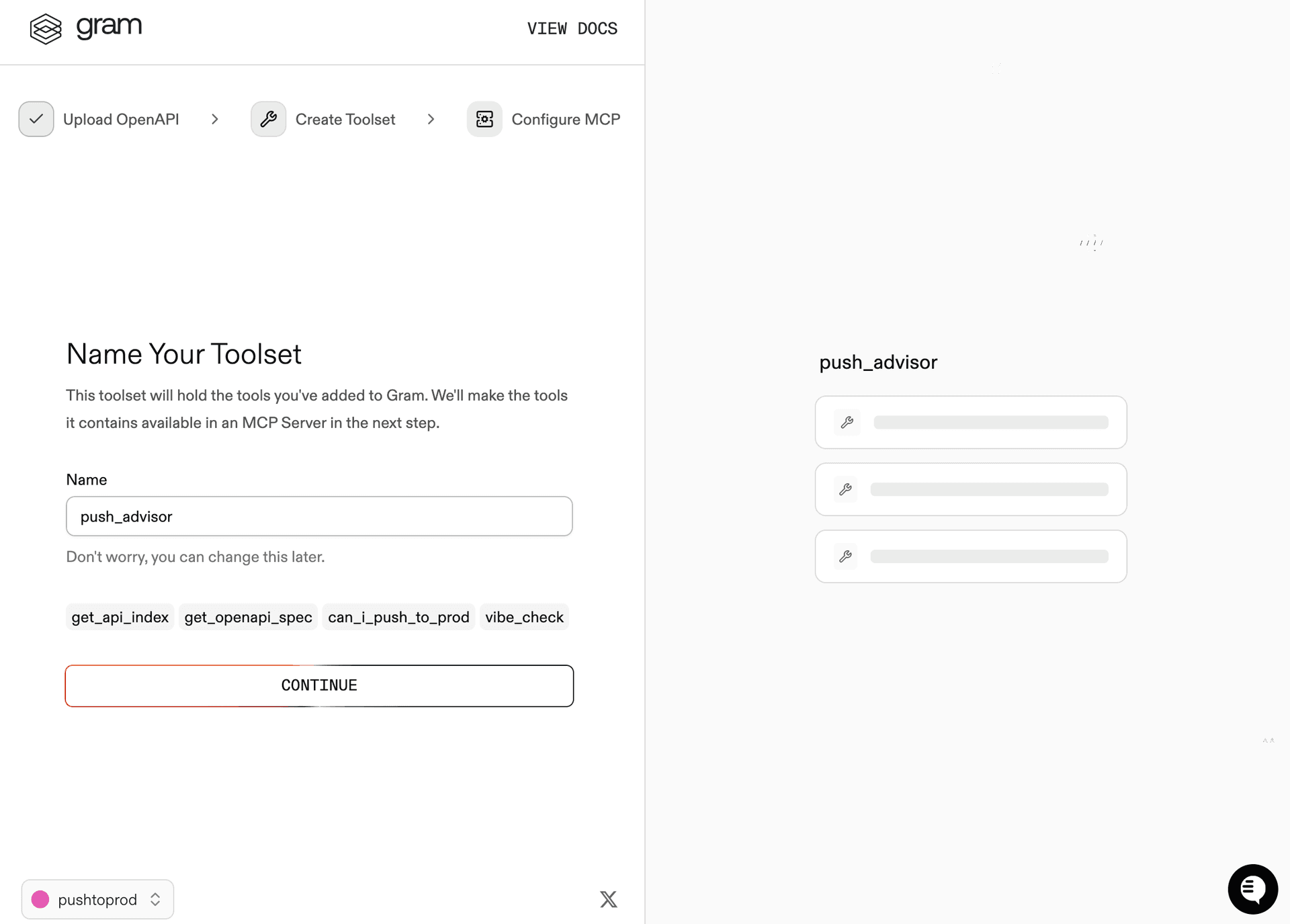
Notice that the Name Your Toolset dialog displays the names of the tools that Gram will generate from your OpenAPI document.
Step 3: Configure MCP
Enter a URL slug for the MCP server and click Continue.
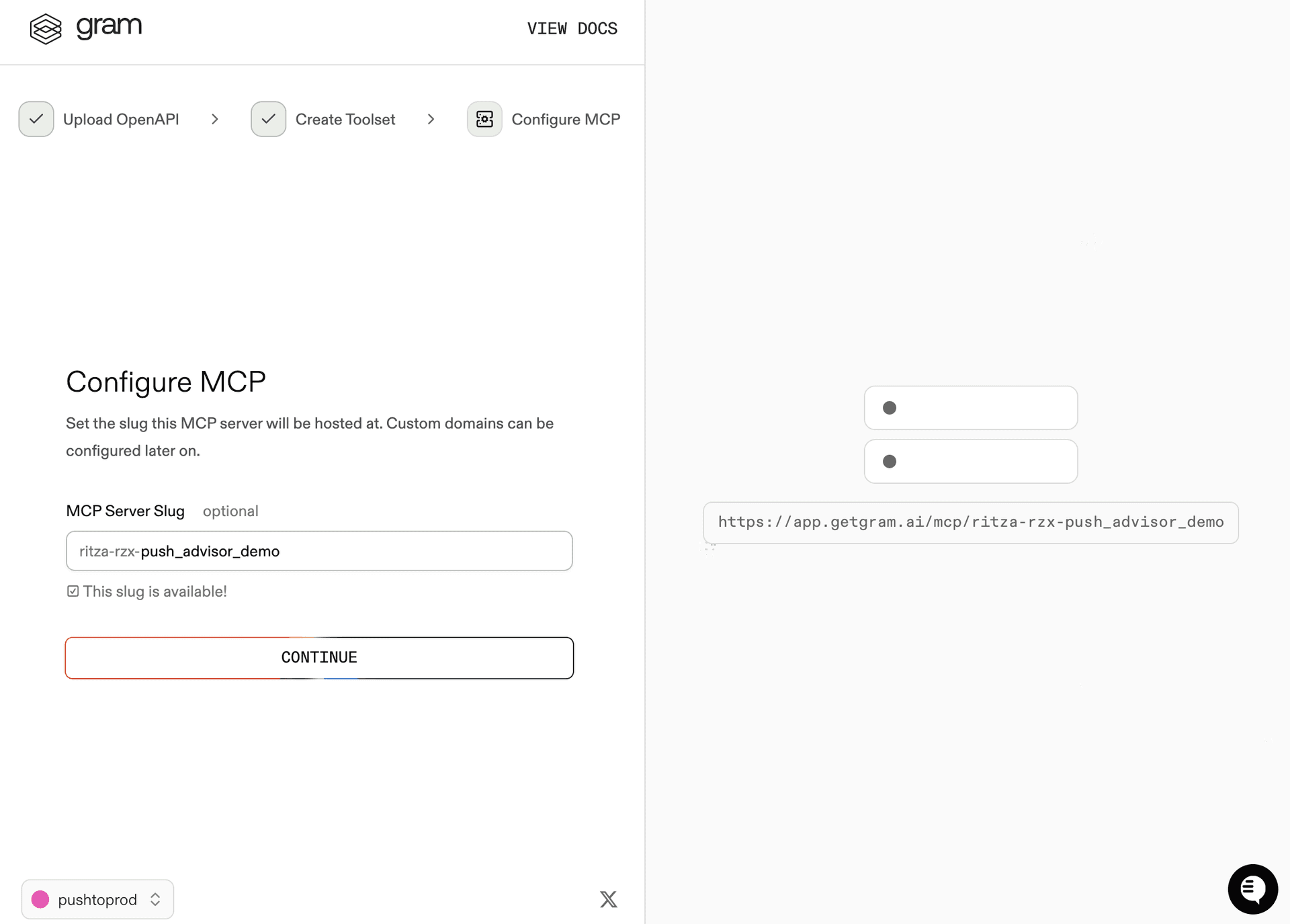
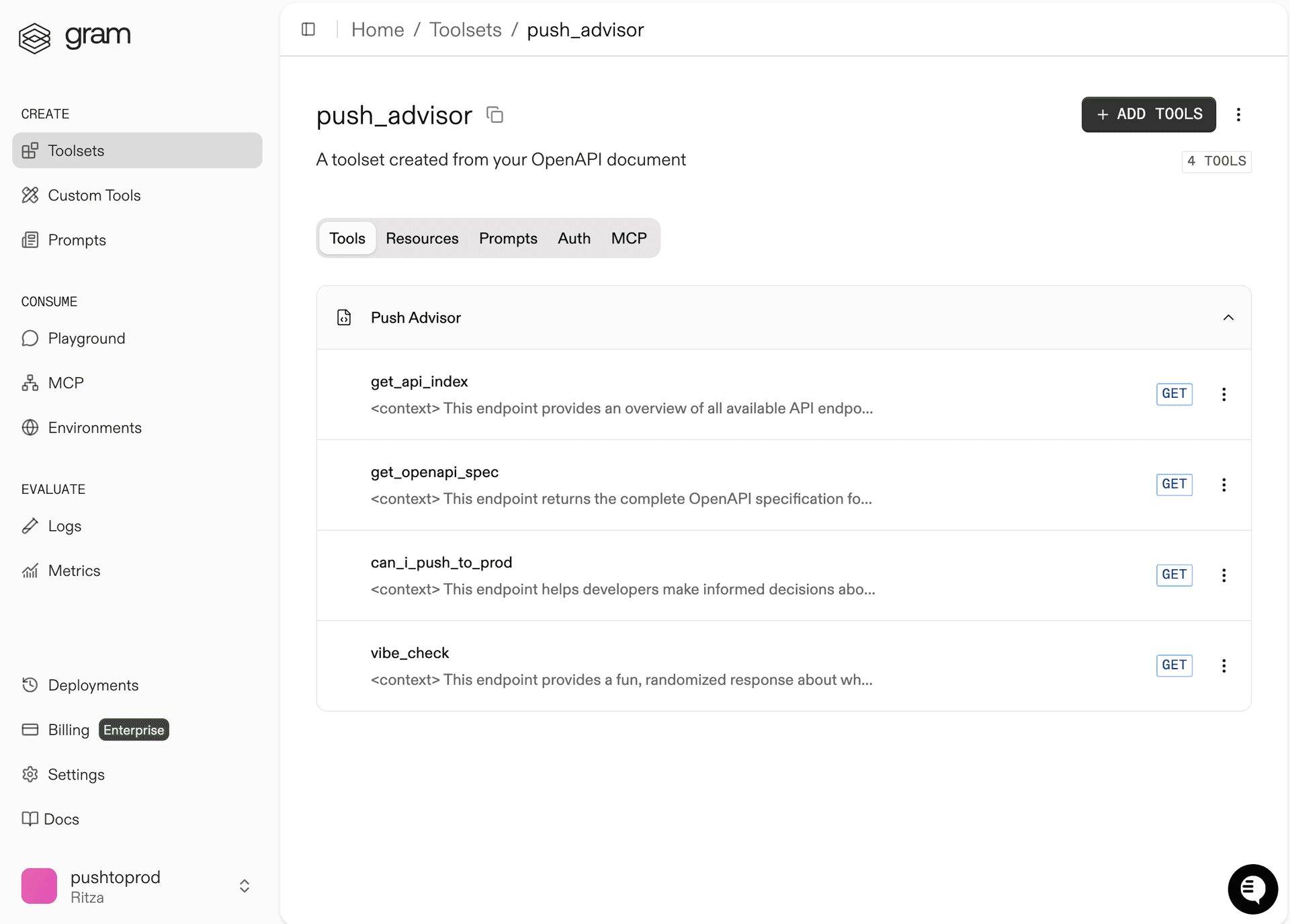
Gram will create a new toolset from the OpenAPI document.
Click Toolsets in the sidebar to view the Push Advisor toolset.
Configuring environment variables
Environments store API keys and configuration separately from your toolset logic.
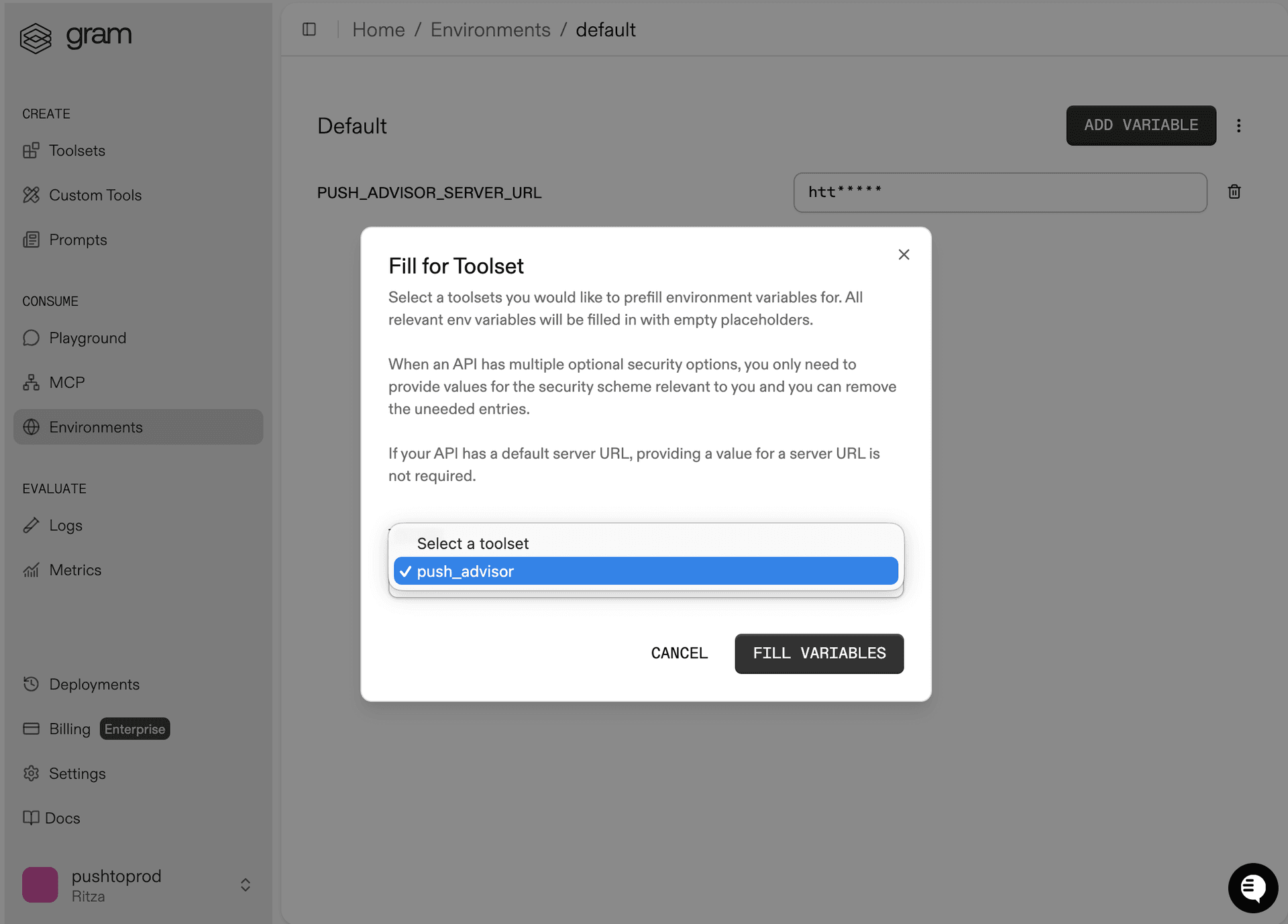
In the Environments tab, click the Default environment. Then click Fill for Toolset, select the Push Advisor toolset, and click Fill Variables to automatically populate the required variables.
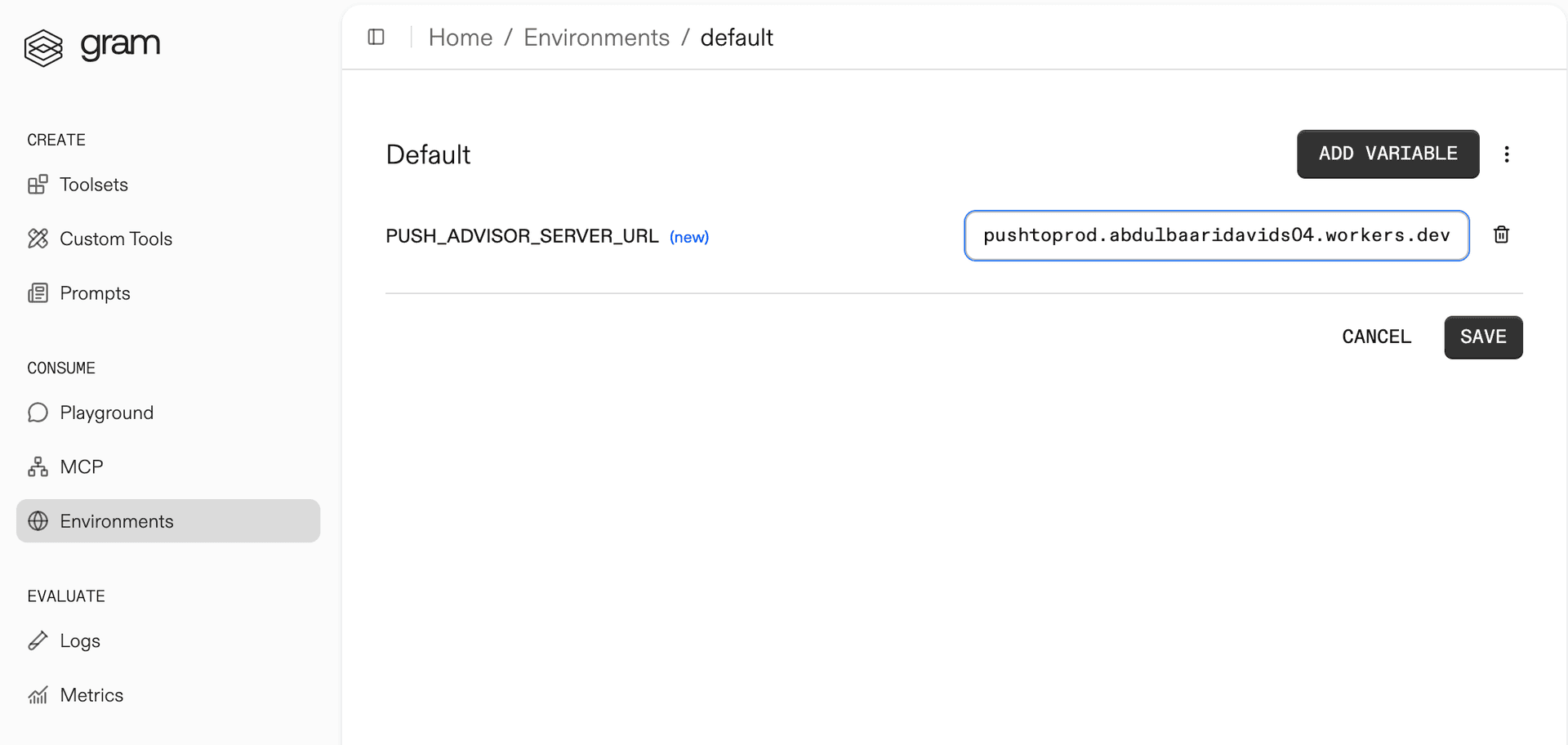
The Push Advisor API is hosted at https://canpushtoprod.abdulbaaridavids04.workers.dev, so set the <your_API_name>_SERVER_URL environment variable to https://canpushtoprod.abdulbaaridavids04.workers.dev. Click Save.
Publishing an MCP server
Let’s make the toolset available as an MCP server.
Go to the MCP tab, find the Push Advisor toolset, and click the title of the server.
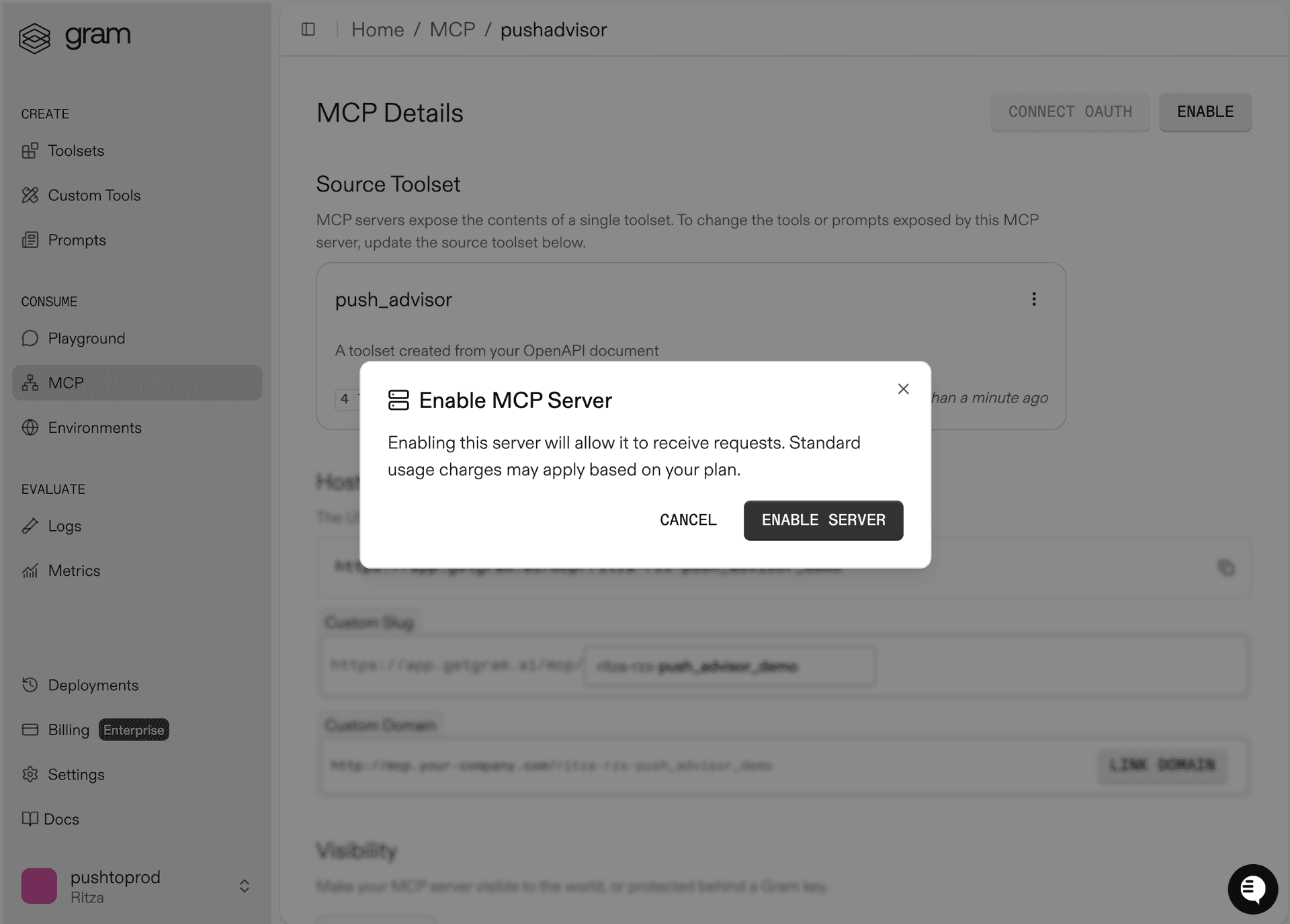
On the MCP Details page, click Enable and then Enable Server to enable the server.
Take note of your MCP server URL in the Hosted URL section.
Generate a GRAM API key in the Settings tab.
Connecting Vellum to your Gram MCP server
With the Push Advisor MCP server ready, you can connect it to Vellum by configuring a tool in an agent node.
Adding a secret environment to Vellum
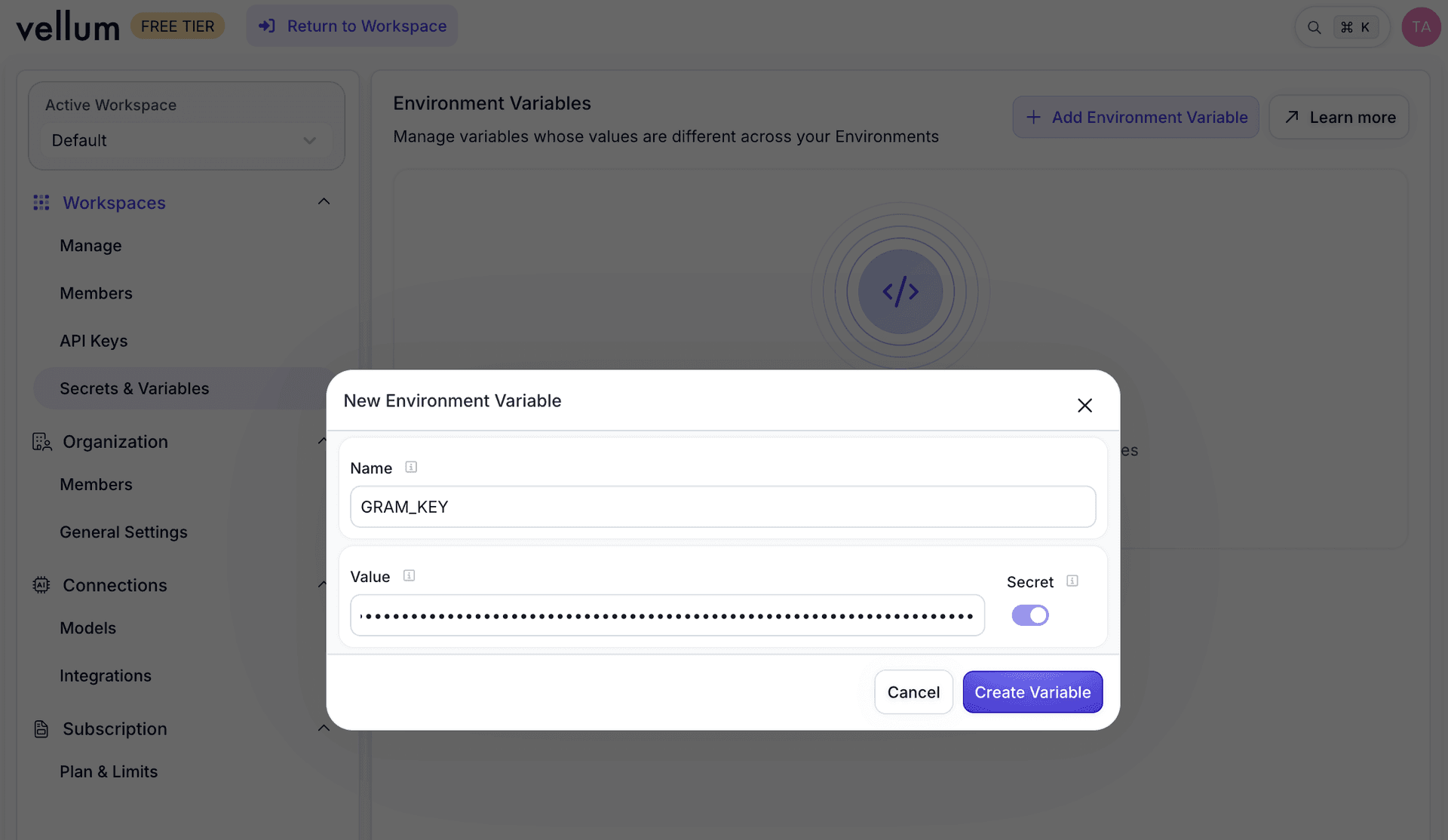
Configuring the MCP server requires your Gram Key. To add it as a secret, navigate to Profile → Settings → Secrets & Variables → + Add Environment Variable.

Enter GRAM_KEY for the variable name, paste your Gram key as the value, and click Create Variable.
Adding a Vellum agent
If you see a prompt input screen on the New Workflow creation screen, send Vellum the following prompt:
Create entrypoint, agent, and output nodesOtherwise, use the Create Workflow button to create a new Workflow:
-
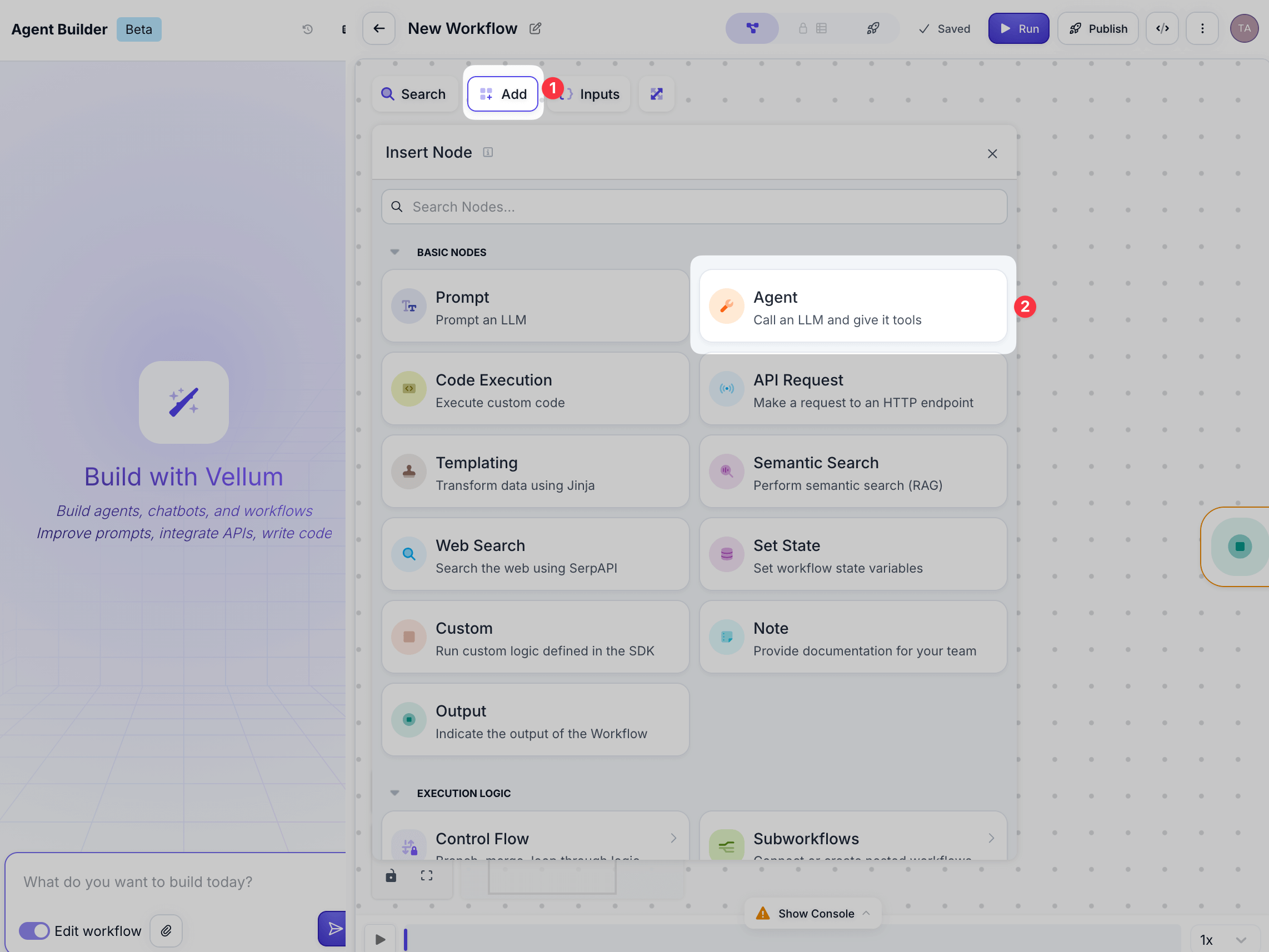
Add an Agent node.
-
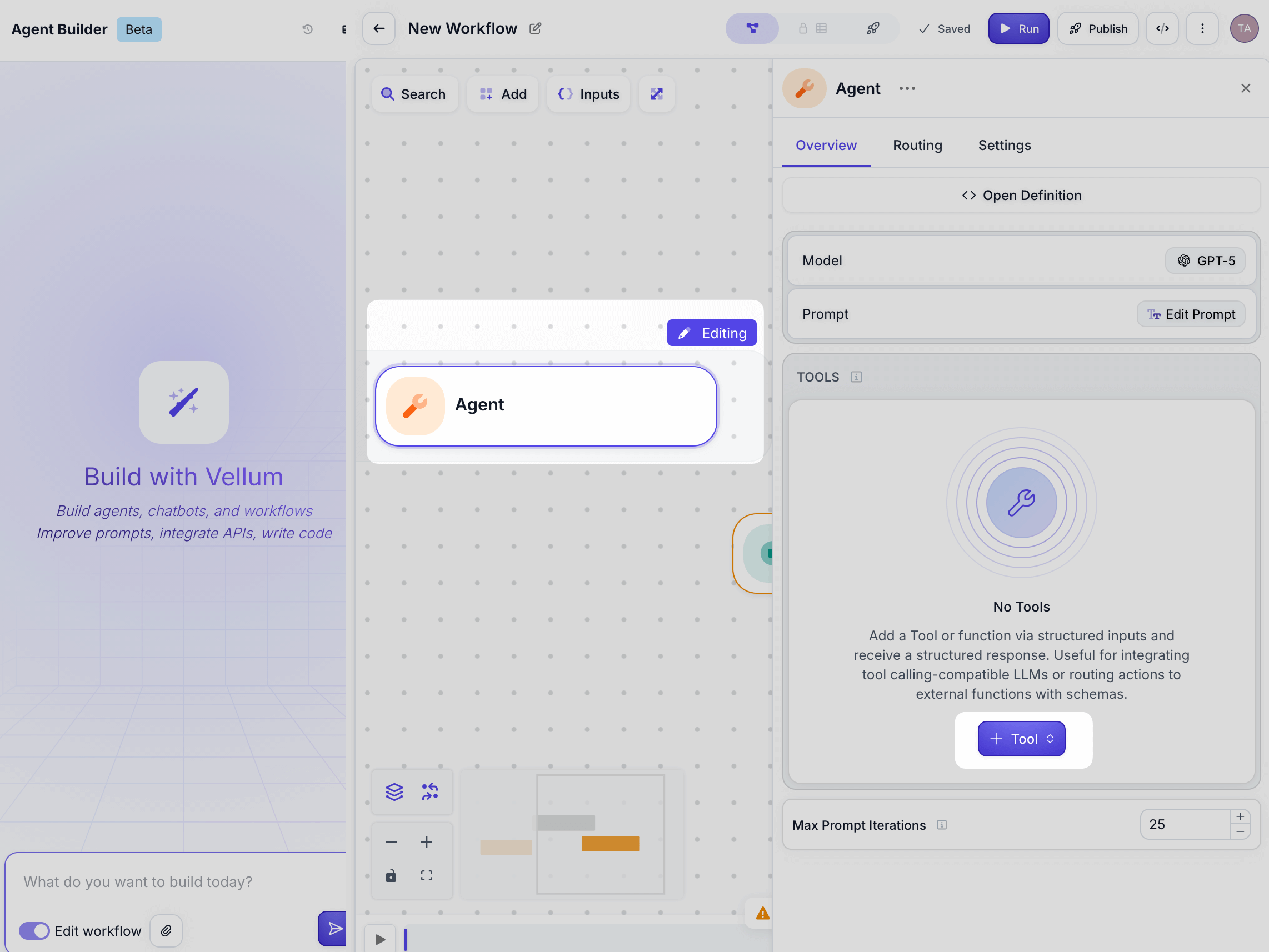
Click the Agent node, then click + Tool.
-
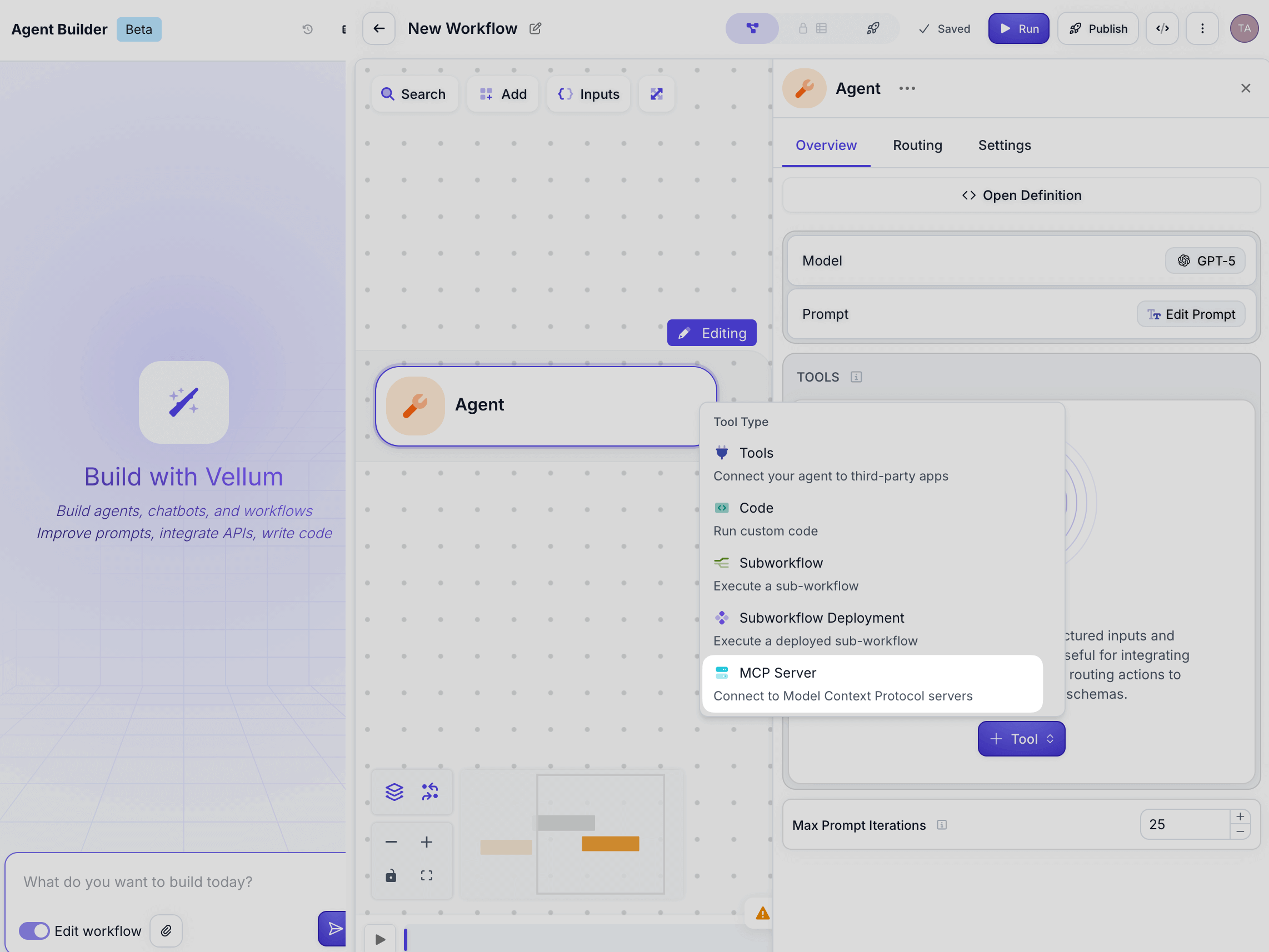
Select MCP Server from the Tool Type options.
-
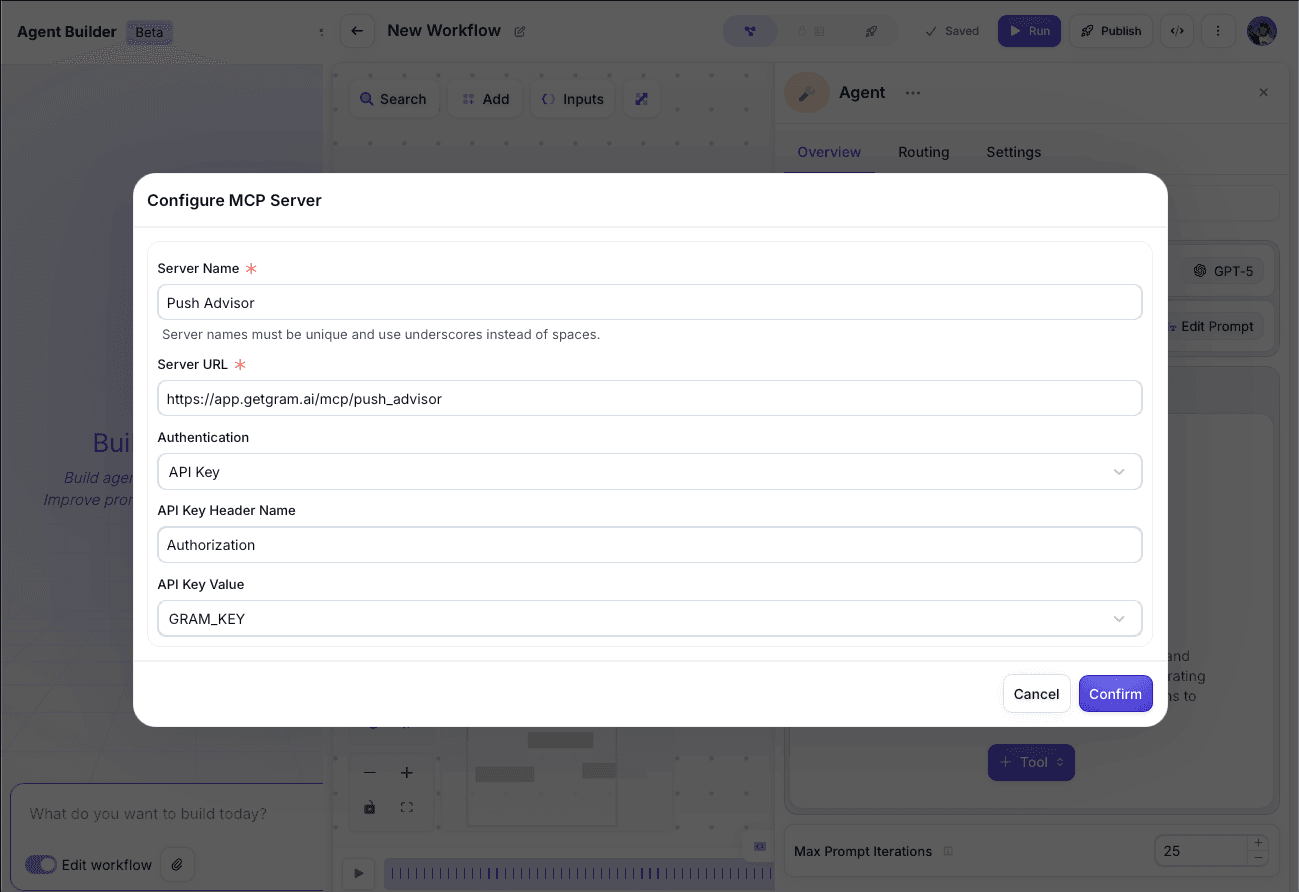
Configure the MCP server as follows:
- Server Name: Push Advisor
- Server URL:
https://app.getgram.ai/mcp/your-server-slug(your Gram MCP server URL) - Authentication: API Key
- API Key Header Name: Authorization
- API Key Value: GRAM_KEY
-
Click Confirm to save.
Vellum automatically discovers the available tools. You should see the MCP server listed under Tools.
-
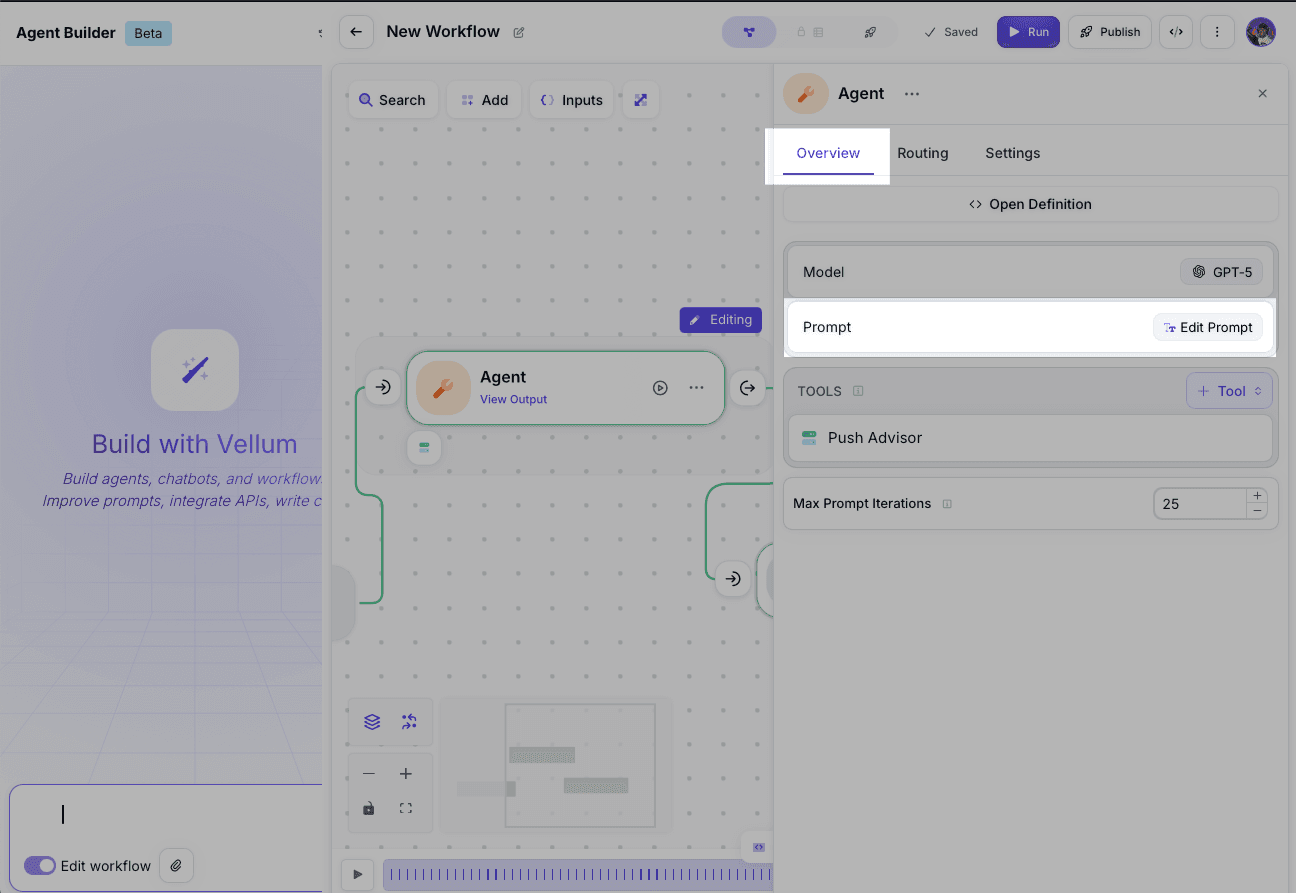
Now, go to the Overview tab and click Edit Prompt to add a prompt.
-
In the modal, enter this system prompt:
Is it safe to push to production today?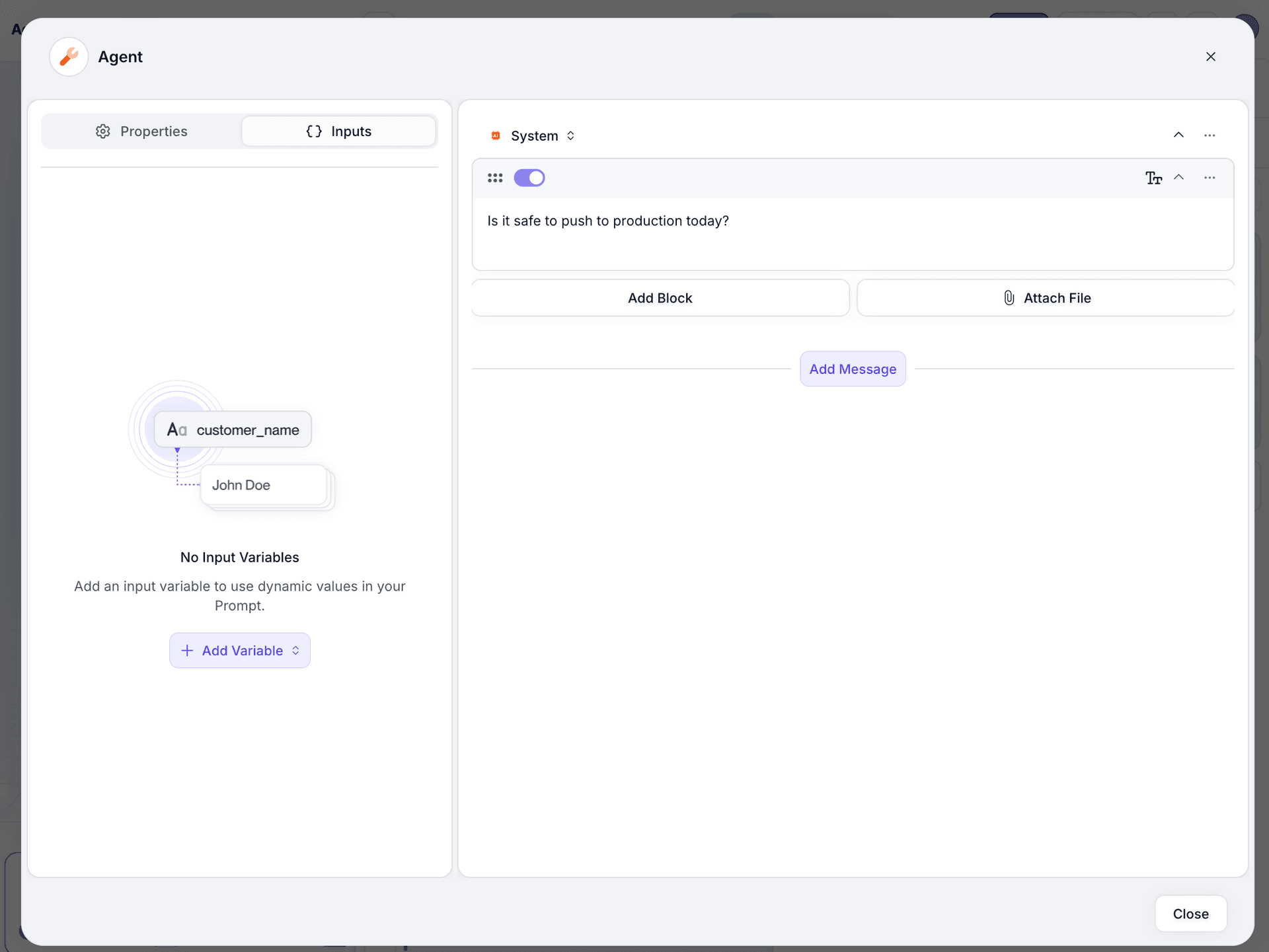
-
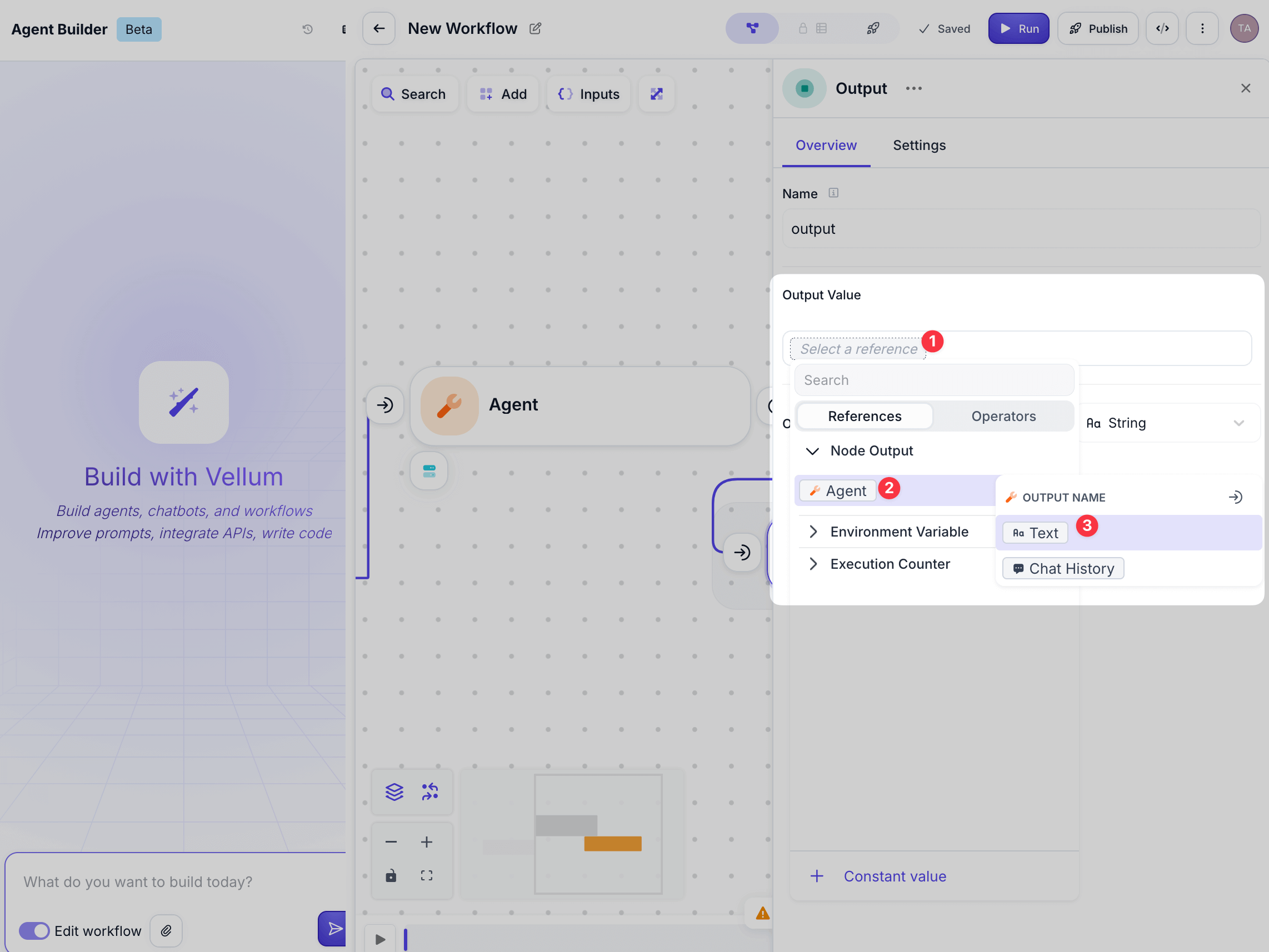
Connect the Entrypoint node to the Agent node, then connect the Agent node to the Output. Click on the Output node and under Overview → Output Value, select Agent for the Node Output, and select Text for the Output Name.
-
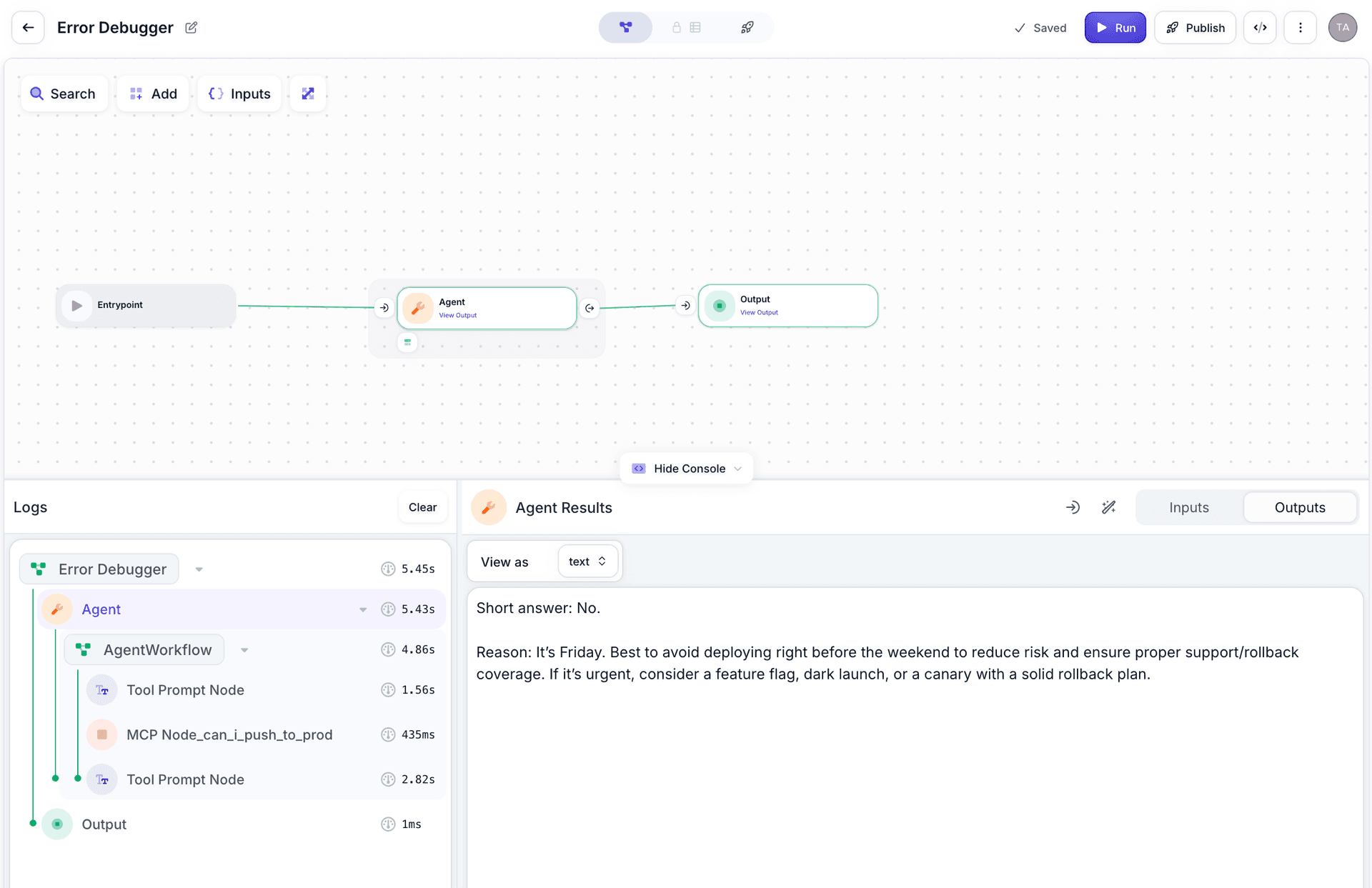
Click ▶️ Run. The Workflow should return a response indicating whether pushing to production is safe based on the Push Advisor server’s evaluation.
Troubleshooting
Let’s go through some common issues and how to fix them.
MCP Client not connecting
If the MCP client can’t connect to your server:
- Verify the server URL is correct.
- Check that the MCP server is published as public in Gram.
- For authenticated servers, ensure your Gram API key is valid.
- Test the connection using the Gram Playground first.
Tool calls not working
If the AI agent isn’t calling the MCP tools:
- Ensure the MCP client is properly configured in the AI Agent node.
- Check that your AI model has sufficient context about available tools.
- Try being more explicit in your prompts about using the Push Advisor tool.
Authentication errors
For authenticated servers:
- Verify your Gram API key in the dashboard under Settings → API Keys.
- Ensure the authorization header format is correct.
- Check that environment variables are correctly set in Gram.
What’s next
You now have Vellum connected to a Gram-hosted MCP server, enabling AI-powered automation workflows with access to your APIs and tools.
Ready to build your own MCP server? Try Gram today and see how easy it is to turn any API into agent-ready tools.
Last updated on