MCP Gateway / Cursor
Cursor
Import the org's plugin marketplace into a Cursor team so plugins and the observability plugin reach every member, and see how updates, assignments, and hooks behave in Cursor.
Plugins reach Cursor through the same GitHub-backed marketplace that serves Claude Code and Codex. A Cursor team admin imports that repository once from the Cursor dashboard, after which its plugins are available to every member of the team. This page covers importing the marketplace, making the observability plugin required, how members receive plugins and updates, and how the observability plugin’s hooks behave in Cursor.
The observability plugin is the prerequisite for most governance features in Cursor: observability of AI usage across the company (sessions, prompts, tool calls, MCP, and tokens), security flagging and blocking, shadow MCP detection, and more.
In Cursor, a team marketplace is a collection of plugins read from a GitHub repository. The platform hosts such a marketplace on the org’s behalf containing the observability plugin and any custom plugins. Once imported, each plugin can be left optional or marked required from Cursor’s team marketplace settings.
Access requirements
Section titled “Access requirements”Publishing the marketplace and managing its collaborators requires the
project:write scope, and downloading an observability package requires the
org:admin scope, both held by the default Admin
role. The
Cursor-side steps require a Cursor team admin, and serving the marketplace
from Cursor also requires admin access to the marketplace repository.
What Cursor reads from the marketplace
Section titled “What Cursor reads from the marketplace”Every publish writes a Cursor manifest at .cursor-plugin/marketplace.json alongside the Claude Code and Codex manifests, with the Cursor packages grouped under a cursor-plugins/ directory. Cursor sees two kinds of plugin:
- The observability plugin, named
<org>-observability-cursorand shown as Observability (Cursor). It is listed first and described as required. - One package per project plugin, named
<plugin-slug>-cursorand shown as the plugin name followed by (Cursor). Each carries the plugin’s MCP servers inmcp.jsonand its skills underskills/.
No separate repository or republish is needed for Cursor. Publishing from MCP Gateway > Plugins updates the Cursor manifest along with the others.
Grant repository access
Section titled “Grant repository access”The marketplace repository is private, so the Cursor team admin who imports it needs access first. On the dashboard’s MCP Gateway > Plugins page, click Manage collaborators on the marketplace card, enter the admin’s GitHub username under GitHub Usernames, and click Add collaborators. (If the marketplace has never been published, Setup asks for a marketplace name first and then opens the Publish Plugins dialog, which takes the same usernames.) Then follow the link to the repository and accept the invitation, checking email or GitHub notifications if it doesn’t appear.
Collaborators are added as repository admins because Cursor offers Serve Marketplace From Cursor only to repository admins. A collaborator added before admin became the default is upgraded by adding them again.
Import the marketplace into the Cursor team
Section titled “Import the marketplace into the Cursor team”Copy the marketplace repository URL from the dashboard. The Install instructions sheet shows it with a copy button: open the Install menu on the Observability card or any plugin, choose GitHub installation (preferred), then select Cursor. The repository is named <speakeasy-org>-<speakeasy-project>-plugins under the speakeasy-plugins GitHub org.
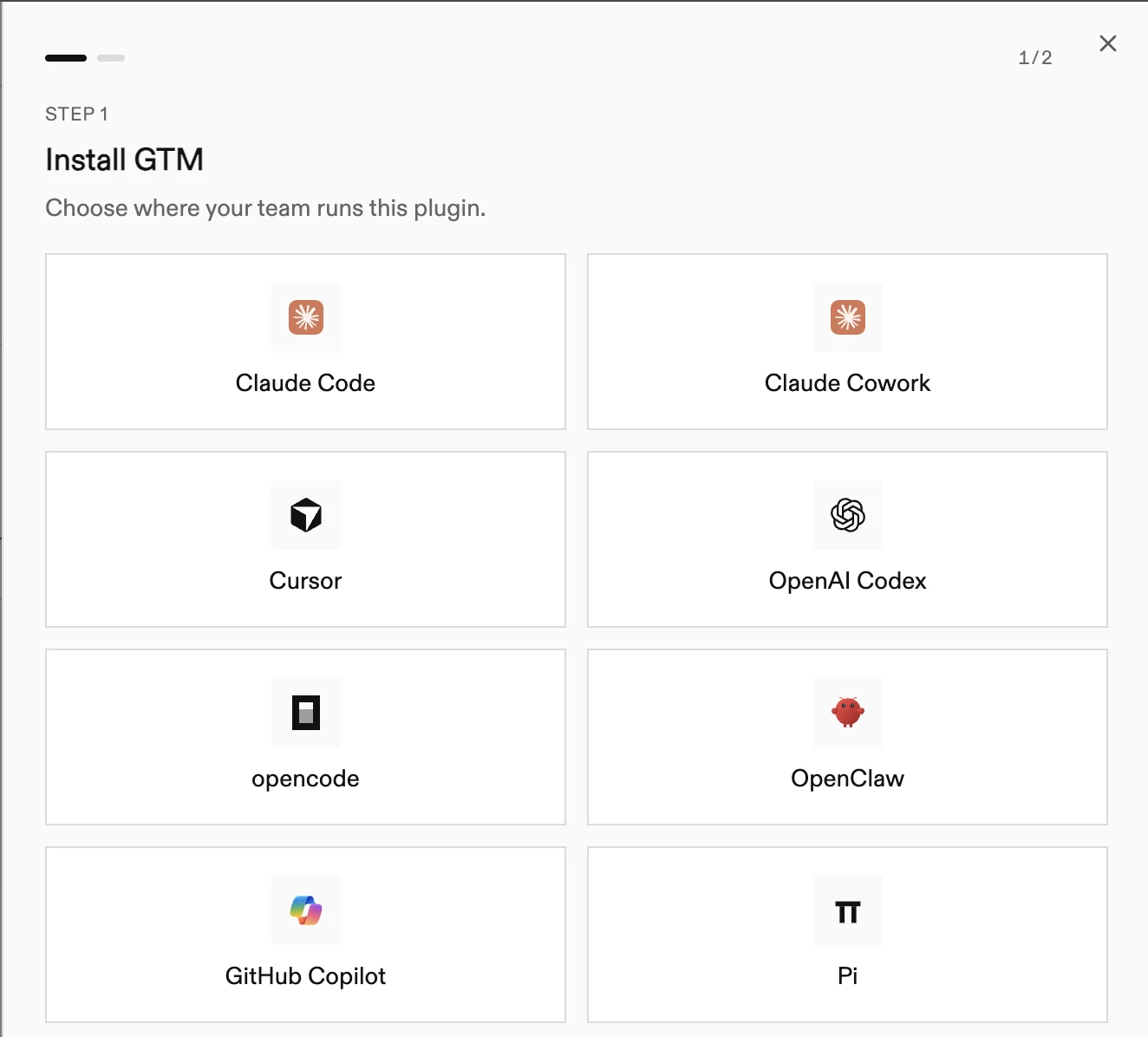
The first step of the sheet asks where the team runs the plugin. Choose Cursor.
The second step lists the Cursor rollout: open the Cursor team dashboard, import the marketplace, and mark the plugin as required. It shows the repository URL with a copy button.
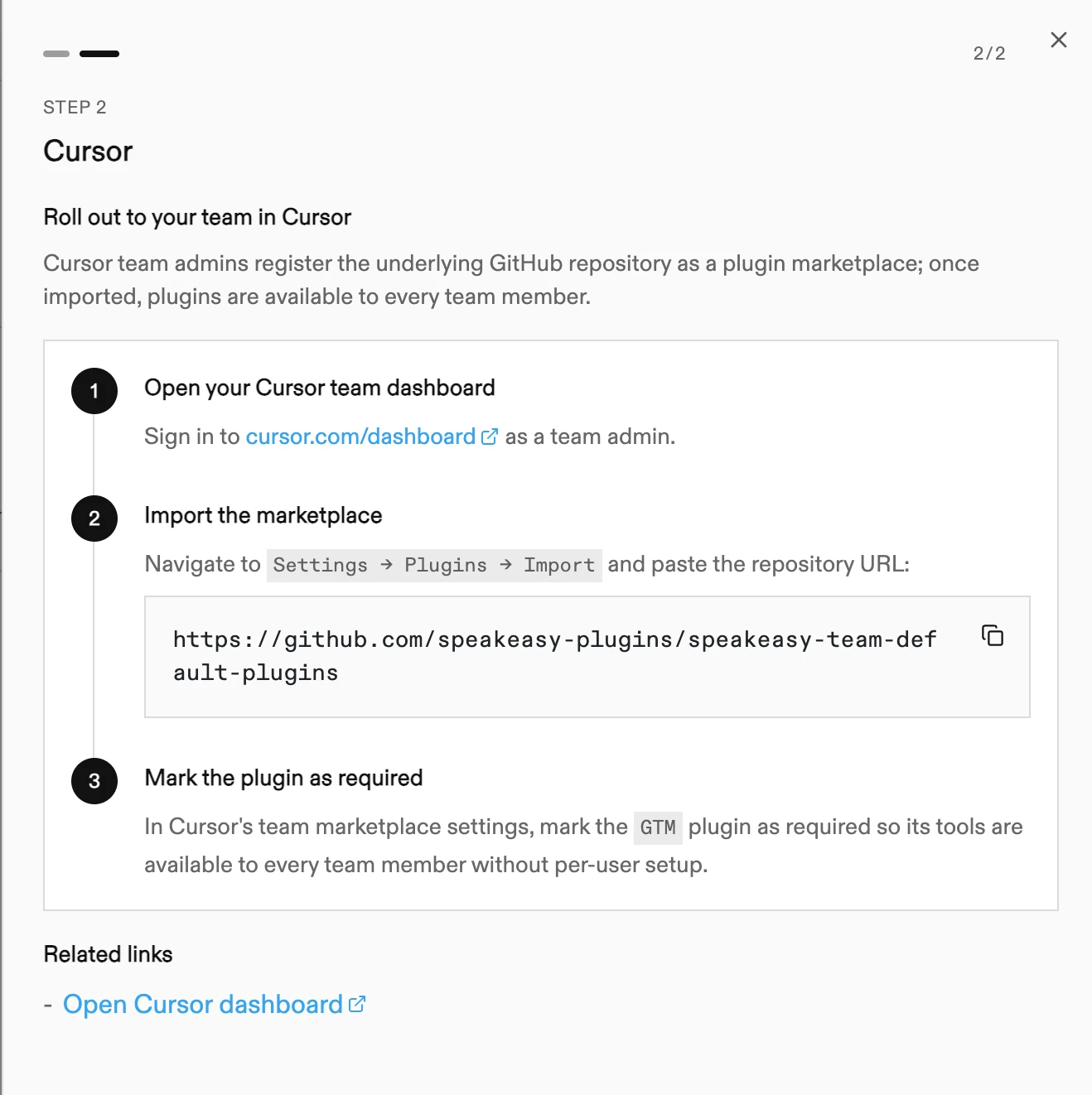
Sign in to the Cursor dashboard as a team admin, open Settings > Plugins > Import, and paste the repository URL. Once imported, the marketplace appears under Team Marketplaces with its plugin count, and its plugins are available to members of the team.

Configure the marketplace in Cursor
Section titled “Configure the marketplace in Cursor”Select the marketplace in Team Marketplaces to open its settings. The plugin list shows each plugin as Default On or Default Off, and each plugin’s menu changes that default. The Marketplace Settings below the list control how the team uses the marketplace:
- Marketplace Access chooses which members can see and use plugins from the marketplace, such as All Members.
- Enable Auto Refresh updates plugins in Cursor whenever the platform pushes changes to the repository.
- Serve Marketplace From Cursor serves the plugins from a synced copy, described below.
- Plugin Repository has a Refresh button that fetches the latest plugins from GitHub on demand.
- Remove Marketplace deletes the marketplace and its access settings from Cursor without touching the repository.
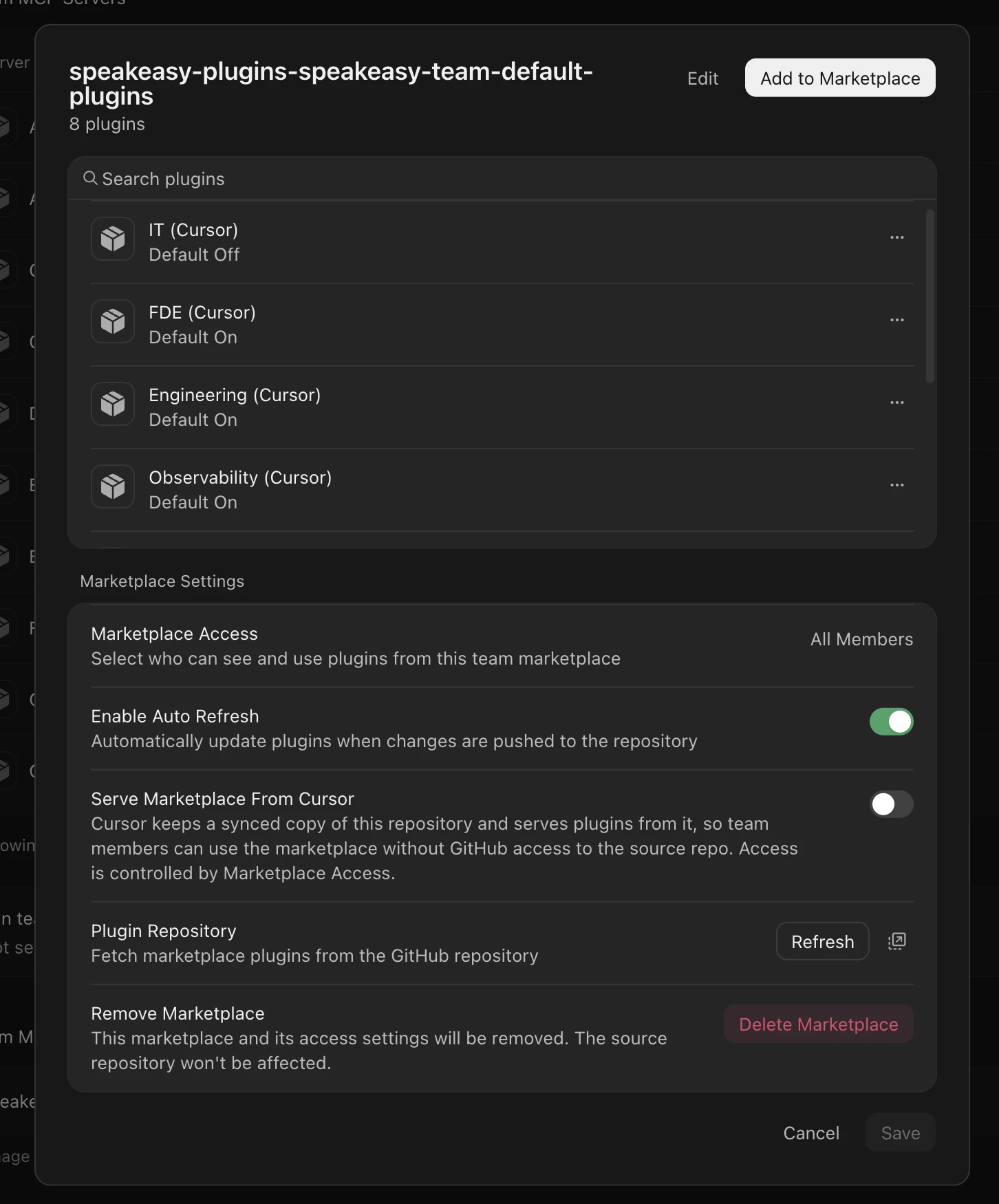
Serve the marketplace from Cursor
Section titled “Serve the marketplace from Cursor”By default, installing from the imported marketplace depends on access to the private GitHub repository. In the marketplace’s settings in Cursor, turn on Serve Marketplace From Cursor so Cursor serves a synced copy and team members can install the plugins without GitHub access to the repository. Only a repository admin can turn this on, which is why collaborators are added with admin permission.
Make the observability plugin required
Section titled “Make the observability plugin required”In Cursor’s team marketplace settings, mark the <org>-observability-cursor plugin as required. Required plugins are on for every team member without per-user setup, and coverage gaps mean unobserved sessions, so this is the setting for a real rollout. Mark other plugins required when every member should have their servers and skills, or leave them available for members to install themselves.
How members receive plugins
Section titled “How members receive plugins”Members of the Cursor team get required plugins automatically and can install any other plugin in the marketplace from Cursor. How a plugin’s MCP servers authenticate depends on the server:
- Servers that use OAuth prompt each member to sign in on first use.
- Private servers carry a consumer-scoped API key that the platform mints and embeds at publish time, so they work without per-user configuration.
- Public servers that declare environment-backed headers read those values from the member’s environment, so each member sets the listed environment variables before the server connects.
The observability plugin carries its own hooks-scoped API key, embedded at publish time, so members don’t configure a key for it either.
Other ways to install
Section titled “Other ways to install”The device agent installs the organization’s marketplaces and plugins into Cursor on enrolled machines and reapplies them every minute, so the configuration survives settings resets and account switches. Organizations running it get per-device delivery without relying on the Cursor team marketplace.
Each plugin’s Install menu also offers Download as zip — Cursor, and the Observability card offers the same for the observability plugin. The ZIP holds the same Cursor package with its files at the root of the archive. Each observability download mints a fresh hooks-scoped API key and embeds it in the package.
Updates
Section titled “Updates”Each publish stamps new versions into the Cursor plugin manifests, so a republished plugin is always seen as newer than the copy a member already has. Feature plugins get a new version on every publish. The observability plugin’s version moves only when its hook content changes, such as a hooks runtime update or a change to the org’s hooks settings, so unrelated publishes don’t churn it.
After changing a plugin’s servers or skills, click Sync changes on the marketplace card, or Sync on the plugin’s detail page, to push the change to the repository. With Enable Auto Refresh on, Cursor picks up the change automatically. Otherwise, click Refresh under Plugin Repository in the marketplace settings.
Assignments
Section titled “Assignments”Cursor team marketplace installs don’t apply plugin assignments. Cursor controls reach instead: Marketplace Access decides which members see the marketplace, and each plugin’s Default On or Default Off setting, or marking it required, decides whether it is on for them. To deliver a plugin to specific roles, members, or directory groups, use the device agent, which honors assignments on each device’s next sync.
How the observability plugin behaves in Cursor
Section titled “How the observability plugin behaves in Cursor”The Cursor observability plugin registers hooks for Cursor’s native events: sessionStart, beforeSubmitPrompt, preToolUse, postToolUse, postToolUseFailure, beforeMCPExecution, afterMCPExecution, afterAgentResponse, afterAgentThought, stop, and sessionEnd. Each hook runs a small bootstrap script that downloads a pinned, checksum-verified hooks runtime on first use, so the first session on a machine can take longer to start.
- Attribution. Cursor includes the signed-in user’s email in every hook payload, and the platform uses it to attribute sessions and tool calls to a person. Unlike Claude Code and Codex, Cursor needs no OpenTelemetry configuration for attribution.
- Captured data. Prompts, agent responses, and native and MCP tool calls feed Agent Sessions and Tool Logs, and token counts from agent responses feed usage metrics. What is recorded follows the org’s logging settings.
- Blocking. The prompt and pre-tool hooks are decision points. Risk policies can block a prompt or tool call, a warn policy challenges a tool call before it runs, and shadow MCP policies block calls to unapproved MCP servers. The block reason is shown to both the member and the agent.
- Failure behavior. Cursor lets an action through by default when a hook crashes or times out. The plugin registers
sessionStartand the decision hooks as fail-closed so a broken hook doesn’t silently allow traffic. Behavior during a platform outage follows the Fail Open During Outages setting in Logging and telemetry.
Spend comes from the Cursor Admin API
Cursor hooks report token counts but not dollar cost. To see Cursor spend on Costs, connect the Cursor integration, which imports organization-level usage and spend from the Cursor Admin API. The integration complements the plugin and doesn’t capture sessions or enforce policies.
Cursor Cloud agents
Cursor Cloud agents load hooks from the repository rather than from team plugins. Instrument them with a checked-in hook manifest and a one-shot device agent reconcile at session start, as described in Cursor Cloud.
Verify
Section titled “Verify”- Confirm the observability plugin appears as installed in Cursor for a team member.
- Execute any tool call: use an MCP server, or ask the agent to run
echo hi there. - Open Tool Logs in the dashboard. The tool call should appear immediately (for a local tool call, set the Type filter to include local tools).