Identity / Workload identity
Workload identity
Let CI jobs, Kubernetes pods, and other workloads connect as an agent by exchanging the identity token their own platform issues, with no stored secret. Set up trusted issuers and admitted subjects in the Access Hub.
Workload identity lets a CI job, Kubernetes pod, or other workload connect as an agent without a stored secret. The workload presents the identity token its own platform already issues, such as a GitHub Actions OIDC token, and exchanges it for a short-lived access token. The workload acts as its agent and inherits that agent’s permissions in full.
Access requirements
Section titled “Access requirements”Any member who can create an agent can give it a workload credential. Managing trusted platforms in the Access Hub requires workload:read and workload:write, which only the Admin role holds by default.
When to use workload identity
Section titled “When to use workload identity”Choose the credential that fits where the agent runs:
| API key | Workload identity | |
|---|---|---|
| Runs in | Any runtime | Runtimes whose platform issues identity tokens, such as GitHub Actions, Kubernetes, SPIFFE, and GCP |
| Secret to store | Yes, the key | None |
| Token lifetime | Up to one year, revocable | 15 minutes or one hour, with no refresh token |
| Servers with per-user OAuth | Supported | Not supported |
Workload identity removes the risk of a leaked long-lived key. Use an API key for laptops, hosted agents, and any runtime without a platform identity token.
Set up workload identity
Section titled “Set up workload identity”Start the New agent identity wizard as for any agent. In the Credential step, choose Workload identity and fill in the settings that appear.
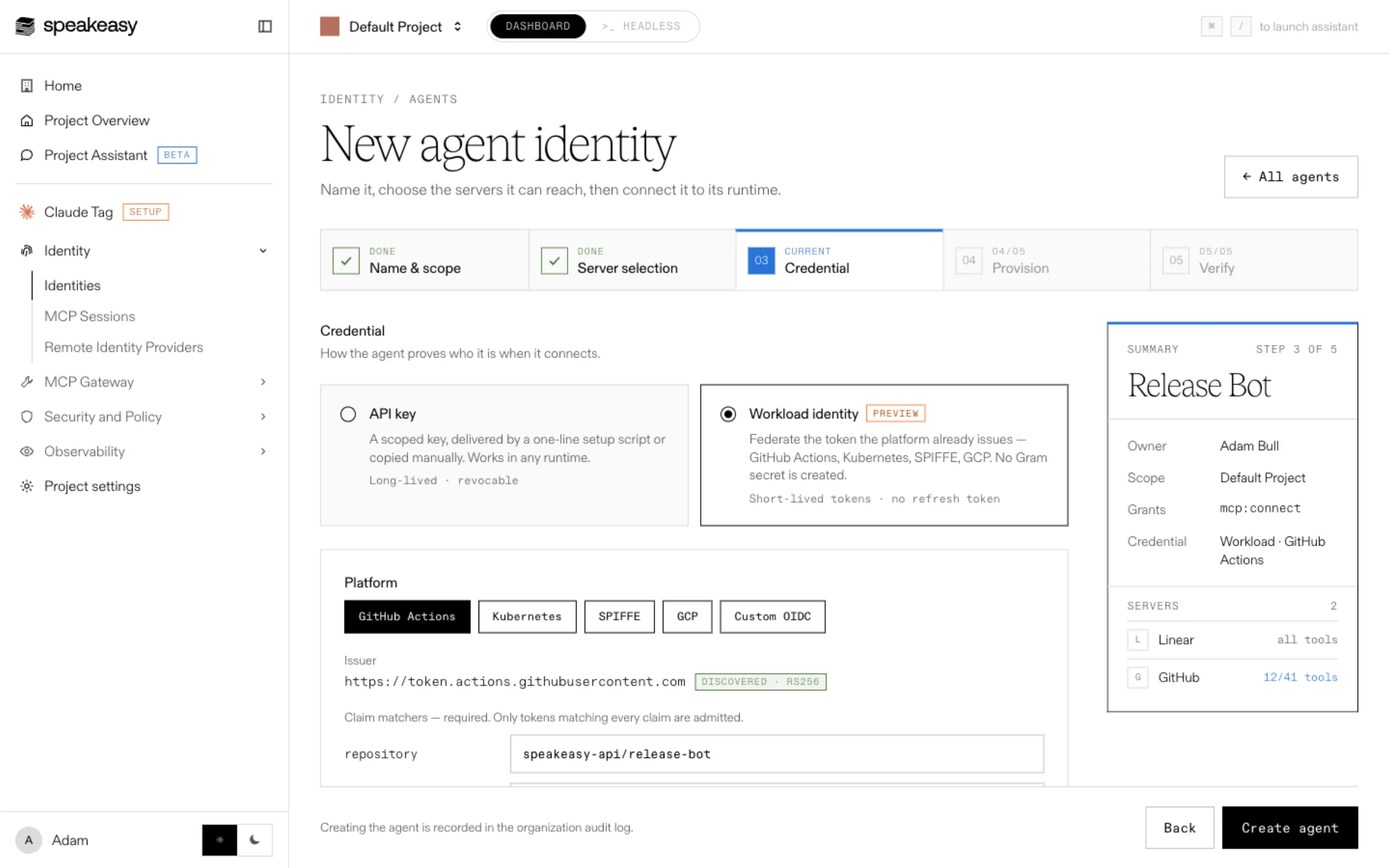
- Platform: the platform the workload runs on, or Custom OIDC for any other OpenID Connect issuer.
- Issuer: the platform’s token issuer URL. The wizard fills it in for known platforms and checks that its signing keys can be discovered.
- Claim matchers: the claims a token must carry to be admitted, such as
repositoryandreffor GitHub Actions. A token is accepted only when it matches every claim. These matchers are the security boundary: a platform such as GitHub Actions signs tokens for every customer’s jobs, so a valid signature alone proves nothing. Match as narrowly as possible, for example on a specific repository and branch. - Session duration: 15 min or 1 hour. Shorter sessions limit how long a stolen token stays useful.
Select Create agent.
Exchange a platform token
Section titled “Exchange a platform token”The Provision step shows a snippet tailored to the agent’s platform, with the exact audience and token endpoint filled in. Copy it into the workload’s job or startup script.
The snippet requests an identity token from the platform, posts it to the agent’s token endpoint using the OAuth JWT bearer grant, and sends the returned access token as a bearer token on MCP requests. For GitHub Actions, the workflow needs the id-token: write permission. No client ID or secret is involved.
The access token can’t be refreshed. When it expires, the workload requests a fresh platform token and exchanges it again. Use a fresh platform token for each exchange, because a token with a jti claim is accepted only once.
Test an assertion
Section titled “Test an assertion”To check a token before the workload runs, use Test an assertion in the Provision step. Paste a sample JWT from the workload and select Test to see whether it would be accepted and, if not, why. At runtime, every refusal returns the same invalid_grant error so callers can’t probe the trust policy, which makes this test the quickest way to debug claim matchers.
Per-user OAuth servers
Section titled “Per-user OAuth servers”Servers that use per-user OAuth reject workload sessions, because a workload has no person to connect an upstream account. When the agent includes such a server, the wizard shows a warning. Use an API key for that agent, or remove those servers.
Manage trusted platforms in the Access Hub
Section titled “Manage trusted platforms in the Access Hub”The Access Hub, under Organization settings > Secure, lists every issuer the organization trusts and the subjects admitted under each one. Trust applies to MCP servers in every project.
- To trust a new issuer, select Register new access and enter its issuer URL and signing keys URL. Trusting an issuer admits nothing on its own.
- To admit a workload, open the issuer, select Allow access, enter the token subject, and choose the agent it acts as. End the subject with
*to admit every subject that starts with the text before it. Use a prefix only when the issuer, not the caller, controls the varying part. - To stop a workload, select Remove on its row, or Stop trusting to remove an issuer and every workload under it.
Removing access doesn’t end sessions already issued. To stop a workload immediately, also revoke its sessions on MCP Sessions, or suspend the agent. Changes to the trust policy are recorded in Audit Logs.