Identity / Enterprise Managed Auth
Enterprise Managed Auth
Let people reach MCP servers and the services behind them with their Okta identity, without a separate connect step per service, using Enterprise Managed Authorization and Cross App Access (XAA).
Enterprise Managed Auth lets a person sign in once with Okta and reach every MCP server the organization has set up for them, without a separate OAuth prompt for each service behind those servers. The platform implements the MCP Enterprise Managed Authorization (EMA) extension, which Okta supports as Cross App Access (XAA). Instead of asking each person to connect Linear, Notion, or another service one at a time, it asks Okta for access on that person’s behalf. Okta decides which people may reach which apps, under policies the organization controls centrally, and removing access in Okta stops it everywhere.
Access requirements
Section titled “Access requirements”Setting up Enterprise Managed Auth requires the org:admin scope, which only the default Admin role holds, and an Okta administrator who can create apps, register AI agents, and grant API scopes.
How Enterprise Managed Auth works
Section titled “How Enterprise Managed Auth works”Without Enterprise Managed Auth, each MCP server that uses User Identity asks each person to connect the upstream service, creating separate grants the organization cannot see or revoke from one place. With Enterprise Managed Auth, an Okta administrator connects the platform to each resource app once and assigns the people allowed to use it. The platform signs people in through Okta and, on each tool call, trades the person’s Okta identity for an access token at the downstream service.
Enterprise Managed Authorization works in two directions. Inbound, an MCP client presents an identity assertion it already holds to the platform, acting as the authorization server, in place of an interactive sign-in. Outbound, the platform obtains tokens for downstream services by identity chaining, which is what this page covers. See OAuth and upstream providers for how the two fit together.
The following diagram shows one person reaching one downstream service.
sequenceDiagram
    participant Client as MCP client
    participant CP as AI Control Plane
    participant Okta
    participant AS as Downstream authorization server
    participant MCP as Downstream MCP server
    Client->>CP: Connect to an MCP server
    CP->>Okta: Redirect the person to sign in
    Okta-->>CP: ID token and refresh token
    CP-->>Client: Consent screen, service shown as connected
    Client->>CP: Tool call
    CP->>Okta: Token exchange: ID token for an ID-JAG
    Okta-->>CP: ID-JAG for the downstream issuer
    CP->>AS: JWT bearer grant with the ID-JAG
    AS-->>CP: Access token
    CP->>MCP: Tool call with the access token
- Sign in. The person signs in through Okta, with its MFA and conditional access policies. The platform keeps the returned ID token and refresh token, encrypted, as the person’s delegation.
- Exchange. On a tool call, the platform asks Okta to exchange the ID token for an Identity Assertion JWT Authorization Grant (ID-JAG) addressed to the downstream service. Okta checks that the person is assigned and that a resource connection exists for that service.
- Redeem and call. The platform presents the ID-JAG to the downstream authorization server, receives an access token for that resource and its scopes, and runs the tool call as that person.
Requirements
Section titled “Requirements”- Okta. Okta is the supported identity provider.
- Provisioned people. Each person must already be a member of the organization, typically through directory sync, and assigned to the Okta app linked to the Speakeasy AI agent. Sign-in does not create accounts.
- Supported downstream servers. The downstream server needs its own authorization server, configured as a remote identity provider, that advertises the identity assertion grant and has a client registered for the platform. Servers without support keep using the ordinary connect flow.
Set up Enterprise Managed Auth
Section titled “Set up Enterprise Managed Auth”Setup happens partly in the dashboard and partly in the Okta Admin Console.
Connect Okta
Section titled “Connect Okta”- Open IDP and SSO > Identity providers and select Connect Okta on the Okta card.
- Enter the Okta organization URL, such as
https://example.okta.com, and select Create connection. - Follow the Okta setup checklist in the Okta Admin Console. It walks through creating an API Services app for Speakeasy that authenticates with the public key URL the checklist shows, granting read-only scopes for apps, users, and groups, and assigning read-only admin roles.
- Paste the app’s Client ID and select Submit and verify.
When verification passes, the Okta card shows Verified and a Manage Okta button.
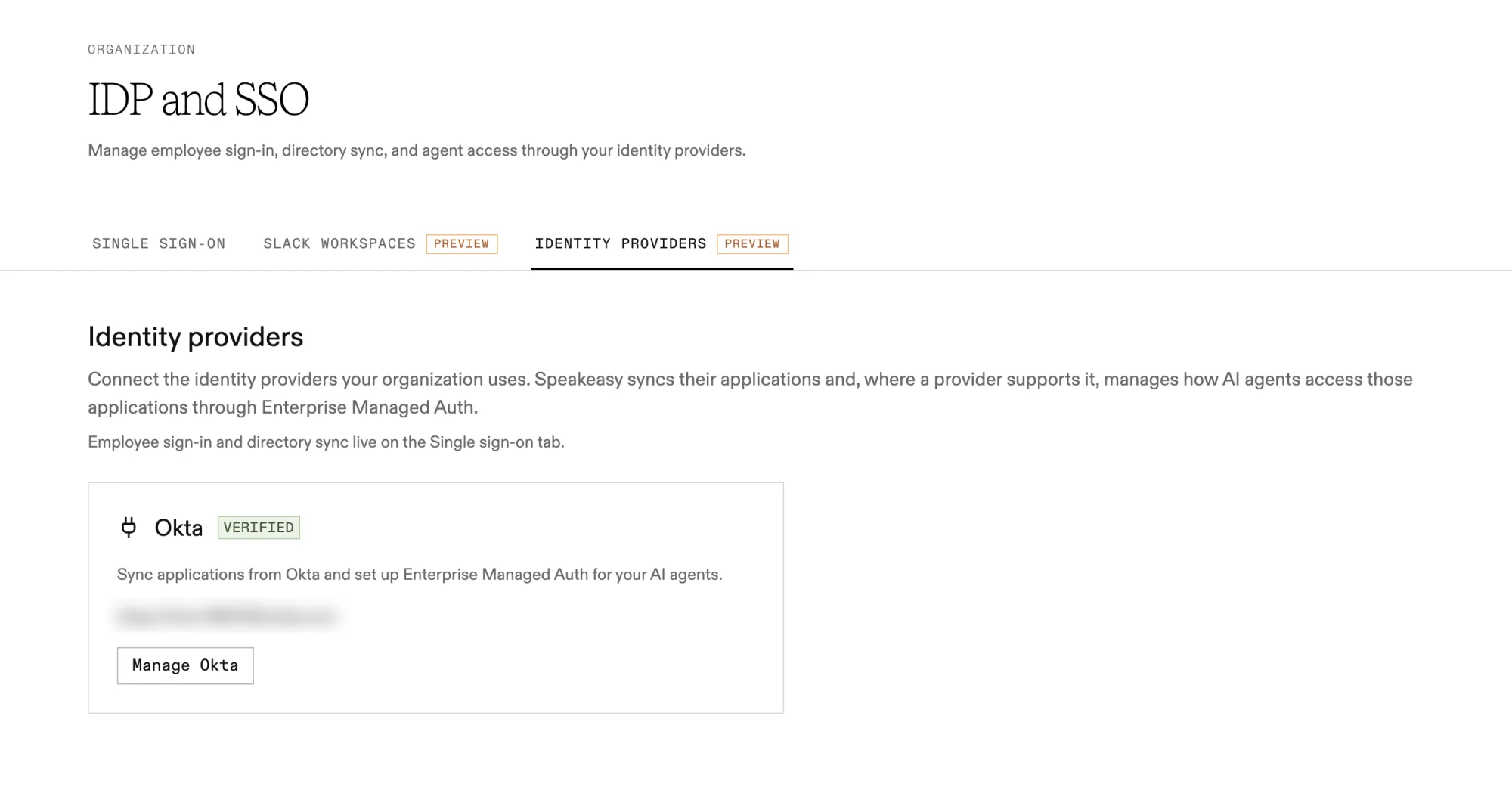
If verification fails, the Setup tab lists what to fix, such as a missing scope. Select Re-verify after changing the app in Okta.
Sync applications
Section titled “Sync applications”Select Manage Okta and open the Applications tab. Apps sync from Okta on a schedule, and Update now syncs immediately. The tab also suggests catalog MCP servers that match apps the organization already uses.
Register the Speakeasy AI agent
Section titled “Register the Speakeasy AI agent”Okta issues Cross App Access assertions only through a registered AI agent. Open the Cross App Access tab and follow the Cross App Access setup checklist. The tab also counts the servers still waiting for confirmation.
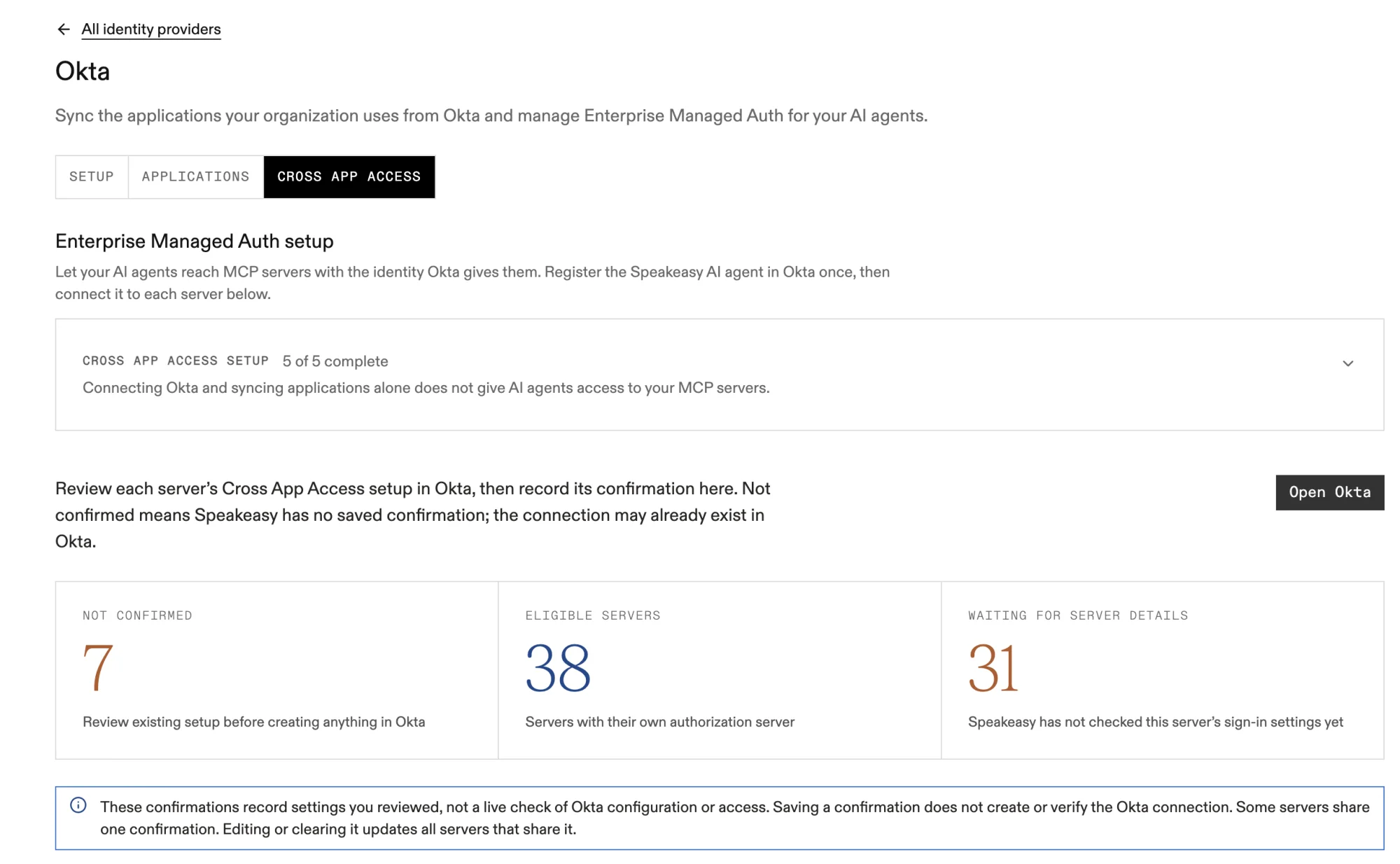
The checklist covers three steps:
- In Okta, register an AI agent named Speakeasy Agent under Directory > AI Agents, and let Okta create a new OIDC app linked to it.
- Activate the linked app and assign the users or groups who use MCP servers through the platform.
- Back on the Cross App Access tab, enter the Agent ID and, optionally, the linked app’s client ID, then select Save agent. With the client ID saved, the platform reports when the linked app is inactive or has no assignments.
Trust Okta for MCP sign-in
Section titled “Trust Okta for MCP sign-in”On the organization’s user session issuer, select Okta as the trusted identity provider and pick the client registration the platform uses at Okta. Allow the refresh token grant and the offline_access scope on that Okta app so delegation survives past the ID token’s lifetime. Then select that issuer on each MCP server that should use Enterprise Managed Auth.
Connect each server in Okta
Section titled “Connect each server in Okta”The AI agent needs one resource connection in Okta per downstream service. The Cross App Access tab lists each eligible server with the Resource, Client ID, and Scopes to use.
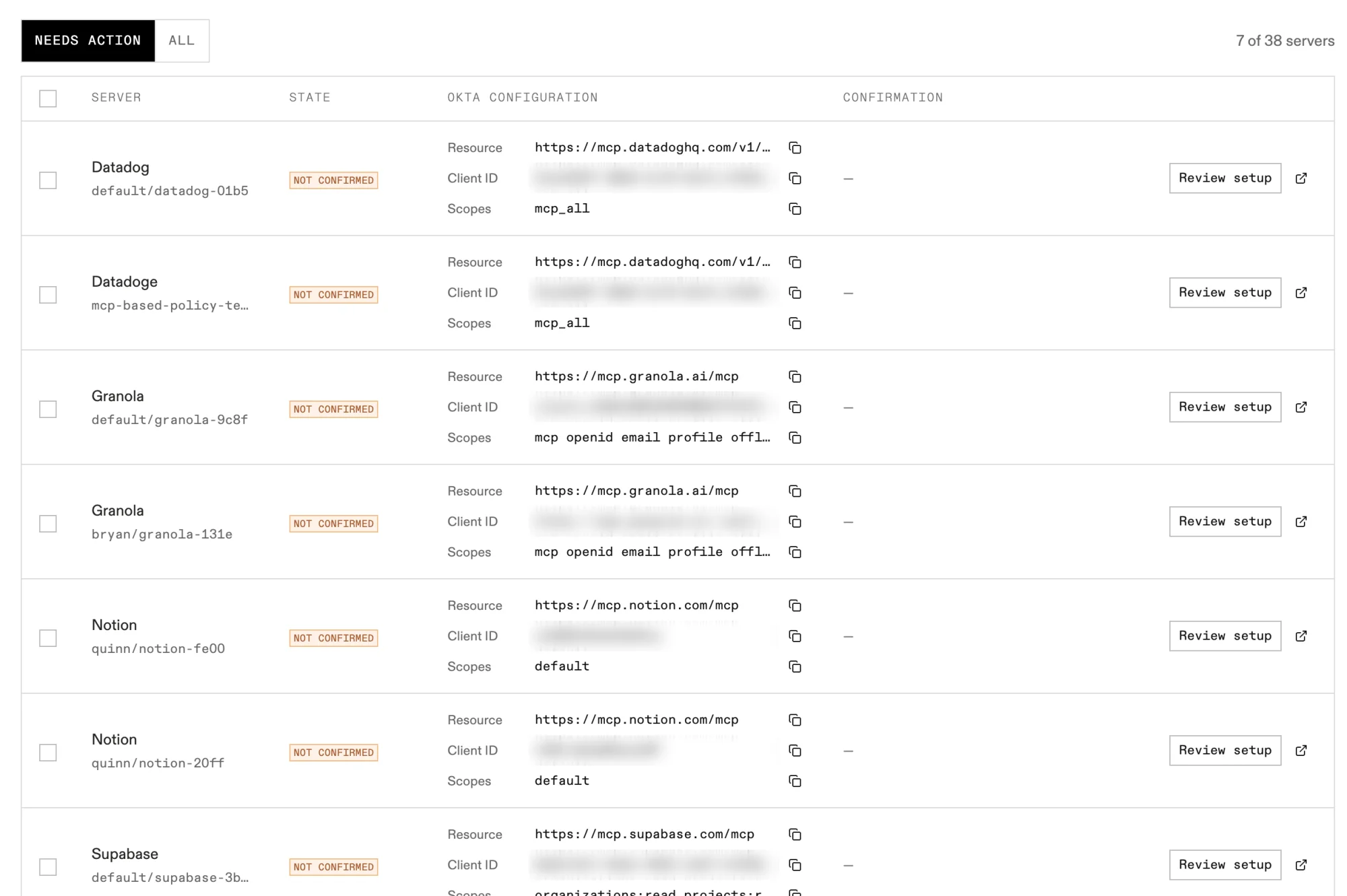
- Select Review setup on a server.
- Select Open Okta connections. Reuse an existing connection for that resource, or create one with the Resource, Client ID, and Scopes from the dashboard.
- Enter the Issuer URL from the resource app in Okta, under Resource Server > Cross App Access (XAA). Use the issuer of the service this MCP server connects to, not a Speakeasy app and not the MCP server URL.
- Select Confirm setup.
Servers that share an Okta app and Issuer URL can be selected together and confirmed in one step.
A confirmation records the settings an admin reviewed. It is not a live check: saving it does not create the connection in Okta or prove that access works. A server shows as verified once a real token exchange succeeds, or as not working with the reason when one fails.
What people see
Section titled “What people see”The consent screen still appears on every sign-in. Services the platform can reach through Okta show as Connected through your organization, with no redirect to the service and no disconnect control, because Okta manages the grant. Services without Cross App Access support keep their ordinary Connect cards.
When Okta access is missing or has lapsed, the card asks for a fresh enterprise sign-in. A policy denial in Okta never falls back to an interactive connect flow, so Enterprise Managed Auth cannot be used to work around the organization’s Okta policy.
Renewal, revocation, and deprovisioning
Section titled “Renewal, revocation, and deprovisioning”- Renewal. Tokens renew on demand. When a tool call needs a downstream token and the stored one has expired, the platform uses the refresh token to get a new ID token, requests a new ID-JAG, and redeems it. Without a refresh token from Okta, the person signs in again once the ID token expires.
- Revocation and deprovisioning. Deactivating a person in Okta, unassigning them from the linked app, or removing a resource connection makes Okta refuse the next renewal or exchange. The platform then asks the person to sign in again and does not fall back to another credential. Downstream tokens already issued stay valid until they expire, so revocation is not instantaneous.
- Platform sessions. The MCP session still ends at the server’s session length. Ending a session in the platform does not revoke anything in Okta. See Revoking access.
To check a setup end to end, select Sign in as yourself to check. It runs a real sign-in and exchange as the acting admin and reports, per downstream service, whether it worked or which stage failed. The Platform MCP’s get_xaa_readiness tool reports the same readiness for one server. See Readiness and troubleshooting.
Limitations
Section titled “Limitations”- Okta is the only supported identity provider, and delegation requires OIDC sign-in. SAML sign-in does not create a delegation.
- Delegation acts for people. For agents and workloads acting on their own, see Agent identity.
Related
Section titled “Related”- Remote identity providers, where downstream authorization servers and their clients are configured
- Upstream credentials, for the per-user and shared credential modes Enterprise Managed Auth complements
- User sessions, for sign-in, the consent screen, and token lifetimes
- IDP and SSO, for employee sign-in and directory sync