MCP Gateway / Deployments
Deployments
Deployment history for the project's sources, with retry and rollback actions.
The Deployments tab shows the deployment history for the project’s sources. Open it from MCP Gateway > MCP in the project sidebar, then select the Deployments tab. The gram CLI prints a link to the deployment page after every push, so this is also where a npm run push lands.
A source only becomes a connectable tool once deployed: uploading an OpenAPI document or pushing functions triggers a deployment that builds the source into tools. Every push deploys every source in the project together, so a deployment is the version its sources and tools arrive in.
A deployment is a snapshot of the project at one point in time. It holds every source in the project (the uploaded assets) and everything generated from them, such as logs and tool definitions. The tools served by the project’s MCP servers always come from the most recent successful deployment, called the active deployment.
Access requirements
Section titled “Access requirements”Viewing this page requires the project:read scope. Retry, rollback, and other deployment row actions require the project:write scope. The default Admin role includes full access; the default Member role can view deployment history, but row action menus require project:write.
The Deployments tab is shown by default and can be switched off for an organization. When it is hidden, deployment detail pages still open from the links the CLI prints and from a source’s Versions tab.
Creating deployments
Section titled “Creating deployments”A deployment is created whenever a source is added, updated, or removed. Uploading an OpenAPI document and pushing a function both trigger one. Servers added from the MCP Catalog are remote servers and do not create a deployment. Only catalog servers installed before that change live in a deployment. Deployments are immutable: each change produces a new deployment that carries forward the unchanged sources from the previous one.
Once a deployment finishes, the tool definitions generated from it can be exposed on an MCP server. When a deployment updates existing sources, the dependent tool definitions and MCP servers update automatically.
Deployment lifecycle
Section titled “Deployment lifecycle”Each deployment moves through a fixed set of statuses:
- Created: the deployment is recorded, but processing has not started.
- Pending: sources are being processed into tool definitions.
- Completed: processing succeeded, and the deployment becomes the active deployment.
- Failed: processing failed, and the previous successful deployment stays active.
A failed deployment never replaces the active one, so MCP servers keep serving the last good set of tools until a retry or a new push succeeds.
Deployment list
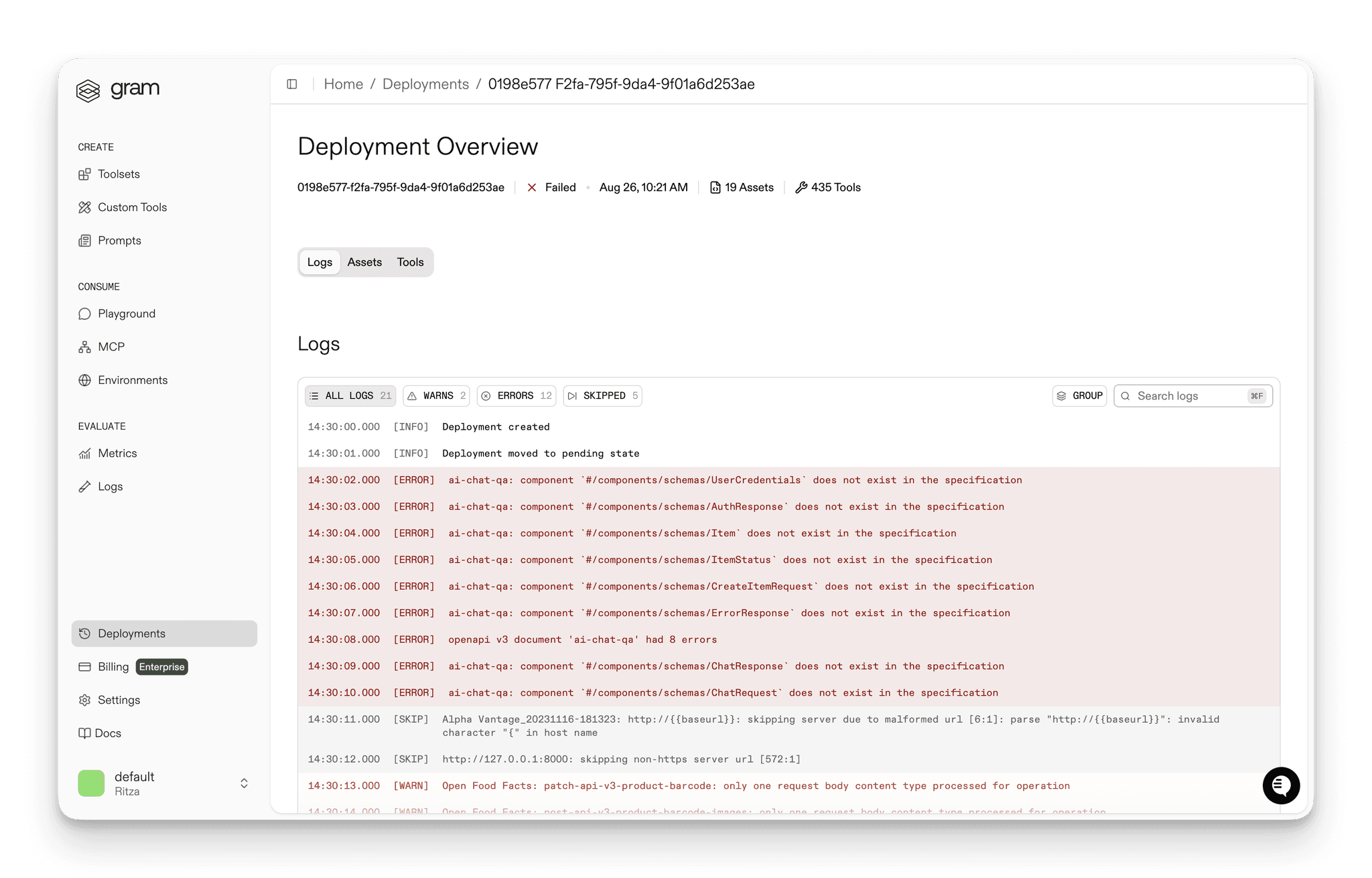
Section titled “Deployment list”The list shows each deployment with its ID, Status, when it was Deployed, and how many Assets and Tools it contains. The deployment currently serving tools carries an Active badge; older deployments are dimmed as history. Two actions manage failures and rollbacks:
- Retry Deployment: re-run the latest deployment after a failure
- Rollback: re-run an older completed deployment, which makes it the active one again
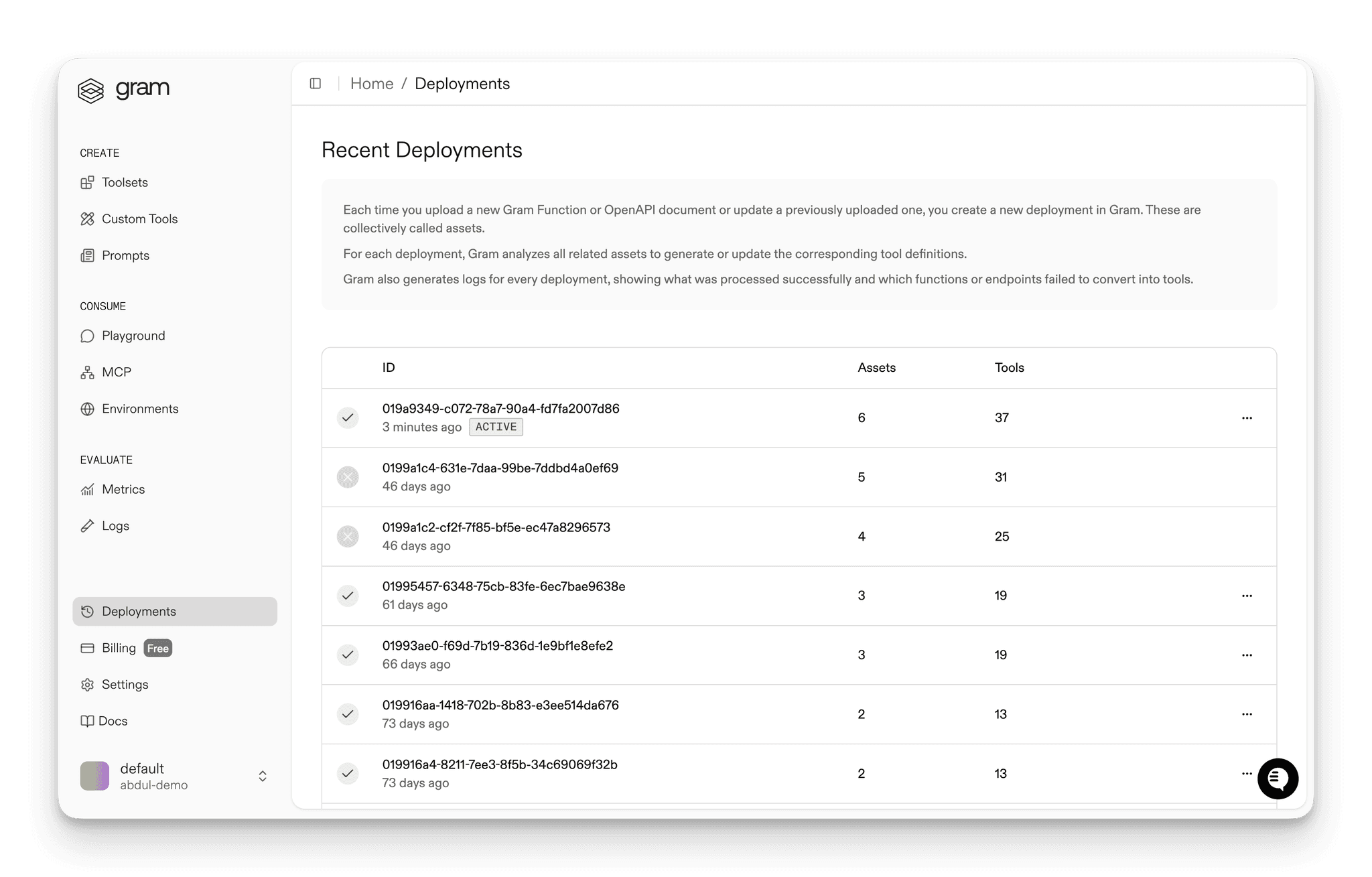
Opening a deployment shows its detail page with Logs, Assets, and Tools tabs, plus a Retry Deployment or Redeploy button depending on whether it is the latest deployment. The logs show what was built and any errors.
When the latest deployment has failed, the Sources tab surfaces a Deployment errors button that links here, and the failing sources are marked in the list.
Troubleshooting
Section titled “Troubleshooting”Start troubleshooting from the deployment detail page. Its Logs, Assets, and Tools tabs show what the deployment contained and what it produced. The logs are the main tool for debugging a source that made a deployment fail, and for finding out why a tool was skipped when it was created or updated from a source.