MCP Gateway / Configuring environments
Configuring environments
Learn how to configure and use environment variables in Speakeasy Functions.
Functions read configuration from environment variables. Declare the variables a function needs in code, then supply the values from an environment attached to the MCP server that exposes the function, or let end users supply them from their MCP client.
Access requirements
Section titled “Access requirements”Access requirements
Creating environments and editing their variables requires the environment:write scope, and attaching an environment to an MCP server requires the mcp:write scope. The default Admin role includes both.
Reading environment variables
Section titled “Reading environment variables”Environment variables can be read directly from process.env in Functions. Preconfigured values defined in envSchema can also be accessed from ctx.env in the Functions Framework:
import { Gram } from "@gram-ai/functions";import * as z from "zod/mini";
const gram = new Gram({  envSchema: {    SCHEMA_VALUE: z.string(),  },}).tool({  name: "fetch_data",  description: "Fetch data from an external API",  inputSchema: { endpoint: z.string() },  async execute(ctx, input) {    const arbitraryValue = process.env.ARBITRARY_VALUE;    const schemaValue = ctx.env.SCHEMA_VALUE;    const response = await fetch(`${arbitraryValue}/${input.endpoint}`);    return ctx.json(await response.json());  },});
export default gram;
A hand-written bundle reads environment variables defined in the project the same way. For example, a function reads a variable named MY_MCP_MULTIPLIER from process.env.MY_MCP_MULTIPLIER:
export async function handleToolCall({ name, input }) { switch (name) { case "multiply": return json({ value: input.a * process.env.MY_MCP_MULTIPLIER }); // other cases... default: throw new Error(`Unknown tool: ${name}`); }}Declaring environment variables with envSchema
Section titled “Declaring environment variables with envSchema”Set up the environment variables that end users will provide using envSchema. Environment variables specified in the envSchema can be provided by MCP users via headers or via stored environments.
Using the Functions Framework
Section titled “Using the Functions Framework”Declare environment variables using envSchema in the Functions Framework:
import { Gram } from "@gram-ai/functions";import * as z from "zod/mini";
const gram = new Gram({  envSchema: {    API_KEY: z.string(),    BASE_URL: z.string().url(),  },}).tool({  name: "api_call",  inputSchema: { endpoint: z.string() },  async execute(ctx, input) {    const baseUrl = ctx.env.BASE_URL;    const apiKey = ctx.env.API_KEY;    const response = await fetch(`${baseUrl}/${input.endpoint}`, {      headers: { Authorization: `Bearer ${apiKey}` },    });    return ctx.json(await response.json());  },});
export default gram;
Using the MCP SDK
Section titled “Using the MCP SDK”Declare environment variables using the variables option with the MCP SDK wrapper:
import { withGram } from "@gram-ai/functions/mcp";import { server } from "./mcp.ts";
export default withGram(server, {  variables: {    API_KEY: { description: "API key for authentication" },    BASE_URL: { description: "Base URL for the API" },  },});
Attaching environments to Functions
Section titled “Attaching environments to Functions”Environment values reach a function through the MCP server that exposes it. First, create an environment under MCP Gateway > Environments with the configuration values to attach. Fill for MCP Server prefills a placeholder entry for every variable the server’s functions declare.
Then attach it to the server:
- Go to MCP Gateway > MCP and open the MCP server built from the function.
- Open the server’s Authentication tab. The Environment Variables section shows which environment is attached, or No environment attached.
- Select the environment created in the first step. Each variable can be set to System (read from the attached environment), User Provided (set at runtime by the connecting client), or Omitted.
These environment values now apply to every caller of the server. Values are resolved in layers, described in Upstream credentials.
Earlier versions of the dashboard attached an environment to the function source itself, from the More Actions () menu on the source card:
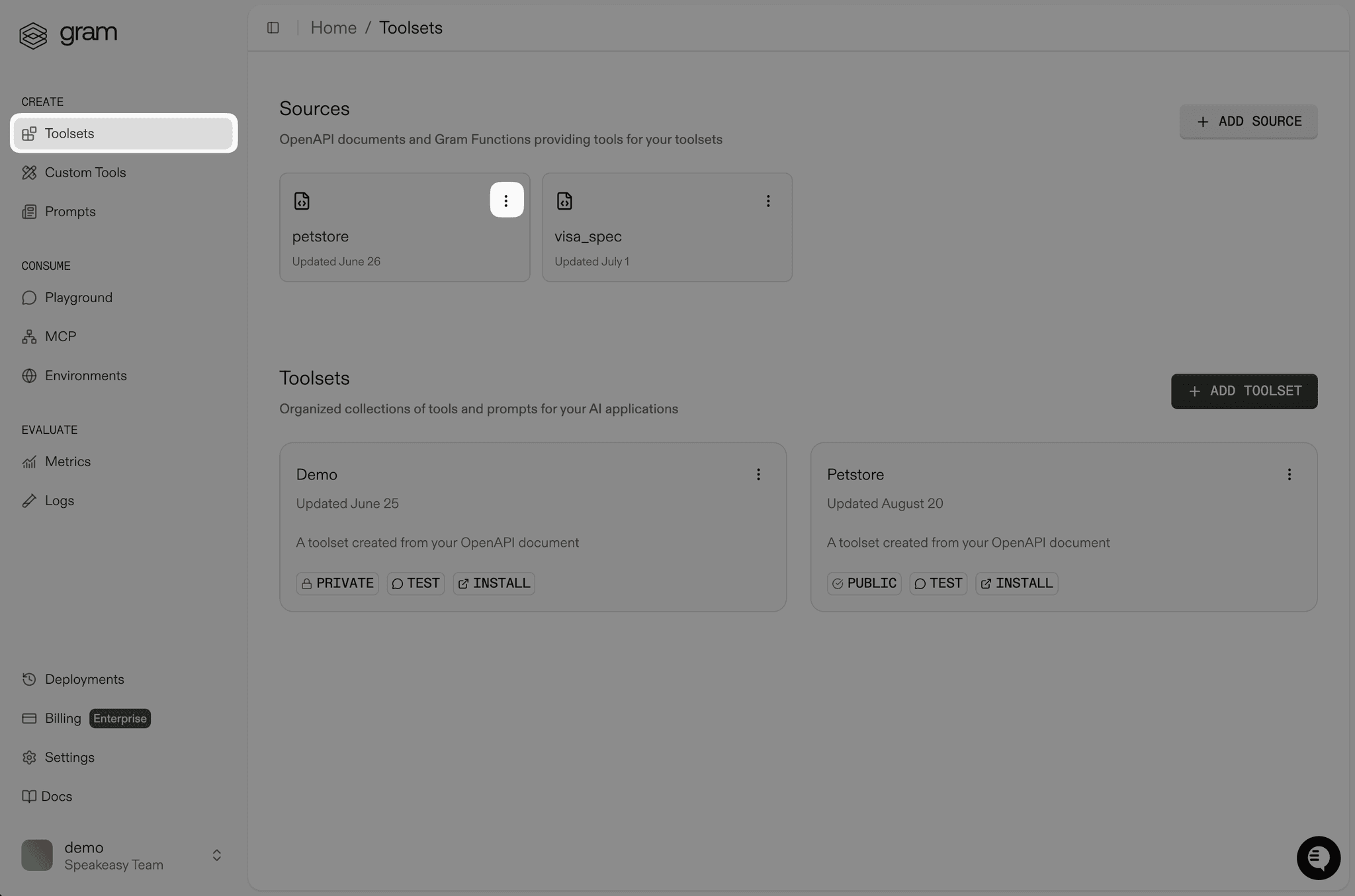
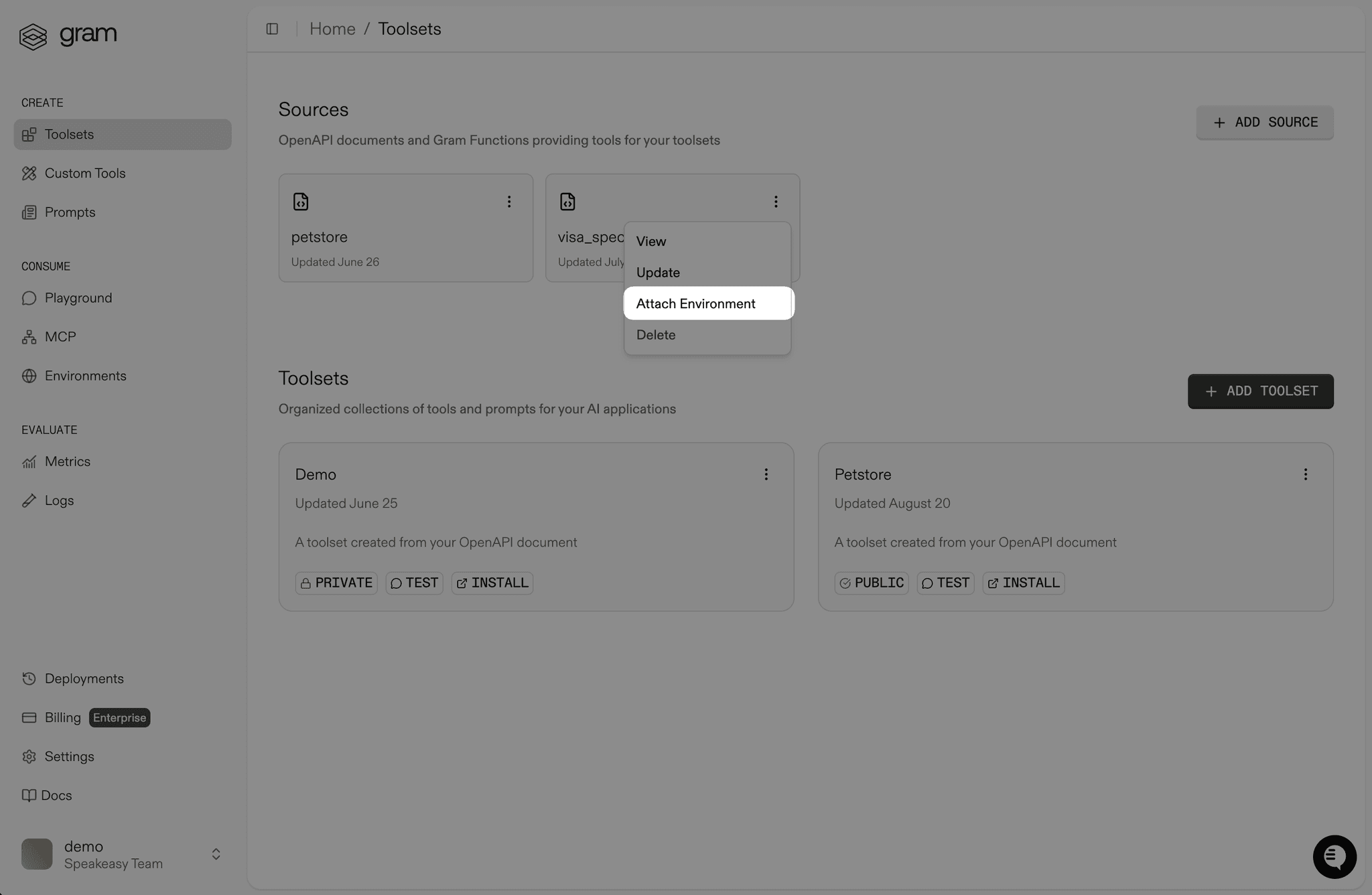
That menu is no longer offered on the Sources tab. Attach the environment on the MCP server instead, as described above.
Warning
A configuration attached to an MCP server applies to all of its users, including users of public MCP servers. Be careful not to include user-specific credentials or tokens that should only be available to certain users.
Providing environment configuration from clients
Section titled “Providing environment configuration from clients”With a platform API key, provide that key and a GRAM_ENVIRONMENT header set to the slug of the environment. For an example of using environments with the SDKs, see the guide to using environments with the Vercel AI SDK.
MCP clients can also be configured to send headers with environment configurations. For more information, check the documentation for installing the MCP server on the client of choice.